STM32+W5500+AIR202 Basic Control - Mobile APP binds W5500 through APPConfig
This section demonstrates that the APP uses APMACBind to obtain the MAC address of W5500, and then achieve MQTT communication with W5500.
3
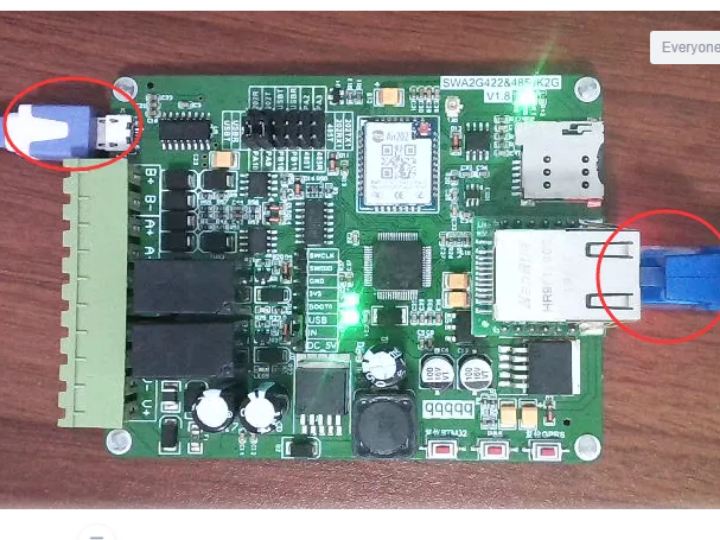
Components
Hardware components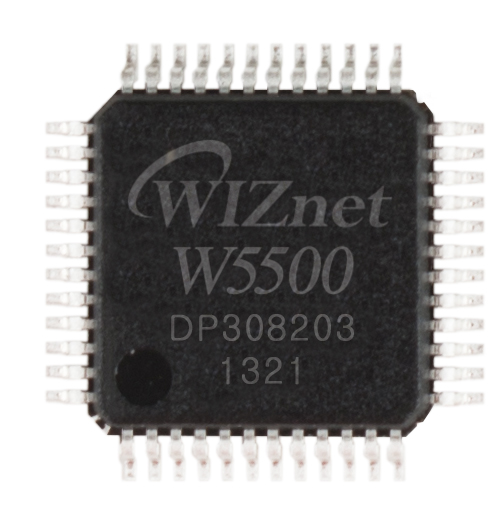
WIZnet - W5500
x 1

Project description
APMACBind method introduction
(Only following in the footsteps of others will only be complacent! We need to solve problems creatively!)
APMACBind is a way I do it myself, this way is currently used by a project.
But that was a project done the year before last to solve the problem of WeChat distribution network binding
However, since the WeChat applet supports UDP, this method has also been eliminated by me (in my heart, it has been eliminated, and there is a simpler way)
However, it is still necessary to talk about it, because this method is more classic! It reflects the flexible use of knowledge.
First, let’s briefly explain how to get the MAC address of the W5500 through the mobile APP.
1. Connect the W5500 to the router and connect to MQTT
2. W5500 obtains the MAC address of the router
3. The topic published by W5500: device/router MAC
4. Connect the mobile APP and W5500 to a router
5. Obtain the MAC address of the router through the mobile APP
6. Mobile APP subscription: user/router MAC
In this way, W5500 can send its own MAC address to the mobile APP through MQTT to realize the binding
As for why the MAC address of the router is used as the subject (because it is unique)
All users use one MQTT server, I need to ensure that they do not interfere with each other when binding at the same time
W5500 uses arp to get the router MAC, I haven't found any other easy way... I'm not good at learning....
Demonstrate the functionality of this section
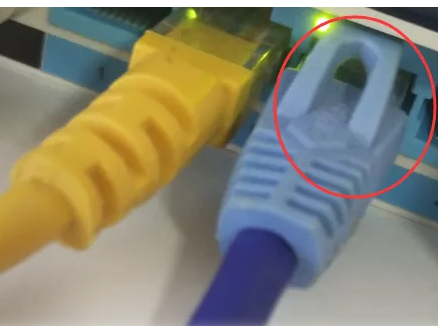
1. Power on the device and connect the network cable to the router
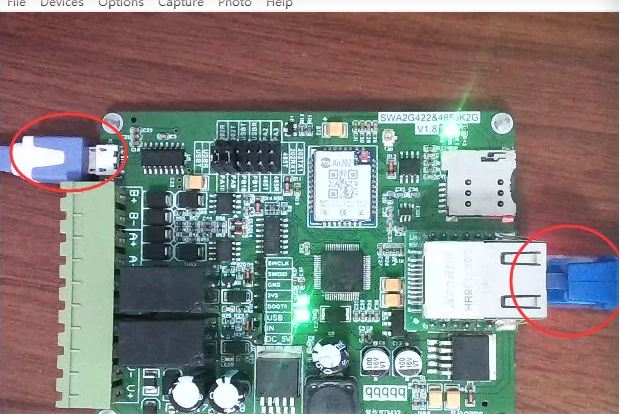
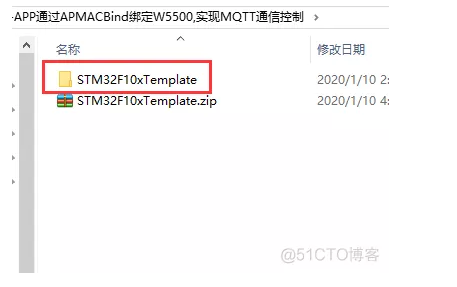
Second, download the MCU program
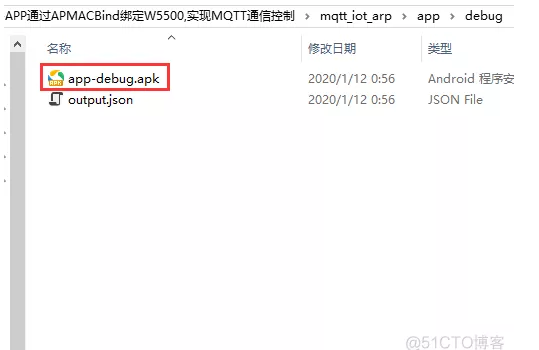
Three, install the mobile APP
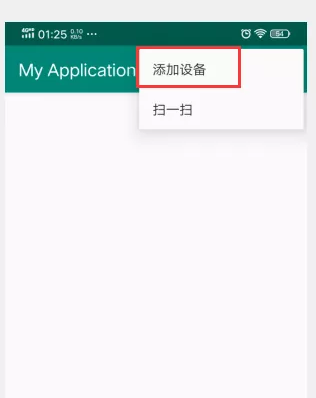
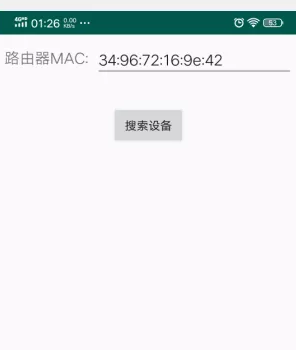
Bind W5500 via APMACBind
1. Select Add Device
Second, please make sure that your mobile phone is connected to the router (the same one connected to W5500)
After connecting to the router, the MAC address of the router will be displayed automatically
3. Determine whether the indicator light of the development board is 1S flashing
Note: 1S flashing indicates that the development board is connected to MQTT, APMACBind needs MQTT,
So you need to make sure that the development board is connected to the MQTT server
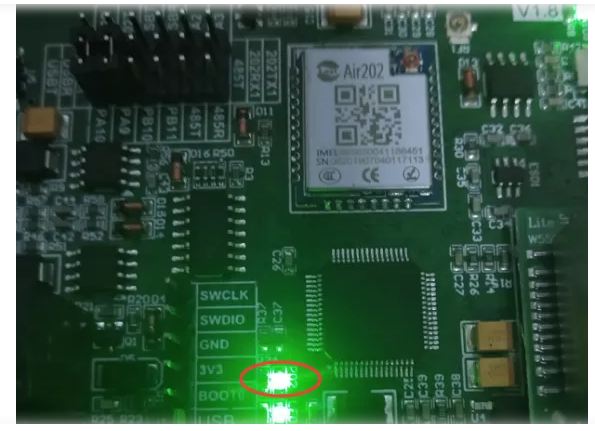
3. Press and hold the PB5 button of the development board until the indicator light flashes quickly
Note: the flicker frequency is accelerate
4. Click the Add Device button on the APP
5. After the search is successful, it will automatically jump to the main page and display the bound device
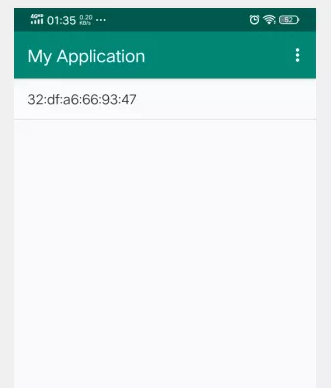
test
1. Click on the device to enter the control page
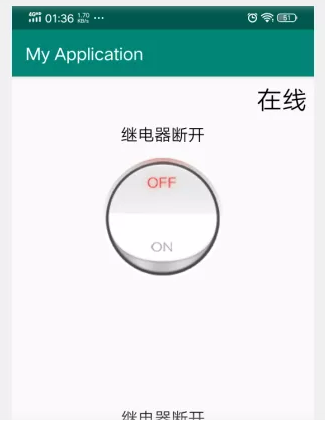
2. Control the pull-in of the first re
3. Control the pull-in of the second relay
SCM source code description (process description)
Note: This section of code is only an added function on the basis of the previous section, and only describes the added functions of this section
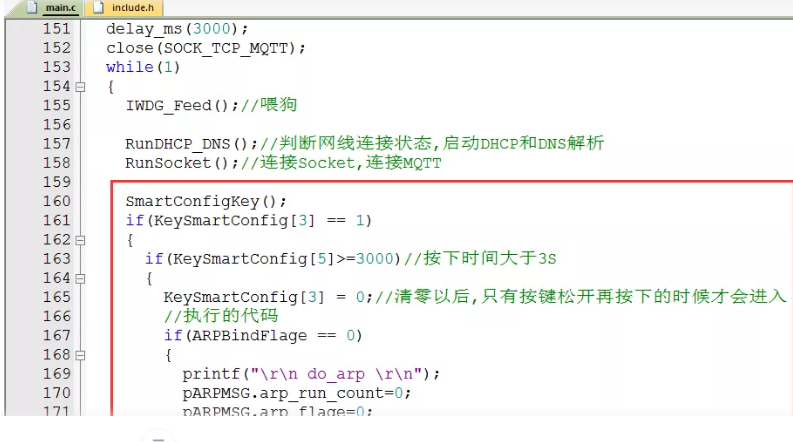
1.1 Click the button for about 3 seconds to get the MAC address of the router and subscribe to the topic
1.2 After successfully subscribing to the topic, send W5500's own MAC address information through MQTT every 1S
The subject of the release is: MAC address of device/router
1.3 Timeout (60S), or stop sending information after receiving "{\"bind\":\"success\"}" message from APP
MCU source code description (ARP description)
First, I use arp to obtain the MAC address information of the router
Second, in order to obtain the MAC of the router and the remote IP of ARP, the gateway I wrote
We previously obtained the gateway during DHCP.
Because our W5500 is connected to the router, the IP of the router is the gateway.
APP source code description
1. Enter the binding page, listen to the broadcast of network signal changes, and then obtain the MAC address of the router connected to the mobile APP
Second, after clicking Add Device
1. Subscribe to the MAC address of the topic device/router
2. Show waiting dialog
3. Start binding timeout
3. Obtain the information sent by W5500
1. Extract the MAC address information and jump to the main page with the information
-----------------------------------
02-STM32+W5500+AIR202基本控制篇-手机APP通过APPConfig绑定W5500,,实现485,422通信和继电器控制
https://blog.51cto.com/u_15127501/4220880

