LOGO-HomeKit-Bridge
A HomeKit Bridge for Siemens LOGO!s
0
Components
Hardware components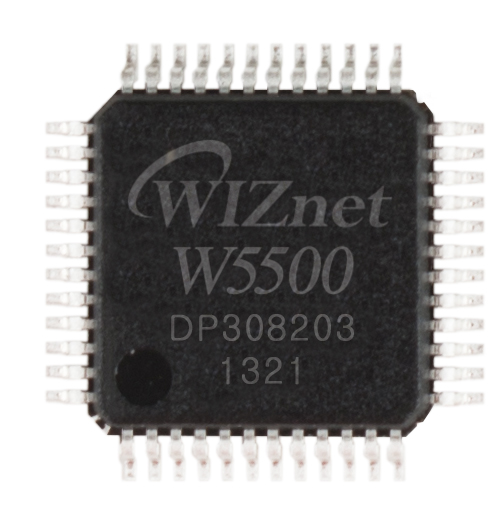
WIZnet - W5500
x 1

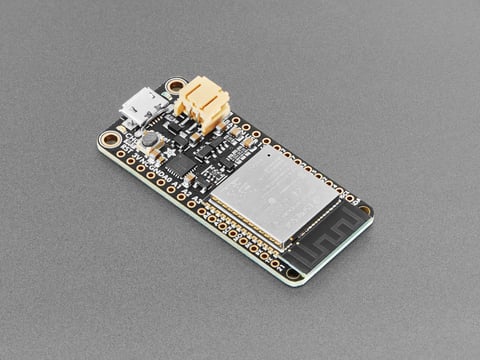
Adafruit - Adafruit HUZZAH32 ?? ESP32 Feather Board
x 1
Project description
Infos:
- Reset bridge after pairing, to announce all Accessories!
- Limits: 10 LOGOs each with 30 Accessories and 10 Sensors
- HomeKit name length limit is 15 characters!
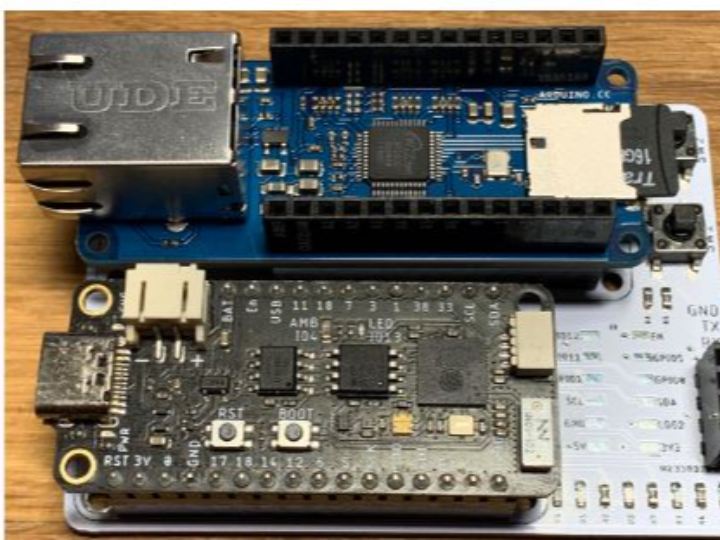
- The connection on the underside of the MKR ETH Shield from the ETH_INT pad to pin 3 must be made by yourself! Without it, the Ethernet connection will not work!
- The mac address is the ethernet mac address from the ESP32-S2 chip and not that from the sticker on the shield.
- In the serial connection you can see the HomeKit configuration QR code. And lots of other useful information and error messages.
Example
Name | Value | Required | Option for | Notes |
|---|---|---|---|---|
garagedoorGetState | "VW40" | yes* | "garagedoor" | Garagedoor Get State - AMn or VWn (0 = Open; 1 = Closed; 2 = Opening; 3 = Closing; 4 = Stopped) |
garagedoorGetTargetState | "VW40" | yes* | "garagedoor" | Garagedoor Get Target State - AMn or VWn (0 = Open; 1 = Closed) |
garagedoorSetTargetState | "VW38" | yes* | "garagedoor" | Garagedoor Set Target State - AMn or VWn (0 = Open; 1 = Closed) |
garagedoorObstruction | "V3.0" | no* | "garagedoor" | Garagedoor Obstruction Detected - Mn or Vn.n |
 {
    "name": "Item-8",
    "type": "garagedoor",
    "garagedoorGetState": "VW40",
    "garagedoorGetTargetState": "VW40",
    "garagedoorSetTargetState": "VW38",
    "garagedoorObstruction": "V3.0"
}
the system operation sequence for the HomeKit Bridge:
- Startup and Initialization: Upon powering on, the system undergoes initialization.
- SD Card Read Signal: LED 1 (green) turns on, indicating an ongoing SD card reading operation.
- Format Signal on Mount Failure: In case of a failed SD card mount, LED 2 (orange) turns on, signifying an SD card formatting operation.
- Error State Indication: If an error occurs, LED 3 (red) illuminates.
- Activation of Web Server at Startup: The web server is activated, allowing users to specify a port number for configuration.
- Resetting HomeKit Data: Holding down the BOOT button for 3 seconds results in a reset of HomeKit data.
- Factory Reset: Holding down the BOOT button for 10 seconds initiates a factory reset of the system.
- SD Card Partition and Format on Mount Failure: Holding down the SW1 button at startup leads to partitioning and formatting of the SD card if mounting fails.
- Verification of HomeKit Configuration QR Code and Information: Through the serial connection, the HomeKit configuration QR code, along with other useful information and error messages, can be viewed.
- Checking Current Configuration Information: Navigating to "/" in a web browser allows users to view the current configuration information.
- Configuration Upload: Going to "/config" in a web browser enables users to upload a new configuration. The file name on the PC is not significant; only the content matters.
- Preservation of Previous Configuration: When a new configuration is saved to the SD card, the previous configuration is not overwritten. Instead, it is renamed to "old_n.cfg" for preservation.
This outlines the basic operational steps of the system. Each step is triggered by specific actions or events.

