How to use OpenAI API with WizFi360
How to use ChatGPT service using OpenAI API with WizFi360.
1
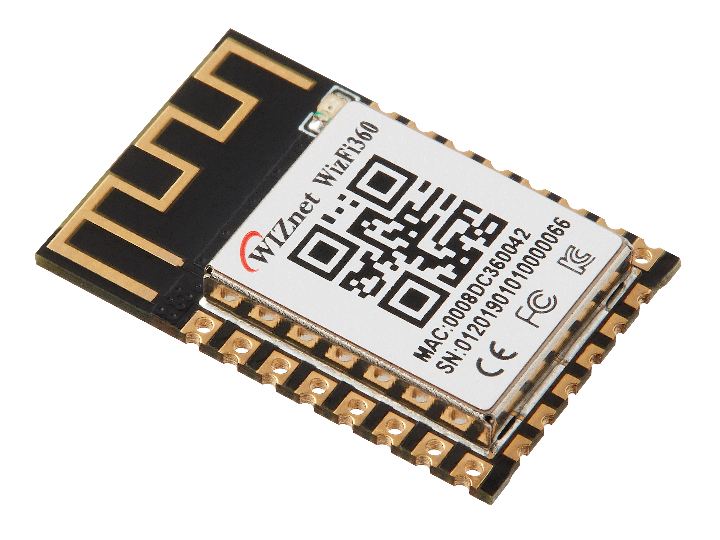
Components
Hardware components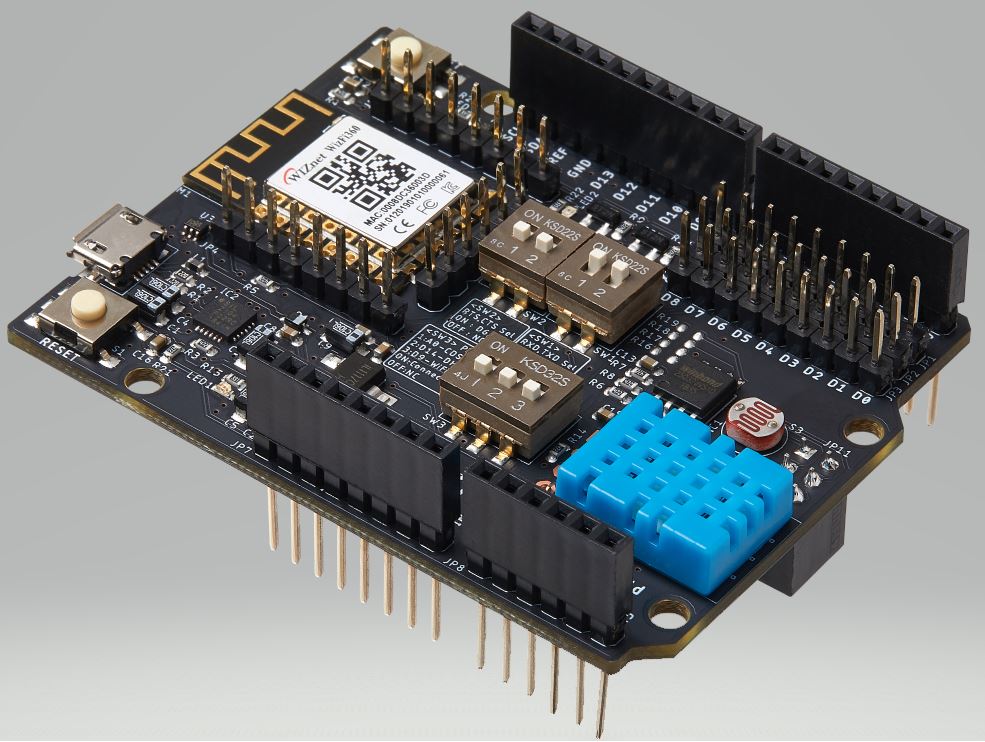
WIZnet - WizFi360-EVB-Shield
x 1

Project description
In this document I will provide instructions how to use ChatGPT using OpenAI with WIZnet's Wi-Fi product - WizFi360-EVB-Shield.
WizFi360-EVB-shield was used as a stand-alone, and after connecting WizFi360-EVB-Shield to desktop with USB type A to USB micro B cable, I entered and used AT commands through serial to use OpenAI and ChatGPT service.
1. Environment Preparation
- Hardware
I'll use WizFi360-EVB-Shield.
Even if it is not WizFi360-EVB-Shield, if WizFi360 is included like WizFi360-EVB-Mini and has the environment where AT commands can be input through serial, it is fine.
- Software
Here I'll use Tera Term as the terminal program.
If you have another terminal program you prefer, feel free to use it.
- OpenAI API Key
OpenAI API key is required to connect to OpenAI and use ChatGPT service.
Follow the steps below to generate the OpenAI API key.
① OpenAI Sign up & Log-in.

② Select API.

③ Select View API keys.

④ Select + Create new secret key and generate API Key.

2. AT command
Refer to the AT commands below and input the AT commands through serial.
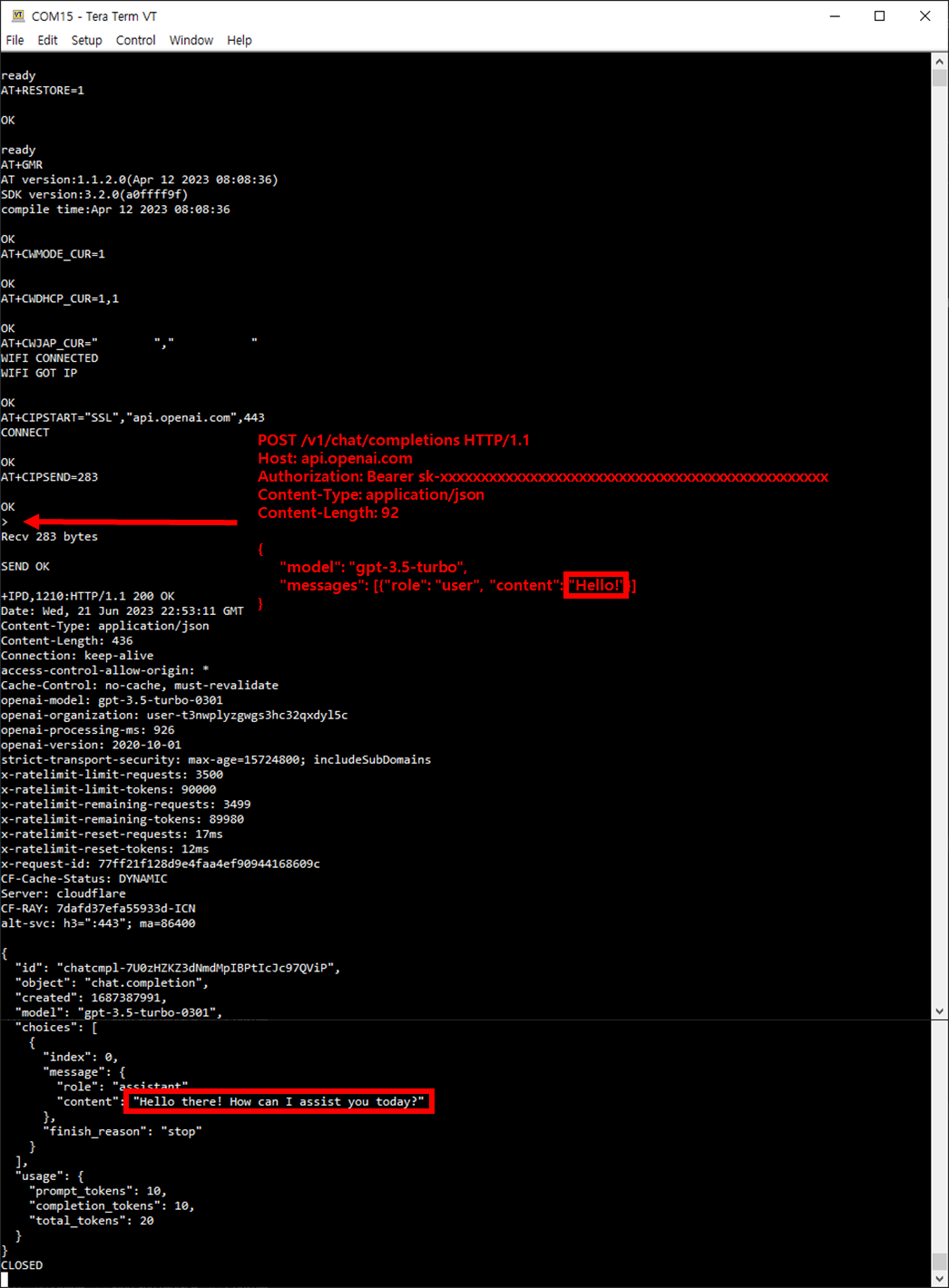
/* Restore factory default settings */
AT+RESTORE=1

/* Check WizFi360 Version */
AT+GMR

/* Setup Wi-Fi and connect to AP */
AT+CWMODE_CUR=1
AT+CWDHCP_CUR=1,1
AT+CWJAP_CUR="SSID","PASSWORD"

/* Connect to OpenAI */
AT+CIPSTART="SSL","api.openai.com",443

/* Prepare to input data to send */
AT+CIPSEND=283

/* Input data to send */
POST /v1/chat/completions HTTP/1.1
Host: api.openai.com
Authorization: Bearer sk-xxxxxxxxxxxxxxxxxxxxxxxxxxxxxxxxxxxxxxxxxxxxxxxx
Content-Type: application/json
Content-Length: 92

{
    "model": "gpt-3.5-turbo",
    "messages": [{"role": "user", "content": "Hello!"}]
}
3. Result
If you enter AT commands normally, you can see the result as below.