How to Use WizFi360-EVB-Pico in Arduino
Intruduces a series of steps from configuring development environment to running Arduino library and examples using WizFi360-EVB-Pico.
19
Components
Hardware components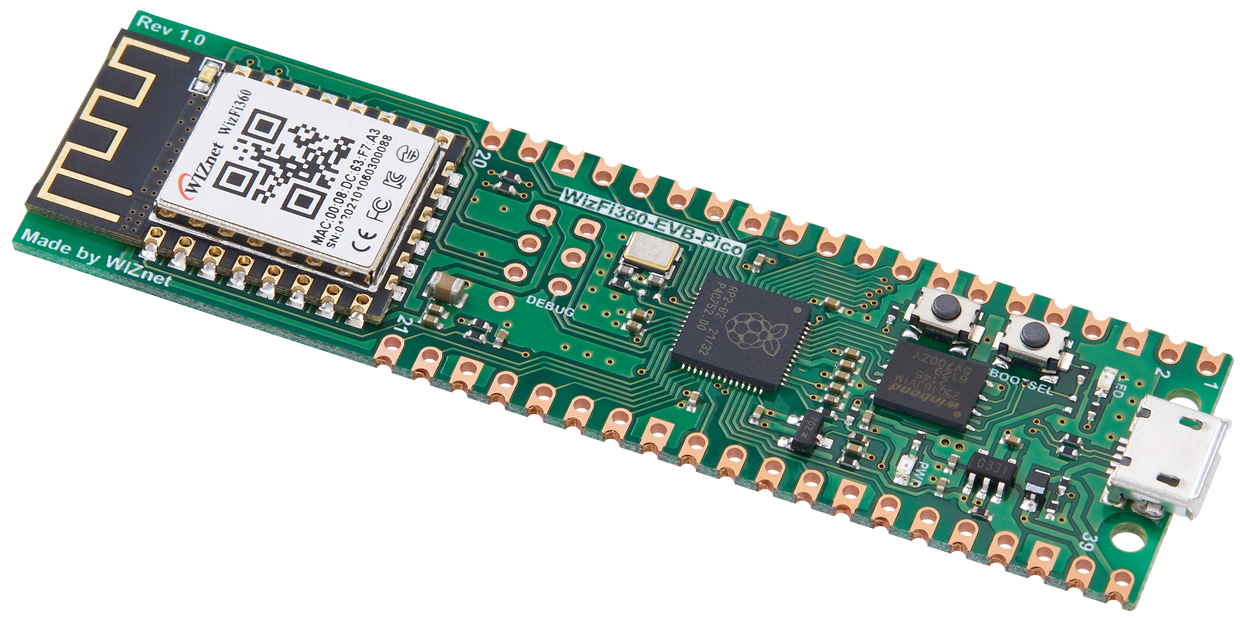
WIZnet - WizFi360-EVB-Pico
x 1
Arduino - Arduino IDE
x 1

Project description
This document will guide through a series of steps from configuring development environment to running WizFi360 Arduino library & examples using the WIZnet's Wi-Fi product - WizFi360-EVB-Pico.
I will use 'WizFi360_arduino_library' provided by WIZnet.
1. Development environment Preparation
To test the WizFi360 Arduino library & examples, the development environment must be configured to use Arduino platform.
Please note that in this guide examples were configured and tested using Arduino IDE in Windows environment.
Before starting, download and install the Arduino IDE from the link below.
Additionally, if you are using WizFi360-EVB-Pico, minor settings are required in the Arduino IDE.
WizFi360-EVB-Pico is an development board based on RP2040, and you need to add a package to use the development board based on RP2040.
① Run the Arduino IDE
② Open Preferences
You can open it through 'File → Preferences' in the menu bar of Arduino IDE.
③ Add next link to Additional Boards Manager URLs
https://github.com/earlephilhower/arduino-pico/releases/download/global/package_rp2040_index.json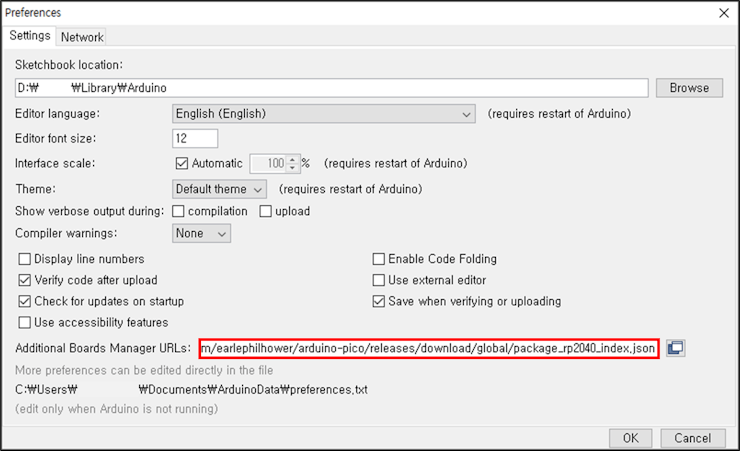
2. H/W Preparation
WizFi360-EVB-Pico is a development board that is built on high-performance, low-price MCU RP2040 and adds Wi-Fi connectivity using WizFi360.
More details can be found at below link:
WizFi360-EVB-Pico is pin compatible to Raspberry Pi Pico. But keep in mind that pins GPIO4 ~ GPIO7 / GPIO20 are used for UART communication / reset between RP2040 and WizFi360.
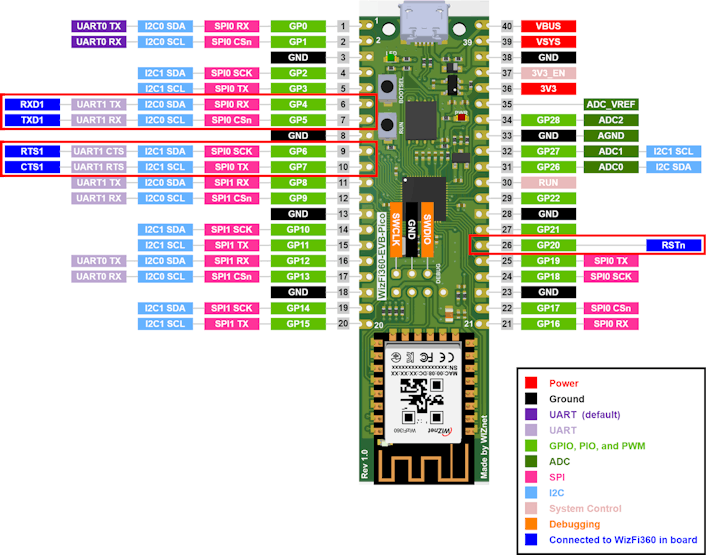
Follow the steps below to firmware upload and run.
① Connect WizFi360-EVB-Pico to desktop or laptop using 5 pin micro USB cable.
3. S/W Preparation
The following serial terminal program is required for example test, download and install from below link.
4. Example Settings
This section will guide through testing with ConnectWPA example as an example using WizFi360-EVB-Pico.
① Setup Sketchbook location
Setup the Sketchbook location according to the location of the downloaded 'WizFi360_arduino_library'.
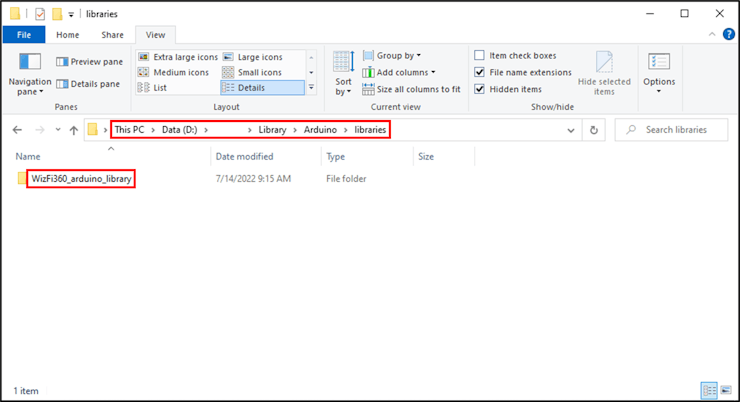
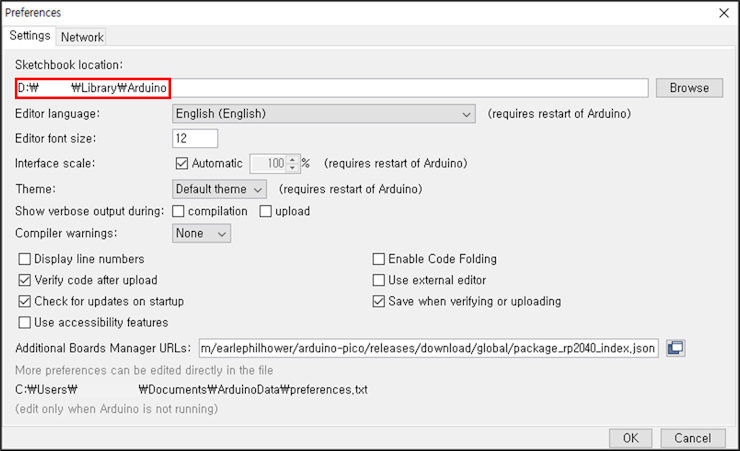
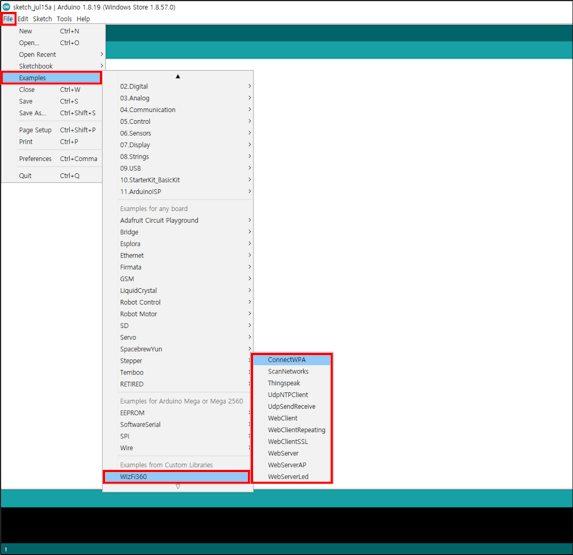
② Open example
You can open examples through 'File → Examples → WizFi360'.
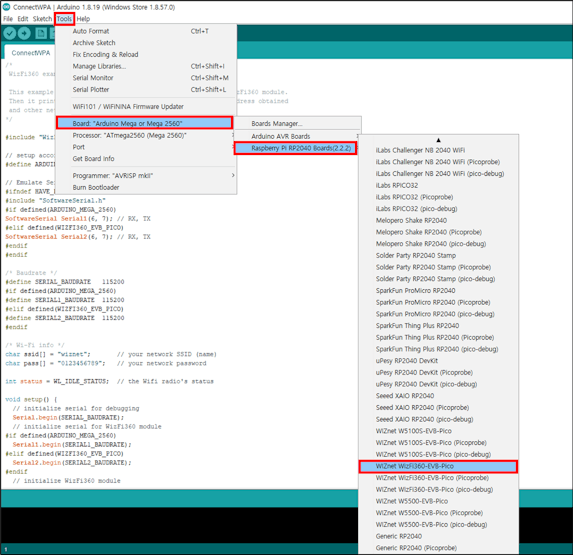
③ Select device
Select WizFi360-EVB-Pico.
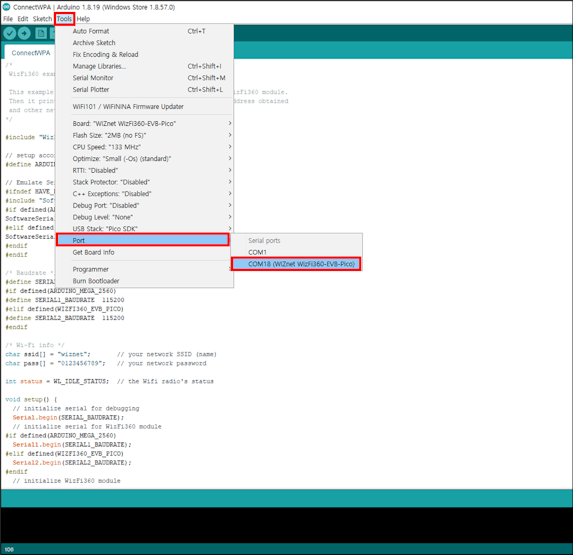
④ Select COM port
Select the COM port of WizFi360-EVB-Pico.
⑤ Setup device setting according to device you use
Serial port configuration is different depending on the device used.
- Arduino Mega 2560 : ARDUINO_MEGA_2560
- WizFi360-EVB-Pico : WIZFI360_EVB_PICO
// setup according to the device you use
#define WIZFI360_EVB_PICO
⑥ Setup Wi-Fi configuration
/* Wi-Fi info */
char ssid[] = "wiznet";       // your network SSID (name)
char pass[] = "0123456789";   // your network password
5. Example Build & Upload
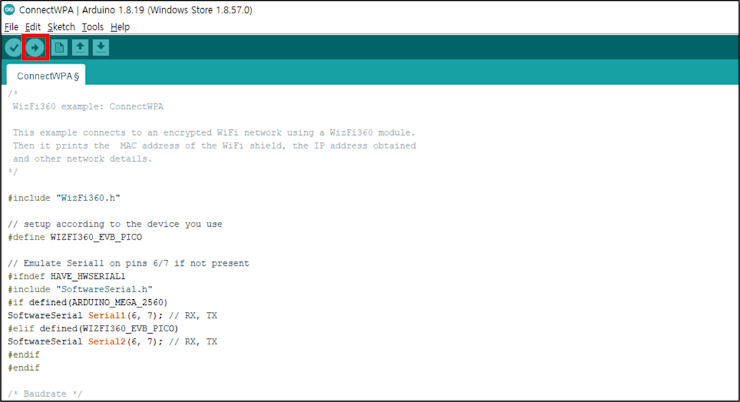
① After completing the configuration, click Verify button.
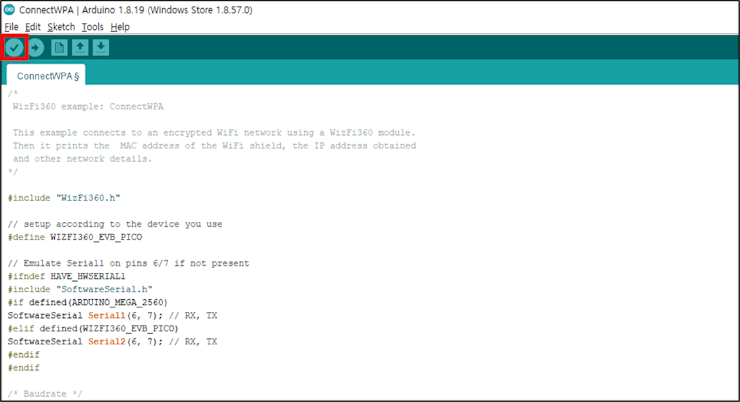
② When the build is completed, click Upload button to upload the firmware to the WizFi360-EVB-Pico.
6. Running Example
① Connect to the serial COM port of WizFi360-EVB-Pico with Tera Term.
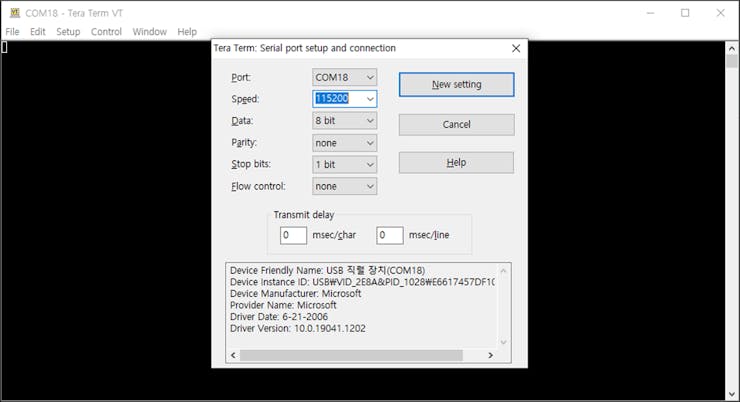
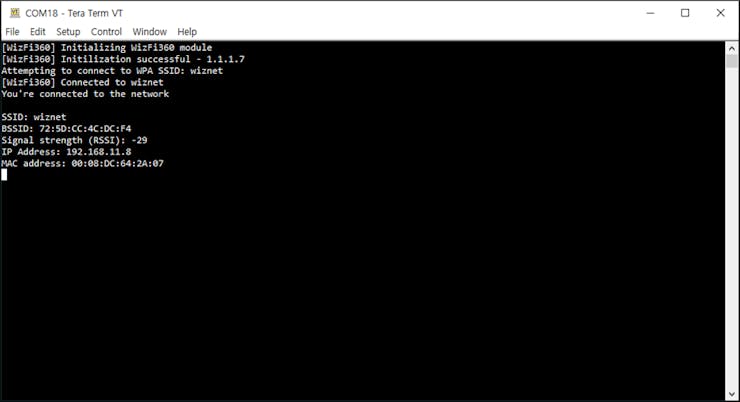
② If the example works normally on WizFi360-EVB-Pico, you can see the Wi-Fi connection log and infomation such as SSID, BSSID, etc.