MQTT Communication to Adafruit IO Using Dual-Port SP2302
Dual Ethernet SP2302 platform to publish data to Adafruit IO over MQTT
0
Components
Hardware components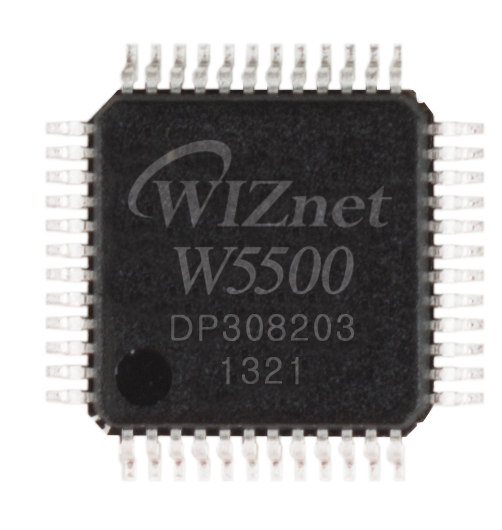
WIZnet - W5500
x 1

Project description
MQTT Communication to Adafruit IO Using Dual-Port SP2302
MQTT Communication to Adafruit IO Using Dual-Port SP2302 (W5500)

Overview
Dual Ethernet SP2302 platform to publish data to Adafruit IO over MQTT, utilizing:
- eth1 (W5500 over SPI) to gather Modbus or sensor data
- eth0 for Internet/cloud communication
field-to-cloud architecture where the data-collection interface and Internet interface are physically isolated — a common pattern in industrial IoT gateways.
What You’ll Need
- SP2302 running dual-port firmware
- WIZ850io module (W5500-based) properly connected to SP2302 SPI
- Internet access via
eth0 - Active Adafruit IO account
- Feed name created (e.g.,
sensor1) - Your Adafruit username and AIO Key
Step 1: Install MQTT Library on SP2302
bash
sudo apt update
sudo apt install python3-pip -y
pip3 install paho-mqtt
Step 2: Adafruit IO MQTT Setup
Required Settings:
- MQTT Broker:
io.adafruit.com - Port:
1883(unencrypted) or8883(TLS) - Topic:
username/feeds/feedname - Username: Your Adafruit IO username
- Password: Your AIO Key
Step 3: Python Demo Script for Publishing Data
python
# sp2302_mqtt_to_adafruitio.py

import time
import paho.mqtt.client as mqtt
import random

# --- Adafruit IO MQTT Configuration ---
ADAFRUIT_IO_USERNAME = 'your_adafruit_username'
ADAFRUIT_IO_KEY = 'your_aio_key'
ADAFRUIT_IO_FEED = 'sensor1'

MQTT_BROKER = 'io.adafruit.com'
MQTT_PORT = 1883
MQTT_TOPIC = f"{ADAFRUIT_IO_USERNAME}/feeds/{ADAFRUIT_IO_FEED}"

# --- Bind MQTT client to eth0 explicitly (optional) ---
MQTT_LOCAL_BIND_IP = '192.168.1.100'  # eth0 IP (Internet-facing)

client = mqtt.Client()
client.username_pw_set(ADAFRUIT_IO_USERNAME, ADAFRUIT_IO_KEY)

# Optional: bind to eth0 to ensure traffic doesn't go through eth1
client.bind_address = MQTT_LOCAL_BIND_IP

client.connect(MQTT_BROKER, MQTT_PORT, 60)
client.loop_start()

def main():    print(f"[✓] Publishing data to Adafruit IO topic: {MQTT_TOPIC}")    while True:        simulated_value = random.randint(0, 100)        client.publish(MQTT_TOPIC, simulated_value)        print(f"[>] Sent: {simulated_value}")        time.sleep(5)

if __name__ == "__main__":    main()
Step 4: Run the Script
bash

python3 sp2302_mqtt_to_adafruitio.py
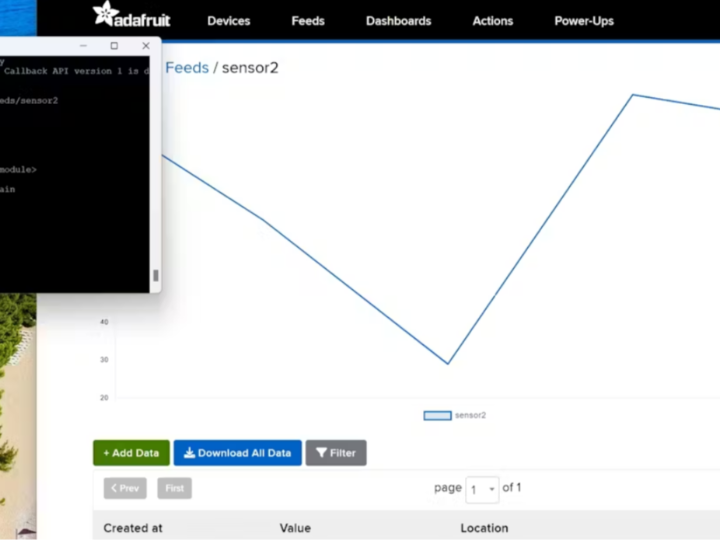
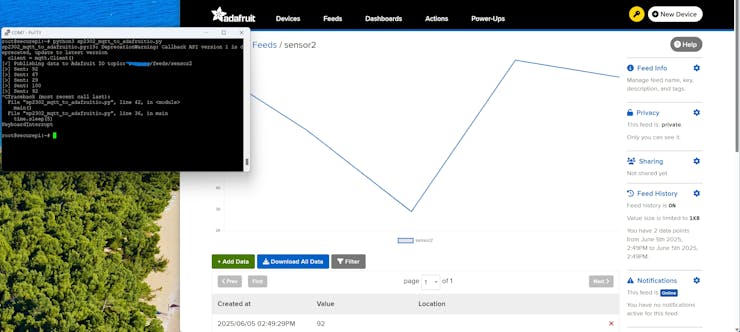
Check your Adafruit IO dashboard — your sensor1 feed will now update every 5 seconds with simulated values.
Verifying Network Routing
Ensure:
- W5500 (
eth1) is isolated for local/field communication (Modbus, sensors) - MQTT traffic to Adafruit goes through
eth0(main NIC)
You can confirm routing using:
bash
ip route
ip addr show eth0
ip addr show eth1
Results
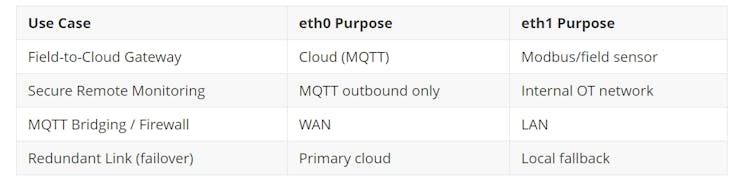
Use Case
Optional: Enable TLS for MQTT (More Secure)
Change port to 8883 and add:
python

client.tls_set()  # Uses default certs
Summary
- SP2302 uses dual Ethernet (eth0 and eth1)
- MQTT publishes to Adafruit IO via
eth0 - Sensor/modbus data (if any) flows in from
eth1 - This creates an industrial-grade cloud-connected setup with physical a

