Ethernet QR Code Bridge [Create WiFi QRcode]
Ethernet QR Code Bridge [Create WiFi QRcode]
3
![Ethernet QR Code Bridge [Create WiFi QRcode]](/upload/_thumb/1280/project/3921/cover102.jpg.jpg)
Components
Hardware components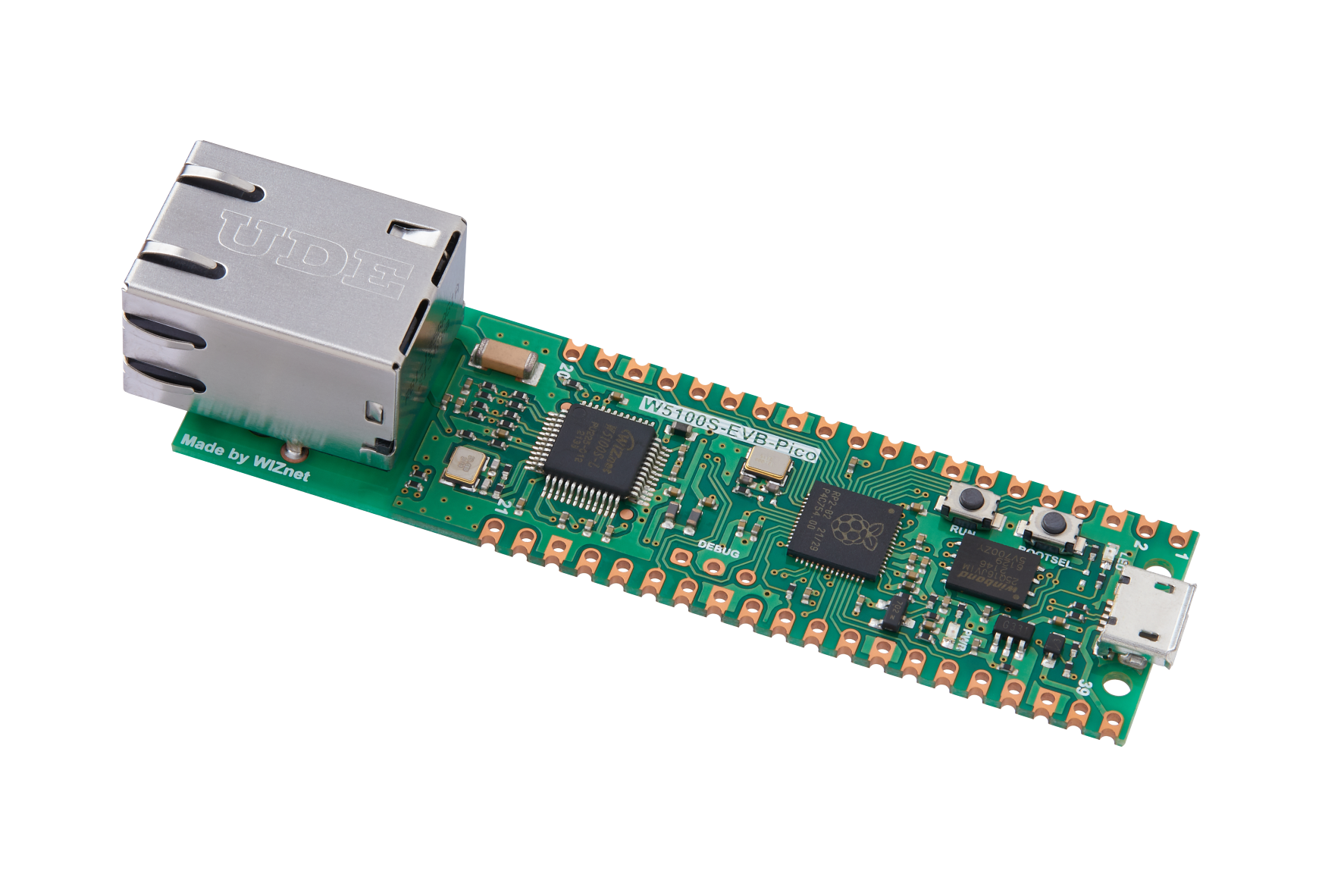
WIZnet - W5100S-EVB-Pico
x 1

1

micropython - MicroPython
x 1
Project description
QR-code?
A QR code stands for "Quick Response" and is a mark in a square-shaped pattern that allows you to get a quick response.

The one-dimensional barcodes we see on common products are a series of straight bars. They can only hold a maximum of 20 characters of numeric information, and it was this limitation that led to the creation of the QR code.
![Ethernet QR Code Bridge [Create WiFi QRcode], QR-code?](https://hackster.imgix.net/uploads/attachments/1622396/image_UwNOyFjNKI.png?auto=compress%2Cformat&w=740&h=555&fit=max)
QR codes are two-dimensional, with a maximum of 4200 characters for letters and about 7000 characters for numbers.
How it works.
Inside a QR code, black areas absorb light and white areas reflect light. This is how QR Codes can be recognized, and once recognized, videos, images, websites, maps, and more can appear.

These are the seven basic components of a QR code:
- Finder or Positioning Detection Pattern
These are 3 identical squares on the bottom left and top right and left corners of the QR code. They allow the decoder or scanner to detect the correct orientation of the code quickly and accurately.
- Alignment Pattern
This pattern looks similar to the finder pattern, but it has a smaller black square at the center. It aids the scanner to determine the orientation of the QR code, especially if the image is distorted, on a curved space, or if the code is larger.
- Timing Pattern
These alternating white and black modules typically form vertical and horizontal lines. They represent the size of the encoded data.
- Version Pattern
The version patterns are found beside the positioning markings. They show what type of QR code is used in the coding process. There are 40 types of QR codes, but codes 1 to 7 are the ones that are commonly used.
- Format Information
Located around the positioning patterns, the format information contains data such as the chosen data mask pattern and error tolerance of the code. This part of the code allows easier scanning.
- Data and Error Correction Keys
This area contains all the encoded data. The error correction capability of the QR code allows data to be decoded even if the code is dirty or partially damaged.
- Quiet Zones
This section is the white space that surrounds the code. It is vital in telling the decoder or scanning device what is and isn’t part of the QR code.
Create a QR Code with RPi-pico and bricks
W5100S-Pico-EVB
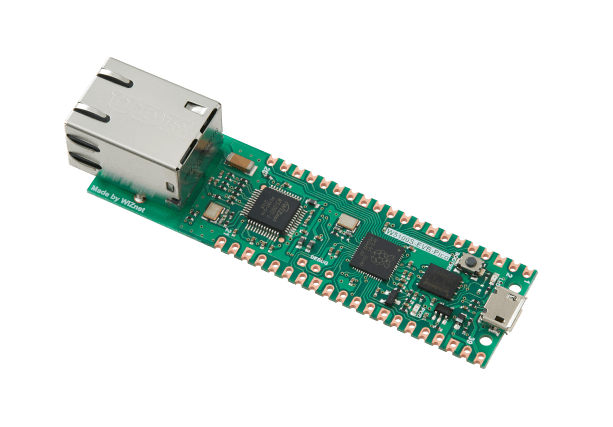
https://docs.wiznet.io/Product/iEthernet/W5100S/w5100s-evb-pico
Pico Bricks

- Connect Raspberry Pi Pico to desktop or laptop using 5 pin micro USB cable.
Development environment configuration

Micropython Thonny IDE
Install Thonny IDE on Raspberry Pi Pico by referring to the link above.👇
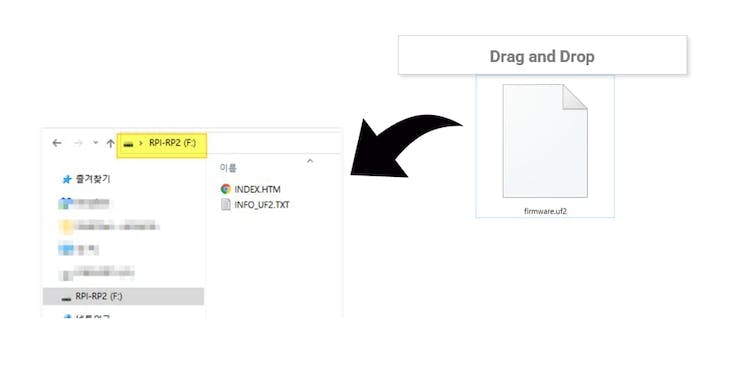
1. The drive will be called RPI-RP2 on all RP2040 boards. Download the UF2(firmware.uf2) file from the link below and put the file in Pico.
File link - RP2040-HAT-MicroPython
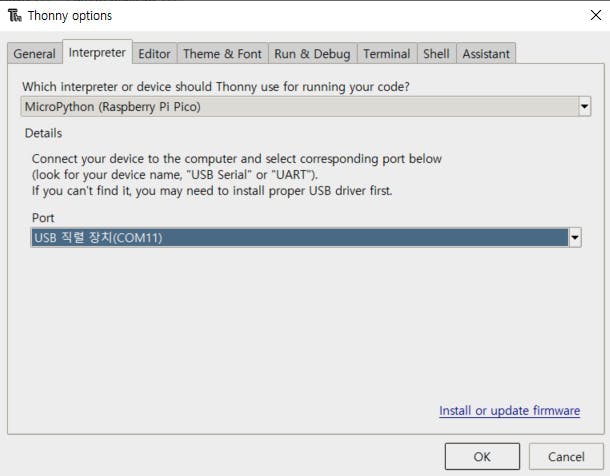
2. You can also access the firmware installation menu if you click on MicroPython (Raspberry Pi Pico) in the status bar and choose ‘Configure interpreter …’.
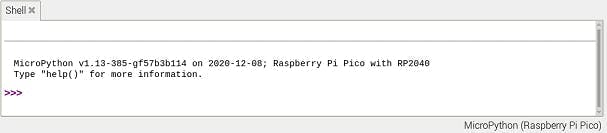
3. Look at the Shell panel at the bottom of the Thonny editor. You should see something like this:
import libraries
import the ssd1306 library since we will be outputting the QR code through the OLED.
Go to Tools > Manage packages
![Ethernet QR Code Bridge [Create WiFi QRcode], import libraries](https://hackster.imgix.net/uploads/attachments/1622426/image_RFd5eVAcAz.png?auto=compress%2Cformat&w=740&h=555&fit=max)
Search ssd1306
![Ethernet QR Code Bridge [Create WiFi QRcode], import libraries](https://hackster.imgix.net/uploads/attachments/1622427/image_aVAqObHVla.png?auto=compress%2Cformat&w=740&h=555&fit=max)
install OLED library
![Ethernet QR Code Bridge [Create WiFi QRcode], import libraries](https://hackster.imgix.net/uploads/attachments/1622428/image_N24MxMwBP9.png?auto=compress%2Cformat&w=740&h=555&fit=max)
WiFi Access QR Code
The file should be saved on RPi Pico with the name “(your library name).py”
- Go to File > Save as > Raspberry Pi Pico
Insert the code attached below and run it to execute the QR code. The server that will create the QR code will be opened, and when the client connects remotely, it will receive the data and create the QR code.


Connect TCP client
The server that will create the QR code will be opened, and when the client connects remotely, it will receive the data and create the QR code.

- Please enter the AP and password to connect when entering
WIFI:S:SSID;T:WPA;P:password;H:false;;
Once connected, you can start using WiFi right away :)


