How to add W5500 Ethernet to Raspberry Pi Pico (Python) - 2
Raspberry Pi Pico + WIZnet W5500 Ethernet + CircuitPython - DHCP + Echo + WebClient (html, JSON) Demo
2
Components
Hardware components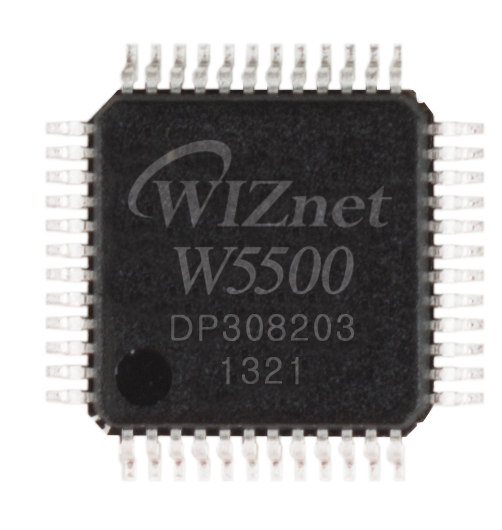
WIZnet - W5500
x 1

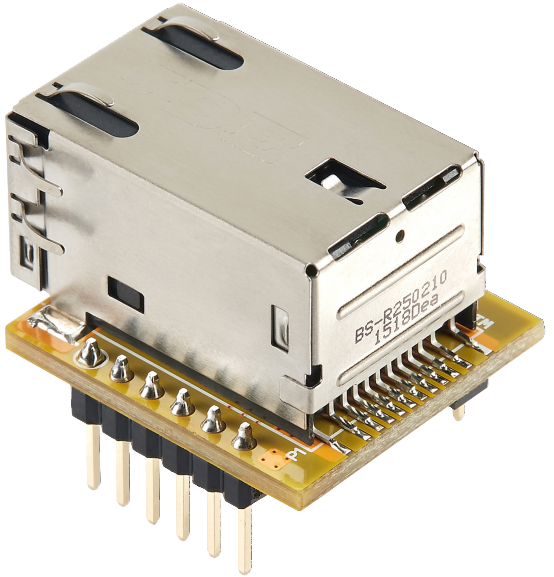
WIZnet - WIZ850io
x 1
Project description
Story
1. Preview
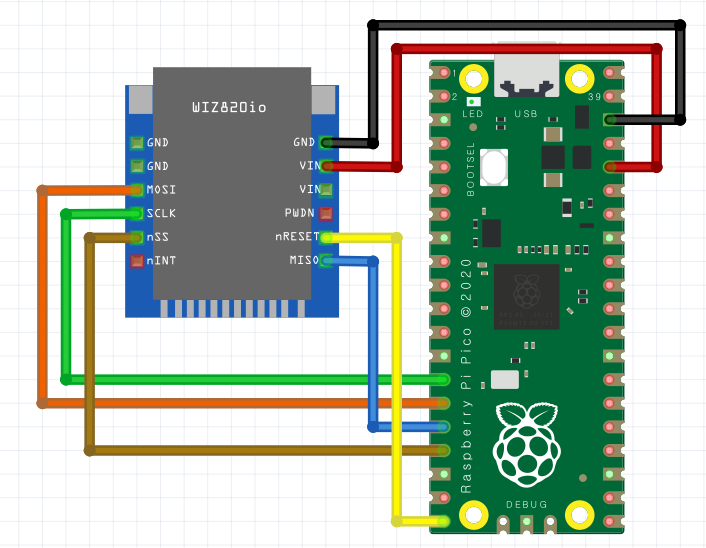
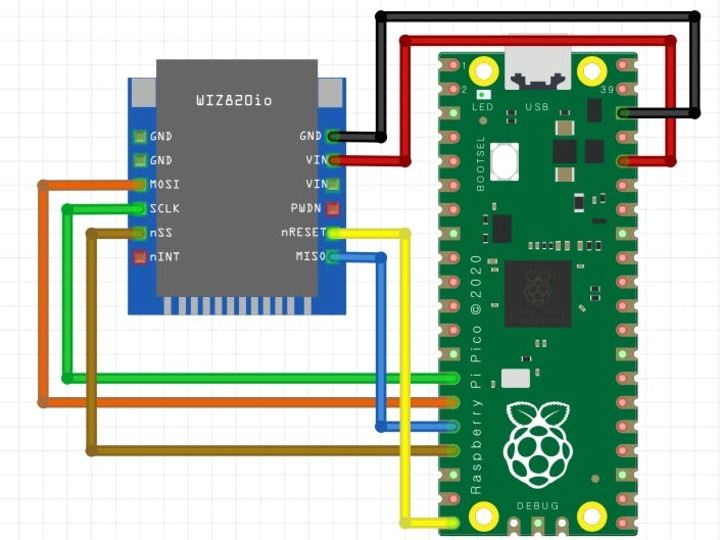
Need to install CircuitPython on Raspberry Pi Pico board. because we can use WIZNET5K library for W5500 Ethernet function. For more detail, I already upload 1st project with Raspberry Pi Pico, WIZ850io (W5500), Circuit Python env., Hardware connection, Ping demo example. Please visit the below project first.
2. DHCP Example
visit my source repo.
Download (or fork, copy,…) samples and copy them into your Raspberry Pi Pico board.
1. copy “lib” folder into your Raspberry Pi Pico board.
2. open “Pico_W5500_Echo_Demo.py” OR get the code “Pico_W5500_DHCP_Echo” from below code section in this project.

in the lib, I modified some codes in WIZNET5K library from Adafruit.
- In adafruit_wiznet5k.py – before DHCP, check link status first.
# in the def __init__ function

start_time = time.monotonic()
while True:
    if self.link_status or ((time.monotonic() - start_time) > 5) :
        break
    time.sleep(1)
    if self._debug:
print("My Link is:", self.link_status)- In adafruit_wiznet5k_dhcp.py – before DHCP message sending, init _BUFF byte array.
def send_dhcp_message(self, state, time_elapsed):
    # before making send packet, should init _BUFF. if not, DHCP sometimes fails, wrong padding, garbage bytes, ...
    for i in range(len(_BUFF)):
        _BUFF[i] = 0
Latest code, you can download from
or
- https://github.com/bjnhur/Adafruit_CircuitPython_Wiznet5k (fork version)
3. copy all contents into “code.py” on your Pico board.

4. save “code.py” and open REPL.
3. DHCP processing
my REPL console window log:

DHCP process is ok.

tcp server socket is also opened.
4. ECHO Demo
First I try to ping to the board. no problem.

Second, I tried to TCP connect to (as described on our python code) – I used “Hercules” freeware tool for socket test.
- Destination IP – 192.168.0.20
- Port – 50007
- Send data – “12345”

5. WebClient Demo
You can find WebClient Demo easily from Adafruit WIZNET5K Ethernet library. Let’s try this sample code as well. It’s easy. Powerful CircuitPython!!
original example, visit https://github.com/adafruit/Adafruit_CircuitPython_Wiznet5k/blob/master/examples/wiznet5k_simpletest.py
I also prepared “Pico_W5500_WebClient_Demo.py” on my repo.
- https://github.com/bjnhur/pico-W5500/blob/main/Pico_W5500_WebClient_Demo.py
- or can copy code from “Pico_W5500_WebClient_Demo” in below code section
Just copy this code (or download, rename, copy) into “code.py” on your Raspberry Pi Pico board, then save. Done!
you can see the result log in your REPL console window as below.

1. IP lookup adafruit.com result
2. Getting page from “http://wifitest.adafruit.com/testwifi/index.html”
3. Getting JSON data from “http://api.coindesk.com/v1/bpi/currentprice/USD.json”
*) Check again! This example, you need “adafruit_requests.mpy” file in lib folder.

Resource
All code, you can find the below repo.
Happy coding!

Schematics
Pico_WIZ850io