WizFi360-EVB-Pico [WIZnet] [Using Arduino]
Tried WizFi360-EVB-Pico Using Arduino
3
![WizFi360-EVB-Pico [WIZnet] [Using Arduino]](/upload/_thumb/1280/project/3181/cover49.jpg.jpg)
Components
Hardware components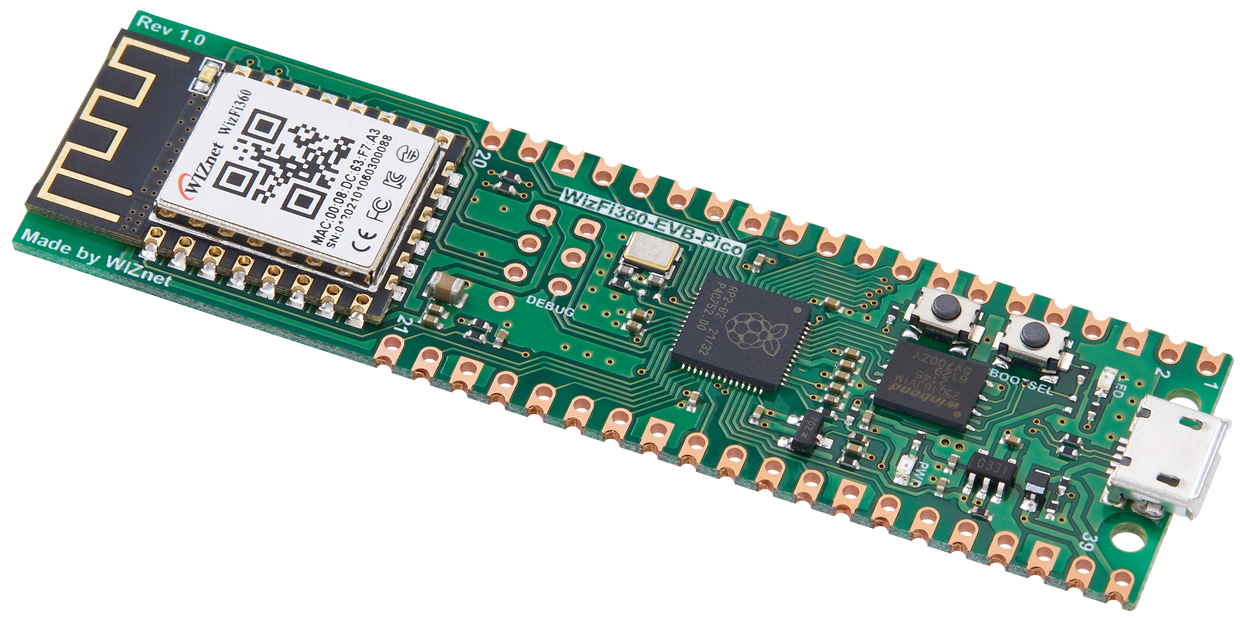
WIZnet - WizFi360-EVB-Pico
x 1
Project description
Hello, I'm Arocchi.
With the advent of Raspberry Pi Pico W, the RP2040 (Raspberry Pi Pico) is now equipped with Wi-Fi. Pico compatible boards are available.
I just got this one and would like to introduce it to you.
![WizFi360-EVB-Pico [WIZnet] [Using Arduino]](https://aloseed.com/wp-content/uploads/cocoon-resources/blog-card-cache/e7d3fdb6c6c8bdd72658fa1d9c4b8950.png)
I got it from Marutsu Online .
In this article, we will try it with Arduino (C/C++).
![WizFi360-EVB-Pico [WIZnet] [Using Arduino]](/upload/_thumb/1280/mirror/body/541aa1cd8860b6ff318b.jpg.jpg)
![WizFi360-EVB-Pico [WIZnet] [Using Arduino]](https://aloseed.com/wp-content/uploads/2022/04/platformio_ec-160x90.png)
feature
- Raspberry Pi Pico compatible board
- Wi-Fi module WizFi360-PA installed
- Equipped with reset button
| MCU | RP2040 dual-core ARM Cortex M0+ processor, up to 133 MHz operating frequency |
| flash memory | 2MB |
| GPIOs | 26 (pinout compatible with Raspberry Pi Pico) |
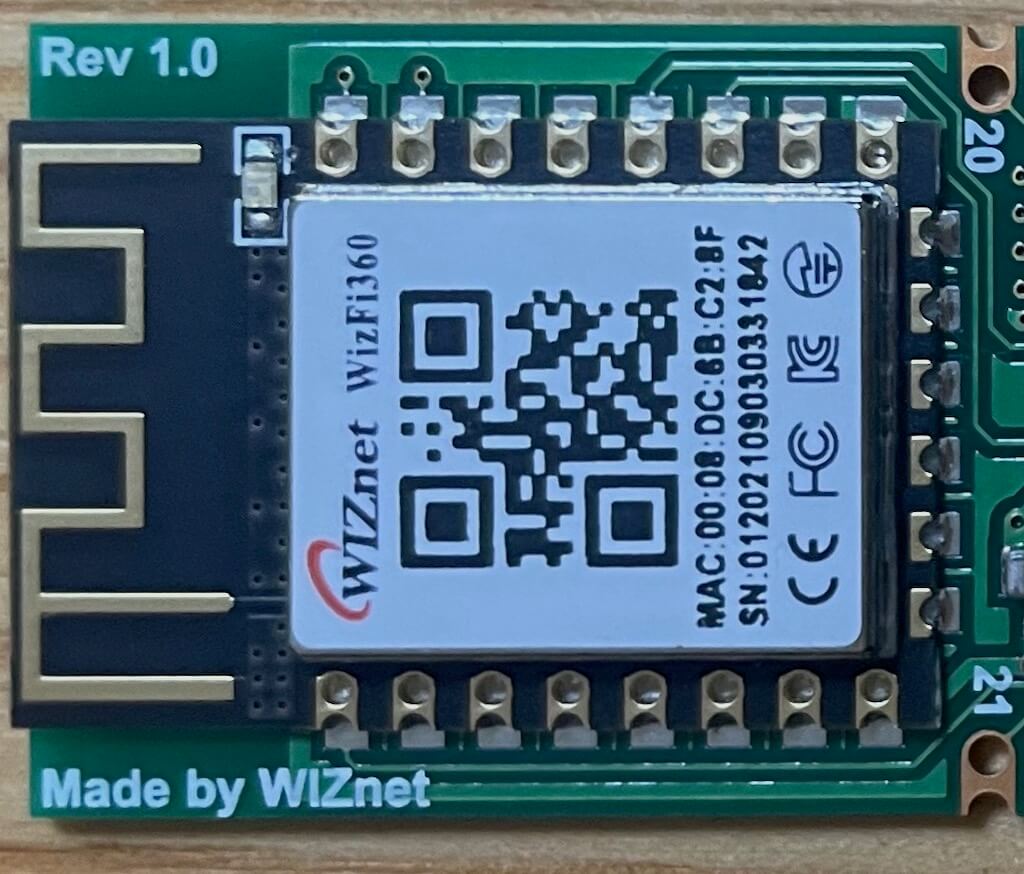
About Wi-Fi module WizFi360-PA
It will be a so-called Wi-Fi module that has acquired technical compliance.
| overview | Supports PCB antenna IEEE802.11 b/g/n SoftAP , Station, SoftAP+Station mode (*) Serial port baud rate Max . Station → This mode acts as a client. |
| About technical suitability | Construction design certification number: 022-190204You can access the product page from the QR code on the box. You can check it from the link below. Click the link below for "J-MIC (TELEC)" on the WizFi360 > DataSheet page・WizFi360-PA Certification (Construction Design Certificate (pdf)) |
You can refer to the product page here
WizFi360-PA
RP2040 board summary article (reference site)
pinout
![WizFi360-EVB-Pico [WIZnet] [Using Arduino], pinout](https://aloseed.com/wp-content/uploads/2022/10/WizFi360-EVB-Pico_Pinout_220405-97312e88e09911a428ae152a94ab940b.png)
gallery
box
![WizFi360-EVB-Pico [WIZnet] [Using Arduino], gallery](https://aloseed.com/wp-content/uploads/2022/09/wizfi360-evb-pico-box.jpeg)
table
![WizFi360-EVB-Pico [WIZnet] [Using Arduino], gallery](https://aloseed.com/wp-content/uploads/2022/10/wizfi360-evb-pico-top.jpeg)
back
![WizFi360-EVB-Pico [WIZnet] [Using Arduino], gallery](https://aloseed.com/wp-content/uploads/2022/10/wizfi360-evb-pico-back.jpeg)
This time I tried to implement a long pin socket instead of a pin header.
![WizFi360-EVB-Pico [WIZnet] [Using Arduino], gallery](https://aloseed.com/wp-content/uploads/2022/11/wizfi360-evb-pico-with-pin-header-1.jpeg)
![WizFi360-EVB-Pico [WIZnet] [Using Arduino], gallery](https://aloseed.com/wp-content/uploads/2022/11/wizfi360-evb-pico-with-pin-header-2.jpeg)
USB mass storage mode
If you press the reset button while pressing the BOOT button, it will enter USB mass storage mode (RPI-RP2).
When in USB mass storage mode, you can install MicroPython or CircuitPython firmware from your PC.
Please refer to the following articles for how to install MicroPython and CircuitPython firmware.
You can use the firmware of Raspberry Pi Pico.
Arduino IDE settings
- Add board to Arduino
IDE
Add Raspberry Pi Pico/RP2040 board ( earlephilhower version ) in advance.
See the article below for how to add.

- Installing the Raspberry Pi Pico/RP2040 board
Install the Raspberry Pi Pico/RP2040 board by clicking Tools > Boards > Board Manager and entering 'rp2040' in the search box.
- board selection
Select [Tool] > [Board] > [Raspberry Pi RP2040 Boards(Ver)] > [WIZnet WizFi360-EVB-Pico].
- Serial port selection
Select the serial port to which WizFi360-EVB-Pico is connected from [Tools] > [Serial Port].
If you have an environment that cannot write from a serial port, such as a Chromebook, you can write sketches manually.
Install WizFi360 library
download
The library for WizFi360-EVB-Pico is below (GitHub).
https://github.com/Wiznet/WizFi360_arduino_library/tree/WizFi360-EVB-Pico
Download the ZIP file from Code > Download ZIP .
install
Arduino IDE
Sketch > Include Library > Install .ZIP Library…
Click.
![WizFi360-EVB-Pico [WIZnet] [Using Arduino], install](https://aloseed.com/wp-content/uploads/2022/10/arduino-ide-library-install.png)
Select the downloaded ZIP file to install.
Sample program (Arduino sketch)
Sketch example
Arduino IDE File > Example Sketch > Try some WizFi360 sketches.
Connect WPA
Open the example sketch ConnectWPA .
Replace the following (Wi-Fi information) with the Wi-Fi information of the connection destination and write the sketch.
/* Wi-Fi info */
char ssid[] = "wiznet";       // your network SSID (name)
char pass[] = "0123456789";   // your network password
You can check the information of the connected Wi-Fi from the serial monitor.
![WizFi360-EVB-Pico [WIZnet] [Using Arduino], Connect WPA](https://aloseed.com/wp-content/uploads/2022/10/ConnectWPA-serialmonitor.png)
Web Server AP
Sketch example Open WebServerAP and write a sketch.
WizFi360-EVB-Pico is WebServer, so try to connect.
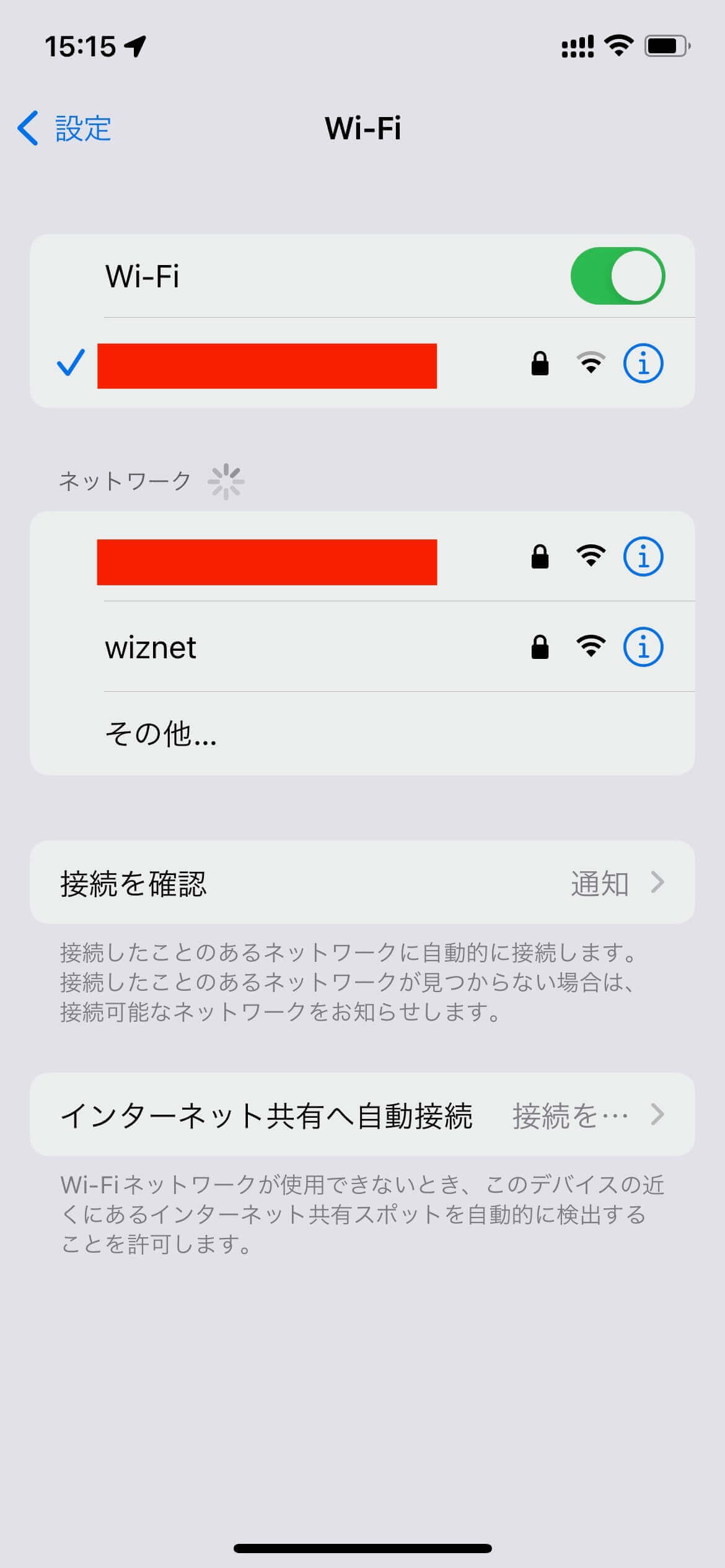
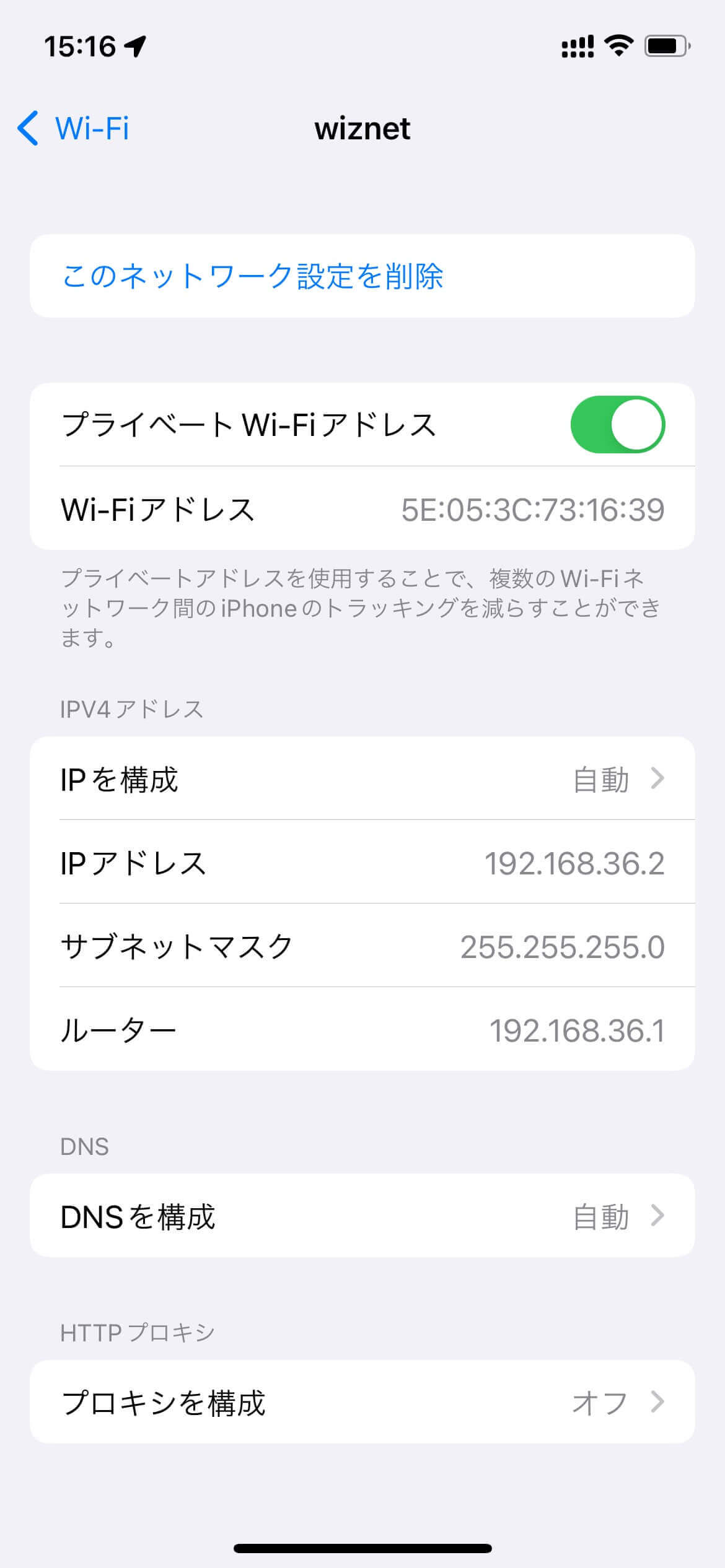
- Connection example with a smartphone (iPhone)
Tap wiznet from Wi-Fi.
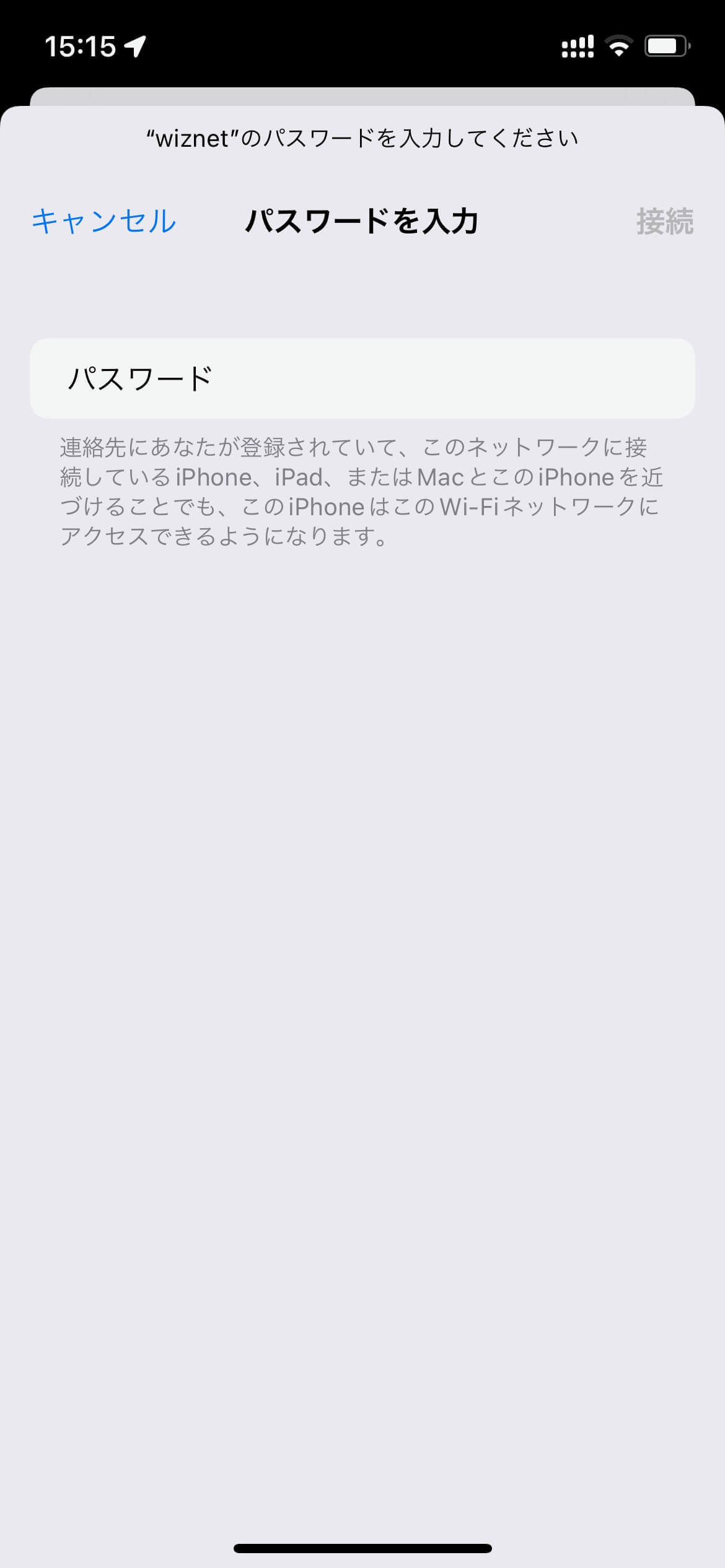
Enter "0123456789" for the password and tap "Connect".
If you open the wiznet information (tap the i mark), you can see that the IP address (router) is "192.168.36.1".
When you access http://192.168.36.1 from your browser , the following is displayed.

Also, the serial monitor of the Arduino IDE is displayed as follows.
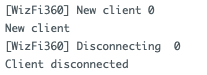
serial monitor screen
summary
It's nice to have a reset button that wasn't on the Raspberry Pi Pico and to be able to use Wi-Fi.

