Make IPv4 or IPv6 loopback server with STM32f103vc and w6100
Make loopback server using STM32CubeMX with W6100-EVB, you make ipv6 using WIZnet W6100 Hardwired TCP/IP chip
7
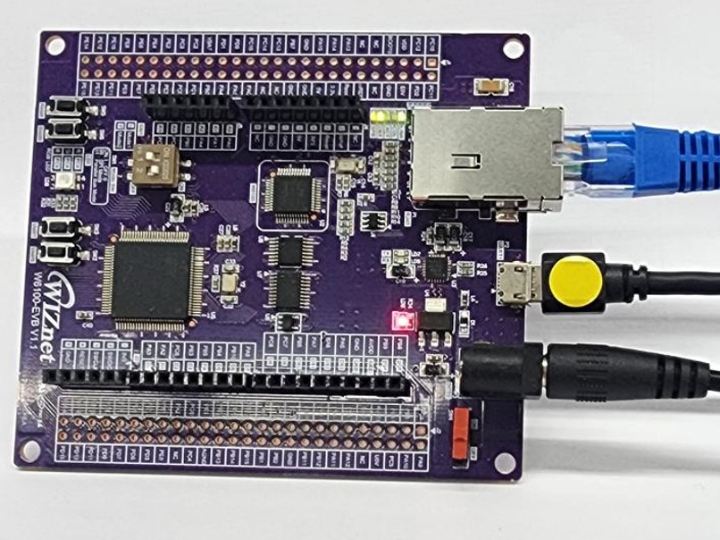
Components
Hardware components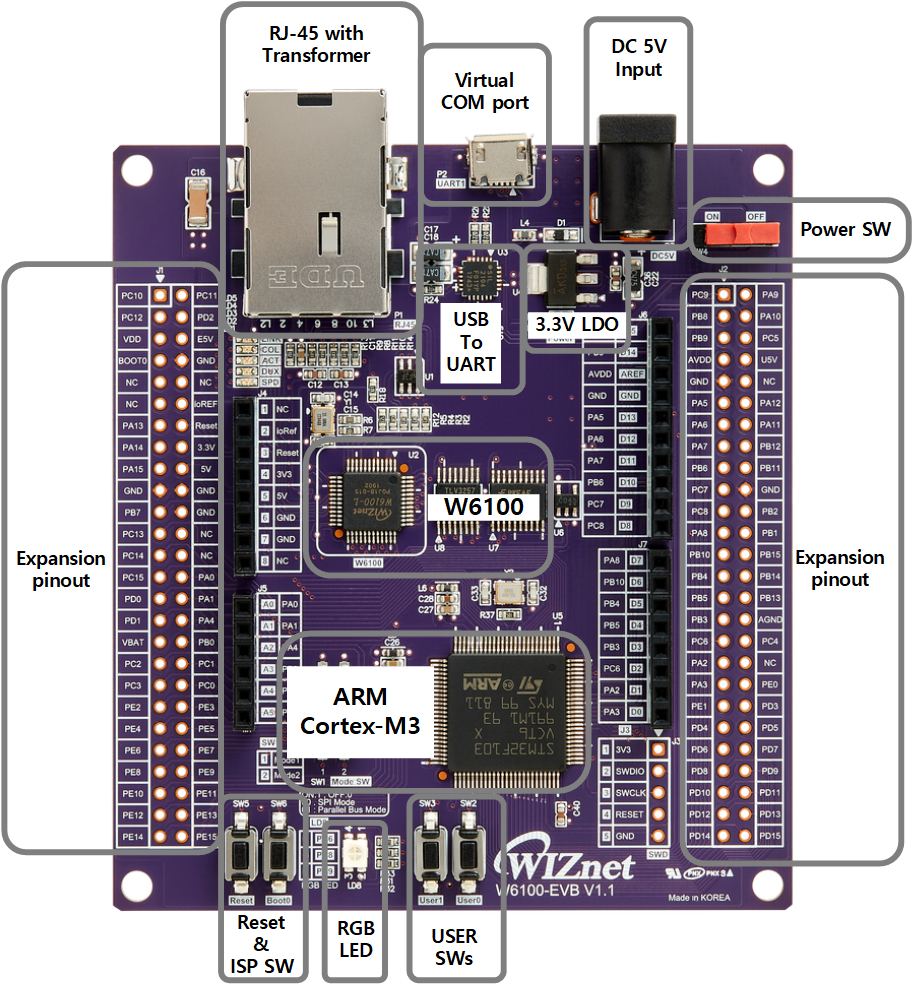
WIZnet - W6100-EVB
x 1

Project description
Step 1: Prepare software
The following serial terminal programs are required for Loopback example test, download and install from below links.
Step 2: Prepare hardware
Connect ethernet cable to W6100-EVB ethernet port.
Connect W6100-EVB to desktop or laptop using 5 pin micro USB cable.
Step 3: Setup Loopback Example
If you need STMCubeIDE and ST Flash Loader setting or use tutorial, refer to getting start page in WIZnet docs sige
https://docs.wiznet.io/Product/iEthernet/W6100/getting-started-w6100evb
https://docs.wiznet.io/Product/iEthernet/W6100/new-project-stm32cubeide
And, there are many a example(MQTT, HTTP, NTP, TLS,, ) for W6100-EVB in here https://github.com/WIZnet-ioLibrary
that is for truestudio. but It's not difficult to converting stm32cube using this example.
To test the Loopback example, minor settings shall be done in code.
- If you want to test with the Loopback example using SPI, Set Mode switch [0 0]
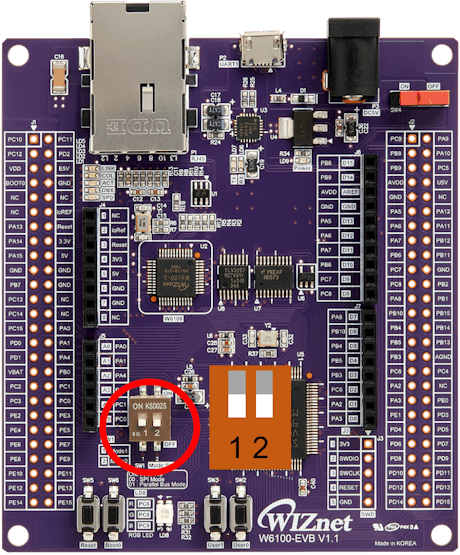
- If you want to test with the Loopback example using BUS, Set Mode switch [0 1]

And if you want to using DMA, defined comment in main.h in 'W6100_EVB_SPI_DMA/Core/Inc/' directory.
//#define DMA- Setup network configuration such as IP in 'main.c' which is the Loopback example in 'W6100_EVB_SPI_DMA/Core/Src/' directory. If you use Auto Address Configuration, do not remove this comment
/* Network */
wiz_NetInfo gWIZNETINFO = { .mac = {
								0xDE, 0xAD, 0xBE, 0xEF, 0xFE, 0xED
							},
							.ip = {
								192, 168, 111, 107
							},
							.sn = {
								255, 255, 255, 0
							},
							.gw = {
								192, 168, 11, 1
							},
							.dns = {
								8, 8, 8, 8
							},
							.lla={
								0, 0, 0, 0,
								0, 0, 0, 0,
								0, 0, 0, 0,
								0, 0, 0, 0
							},
							.gua={
								0, 0, 0, 0,
								0, 0, 0, 0,
								0, 0, 0, 0,
								0, 0, 0, 0
							},
							.sn6={
								0, 0, 0, 0,
								0, 0, 0, 0,
								0, 0, 0, 0,
								0, 0, 0, 0
							},
							.gw6={
								0, 0, 0, 0,
								0, 0, 0, 0,
								0, 0, 0, 0,
								0, 0, 0, 0
							}
};
/* Address Auto Configuration */
  	if(1 != AddressAutoConfig_Init(&gWIZNETINFO))
  	{
  		// Manual Set IPv6
  		gWIZNETINFO = gWIZNETINFO_M;
  		ctlnetwork(CN_SET_NETINFO, &gWIZNETINFO);
  	}
And if you use static network, configure this comment. and remove AddressAutoConfig_Init
wiz_NetInfo gWIZNETINFO_M = { .mac = {0x00,0x08,0xdc,0xFF,0xFF,0xFF},
							.ip = {192,168,11,107},
							.sn = {255, 255, 255, 0},
							.gw = {192, 168, 11, 1},
							.dns = {8, 8, 8, 8},
							//.dhcp = NETINFO_STATIC,
							.lla={
									0x00,0x00, 0x00,0x00,
									0x00,0x00, 0x00,0x00,
								  },   ///< Source Link Local Address

							.gua={0x00, 0x00, 0x00, 0x00,
									0x00, 0x00, 0x00, 0x00,
									0x00, 0x00, 0x00, 0x00,
									0x00, 0x00, 0x00, 0x00},   ///< Source Global Unicast Address
							.sn6={0xff,0xff,0xff,0xff,
									0xff,0xff,0xff,0xff,
									0x00, 0x00, 0x00, 0x00,
									0x00, 0x00, 0x00, 0x00 },   ///< IPv6 Prefix
							.gw6={0x00, 0x00, 0x00, 0x00,
									0x00, 0x00, 0x00, 0x00,
									0x00, 0x00, 0x00, 0x00,
									0x00, 0x00, 0x00, 0x00}   ///< Gateway IPv6 Address
};
and add this.
// Manual Set IPv6
  	gWIZNETINFO = gWIZNETINFO_M;
ctlnetwork(CN_SET_NETINFO, &gWIZNETINFO);- Setup loopback Port configuration in 'main.c'.
/* Port */
  while (1)
  {
	   	loopback_udps(0,ethBuf0,50000,AS_IPV4);
		loopback_tcps(1,ethBuf3,50003,AS_IPV4);
		loopback_tcps(2,ethBuf4,50004,AS_IPV6);
		loopback_tcps(3,ethBuf5,50005,AS_IPDUAL);
  }
Step 4: Build
- After completing the Loopback example configuration, mouse right click to Project name and selsect 'Build Project'

- When the build is completed, 'xxx.hex' is generated in '\Debug' or '\Release' directory.
Step 5: Upload and Run
Flash programming via UART
STMicroelectronics Flash loader demonstrator is a program to perform in-system programming (ISP) of the MCU flash via its UART.
Press the 'Boot0' push button switch on board until turn on the board after reset or power supply.
- Press the 'Boot0' push button switch on board until turn on the board after reset or power supply.
Set the settings on main window of Flash loader demonstrator program. The figure below shows the default configuration for W6100-EVB
- Set the settings on main window of Flash loader demonstrator program. The figure below shows the default configuration for W6100-EVB
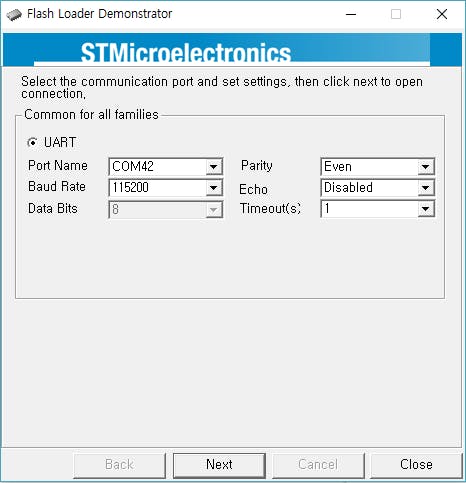
- refer to below pictures If you do not go to the next page in flash loader demonstrator, users try again this action. 'Press the 'Boot0' push button switch on board until turn on the board after reset or power supply.'
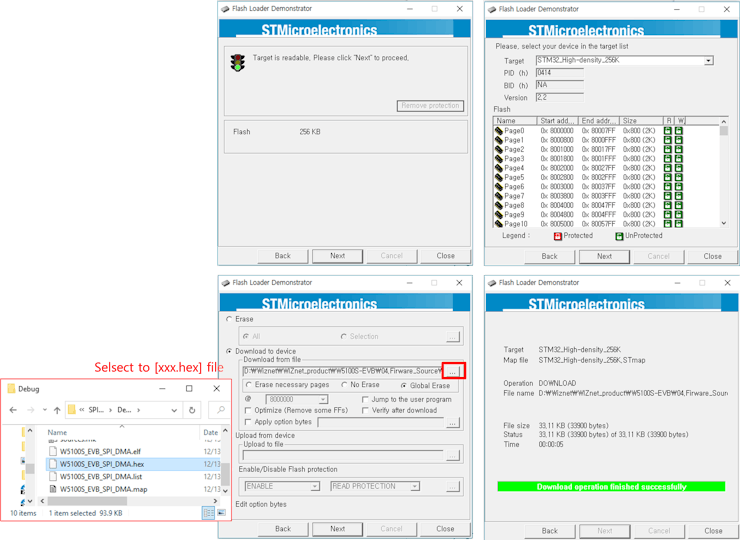
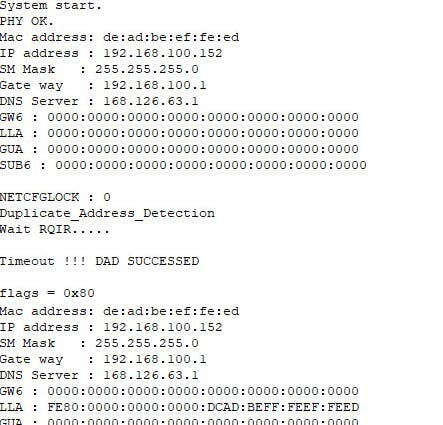
- After finish to flash programming and board reset, The MCU do running the program When the running to loopback program, as below picture serial debug message print out.
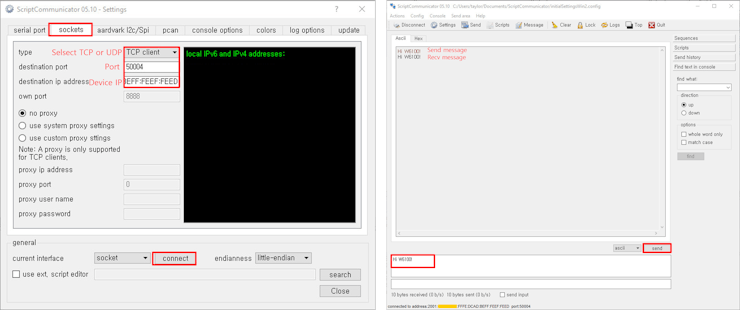
- Connect to the open loopback server using ScriptCommunicator TCP, UDP IPv4 or IPv6 client. When connecting to the loopback server, you need to enter is the IP that was configured in Step 3, default is UDP:50000, TCP IPv4:50003, TCP IPv6:50004, TCP IPv4+IPv6:55000
You have got IP information in start message in terminal 📷
- Run ScriptCommunicator and set sockets for IPv4 connection. And send a message to the W6100EVB. Then the W6100EVB reply with message you've sent.
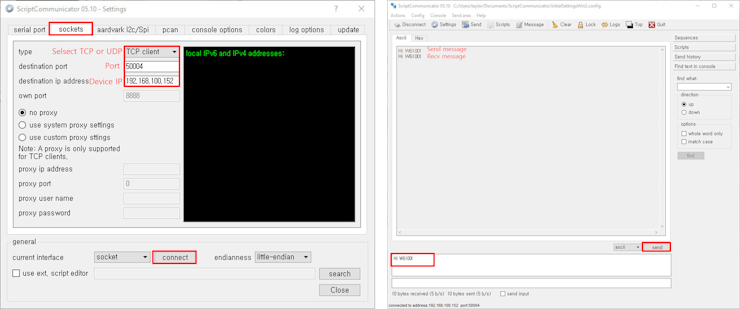
- Run ScriptCommunicator and set sockets for IPv6 connection. And send a message to the W6100EVB. Then the W6100EVB reply with message you've sent.
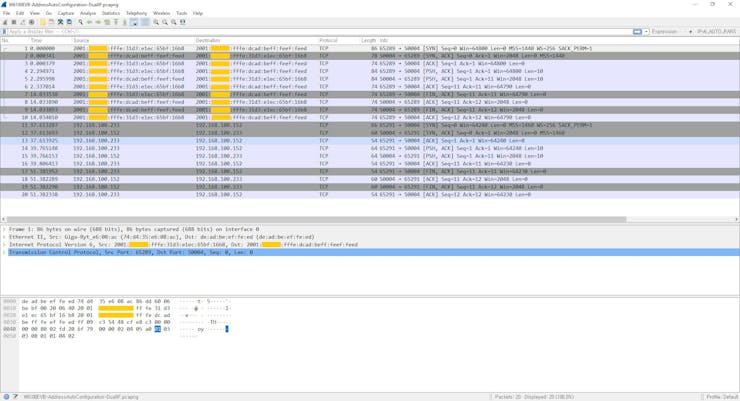
- Test packet capture