Home Automation with w5500-evb-pico Using X-Mos Voice Recognition:
Home Automation with w5500-evb-pico Using X-Mos Voice Recognition:
2
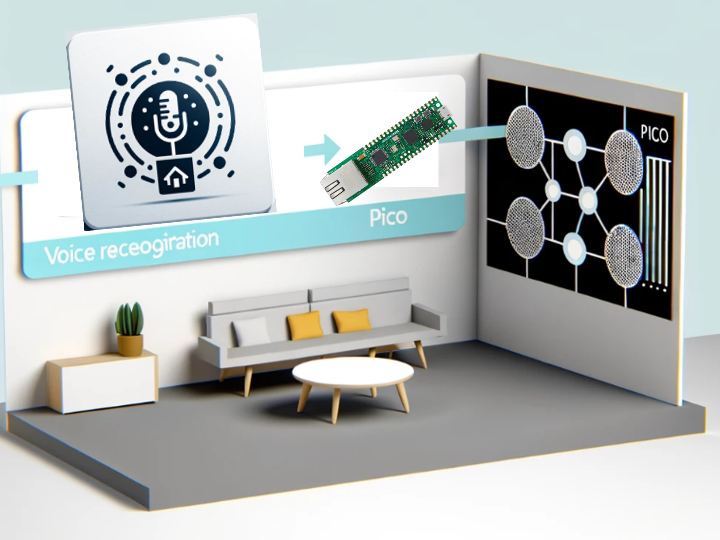
Project description
HW
Server
Connect the Xmos Uart and pico Uart (ch0, pin0, pin1)
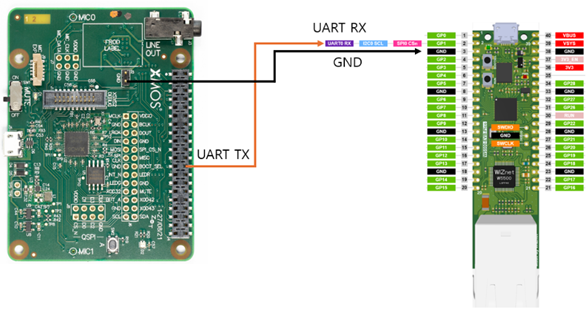
X-mos setting
Use the example firmware and voice information downloaded from X-mos.
EXAMPLE DESIGNS can be downloaded from the link below.
https://www.xmos.com/develop/xcore-voice
Among the examples, the item that supports uart is FAR-FIELD VOICE LOCAL COMMAND.
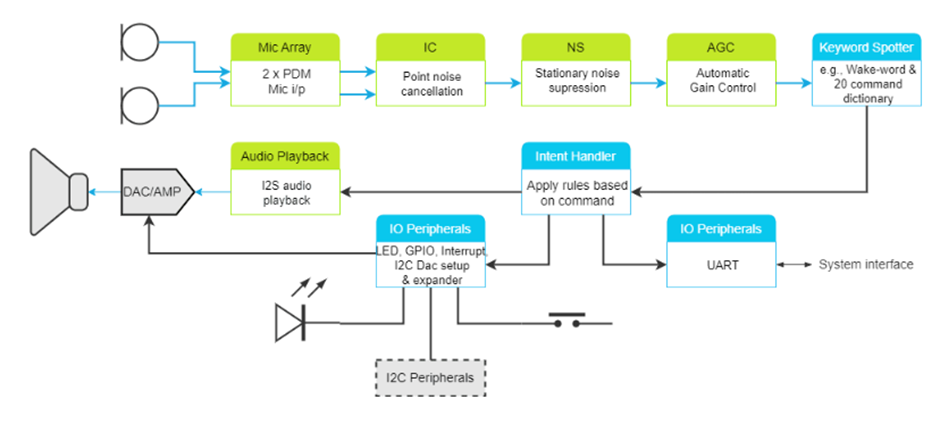
The voice recognition supported in this example is as follows:
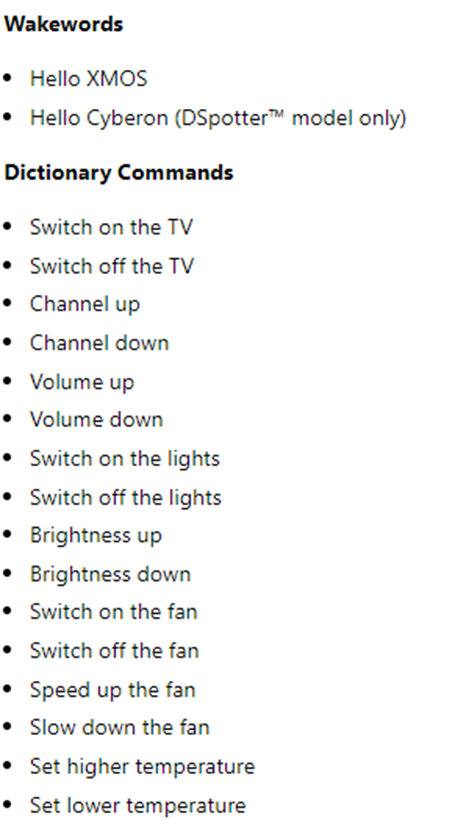
Refer to the Xmos setup on the following page:
https://www.xmos.com/documentation/XM-014785-PC-9/html/doc/quick_start_guide/ffd/ffd.html
SW
Set up the Uart.
 uart=UART(0, baudrate=9600, tx=Pin(0), rx=Pin(1))
 xmos = XmosControl.RecvDataFromXmos(uart, keepAlive=False)
Set the IP.
    net_info= ('192.168.11.20','255.255.255.0','192.168.11.1','8.8.8.8')

    spi=SPI(0,2_000_000, mosi=Pin(19),miso=Pin(16),sck=Pin(18)) #pico spi configure
    w5k = Wiznet5kControl.WIZNET5KControl(spi)
The operation of the Client is configured in the XmosCmdAction.py file.
If you want to set up a separate operation, modify this file.
Once the handler function is complete, add it to the class to be executed.
The registration function is as follows. Enter the Command ID, Command, and Function name as arguments.
handler = CommandHandler()
handler.register_command(1, "Hello XMOS", hello_xmos)

