How to use the W5500 as Azure Sphere Ethernet adapter
As the W5500 has been selected as the Azure sphere official Ethernet adapter, I'll introduce how to simply set up and use it.
7
Components
Hardware components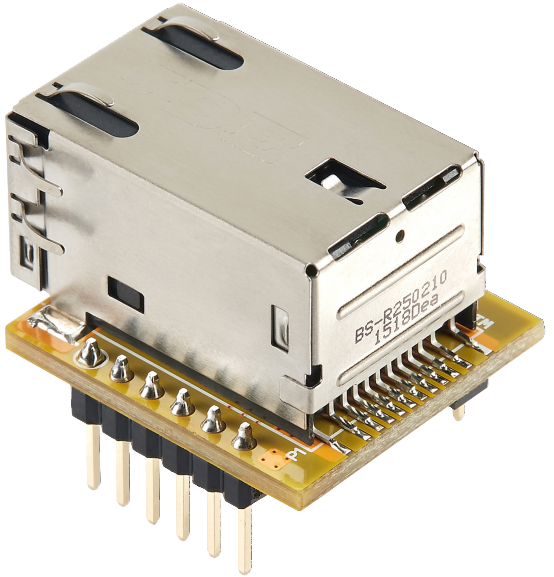
WIZnet - WIZ850io
x 1

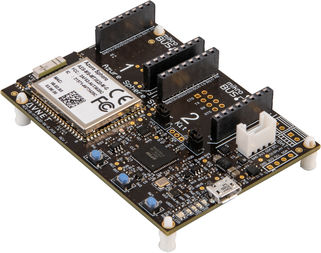
Avnet - Azure Sphere MT3620 Starter Kit
x 1
Microsoft - Azure IoT Hub
x 1
Project description
Introduction
Recently, WIZnet W5500 was adopted as Azure Sphere’s 10/100 Ethernet network interface adapter and was updated in the 22.09 release version.
You can check the update for the 22.09 release at the link below.
- Azure Sphere: What’s new in the 22.09 release
- General Availability: Azure Sphere version 22.09 new and updated features
Avnet Azure Sphere Starter Kit can be used to connect and test with W5500.
Hardware configuration
- Avnet Azure Sphere Starter Kit V1
- Can use the V2
- WIZ850io (W5500 ethernet module)
- Micro 5 pin USB cable
- LAN cable
- Jumper cables
Pin connection
Connect Avnet Azure Sphere Starter Kit V1 board and WIZ850io module using jumper cables.

Connecting all the pins will look like this:

Board Config
Board config imagepackage

If you go to the path where Azure Sphere SDK is installed, there is a Board Config Presets folder, and preset files are included in it.
Among them, lan-w5500-isu1-int2.imagepackage file is used.
When using Starter Kit V2, the lan-w5500-isu0-int5.imagepackge file can be used.
Reference: Azure Sphere: Supported Ethernet adapters
Upload the imagepackage file to the device using the command below.
When the image is uploaded, the device will be reset automatically, and you can check the installed image as follows.
azsphere device sideload deploy --image-package lan-w5500-isu1-int2.imagepackage

azsphere device image list-installed
Check network interface
If you connected the pins well, you can see that the new network interface has been added. (eth0)
azsphere device network list-interfaces

Network settings
To check and verify the network operation, I used two sample applications.
Sample Application Test #1: PrivateNetworkServices
https://github.com/Azure/azure-sphere-samples/tree/main/Samples/PrivateNetworkServices
DHCP setting
Instead of static IP configuration of default code, I used a DHCP configuration function.
Networking_IpConfig_EnableDynamicIp(&ipConfig);

Run
Below is the Device debug output. This part gets a list of available network interfaces and reads the status for each one.
Interface #1 is eth0 (Ethernet), and the status is 0x0f, meaning that it is connected to the network and the Internet.
The Hex value representing the status is a bit mask, refer to Azure Sphere Application Libraries guide for details.

Once check the network status with the command again, can see that device is connected to the Internet with an IP assigned through the DHCP server (router).
azsphere device network list-interfaces
Sample Application Test #2: Azure IoT
After verifying that device was connected to the internet, I tried connecting to IoT Central using the Azure IoT sample.
The process of setting up the application is well documented in the official documentation, so it is omitted here. I’ll try to sort it out later.
- azure-sphere-samples: AzureIoT: StartWithIoTCentral
- MS Guide: Set up Azure IoT Central to work with Azure Sphere
To summarize the process:
- Create an Azure IoT Central application
- Create device registration group
- Download Tenant CA Certificate (with Azure Sphere CLI)
- CA Certificate Upload (Auto Verify)
- Obtain the Azure IoT Central endpoint value using the Tools script in the AzureIoT samples directory
- Execute after updating app_manifest.json
The updated app_manifest.json contents are as follows.

main.c.In the previous version, it was set to transmit by default, but it seems to have changed recently.


Now, once you run debug after building (click the Run button or press the shortcut key ‘F5’), device authentication and connection will proceed, and Telemetry will be transmitted.
Below is a part of the device debug output message when connected successfully.

As shown in the snapshot below, you can see that real-time data is received in the IoT Central device Raw Data tab.

Since the network connection and sample operation through the W5500 have been verified, it seems that it can be used in various applications. 🙂


