Light Tower Powered by W5100S_POE_EVB_PICO(POE+PICO)
Light Tower powered by POE PICO(W5100S_POE_EVB_PICO)
10
Components
Hardware components
WIZnet - W5100S
x 1


Adafruit - NeoPixel Ring: WS2812 5050 RGB LED
x 1

Raspberry Pi - RP2040
x 1

blynk - Blynk
x 1
Arduino - Arduino IDE
x 1
Project description
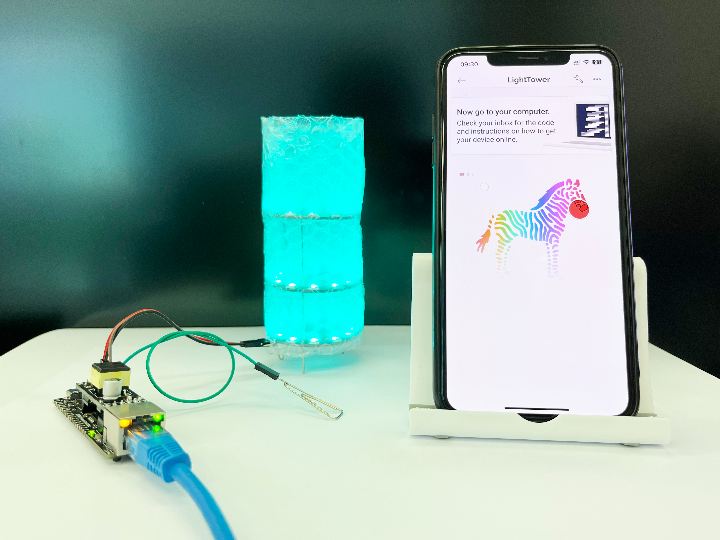
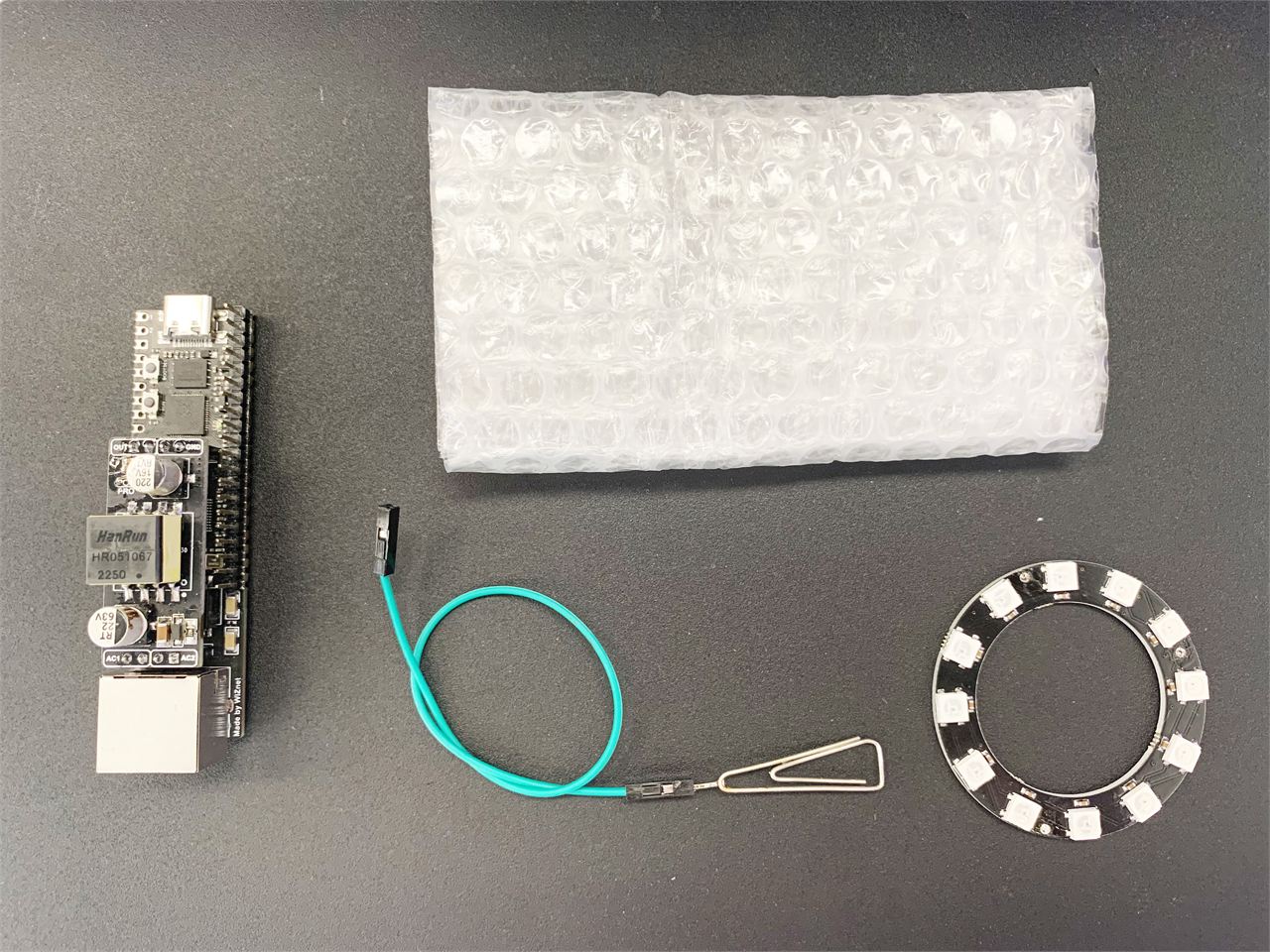
Light Tower is a POE project, use paper clip , bubble wrap ,WS2812 and W5100_POE_EVB_PICO.
Testing picture.
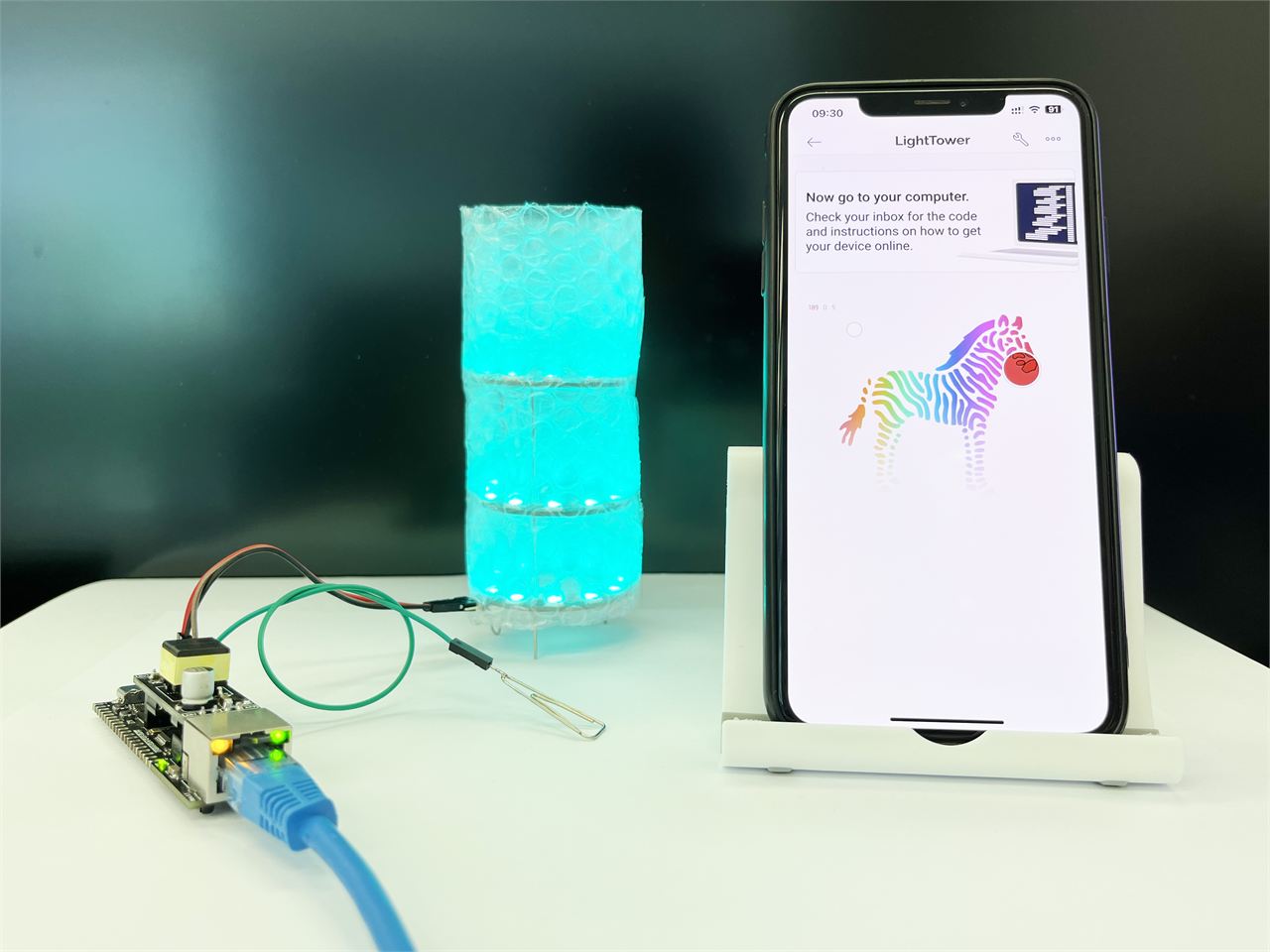
Testing movie.
In fact, the reason for Light Tower project is to test the POE power load capacity of W5100S_POE_EVB_PICO.
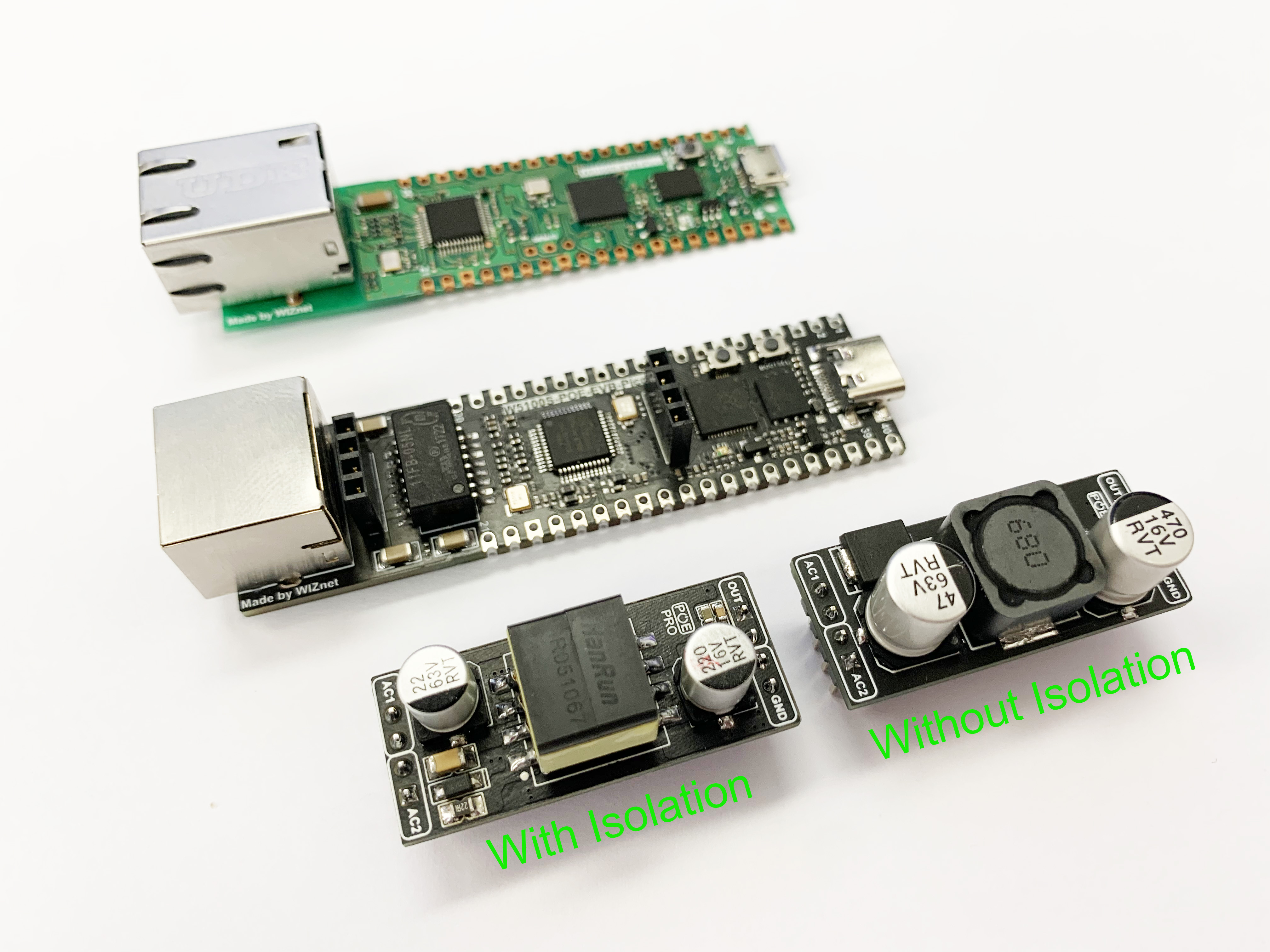
The POE function of W5100S_POE_EVB_PICO is provided by the POE module "POE-P1" (tentative name). Because I don't have a digital load device, I want to simply test it directly by connecting to WS2812. Because the load of WS2812 is basically determined, according to the manual of WS2812:
"The LED strip should be powered using a 5V power source. At 5V, each LED draws about 50mA", I used 3 strips with 12 WS2812 lamp beads.
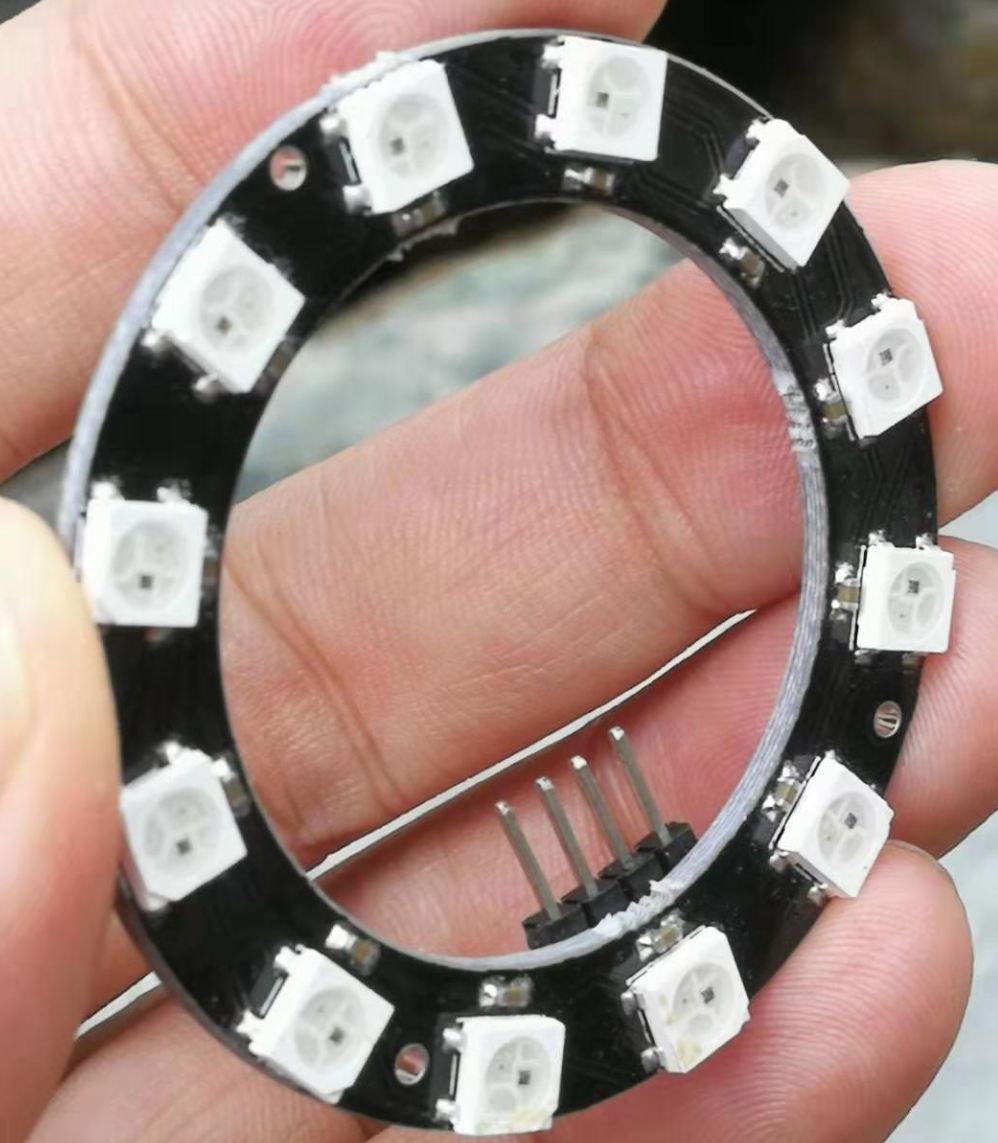
so the total power of "Light Tower" should be 3*12*5V* 0.05mA = 9W.

The actual power should be smaller than this, this is just a simple test, fun is the priority;
I fixed the three light rings with iron wires (straighten the paper clips) to form a three-layer structure.
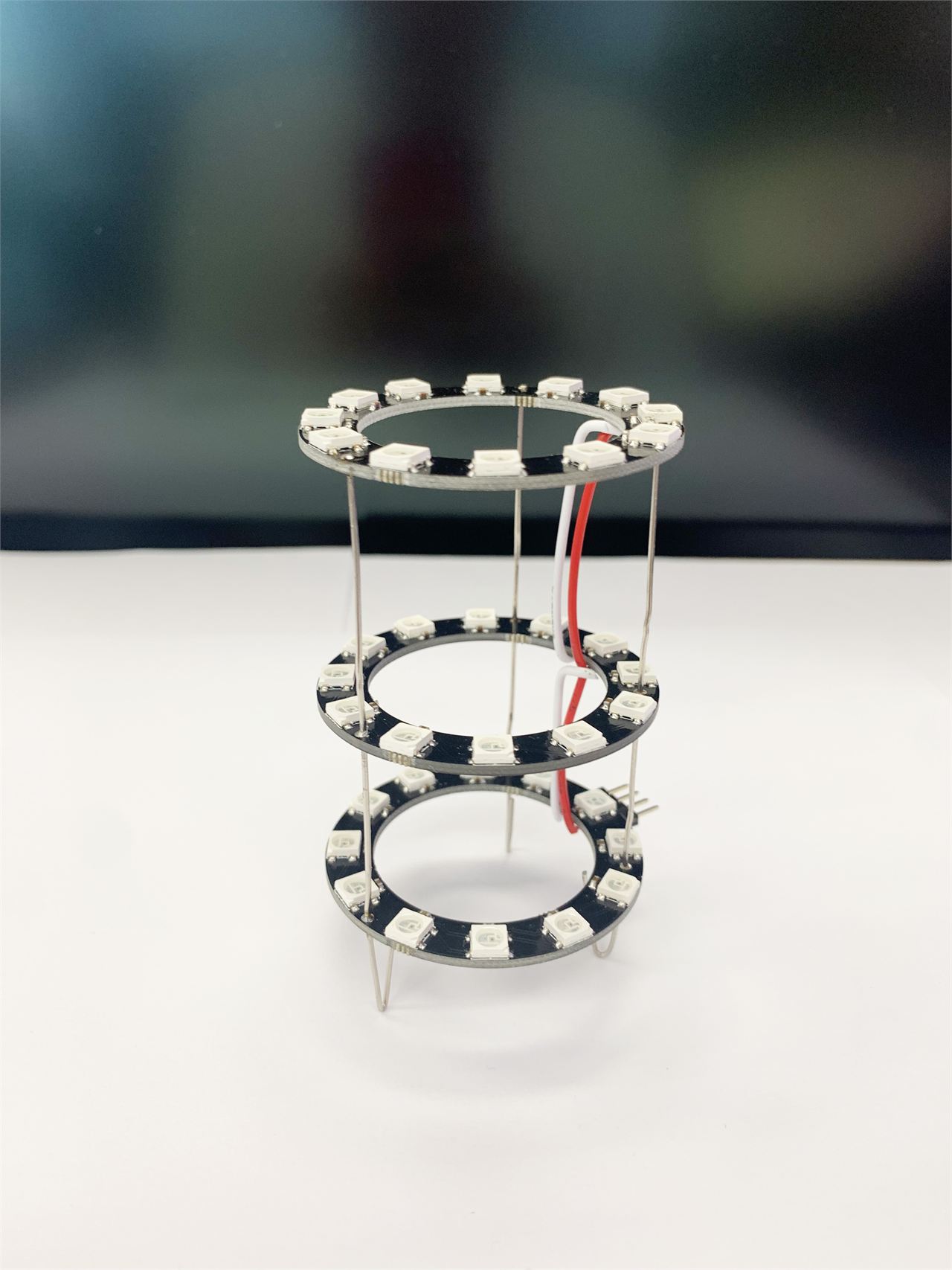
Then connected them to W5100S_POE_EVB_PICO. For the introduction of this product, please refer to the following link:
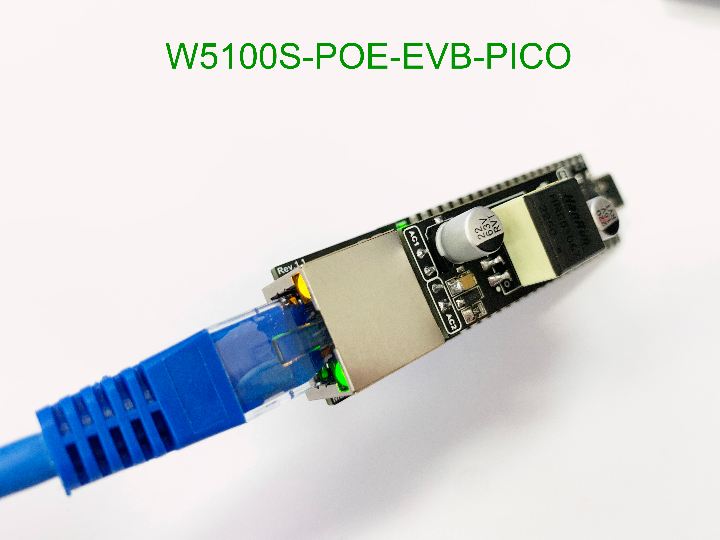
https://maker.wiznet.io/gavinchang/projects/w5100s-poe-evb-pico-poe-development-board-for-rp2040/
Only one IO can be used to control the entire WS2812 array.
I use a paper clip to act as the touch pads for the capacitive buttons. It is also controlled by an IO.
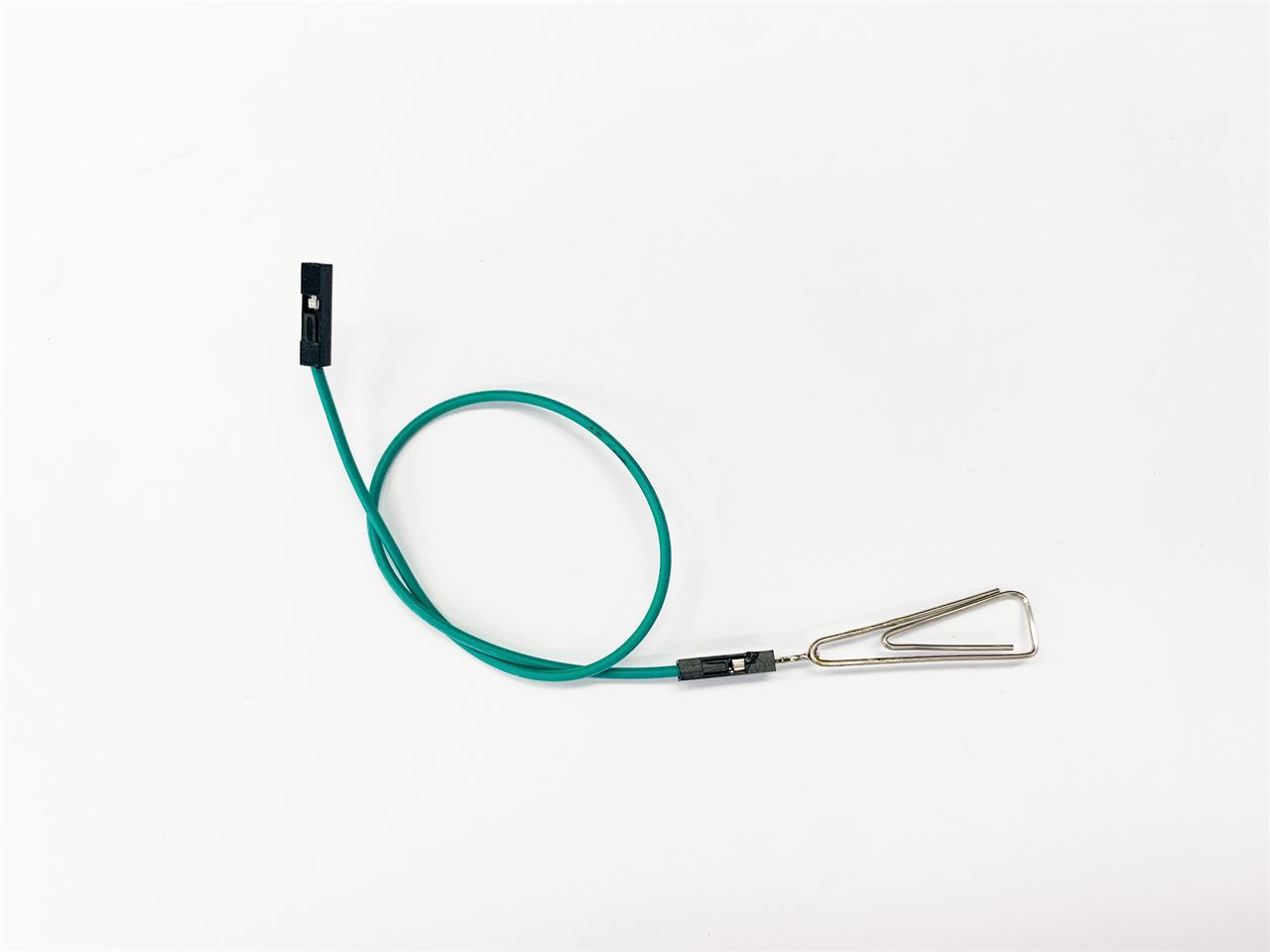
The summary of the whole project is to control the lighting mode of WS2812 through buttons, and control the lighting color of WS2812 through Blynk's mobile application.
Let's deal with the touch button part first. We initialize a touch button,
const int touch_threshold_adjust = 300;
const int touch_pins[] = {27};
const int touch_count = sizeof(touch_pins) / sizeof(int);
TouchyTouch touches[touch_count];

uint32_t time_now = 0;
Then place our processing flow in its press and release actions, as follows:
void Touch_handling()
{
  // key handling
  for ( int i = 0; i < touch_count; i++) {
    touches[i].update();
    if ( touches[i].rose() ) {
      Serial.print("Button:");
      Serial.println(i);
      ws2812fx.setMode((ws2812fx.getMode() + 1) % ws2812fx.getModeCount());
      time_now = millis();
    }
    if ( touches[i].fell() ) {
     Serial.printf("Release:");
     Serial.println(i);
     if((millis()-time_now)>500)
     {
      if(light_mode)
      {
      light_mode = 0;
      }else{
        light_mode = 1;
      }
      Serial.print("Time_enough");
     }
    }
  }
}
Let's deal with the touch button part first. We initialize a touch button, and then place our processing flow in its press and release actions, as follows:
When the button is pressed, that is, touches[i].rose(), we set the light mode of WS2812 and record the current time; when the button is released, that is, touches[i].fell(), the judgment is Click or long press, if it is a long press, switch to the light control mode.
Blynk cloud controls the statement output through an RGB turntable plug-in,
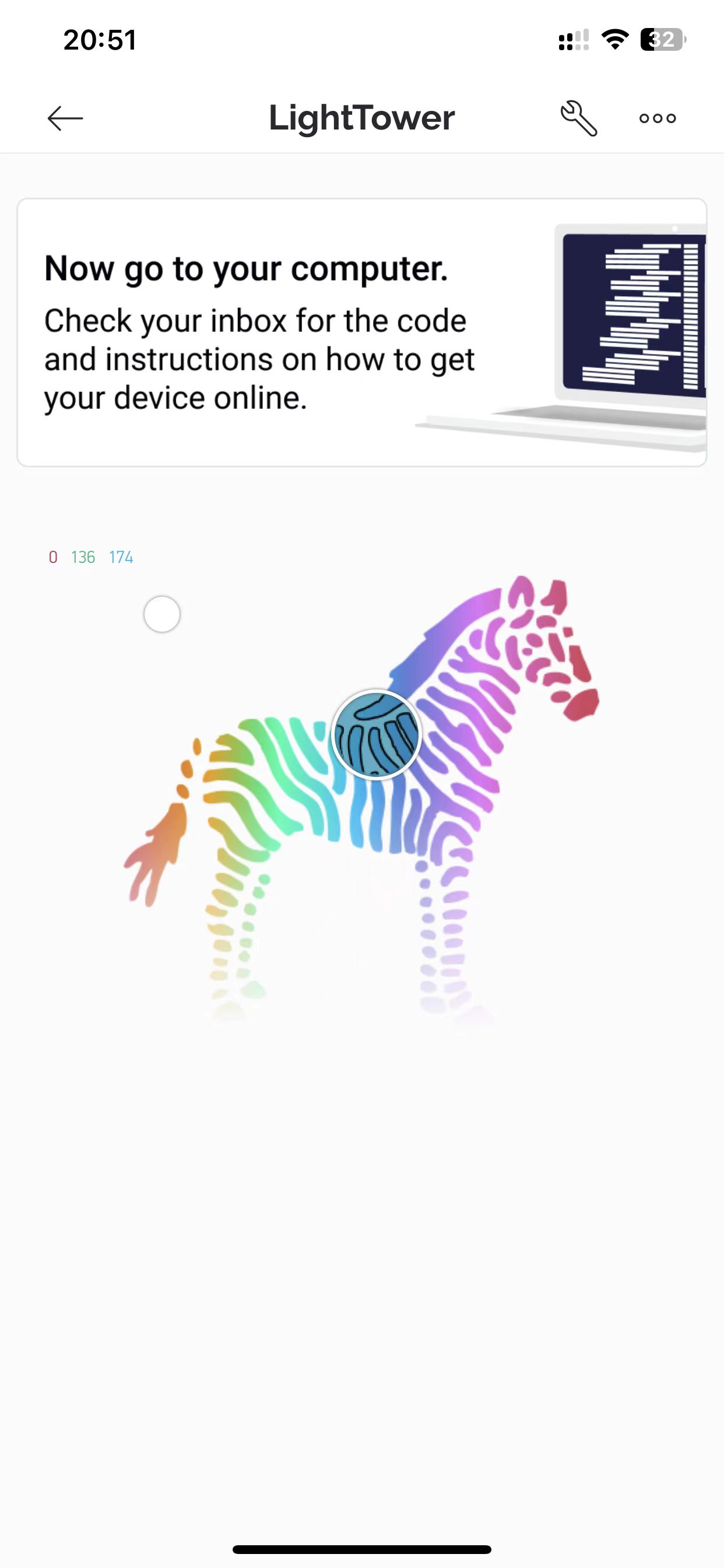
The syntax is as follows:
int r;
int g;
int b;

BLYNK_WRITE(V5) {
  // Called when virtual pin V2 is updated from the Blynk.App
  // V2 is a datastream of data type String assigned to a
  // Blynk.App ZeRGBa widget.
  r = param[0].asInt();
  g = param[1].asInt();
  b = param[2].asInt();
  Serial.print("V2: r = ");
  Serial.print(r);
  Serial.print("\t g=");
  Serial.print(g);
  Serial.print("\t b=");
  Serial.println(b);
  ws2812fx.setColor(((uint32_t)r << 16 | (uint32_t)g << 8 | (uint32_t)b));
  light_mode = 1;
} // BLYNK_WRITE(V5)
So we can get the R G B information from BLYNK and loop through Loop() to insert this color into the WS2812 light mode.
  if(light_mode)
  {
    ws2812fx.setColor(((uint32_t)r << 16 | (uint32_t)g << 8 | (uint32_t)b));
  }
Convert to RGB888 by (uint32_t)r << 16 | (uint32_t)g << 8 | (uint32_t)b.
Done.


