How to Install VS Code for Surf 5
How to Install VS Code for Surf 5
3

Components
Hardware components
WIZnet - W7500
x 1


microsoft - VS Code
x 1
Project description
How to install VS Code for Surf 5
Preparation for using VS Code
Installing ARM GCC Compiler Download link
Step 1
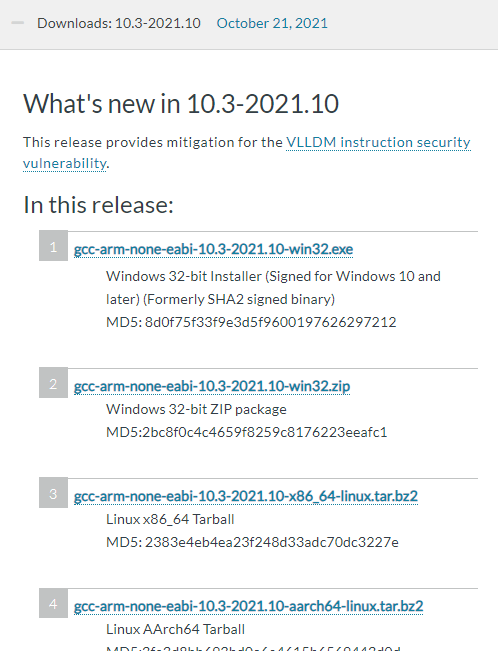
Download the .exe file that suits your user environment.
Step 2
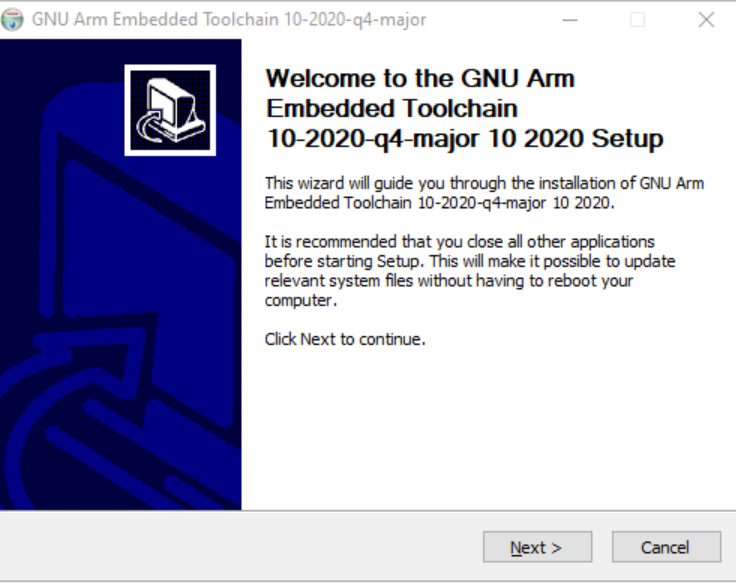
Press Next.
Step 3
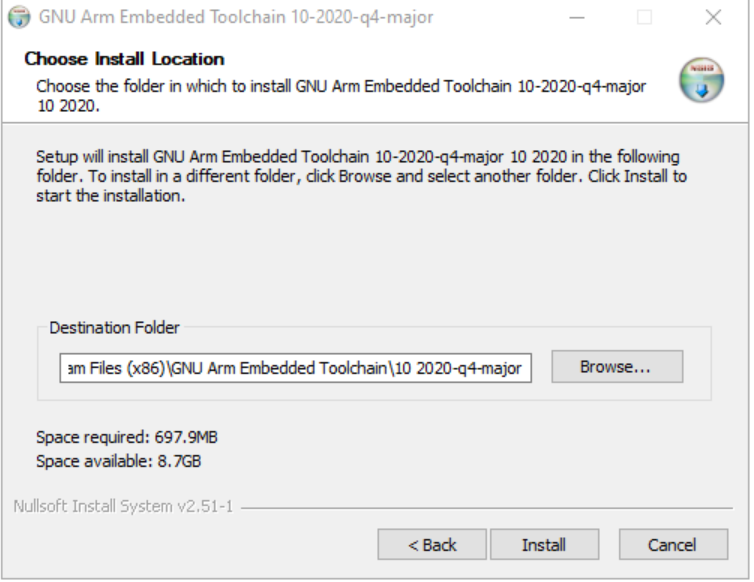
Set the path. We recommend installing it in the "C:\Program Files (x86)..." directory. Please remember this path, as it will be required in the VS Code environment settings below. If you have completed the path configuration, press Install.
Step 4
Wait for the download to complete.
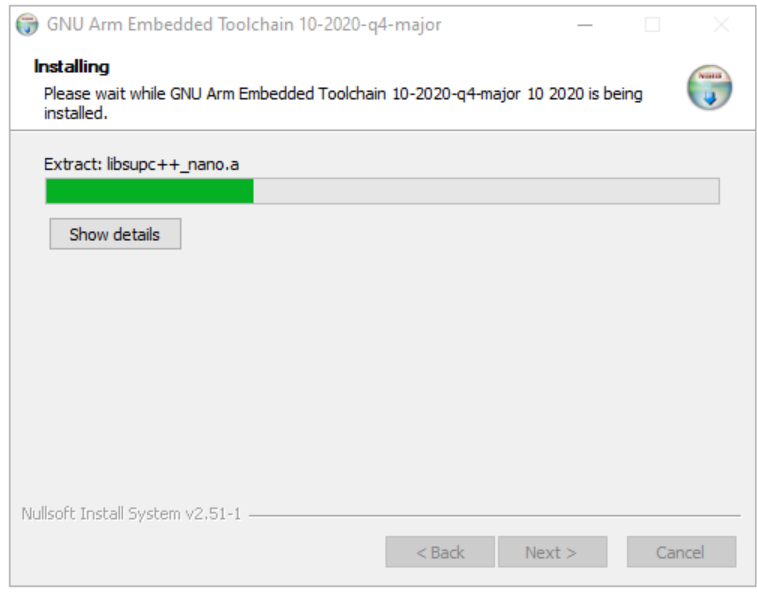
Step 5
Click on the checkboxes below to match the picture and press Finish.
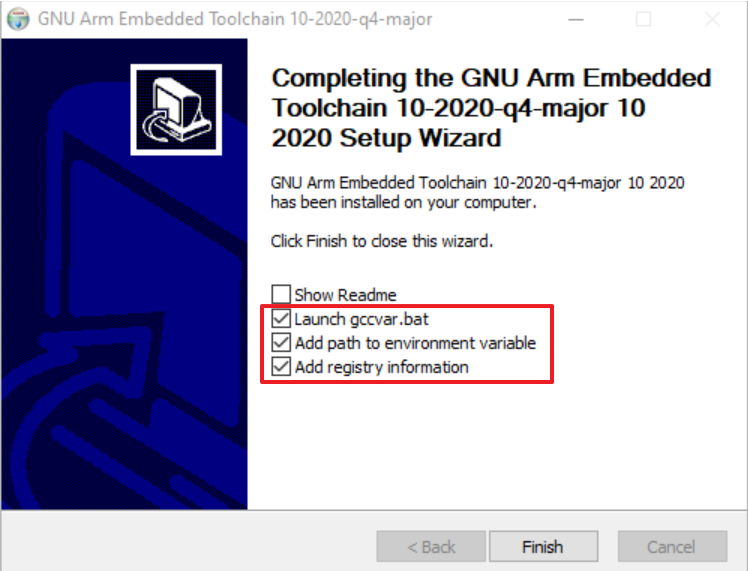
Installing CMake Download link
Step 1
Download the file that suits your user environment.
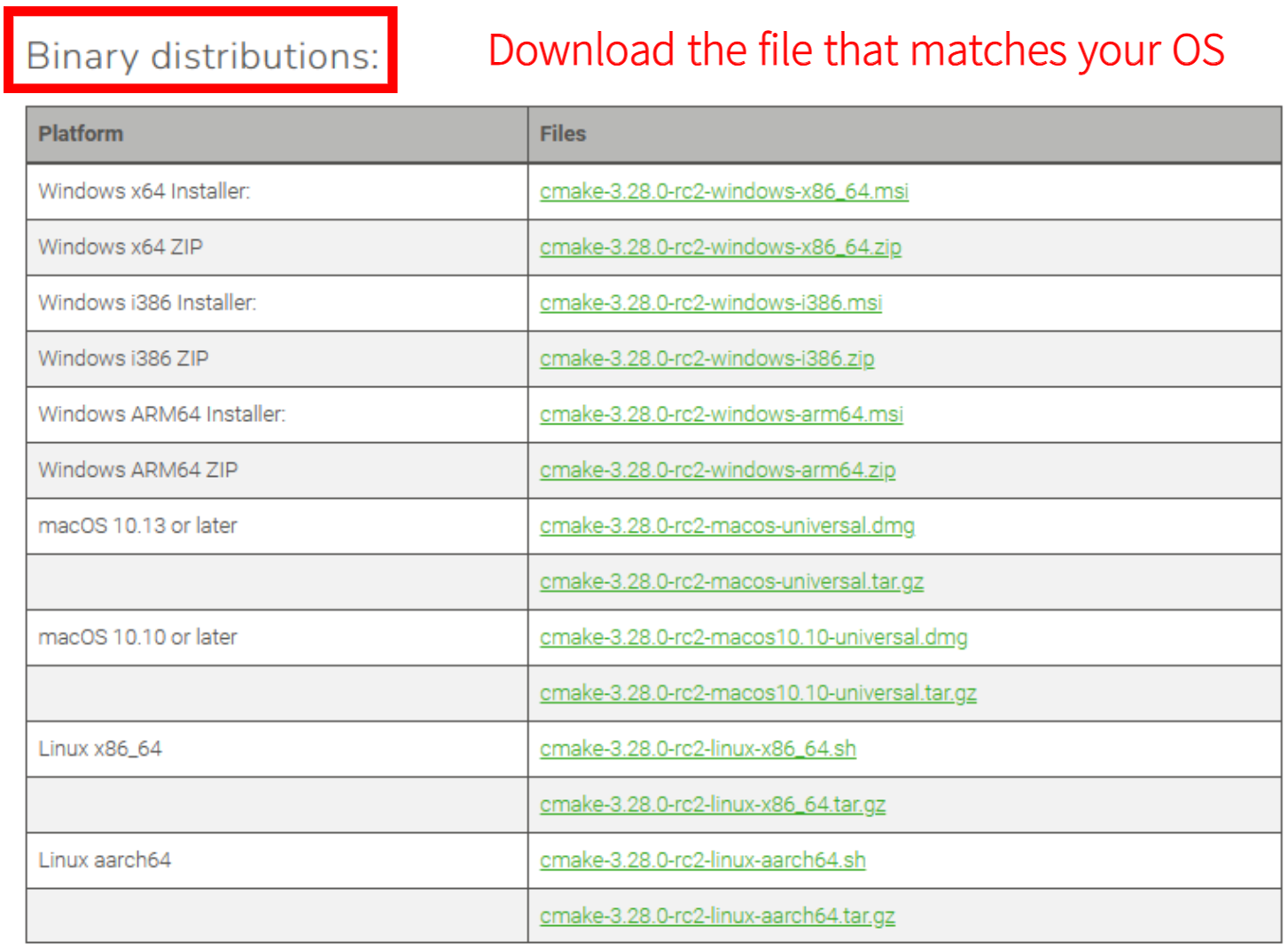
Step 2
Press Next.
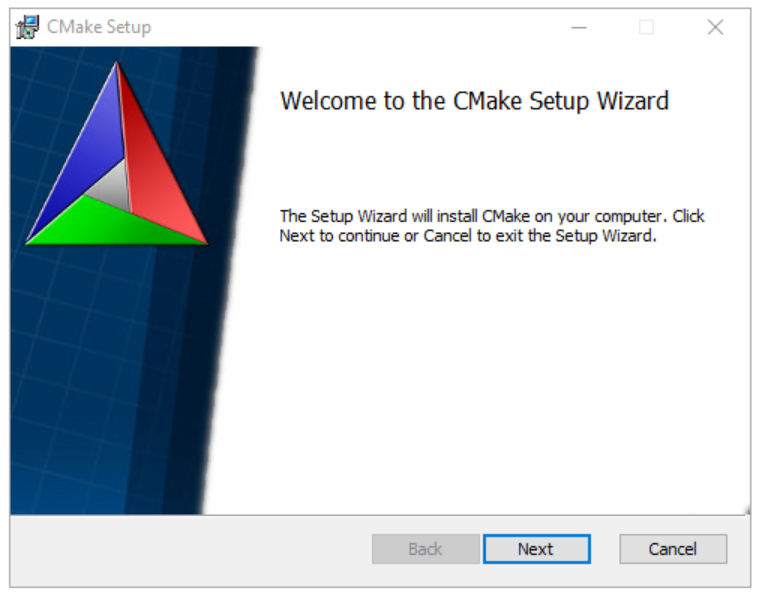
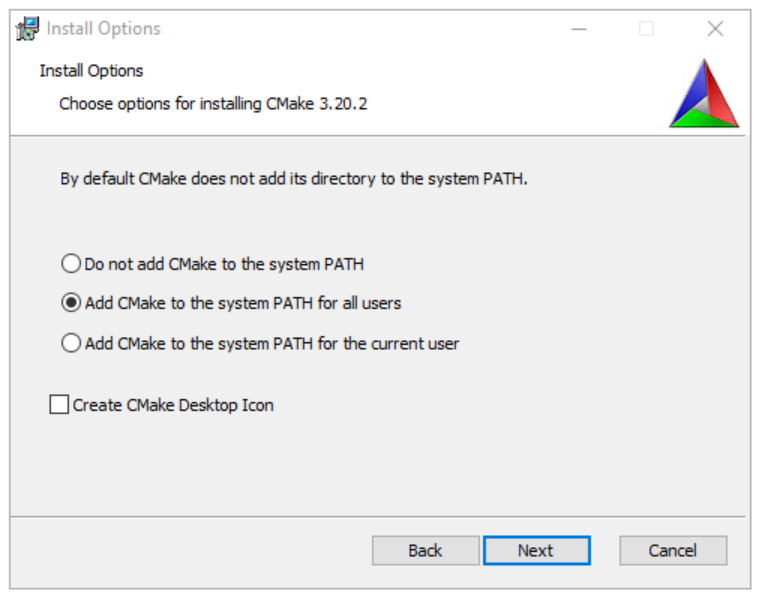
Step 3
Select "Add CMake to the system PATH for all users" and click Next.
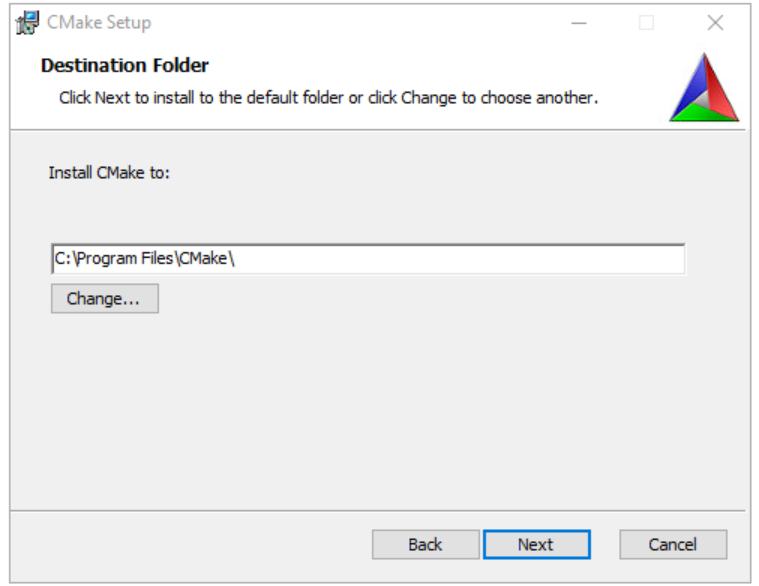
Step 4
Verify the download path and click Next.
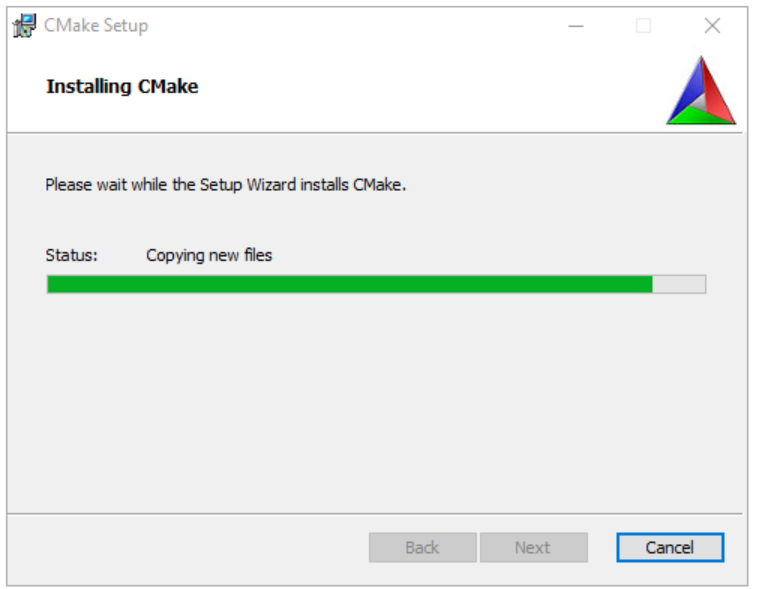
Step 5
Wait for the download to complete.
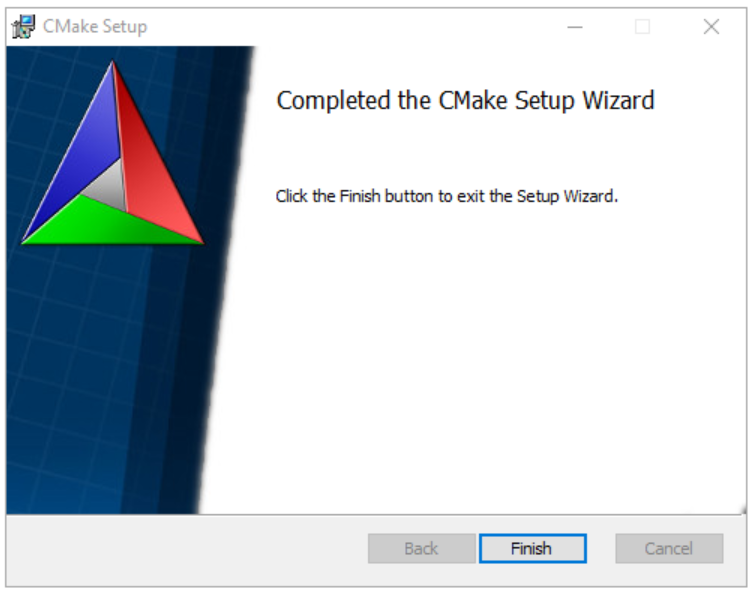
Step 6
Press Finish to complete the installation.
Installing Visual Studio 2022 Download link
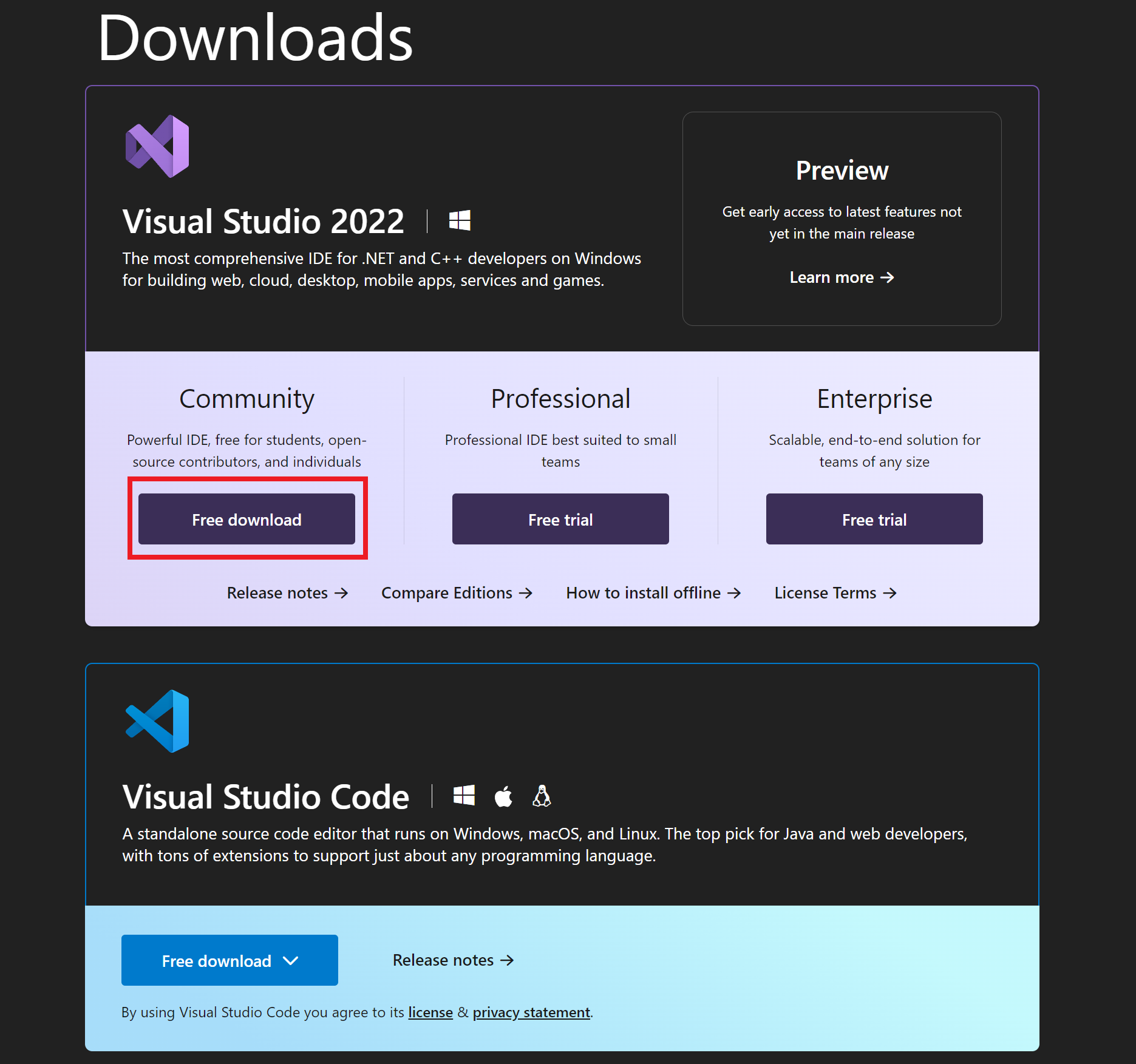
Step 1
Click on "Free download" for Visual Studio 2022 and download the installation file of Commmunity. If you already have Visual Studio 2022, you don't need to install it again.
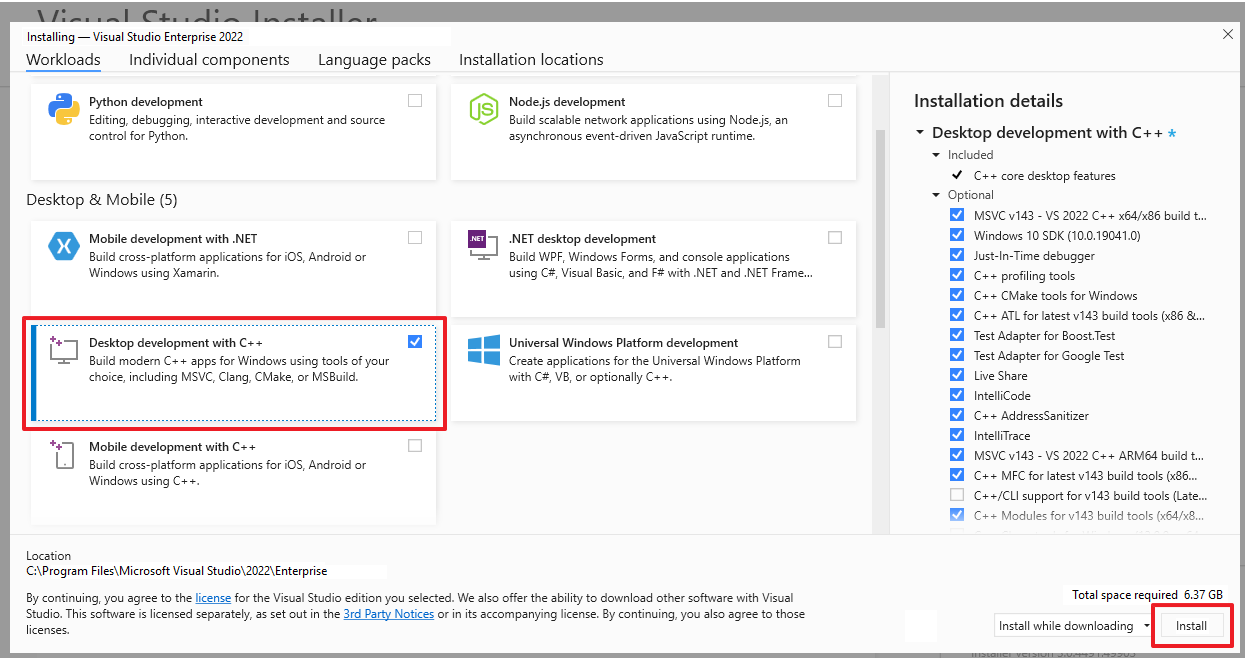
Step 2
Choose the "Desktop development with C++" workload. and Click install button.
Installing Visual Studio Code Download link
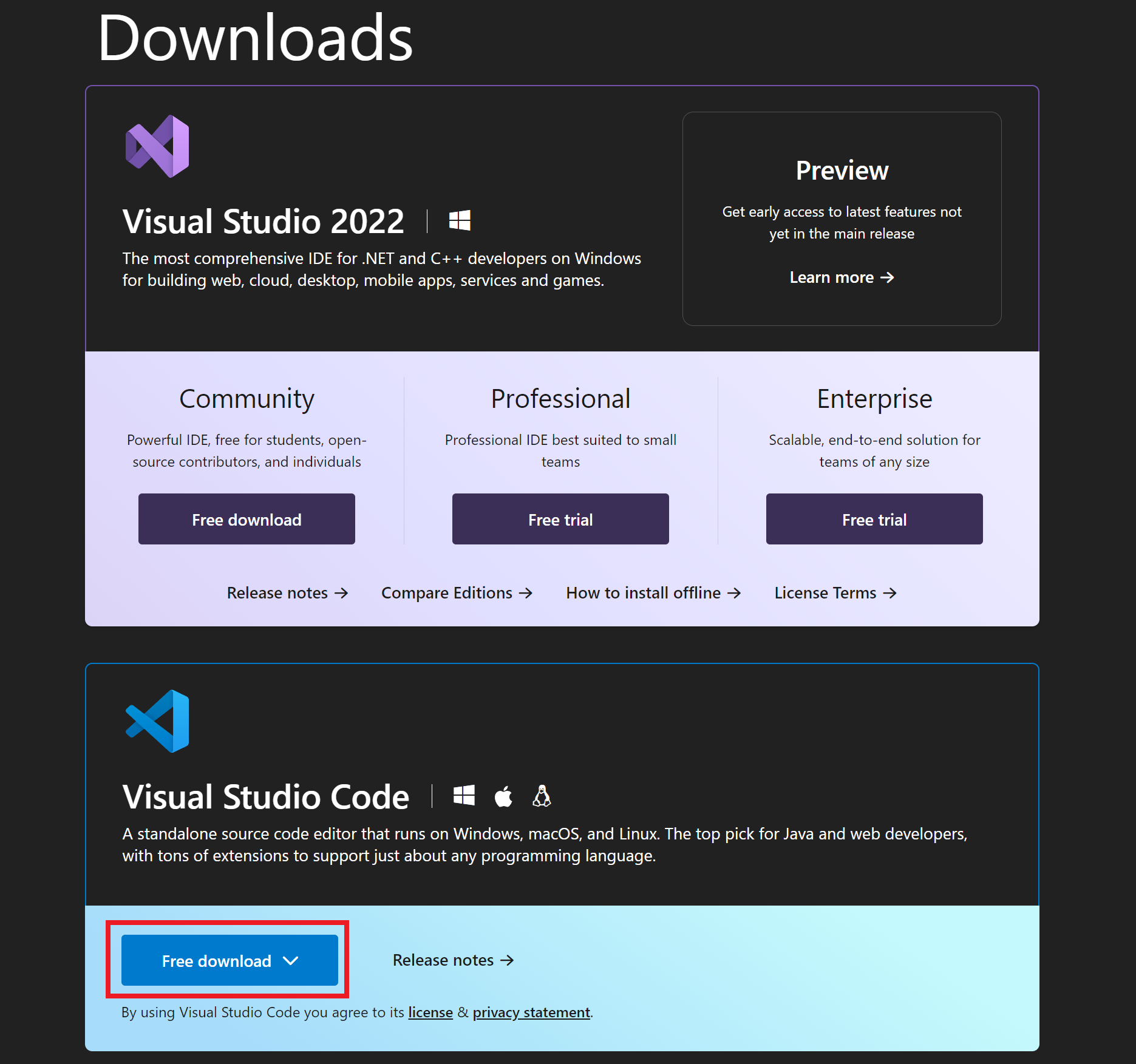
Step 1
Click on "Free download" for Visual Studio Code and download the installation file. If you already have Visual Studio Code, you don't need to install it again.
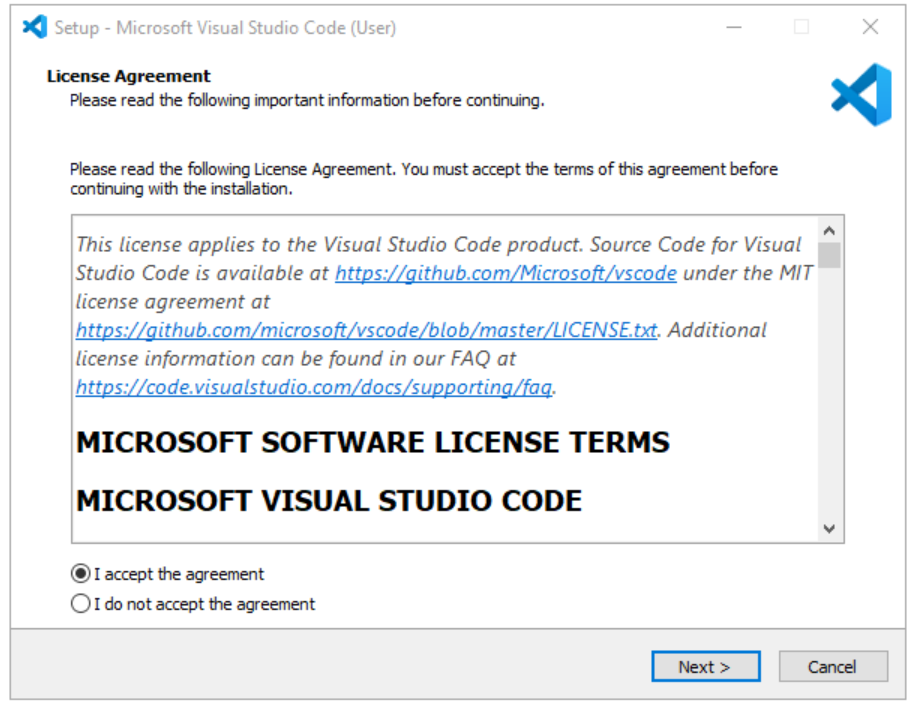
Step 2
Click "I accept the agreement" and then press Next.
Step 3
Verify the download path and press Next.
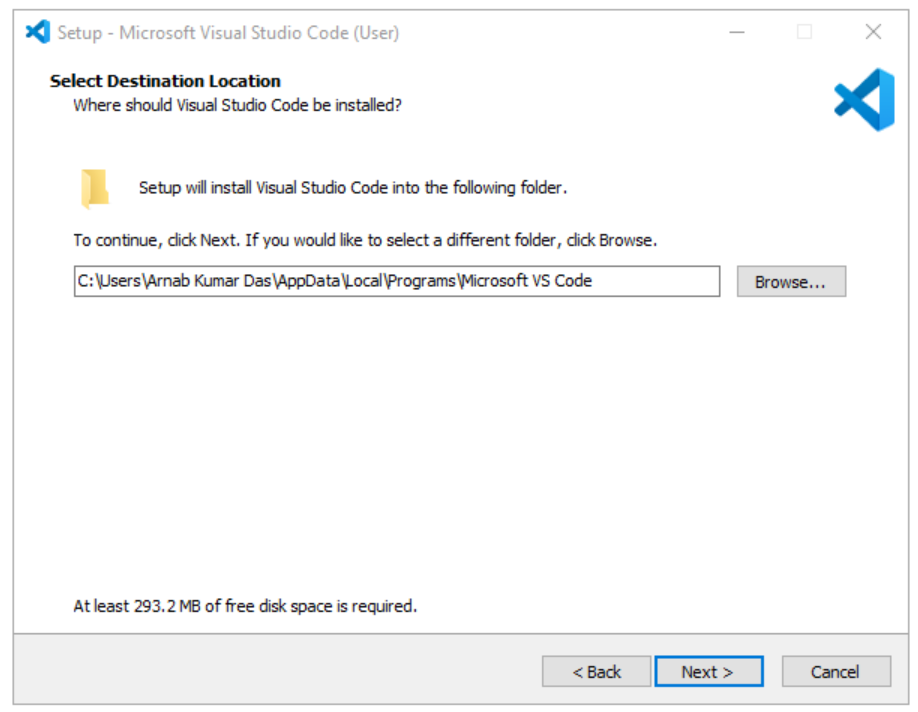
Step 4
Click the checkboxes as shown in the picture below and press Next.
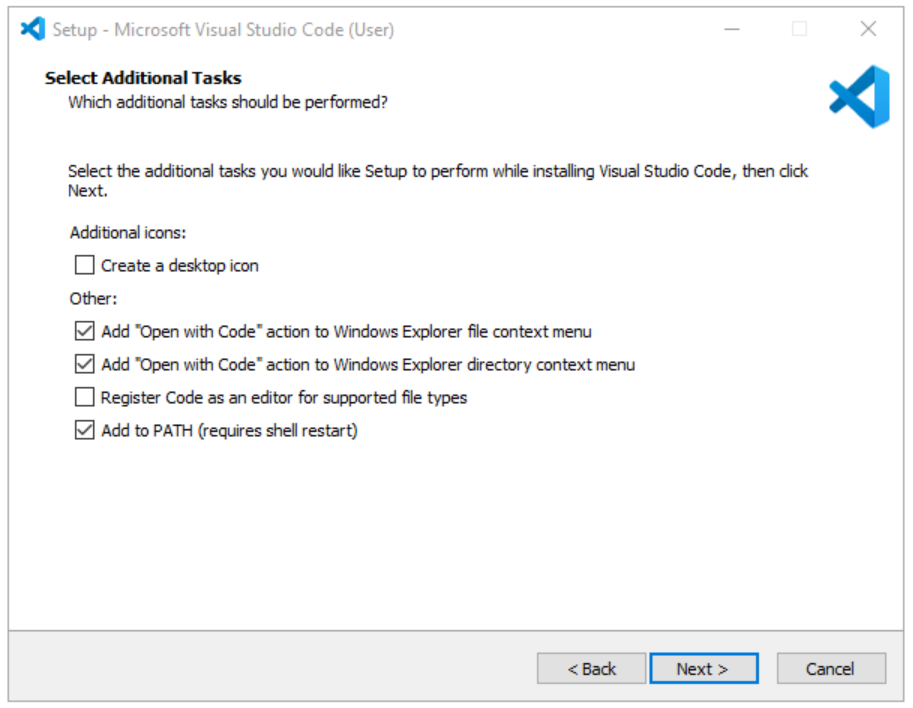
Step 5
Wait for the download to complete.
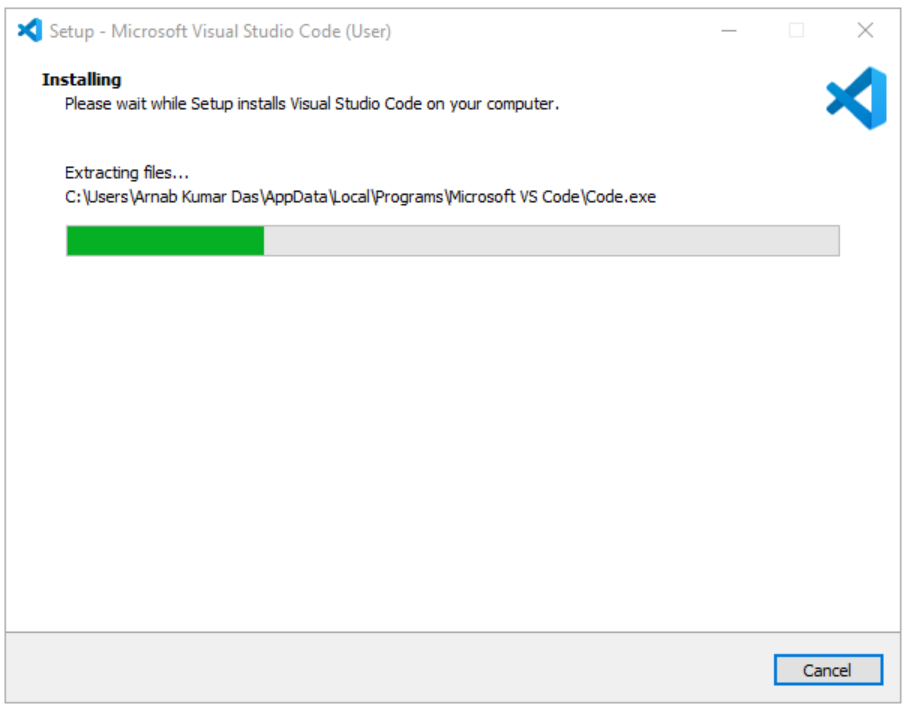
Step 6
Press Finish to complete the installation.