WIZnet W5300-TOE Loopback server (micropython)
WIZnet W5300-TOE Loopback server with Nucleo-f429zi
6
Components
Hardware components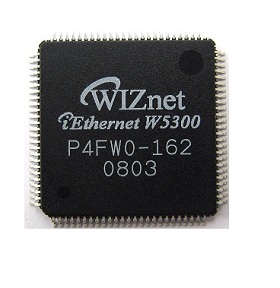
WIZnet - W5300
x 1

micropython - MicroPython
x 1
Project description
These sections will guide you through a series of steps from configuring development environment to running ethernet examples using the STM32f429zi (nuleo-f429zi) with W5300-TOE
Please refer to the 'Getting Started' guide for the basic settings
https://github.com/Wiznet/W5300-TOE-MicroPython/blob/main/static/GettingStart.md
Hardware requirements
The ethernet examples use NUCLEO-F429ZI build on STM32 MCU with WIZnet's W5300 ethernet chip. If you use other STM board, supported board of STMicroelectronics micropython in LIST and check that the board supports FMC 16bit data pin
W5300-TOE
* W5300-TOE shield's product page is not surported yet, I will add it when it is provided.
W5300 product page is Here
NUCLEO-F429ZI
STM32F429ZI This document is based on STM32F429ZI. If you use other STM board, Please edit it to your HW configuration.

- FMC Data pin (0-8 or 0-16)
- FMC Address pin (0-10)
- FMC Control GPIO pin (NE, NWE, NOE)
- WIZChip Control GPIO pin (INT, RST)
- UART3 pin(connect to ST-LINK) -- Be changed for use the FMC on the Nucleoboard. Pin D8, D9 -> Pin C10, C11
===================================================================
Wiznet5K (micropython Library for wiznet product)
W5300 is not included in the FW provided by microthon. So you have to use the FW provided by WIZnet.
Please refer to the getting start on the official site for downloading and editing of W5300 WIZNET5K FW (Click Here)

The following serial terminal program is required for Loopback test, download and install from below links.
Step 2: Prepare hardware
- Combine WIZnet W5300-TOE Ethernet Shield and NUCLEO-F429ZI STM Board
- Connect ethernet cable to W5300-TOE ethernet port.
- Connect NUCLEO-F429ZI to desktop or laptop using 5 pin micro USB cable.
Step 3: Setup Loopback Example
To test the Loopback example, minor settings shall be done in code.
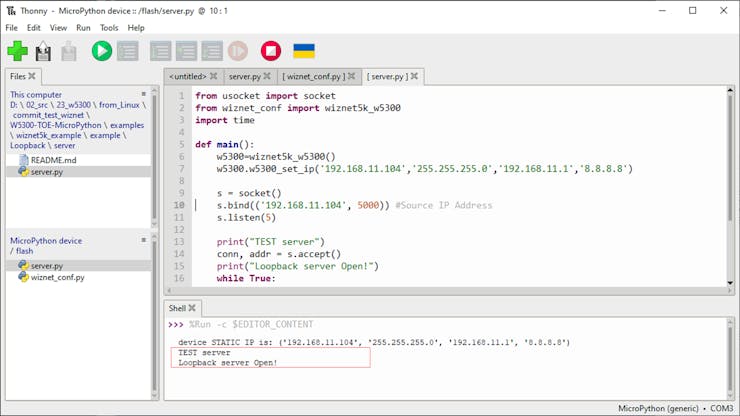
- Check COMport in [‘Configure interpreter …] and then open Thonny Python IDE.

nic.ifconfig(('IP Address', 'Netmask', 'Gateway', 'DNS'))
from wiznet_conf import wiznet5k_w5300
		...

def main():
    w5300=wiznet5k_w5300()
    w5300.w5300_set_ip('192.168.11.104','255.255.255.0','192.168.11.1','8.8.8.8')
...- How to operate as a Loopback Server.
def server_loop():
    s = socket()
    s.bind(('192.168.1.20', 5000)) #Source IP Address
    s.listen(5)

    conn, addr = s.accept()
    print("Connect to:", conn, "address:", addr)
    print("Loopback server Open!")
    while True:
        data = conn.recv(2048)
        print(data.decode('utf-8'))
        if data != 'NULL':
            conn.send(data)
Step 4: Upload and Run
Loopback Server Mode
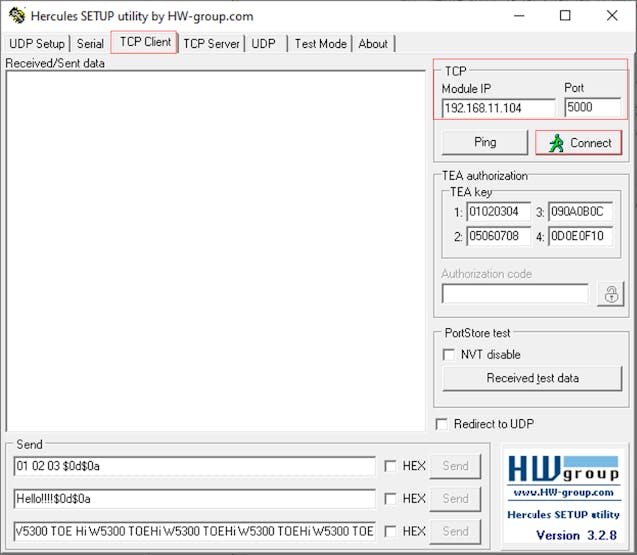
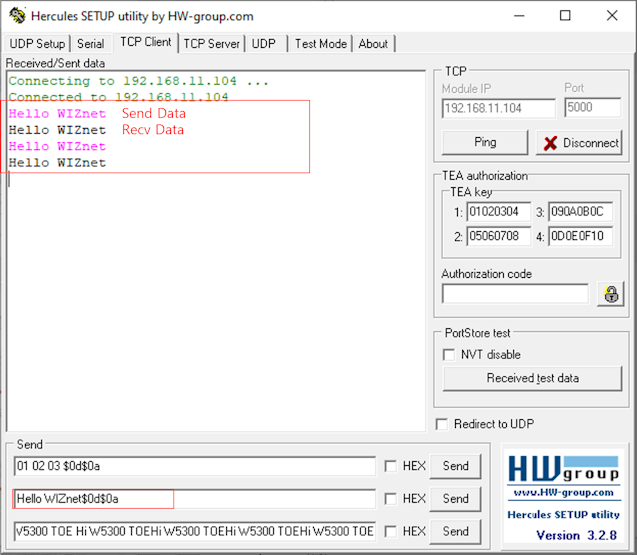
- The Loopback is executed and the server waits in Listen state.