WIZnet W6100-EVB-Pico Raspberry Pi Getting Started Tutorial (1)
WIZnet W6100-EVB-Pico Raspberry Pi Getting Started Tutorial (1)
0
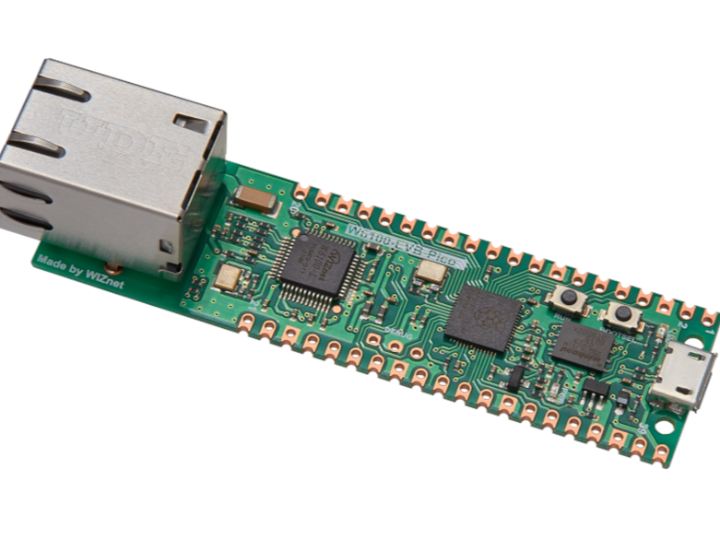
Components
Hardware components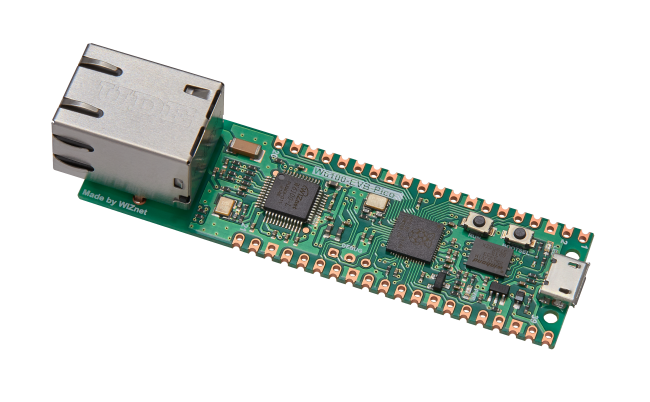
WIZnet - W6100-EVB-Pico
x 1

Project description
Overview
W6100-EVB-Pico is a microcontroller evaluation board based on Raspberry Pi RP2040 and full hardware TCP/IP protocol stack controller W6100 - the basic working principle is the same as the Raspberry Pi Pico board, but the Ethernet function is added through the W6100 chip.
Onboard Resources
RP2040 is the first microcontroller for Raspberry Pi. It brings our hallmark values of high performance, low cost and ease of use to the microcontroller world. With large on-chip memory, a symmetrical dual-core processor complex, a deterministic bus structure, and a rich set of peripherals, as well as our unique programmable I/O (PIO) subsystem, it offers professional users unparalleled power and flexibility sex.
- RP2040 microcontroller with 2MB Flash
- Dual-core Arm Cortex-M0 + @133MHz
- 264KB high-performance SRAM
- External Quad SPI Flash with Expansion-in-Place (XIP)
- High-performance full horizontal bar bus structure
- 30 GPIOs (4 can be used for ADC)
- 12-bit 500ksps resolution analog-to-digital converter (ADC)
- Support up to 16MB off-chip flash memory through dedicated QSPI bus
- DMA controller
- Various digital peripherals
- 2 UARTs, 2 SPI controllers and 2 I2C controllers, 16 PWM channels
- 1 timer, 1 RTC
- 2 Programmable I/O (PIO) blocks for a total of 8 state machines
- USB 1.1 host and device support
- Supports USB mass storage boot mode for UF2 for drag-and-drop programming
W6100 is the world's first new-generation full-hardware Ethernet TCP/IP protocol stack controller that supports IPv4/IPv6 dual-core. W6100 adds IPv6 on the basis of WIZnet's core patented technology - full hardware TCP/IP protocol stack IPv4, enabling users to realize the networking function of embedded devices more simply and quickly.
- W6100 Chip Specifications
- IPv4/IPv6 dual protocol stack
- Support multiple TCP/IP protocols
- TCP, UDP, IPv6, IPv4, ICMPv6, ICMPv4, IGMP, MLDv1, ARP, PPPoE
- Support 8 independent socket communication at the same time.
- Built-in 32KB memory for TX and RX buffer 16KB each
- Support multiple SOCKET-less commands
- ARP4, ARP6, PING4, PING6, NS(DAD), RS, UNA
- Support high-speed SPI interface (SPI mode 0, 3) and system bus (2-bit address bus and 8-bit data bus);
- Support network port polarity automatic conversion and PHY working mode automatic negotiation (full/half duplex, 10/100M)
- Integrated 10BaseT/10BaseTe/100BaseTX Ethernet PHY
- Support Wake On LAN (WOL) function based on UDP protocol
- Support two energy-saving modes: PHY power down and system clock off
- 2MB NOR (W25Q16JVZPIM) Flash, controlled via QSPI direct connection.
- Micro-USB B interface, used for power supply and data transmission (program download, serial port transceiver)
- 40 pins 21x51 'DIP' style 1mm thick PCB with 0.1" through hole pins also with edge orientation
- 3-pin ARM SWD
- Built-in RJ45 interface
- Built-in LDO
Hardware Specification
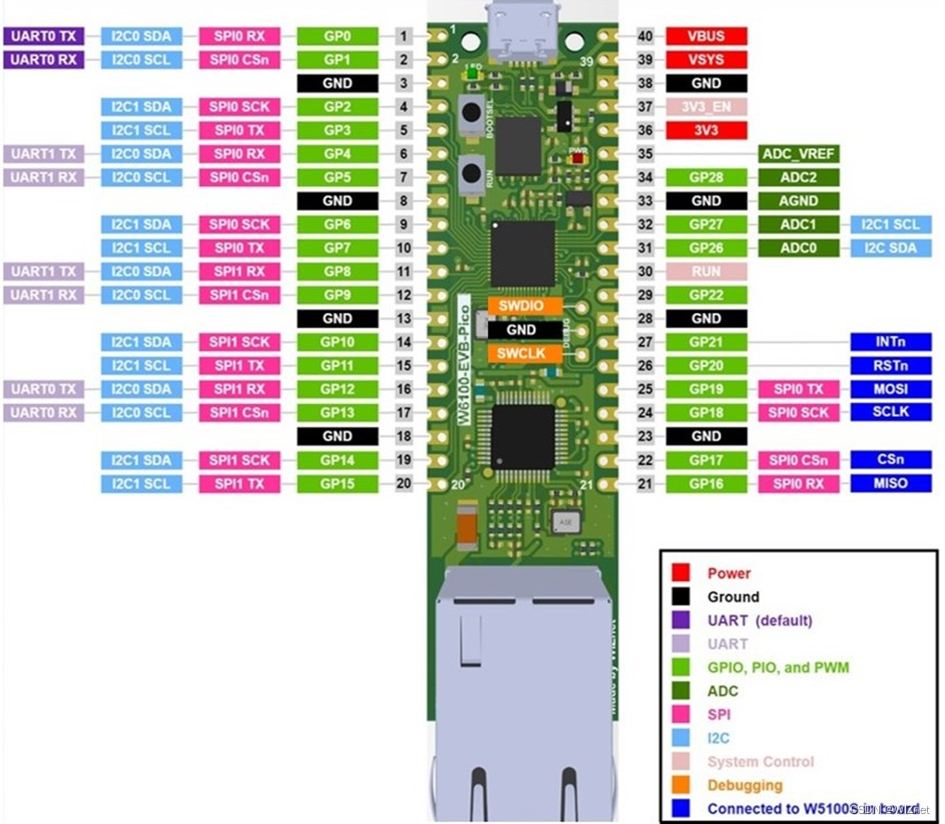
As shown in the dark blue shading part of the above figure, some GPIOs of RP2040 are directly connected to the relevant pins of the SPI interface of W6100. The specific connection corresponds to the following table:
Note: These pins enable SPI communication with W6100 using Ethernet function. If you are using the Ethernet functionality, these pins cannot be used for any other purpose.
The RP2040 GPIO used inside W6100-EVB-Pico is shown in the table below:
I/O | Pin Name | Description |
I | GPIO16 | Connect to the MISO interface of W6100 |
O | GPIO17 | Connect to the CS interface of W6100 |
O | GPIO18 | Connect to the SCLK interface of W6100 |
O | GPIO19 | Connect to the MOSI interface of W6100 |
O | GPIO20 | Connect to the RSTn interface of W6100 |
I | GPIO21 | Connect to the INTn interface of W6100 |
I | GPIO24 | VBUS detection interface |
O | GPIO25 | User LED light |
I | GPIO29 | For ADC mode detection VSYS/3 |
In addition to GPIO and ground pins, there are 7 other pin interfaces:
Pin Number | Pin Name | Description |
PIN40 | VBUS | Micro-USB input voltage, connected to Micro-USB interface pin 1. Nominally 5V. |
PIN39 | VSYS | The main system input voltage, which can vary within the allowable range of 4.3V to 5.5V, is generated by the onboard LDO to 3.3V. |
PIN37 | 3VE_EN | Connect to on-board LDO enable pin. To disable 3.3V (also power down the RP2040 and W6100), short this pin low. |
PIN36 | 3V3 | The main 3.3V power supply for RP2040 and W6100 is generated by the onboard LDO. |
PIN35 | ADC_VREF | ADC supply (and reference) voltage and is generated on the W6100-EVB-Pico from a filtered 3.3V supply. |
PIN33 | AGND | GPIO26-29 ground reference. |
PIN30 | RUN | RP2040 enable pin, reset RP2040, short this pin low. |
Working conditions:
| Attributes | Parameter |
| Operating temperature | -20℃~85℃ |
| Micro-USB Input voltage | DC 5V(+/- 10%) |
| Input voltage | DC 4.3V~5.5V |
Development environment configuration
Development environment:Windows10/11,Visual Studio Code
Hardware preparation: W6100-EVB-Pico,Ethernet Cable ,Micro USB
Step 1: Download Compilation Tools
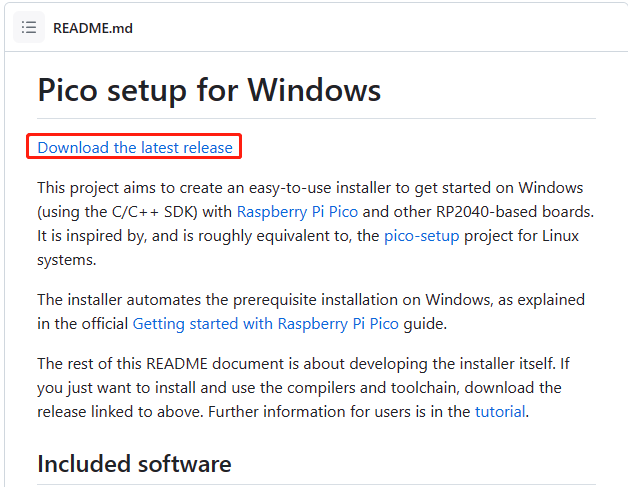
First download the official compilation tool of Raspberry Pi:
https://github.com/raspberrypi/pico-setup-windows
The tool integration includes the following software:
- Arm GNU Toolchain
- CMake
- Ninja
- Python3.9
- Git for Windows
- Visual Studio Code
- OpenOCD
After entering, select: Download the latest release
Step 2: Install the program
After the download is complete, double-click the .exe file to install, select the installation path and click install, after the installation is complete, check the download example to folder
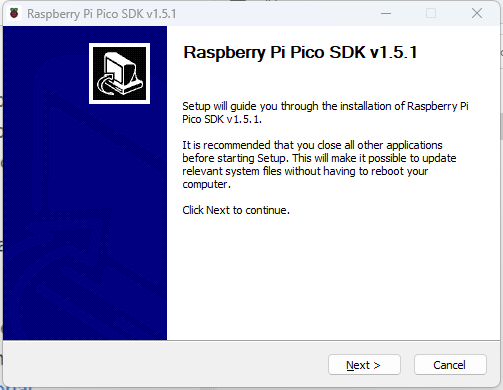
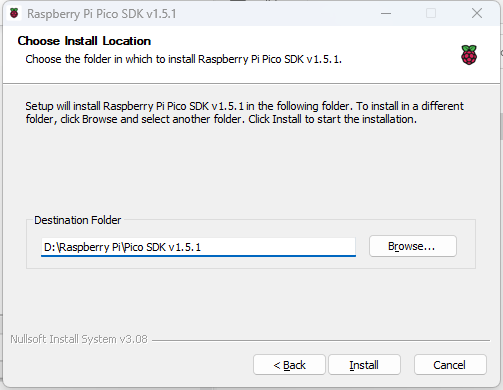
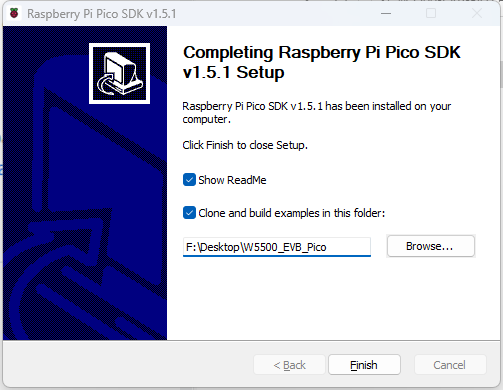
Download Test
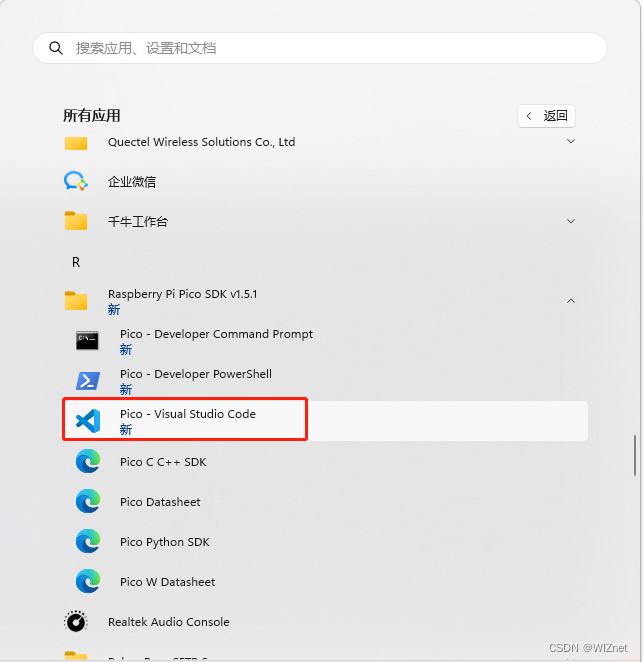
Find Visual Studio Code in the start menu. After opening, it will automatically load the sample program we just downloaded. Open the hello_usb.c file under the usb folder under the hello_world folder. The function of this example is to automatically print "Hello, world" through the USB port
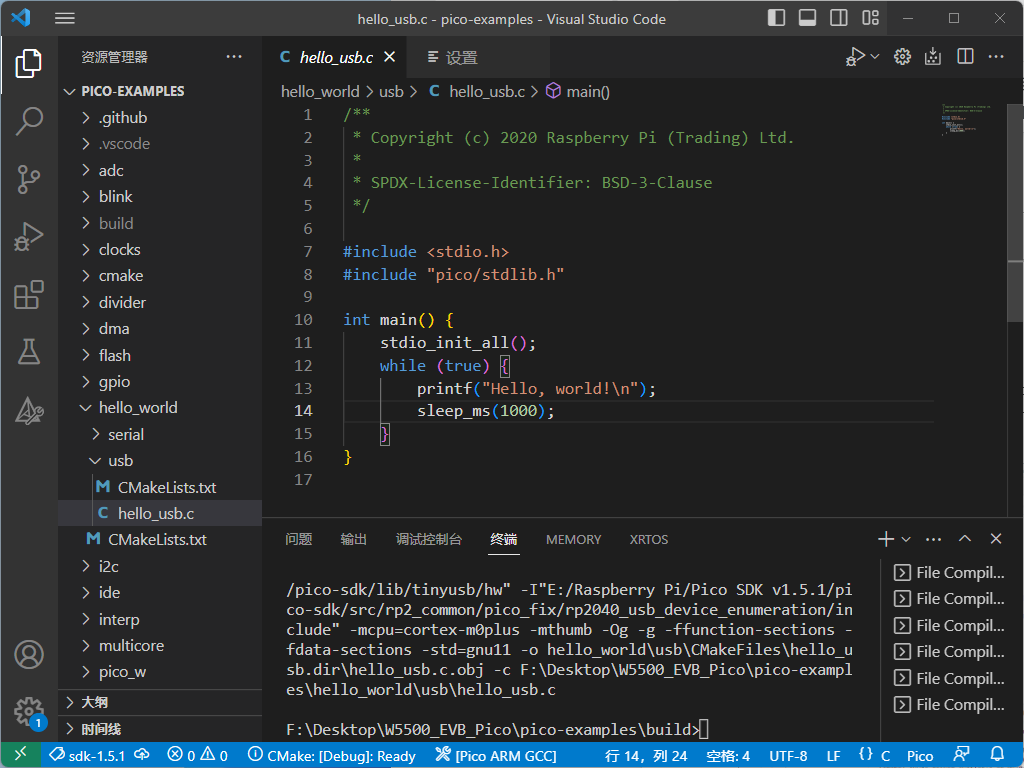
Compile
Click the tool icon at the bottom and select Pico ARM GCC as our compilation chain
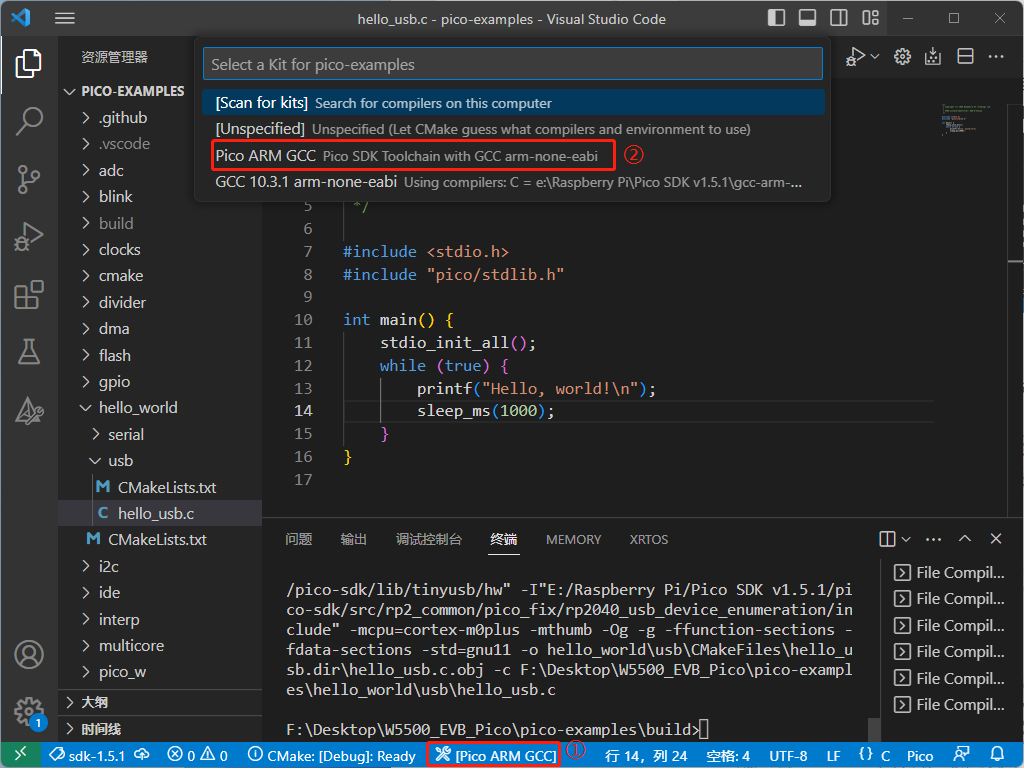
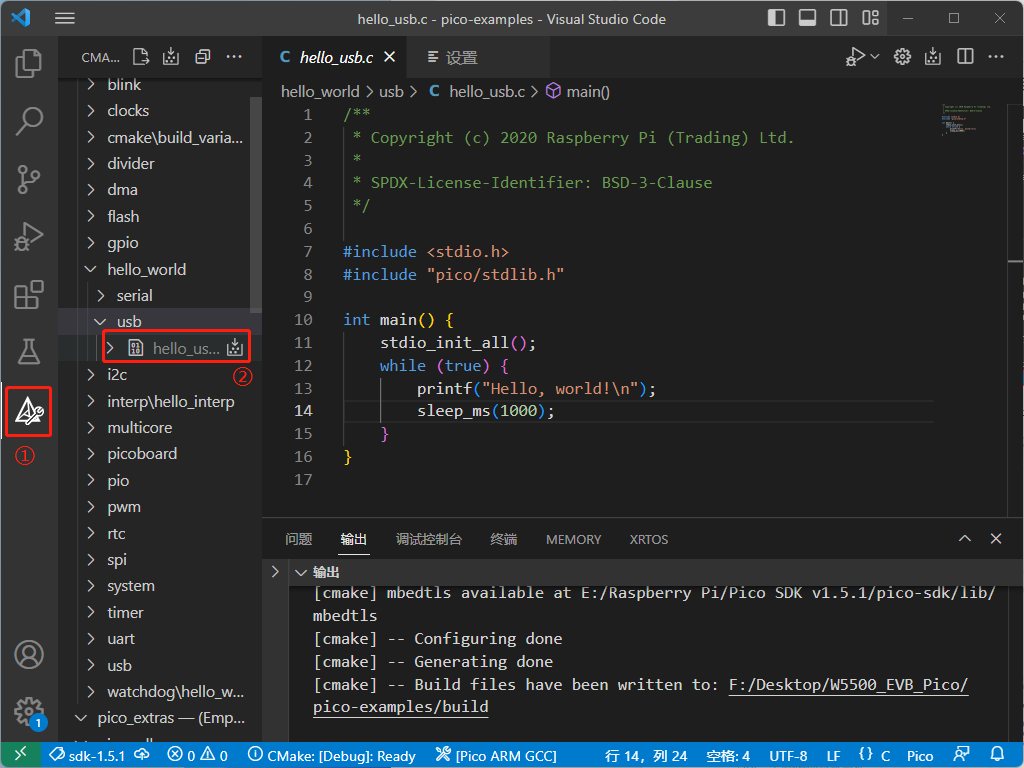
Select the CMake tool on the left, click the download button behind the hello_usb file to generate the execution file
Download
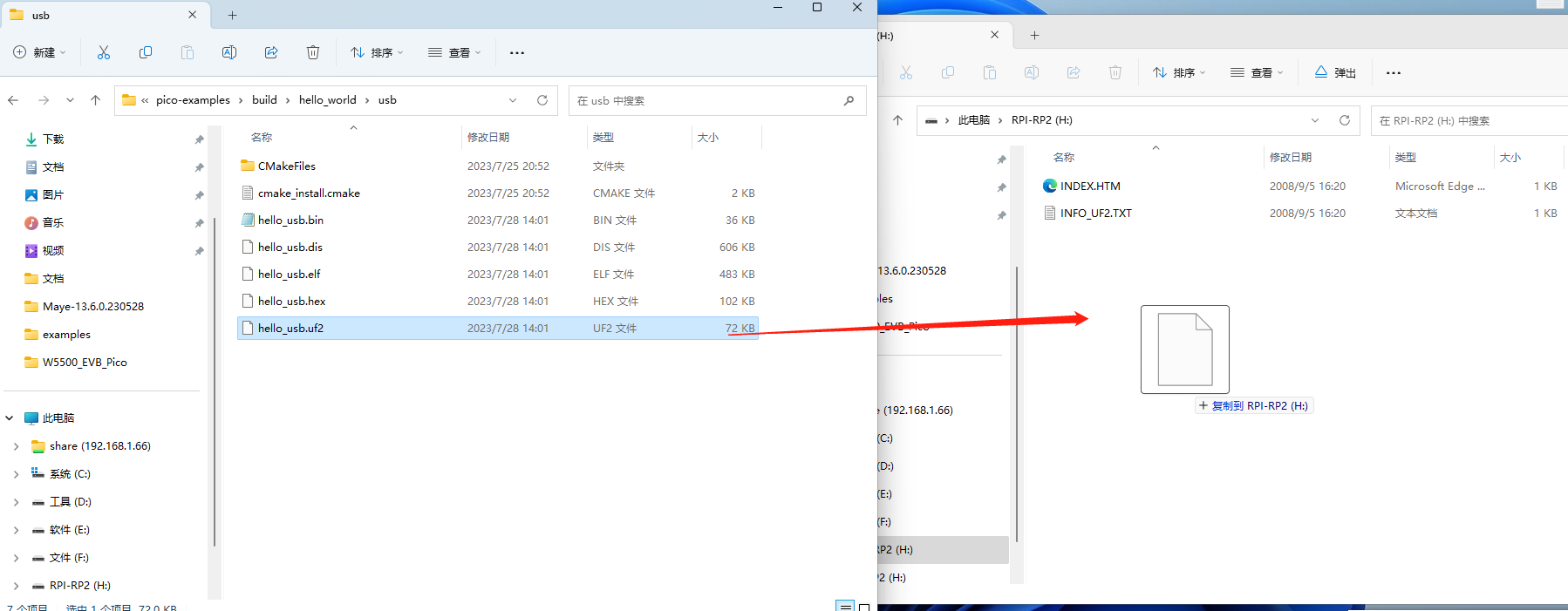
Press and hold the BOOTSEL button of W5500-EVB-Pico and then plug it into the computer via USB, then release the BOOTSEL button. At this time, the computer will recognize W5500-EVB-Pico as a large storage device.
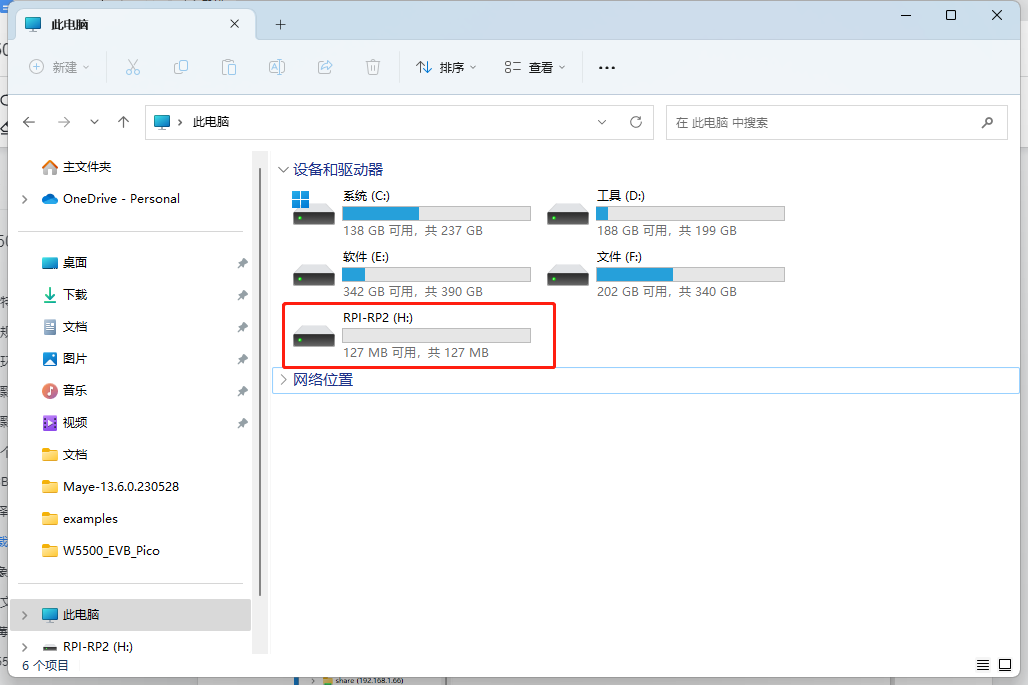
We open the build/hello_world/husb folder, and drag the compiled file with the suffix .uf2 into W5500-EVB-Pico to complete the download.
Phenomenon
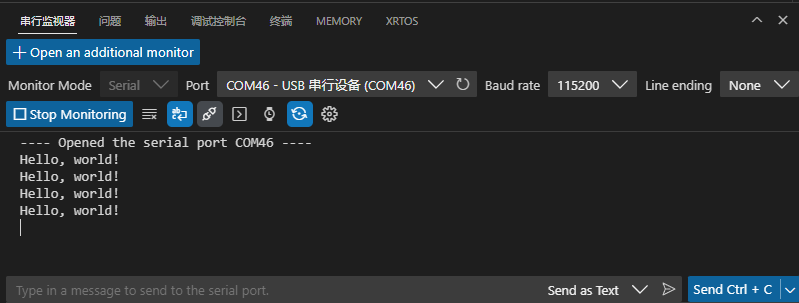
At this point, the mass storage device on the computer disappears, indicating that the program download is complete. At this time, W5500-EVB-Pico will virtualize the USB into a serial device and connect it to the computer. We can use the serial monitor that comes with VS Code to connect to W5500-EVB-Pico to view the printing information.
Technical Documentation
Raspberry Pi pico reference materials
RP2040 Datasheet (raspberrypi.com)https://datasheets.raspberrypi.com/rp2040/rp2040-datasheet.pdf
https://datasheets.raspberrypi.com/rp2040/rp2040-datasheet.pdf
树莓派 Pico 中文站https://pico.org.cn/
https://pico.org.cn/
W6100 References
Overview :http://docs.wiznet.io/Product/iEthernet/W6100
WIZnet · GitHub https://github.com/Wiznet
W6100-EVB-Pico Schematic Diagram
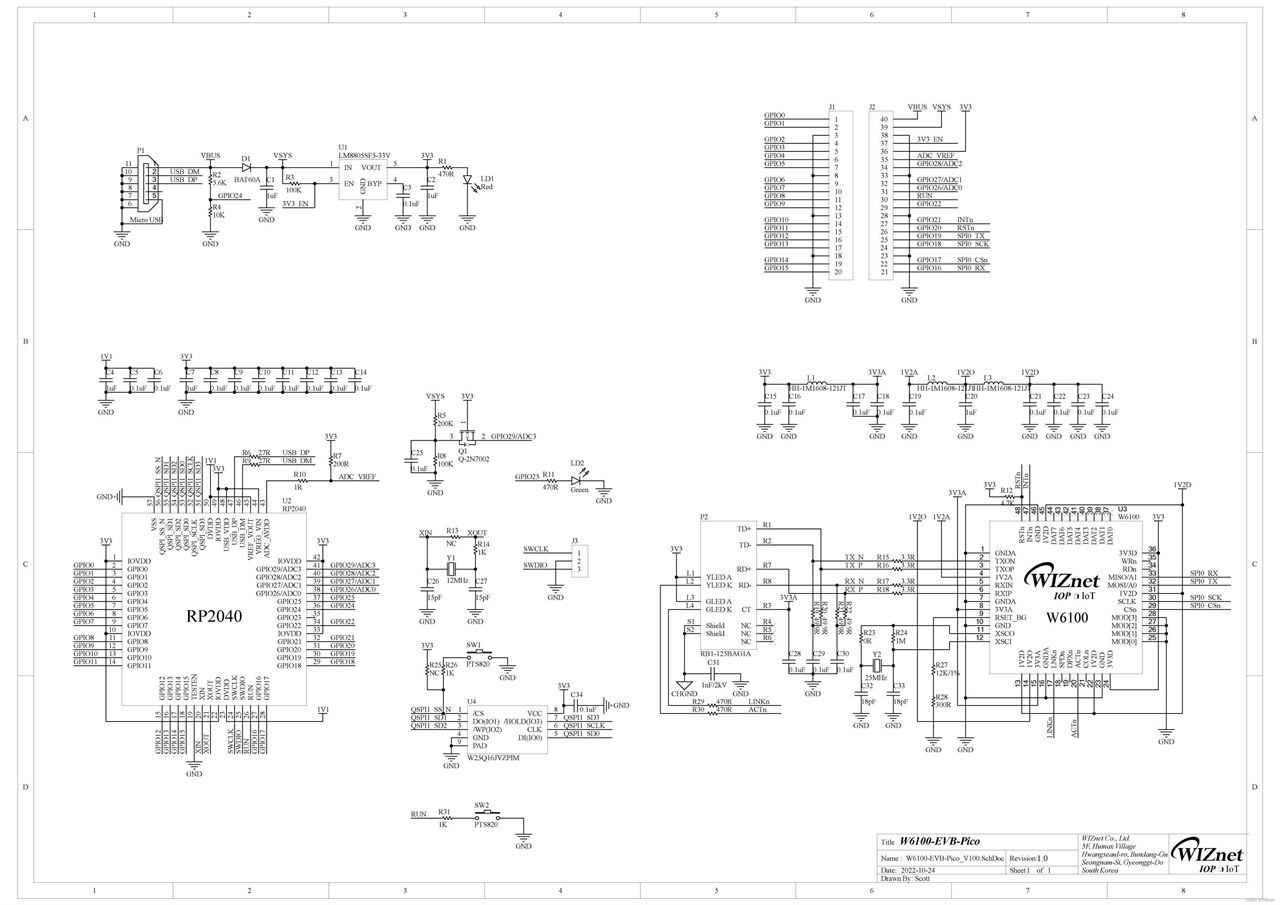
Schematic & Part list & Gerber File:
Hardware-Files-of-WIZnet/02_iEthernet/W6100 at master :
https://github.com/Wiznet/Hardware-Files-of-WIZnet/tree/master/02_iEthernet/W6100

