Getting started with W55RP20 circuitpython
Getting started with W55RP20 circuitpython
1
Components
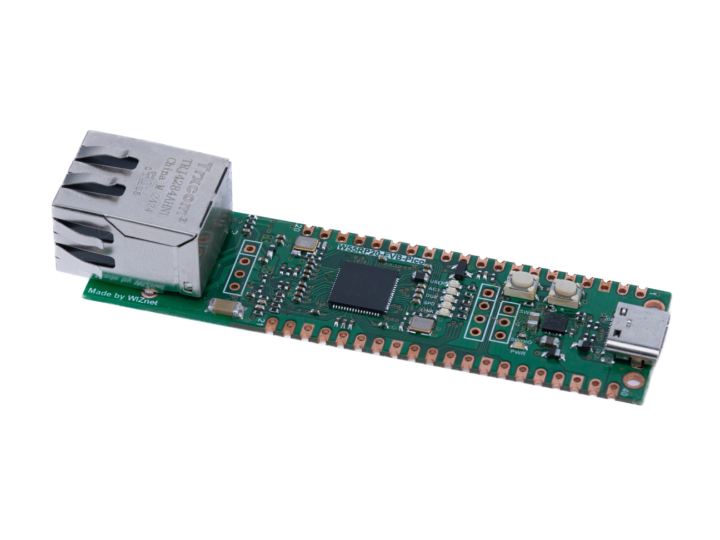
Hardware components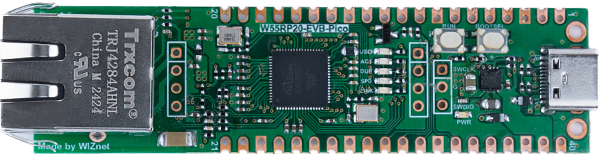
WIZnet - W55RP20-EVB-Pico
x 1

Adafruit - Circuitpython
x 1
Project description
Hardware Requirements
- W55RP20-EVB-Pico
- Desktop or Laptop
- USB C Type Cable
Development Environment Configuration
To test the examples, the development environment must be configured to use W55RP20-EVB-Pico.
The examples were tested by configuring the development environment for Windows. Please refer to the below and configure accordingly.
Installing CircuitPython
Install CircuitPython on W55RP20-EVB-Pico by referring to the link below.
- Installing CircuitPython
Prototyping is easier than ever, with no software download required. Simply copy and edit the files to the CIRCUITPY drive, and repeat it.


Edit and save the Lcode in code.py, your code will run on the W55RP20-EVB-Pico.
Let's check if CircuitPython is properly installed in your W55RP20-EVB-Pico with a simple blink example by referring to the link below.
- Blinky and a Button
Setup Libraries
To use Wi-Fi and additional functions of W55RP20-EVB-Pico, copy and paste the libraries included in the 'WIZnet-ioNIC-Circuitpython/libraries' directory into the 'CIRCUITPY/lib' directory.

Everything can be found on github at the link below.
https://github.com/WIZnet-ioNIC/WIZnet-ioNIC-Circuitpython/tree/main
Loopback Example
Examples are available at 'W55RP20-EVB-Pico-CircuitPython/examples' directory. As of now, following examples are provided.
##TCP
Put in the Loopback example and spin it up, and you have a simple TCP server working.
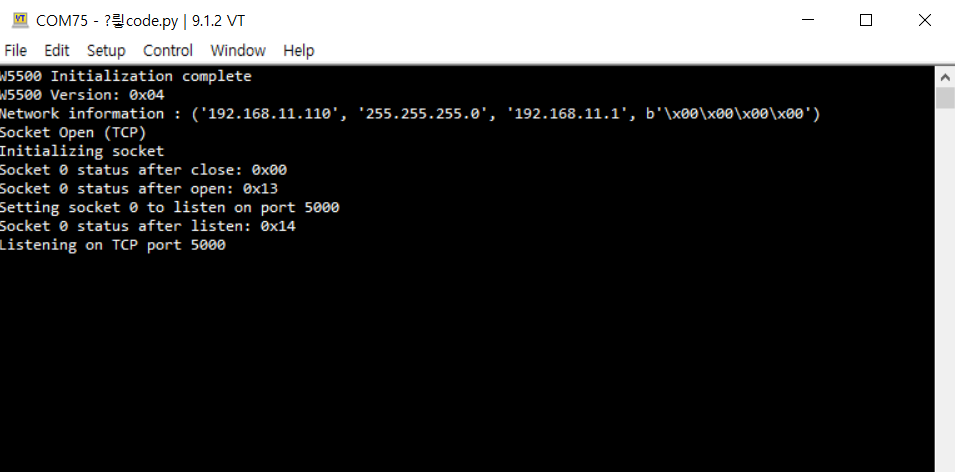
To test, open Hercules and connect to it as a TCP client.
Server IP : 192.168.11.110
port : 5000
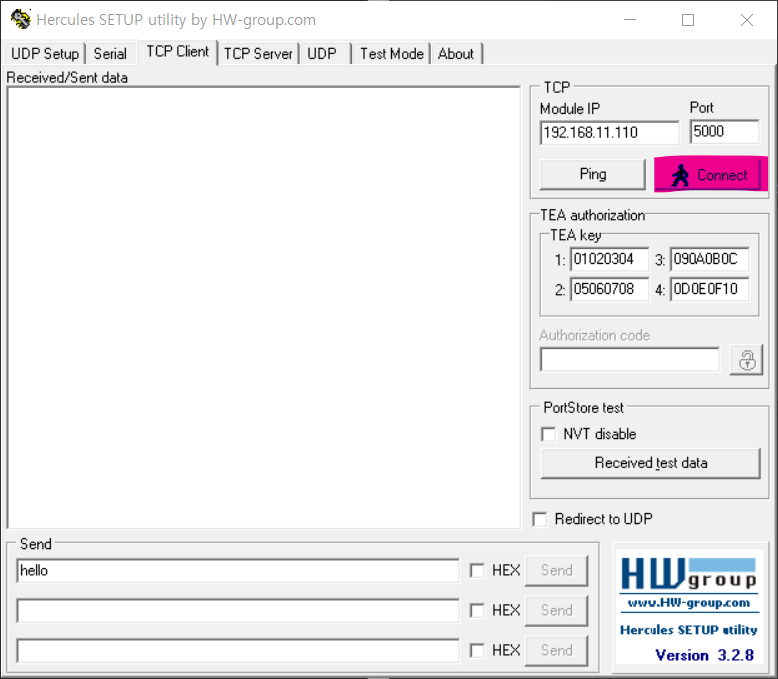
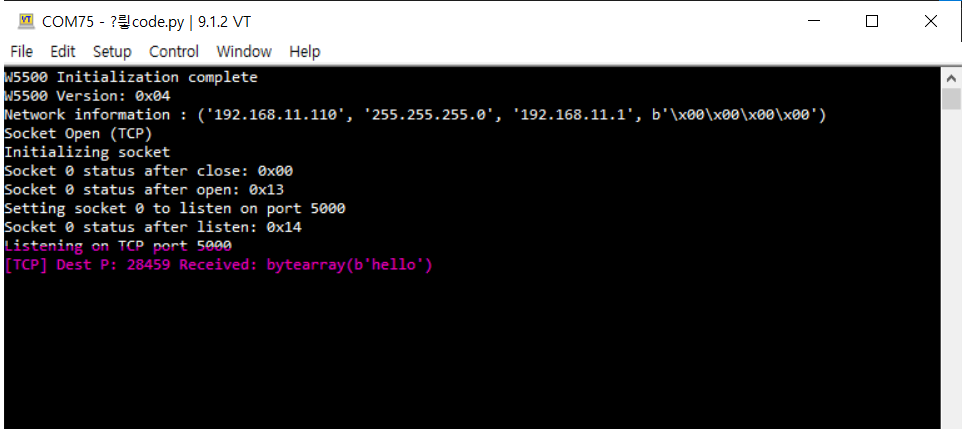
Send the string “Hello” and you'll see it received and processed by the server.
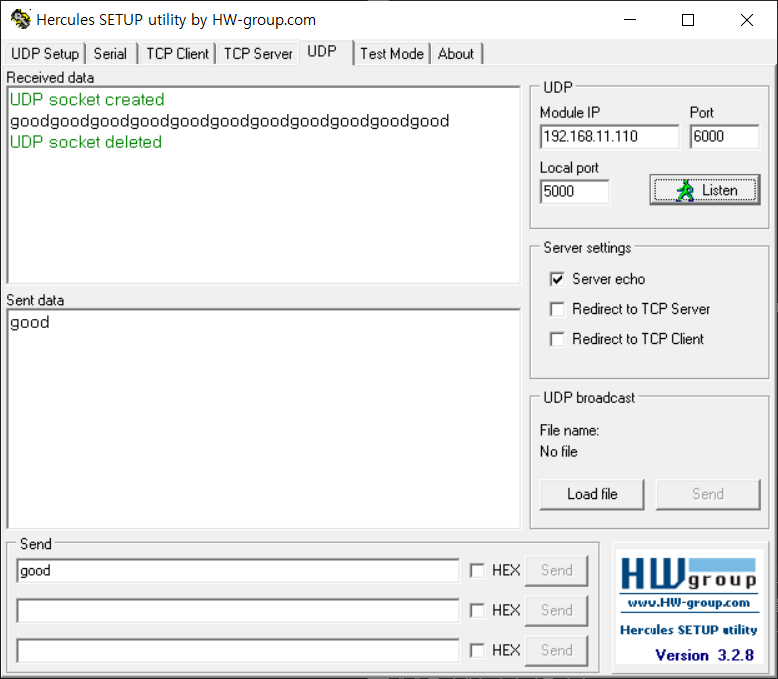
##UDP
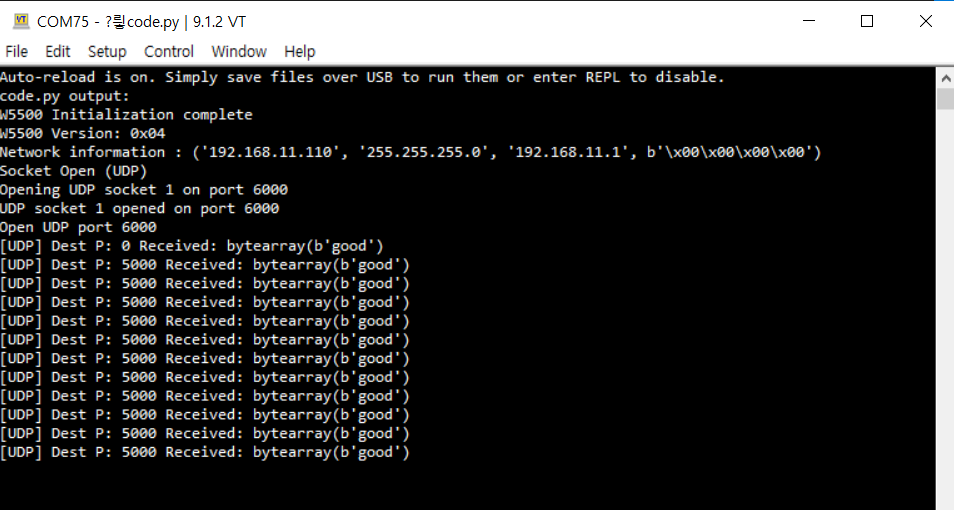
Similarly, let's run the UDP example in code.py.
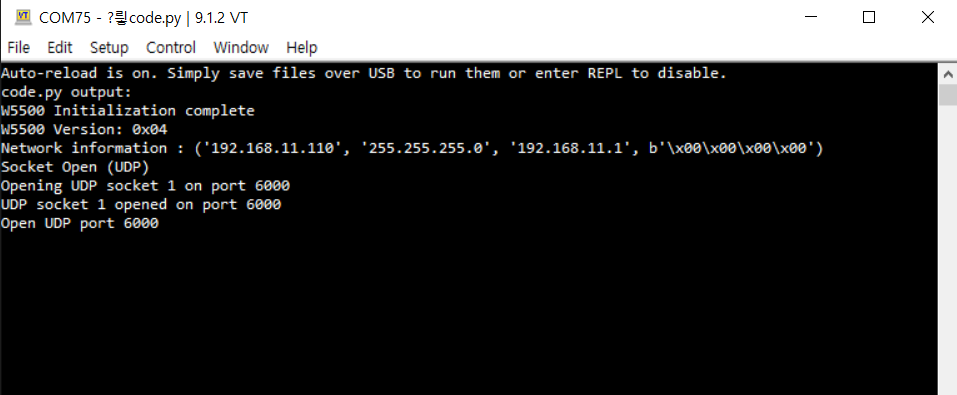
When you run it, UDP will open and you can see it receiving and processing data on the connection, as shown below.
Server IP : 192.168.11.110
port : 6000