WIZnet Ethernet HAT[RP2040] + HTTP WebServer
A source from which a WIZnet Ethernet module becomes an HTTP server and another module becomes a Client.
6
![WIZnet Ethernet HAT[RP2040] + HTTP WebServer](/upload/_thumb/1280/project/8592/cover471.jpg.jpg)
Components
Hardware components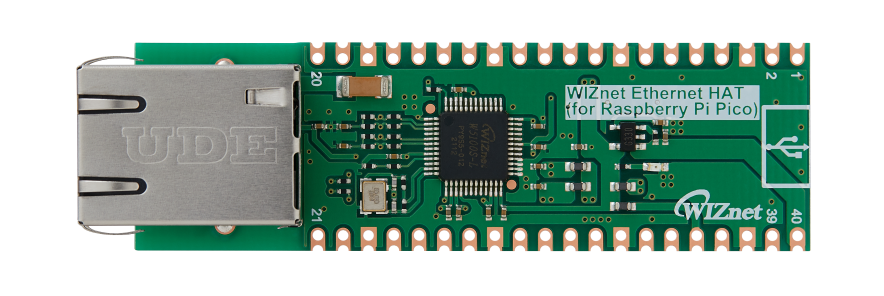
WIZnet - WIZnet Ethernet HAT
x 1
Project description
Overview
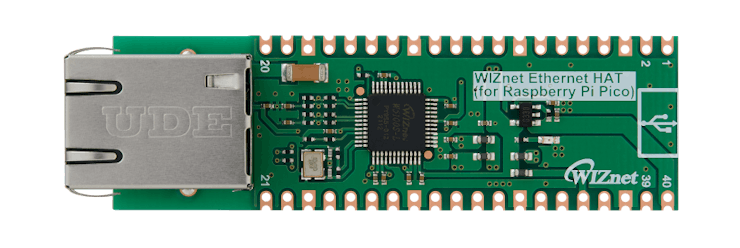
WIZnet Ethernet HAT (Hardware Attached on Top) is a Raspberry Pi Pico pin-compatible board that utilizes W5100S and supports both 3.3V & 5V.
Please refer to this link to find more information about W5100S.
- Raspberry Pi Pico Pin-Compatible
- Ethernet (W5100S Hardwired TCP/IP CHIP)
Prepare Hardware
1.Combine WIZnet Ethernet HAT with Raspberry Pi Pico.
2.Connect ethernet cable to Ethernet HAT ethernet port.
3.Connect Raspberry Pi Pico to desktop or laptop using 5 pin micro USB cable.
– If you use W5100S-EVB-Pico, you can skip ‘1. Combine…’
Prepare Software
Installing CircuitPython
Install CircuitPython on Raspberry Pi Pico by referring to the link above.
https://learn.adafruit.com/getting-started-with-raspberry-pi-pico-circuitpython/circuitpython
Setup WIZnet Ethernet Library
Copy the WIZnet library into the lib folder inside the Raspberry Pi Pico. https://learn.adafruit.com/ethernet-for-circuitpython/circuitpython-setup
Before continuing, make sure your board’s lib folder has at least the following files and folders copied over: https://github.com/Wiznet/RP2040-HAT-CircuitPython
adafruit_bus_device
adafruit_wiznet5k
adafrui_wsgi
adafruit_requests.py
![WIZnet Ethernet HAT[RP2040] + HTTP WebServer, Overview](https://hackster.imgix.net/uploads/attachments/1363515/image_7Qw9LfKYjy.png?auto=compress%2Cformat&w=740&h=555&fit=max)
Run PICO
Before this, you should find the Raspberry Pi Pico COM port number from “Device Manager” on your PC.
Press “Ctrl+D” on the terminal window. you can see the messages as follows.
![WIZnet Ethernet HAT[RP2040] + HTTP WebServer, Overview](https://hackster.imgix.net/uploads/attachments/1363532/image_mKSU46vpf5.png?auto=compress%2Cformat&w=740&h=555&fit=max)
How to WebServer Example
Setup Webserver Example
– download https://github.com/Wiznet/RP2040-HAT-CircuitPython/tree/master/examples/HTTP/Webserver
– Copy all code from download W5x00_WebServer.py file or below code section.
– Paste code into code.py on your Raspberry Pi Pico and Save it.
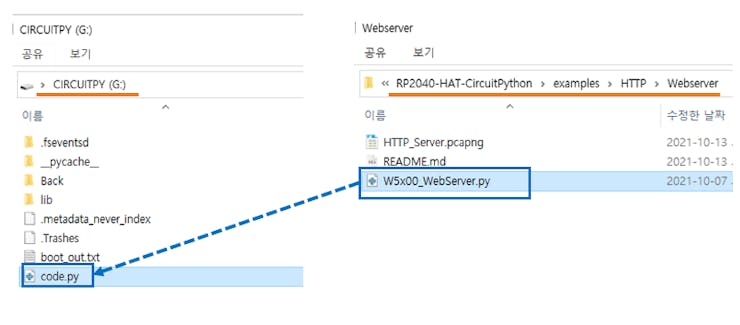
– Press “Ctrl+D” on the terminal window. you can see the messages as follows.
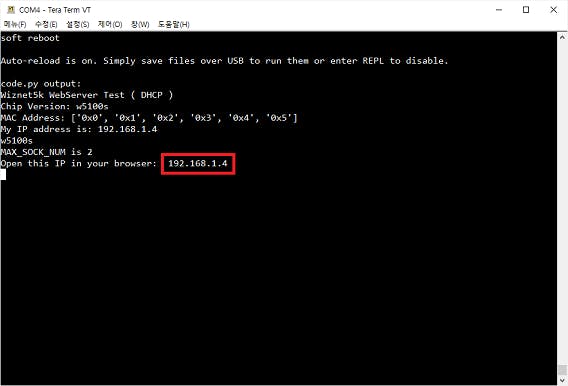
Start WebServer
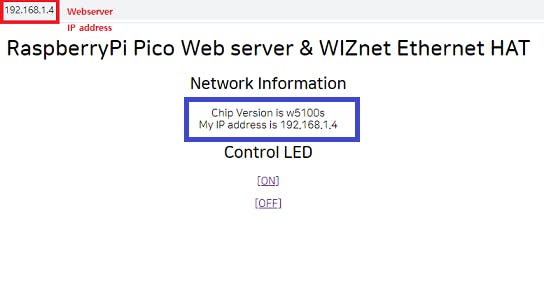
if you open the HTML web page and enter 192.168.1.4, you will see the page. In addition, you will see the IP address of the server connected and WIZnet chip.
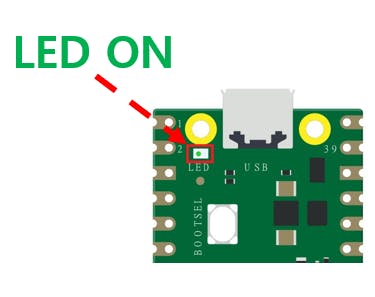
if you press the ON button below, the LED built into the Pico turns on.
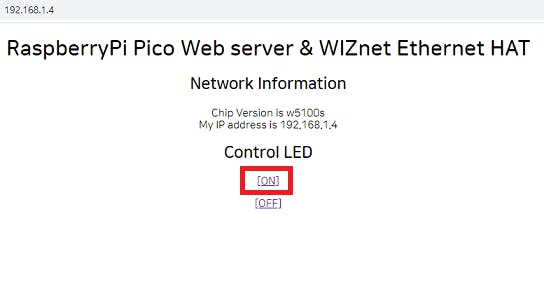
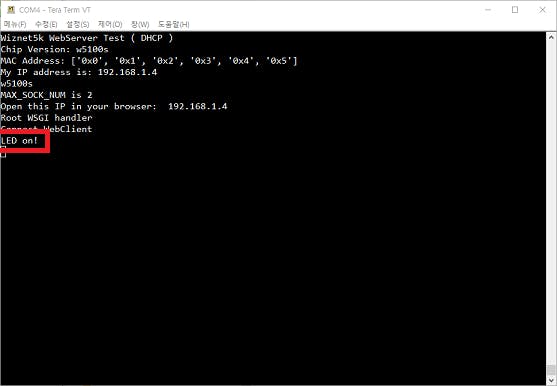
Turn on LED, Likewise, if you press OFF, the LED turns off.