Turning my computer on and off with Espruino Pico
Turning my computer on and off with Espruino Pico
3
Components
Hardware components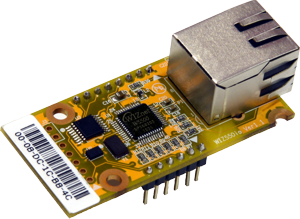
WIZnet - WIZ550io
x 1

Project description
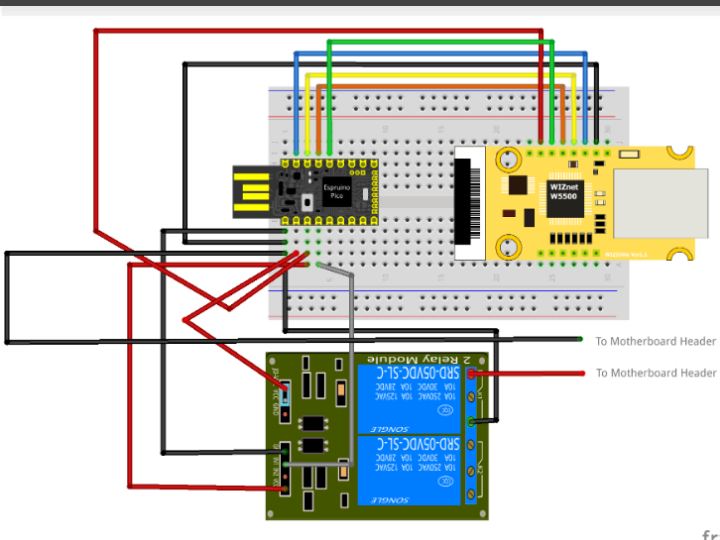
project consists of an Espruino Pico, Wiznet5500io and a 2 Relay Module. I am using node-red and mqtt on my raspberry pi 3 to communicate with the Pico. I am using these parts to turn on and shutdown my computer. I mainly use my computer as a media server which is located downstairs in my office. My TV is located upstairs. I normally shut my computer off when it’s not in use so I can save on my electric bill. Instead of walking downstairs to turn on/off my computer I figured I can comfortably do that from my cell phone via from my couch 
The pico controls the relay. The relay is connected to my motherboard shutdown header. The relay is triggered for a second to short the header to gnd when it receives the mqtt msg of “shutdown” or if the button on top of the pico is pressed. Triggering the relay will turn my computer on or shutdown my computer if its all ready on.
Guides that I followed:
Todo:
- Create a cleaner fritzing sketch
- Add some gauges in node-red to receive feedback
- Create a PCB
var turnedOFF = 1;var isConnected = false;var MQTT_HOST = "192.168.0.22";var PATH = "/mydevice/";var mqtt;var eth;function mqttMessage(pub) {console.log("pub: " + pub.message);console.log("MQTT=> ",pub.topic,pub.message);if (pub.topic==PATH+"computer") {//var v = pub.message!=0;//console.log(v);if (pub.message == "shutdown") {trigger();mqtt.publish(PATH+"onoff/status", 1);}if (pub.message == "0") {mqtt.publish(PATH+"onoff/status", 0);}//digitalWrite(B3, v);}}function mqttConnect() {console.log("mqttConnect");mqtt = require("MQTT").connect({host: MQTT_HOST,});mqtt.on('connected', function() {console.log("MQTT connected");// subscribe to wildcard for our namemqtt.subscribe(PATH+"#");});mqtt.on('publish', mqttMessage);mqtt.on('disconnected', function() {console.log("MQTT disconnected... reconnecting.");setTimeout(function() {mqtt.connect();}, 1000);});}/*setInterval(function() {if (!mqtt) return;mqtt.publish(PATH+"cputemp",E.getTemperature());}, 2*60*1000);*/function trigger() {turnedOFF = 1;digitalPulse(B3,0,1000);digitalWrite(LED1, 0);console.log("digitalWrite");}setWatch(function(e) {digitalWrite(LED1, e.state);trigger();}, BTN, { repeat: true });function onInit() {console.log("Connecting to Ethernet");SPI2.setup({ mosi:B15, miso:B14, sck:B13 });eth = require("WIZnet").connect(SPI2, B10);//console.log("Connect?: " + isConnected);isConnected = eth.setIP();//console.log("Connect?: " + isConnected);if (isConnected == true) {mqttConnect();}}/*setWatch(function() {if (!mqtt) return;mqtt.publish(PATH+"buttonpress",1);}, BTN, {edge:"rising",repeat:true,debounce:50});*/
1 Attachment


