Ethernet weather station
Many articles have been written on the topic of weather station variations on the Arduino platform.
0
Components
Hardware components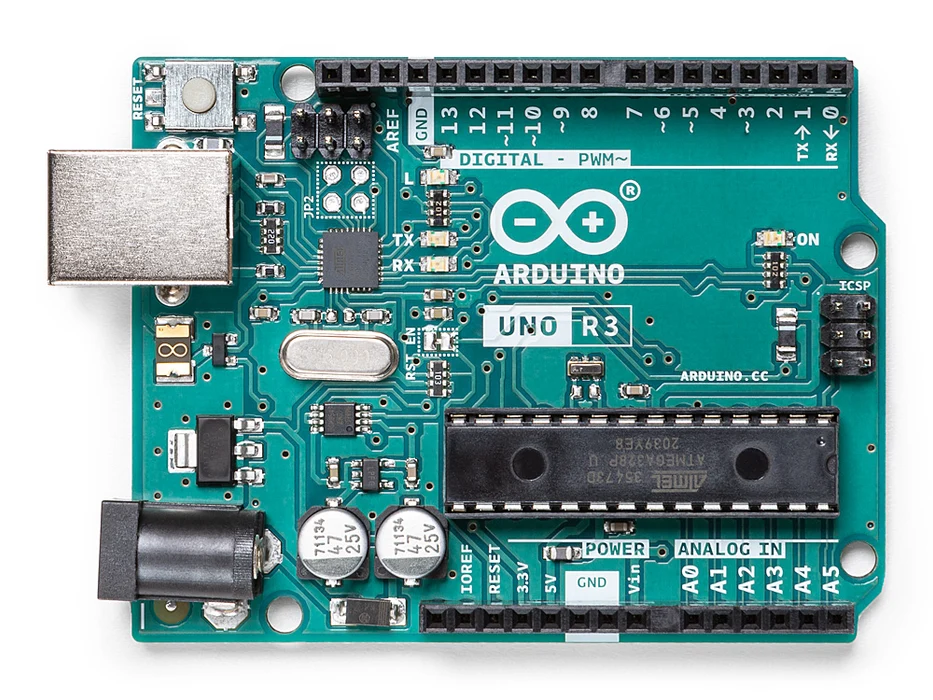
Arduino - Arduino UNO
x 1


Adafruit - DHT22 temperature-humidity sensor
x 1
WIZnet - W5100 ethernet shield
x 1
Arduino - Arduino IDE
x 1
Project description
Author : Berkut
Published On : 2013-03-15
This content was created with the assistance of ChatGPT, an artificial intelligence language model developed by OpenAI.
Many articles have been written on the topic of weather station variations on the Arduino platform. The data output was different everywhere. Let me introduce my variation, with data output via Ethernet.
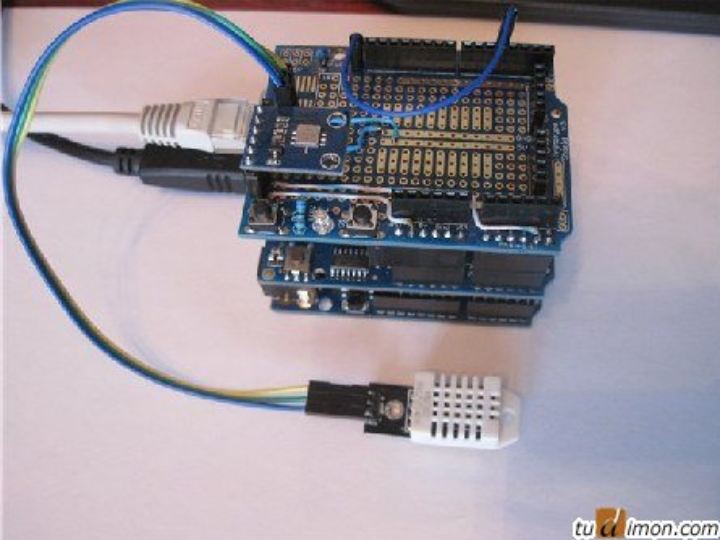
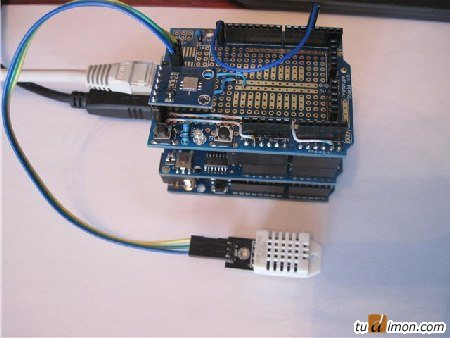
Final photo of the assembly:
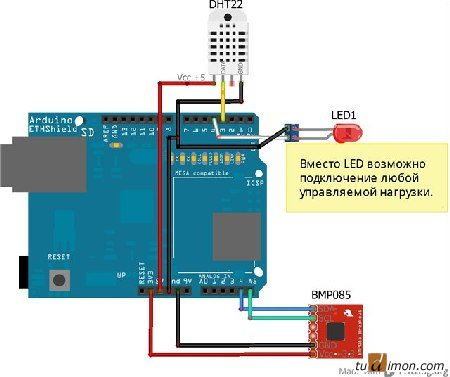
Components:
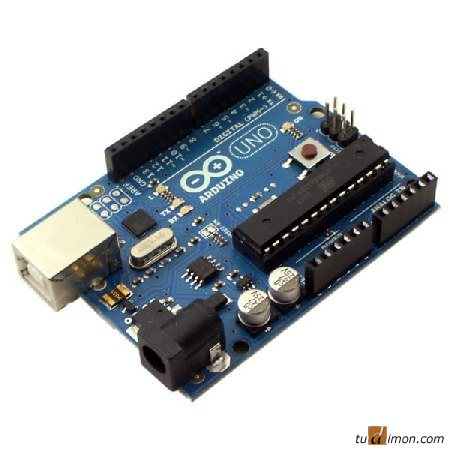
Arduino UNO
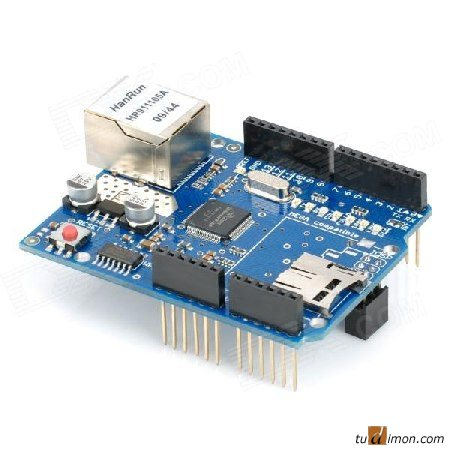
Ethernet Shield W5100
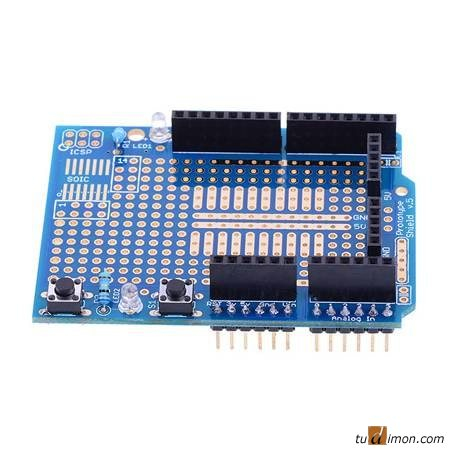
Prototype Shield
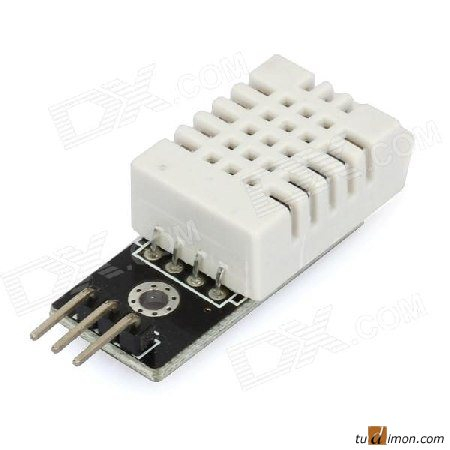
DHT 22 - Temperature and humidity sensor
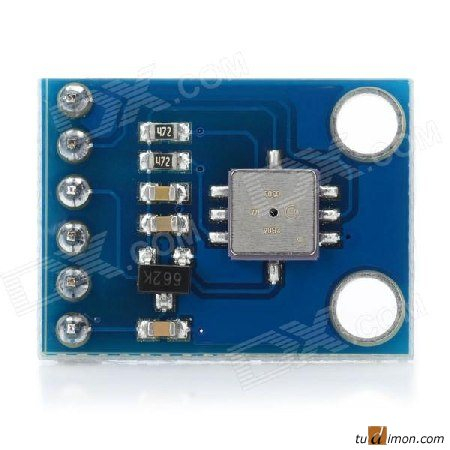
BMP085 - Pressure sensor
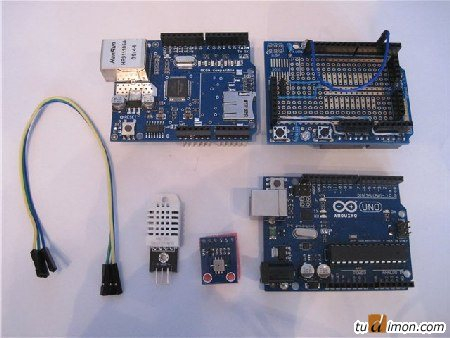
The final components of the circuit:
Tasks:
The main task was to implement the output of data on temperature, humidity and pressure to the home network; also during development and prototyping, the side task of managing the load through the network was implemented.
Implemented the ability to control any load through the WEB-interface.
Figuratively, the device operation algorithm looks like this:
* Set the MAC address, IP address and network mask on the Ethernet Shield;
* Set PIN for load control;
* We receive data from sensors;
* We carry out the necessary transformations (in this case we mean pressure transformation);
* We form a WEB-page;
* We display values from sensors and PIN load status on the page. Below is the code, it contains a lot of comments and I think it will clarify what we are doing.
Sketch code:
// ========================Include necessary libraries==========
#include <SPI.h>
#include <Ethernet.h>
#include "DHT.h"
#include "Wire.h"
#include "Adafruit_BMP085.h"
// ===============================================================
// ========================Network settings======================
byte mac[] = { 0xCA, 0xAF, 0x78, 0x1C, 0x13, 0x77 }; // MAC address of the ethernet shield
byte ip[] = { 192, 168, 1, 33 };        // IP address of the ethernet shield
byte subnet[] = { 255, 255, 255, 0 }; // Subnet mask
EthernetServer server(80); // Server port
int ledPin = 4; // Indicate that the LED will be controlled through pin 4
String readString = String(30); // String for fetching data from address
boolean LEDON = false; // Initial LED status - off
// ===============================================================
#define DHTPIN 3    // Pin for DHT22 sensor
const unsigned char OSS = 0;  // Oversampling Setting
// ===============================================================
// ========================DHT SENSOR TYPE=======================
//#define DHTTYPE DHT11   // DHT 11
#define DHTTYPE DHT22   // DHT 22  (AM2302)
//#define DHTTYPE DHT21   // DHT 21 (AM2301)
// ==============================================================
DHT dht(DHTPIN, DHTTYPE);
Adafruit_BMP085 bmp;
// ========================START=============================
// ========================Control LED on pin 4==========
void setup(){
  // Start Ethernet
  Ethernet.begin(mac, ip, subnet);
  // Set pin 4 as output
  pinMode(ledPin, OUTPUT);
  // Enable serial data print
  Serial.begin(9600);
  Serial.println("Port Test!"); // Test lines for display in port monitor
  Serial.println("GO!");// Test lines for display in port monitor
  dht.begin();
  bmp.begin();
}
// ==============================================================
void loop(){
  // ========================SENSORS=============================
  float h = dht.readHumidity();
  float t = dht.readTemperature();
  float tdpa = bmp.readTemperature();
  float Pa0 = (bmp.readPressure());
  float Pa = (bmp.readPressure()/133.33);// Convert to mmHg
  float Pa2 = (bmp.readPressure()/3386.582);// Convert to inHg
  if (isnan(t) || isnan(h)) {
    Serial.println("Failed to read from DHT");
  } else {
    Serial.print("H=: ");
    Serial.print(h);
    Serial.print(" %\t");
    Serial.print("Temp.=: ");
    Serial.print(t);
    Serial.println(" *C");
    Serial.print("Internal Temp. BMP = ");
    Serial.print(tdpa);
    Serial.println(" *C");
    Serial.print("Pressure = ");
    Serial.print(Pa);
    Serial.println(" mm.");
    Serial.print("Pressure = ");
    Serial.print(Pa2);
    Serial.println(" in Hg");
    // ==============================================================
    // =============Create client connection====================
    EthernetClient client = server.available();
    if (client) {
      while (client.connected()) {
        if (client.available()) {
          char c = client.read();
          // Read char by char HTTP request
          if (readString.length() =0) {
            // Turn on the LED
            digitalWrite(ledPin, HIGH); // Set the LED on
            LEDON = true;
          }else{
            // Turn off the LED
            digitalWrite(ledPin, LOW); // Set the LED OFF
            LEDON = false;
          }
          // =============Form HTML page==========================
          client.println("HTTP/1.1 200 OK");
          client.println("Content-Type: text/html");
          client.println();
          client.println(" ");
          client.println(" ");
          client.println(" :: Arduino Control:: V1.1");
          client.println(" ");
          client.println("<body");
          client.println("<hr />");
          client.println("<h1> ::Arduino Control:: </h1>");
          if (LEDON){
            client.println("<form method="get" name="LED"><input type="radio" name="Level" value="1" checked="" />Turn On<input type="radio" name="Level" value="0" />Turn Off<input type="submit" value="OK" /></form>");
            client.println("<font size="’58242;" />LED status: ");
            client.println("<font size="’58242;" />On");
          }else{
            client.println("<form method="get" name="LED"><input type="radio" name="Level" value="1" />Turn On<input type="radio" name="Level" value="0" checked="" />Turn Off<input type="submit" value="OK" /></form>");
            client.println("<font size="’58242;" />LED status: ");
            client.println("<font size="’58242;" />Off");
          }
          //==============Display values on web page======================
          client.println("<hr />");// Line =====================================
          client.println("Temperature = ");    // Temperature from DHT 22
          client.println(t);
          client.println(" *C");
          client.println(" "); // Move to the next line
          client.println("Humidity = ");    // Humidity from DHT 22
          client.println(h);
          client.println(" %\t");
          client.println(" "); // Move to the next line
          client.println("<hr />");// Line =====================================
          client.println("Pressure = ");    // Pressure from BMP 085
          client.println(Pa);
          client.println(" mmHg");
          client.println(" "); // Move to the next line
          client.println("<hr />");  // Line =====================================
          client.println("Pressure = ");    // Pressure from BMP 085
          client.println(Pa2);
          client.println(" in Hg");
          client.println(" "); // Move to the next line
          client.println("<hr />");  // Line =====================================
          client.println("Internal Temperature = ");// Temperature from BMP 085
          client.println(tdpa);
          client.println(" *C");
          client.println(" "); // Move to the next line
          client.println("<hr />");  // Line =====================================
          //==============================================================
          client.println("");
          // Clear the string for the next read
          //==============Stop web-client===========================
          readString="";
          client.stop();
          //==============================================================
	  }
	}
  }
 }
}
The web interface looks like this:
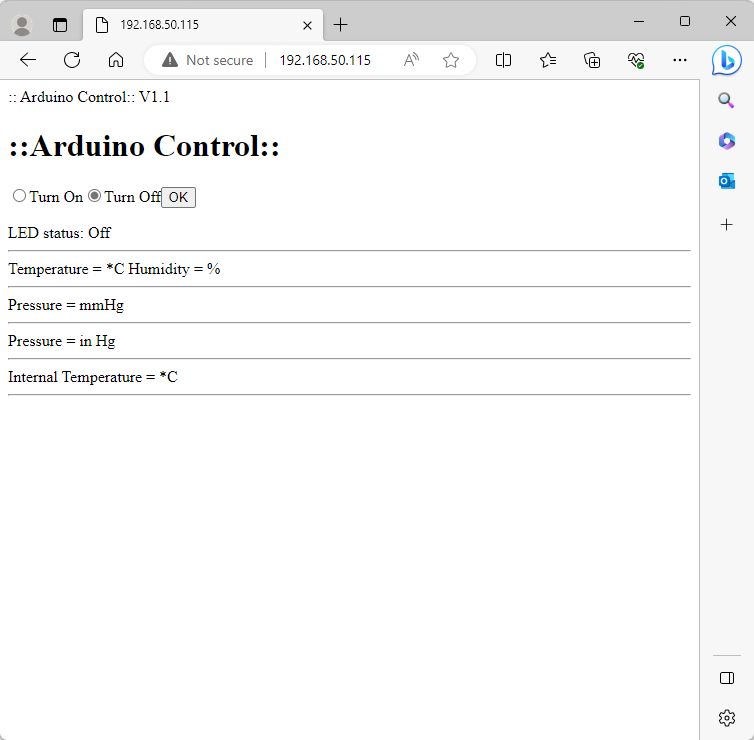
The interface has been made so far only for receiving data and debugging, but in the future it will be modernized. The output of pressure data was purposefully made in two values, such as mmHg. and inches of mercury. Due to the presence, as a reference sensor, of a watch with a barometer in inches of Hg.
Thank you for reading.


