Welcome to my blog!
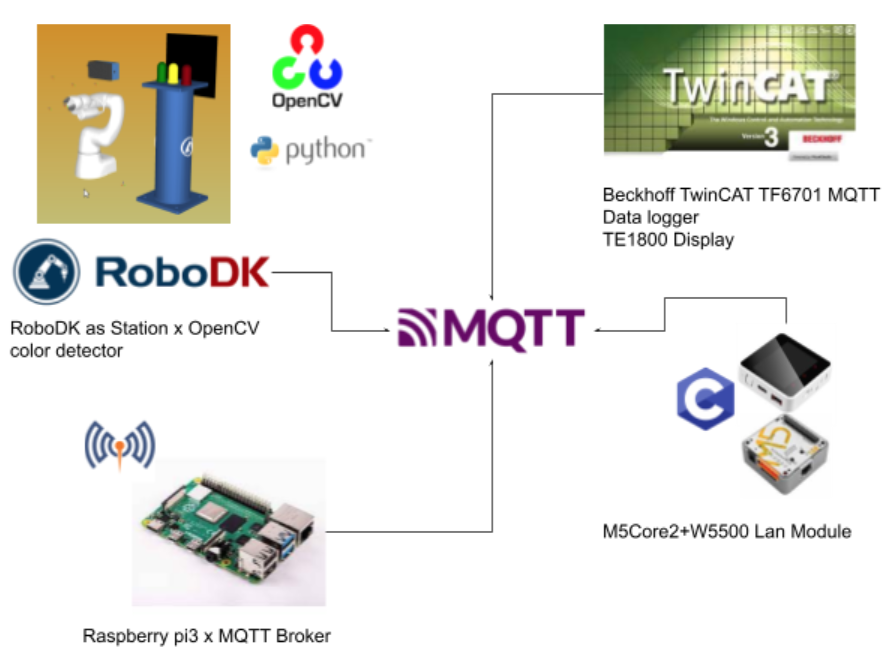
This is my other self-project to use RoboDK as a main station ? operate the robot and indicate the current status by LED Towner, we will use opencv to implement a color detector in python to detect Red/Yellow/Green Colors ,and publish these statuses via MQTT.
Beckhoff TwinCAT TF6701 is used to subscribe to the topic also and implement a Data logger,Finally, A M5Core2+W5500 Lan Module will also subscribe to the topics from MQTT Broker that are built from Raspberry-pi3.
There are some goals in this project and I will explain them step by step;
Create a RoboDK station with LED Tower display
Play with the RoboDK 2D Camera simulation interface
understand the opencv-python
how to read the images from filesystem
how to read the images from RoboDK
What is the RGB/HSV Color Model?
how to make a color detector?
how to draw the Contours?
implement the python MQTT Client
understand and program the Beckhoff TwinCAT Function TF6701
Get the local-time and shifting the data 1 by 1 in the logging function
setup the MQTT Broker in Raspberry-pi3
setup the M5Stack Lan Module
Implementing the MQTT Client with M5Stack in C Language
Other Project
Here is my other project;)
Please feel free to access it.
Now I will explain some basic concepts in opencv and skills that are used in this tutorial.
Import images/Show
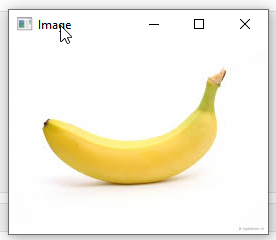
Here is a sample code to import an image into opencv and show it.
import?cv2
import?numpy?as?np
# Reading the image
img = cv2.imread(‘image.jpg’)
# Showing the output
cv2.imshow(“Image”, img)
cv2.waitKey(0)
cv2.destroyAllWindows()
You would see the image like this.
RGB color model
RGB color values are supported in all browsers.
An RGB color value is specified with: rgb(red, green, blue).
Each parameter (red, green, and blue) defines the intensity of the color as an integer between 0 and 255.
For example, rgb(0, 0, 255) is rendered as blue, because the blue parameter is set to its highest value (255) and the others are set to 0.
please reference w3c school to get more information
https://www.w3schools.com/colors/colors_rgb.asp?color=rgb(253,%20205,%20161)
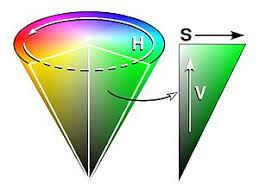
The HSV color model shares most of its properties with HSL. (It is recommended that you read about HSL first as this page will build on the page about HSL).
The range is 0-360 ,0-100%,0-100%.
Hues are the three primary colors (red, blue, and yellow) and the three secondary colors (orange, green, and violet) that appear in the color wheel or color circle. When you refer to hue, you are referring to pure color, or the visible spectrum of basic colors that can be seen in a rainbow.
Color saturation is the purity and intensity of a color as displayed in an image. The higher the saturation of a color, the more vivid and intense it is. The lower a color’s saturation, or chroma, the closer it is to pure gray on the grayscale. Learn more about saturation in our guide here.
Color value refers to the relative lightness or darkness of a color. We perceive color value based on the quantity of light reflected off of a surface and absorbed by the human eye. We refer to the intensity of the light that reaches the eye as “luminance.”
Please reference this link to get more information:
http://color.lukas-stratmann.com/color-systems/hsv.html
Becareful!
For HSV in opencv, hue range is [0,179], saturation range is [0,255], and value range is [0,255]. And different software uses different scales.
We will use HSV instead of RGB Model to detect the color in the image.
Here is a table to show the range of Red,Green and Blue.
Rnage
Range in Opencv
Red
0-60,300-360
0-30,150-179
Green
60-189
30-90
Blue
180-300
90-150
Sample
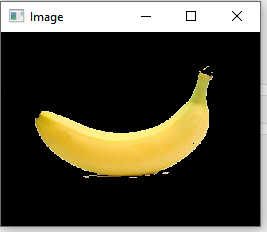
Here is an example to show you how to detect the yellow color in a banana image.
we will set the lower_bound and upper_bound of the yellow color as a numpy and create a mask to filter it.
import cv2
import numpy as np
# Reading the image
img = cv2.imread(‘image.jpg’)
# convert to hsv colorspace
hsv = cv2.cvtColor(img, cv2.COLOR_BGR2HSV)
# lower bound and upper bound for Green color
lower_bound = np.array([20, 50, 50])
upper_bound = np.array([100, 255, 255])
# find the colors within the boundaries
mask = cv2.inRange(hsv, lower_bound, upper_bound)
# Segment only the detected region
segmented_img = cv2.bitwise_and(img, img, mask=mask)
cv2.imshow(“Image”, segmented_img)
cv2.waitKey(0)
cv2.destroyAllWindows()
Good, here is the banana!
Contours
Contours are the concepts that I explained in the last tutorial with Beckhoff Tc3_Vision.
Please reference this tutorial to get more information:
In the previous sample, we detected the yellow color in a banana image. Now we will draw the Contours inside the image.
import cv2
import numpy as np
# Reading the image
img = cv2.imread(‘image.jpg’)
# convert to hsv colorspace
hsv = cv2.cvtColor(img, cv2.COLOR_BGR2HSV)
# lower bound and upper bound for Green color
lower_bound = np.array([20, 50, 50])
upper_bound = np.array([100, 255, 255])
# find the colors within the boundaries
mask = cv2.inRange(hsv, lower_bound, upper_bound)
# Segment only the detected region
segmented_img = cv2.bitwise_and(img, img, mask=mask)
# Find contours from the mask
contours, hierarchy = cv2.findContours(mask.copy(), cv2.RETR_EXTERNAL, cv2.CHAIN_APPROX_SIMPLE)
output = cv2.drawContours(segmented_img, contours,-1,(0,255,0),3)
# Showing the output
cv2.imshow(“Output”, output)
cv2.waitKey(0)
cv2.destroyAllWindows()
Contours is drawn.
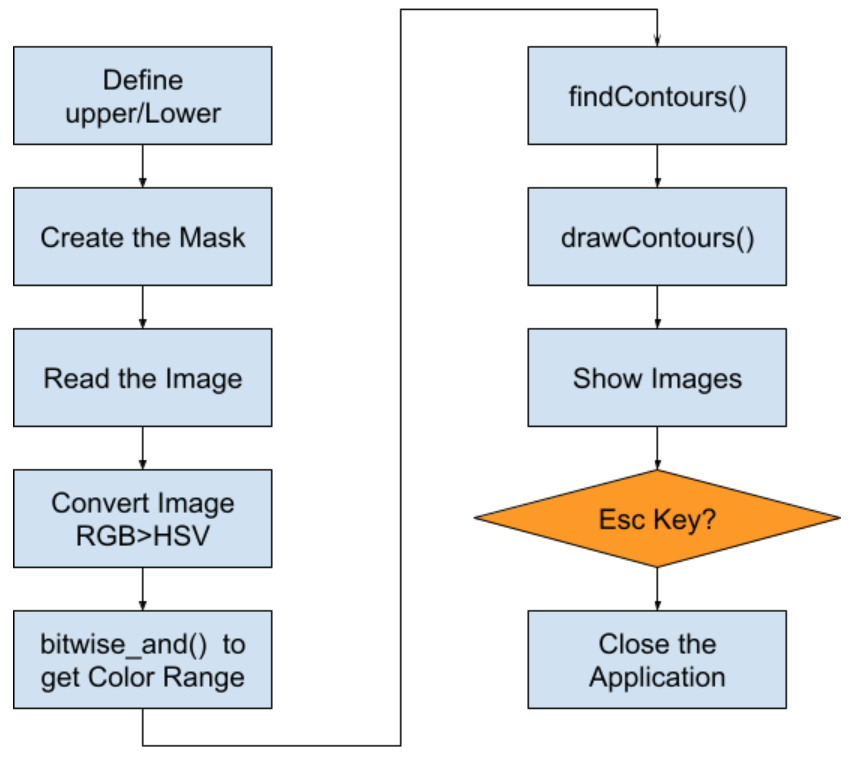
WorkFlow
Finally, you can follow this flow to do the color detector.
RoboDK Side
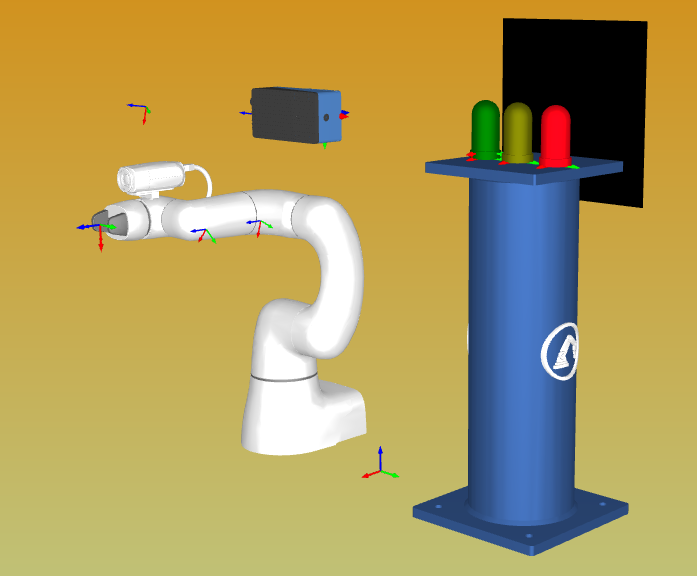
Here is the RoboDK station, Camera,3 colors of Signal Tower and A Robot.
In this tutorial I will just start the Robot program manually(click the robot program).
If you want, please follow my reference link to program your station to start it from PLC/Other Devices.
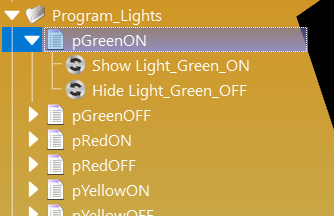
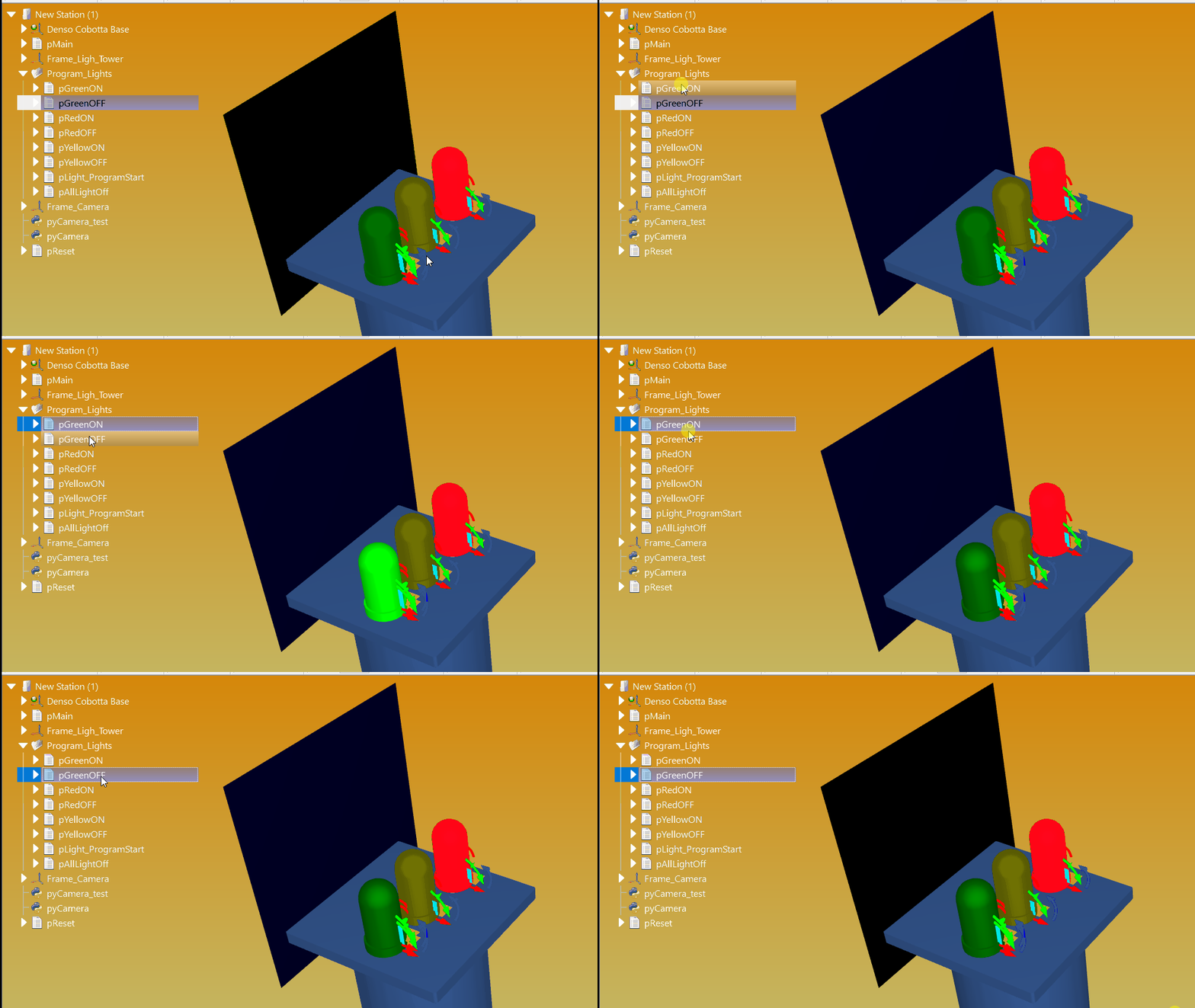
Here is the tutorial that shows you how to create the Light ON/OFF control.
The Idea is very easy ? Place a Light with deep color and place another one with light color.
Finally, using Event to Show/Hide the objects.
Red
Here is the Red Color.
Yellow
Here is the Yellow Color.
Green
Here is the Green Color.
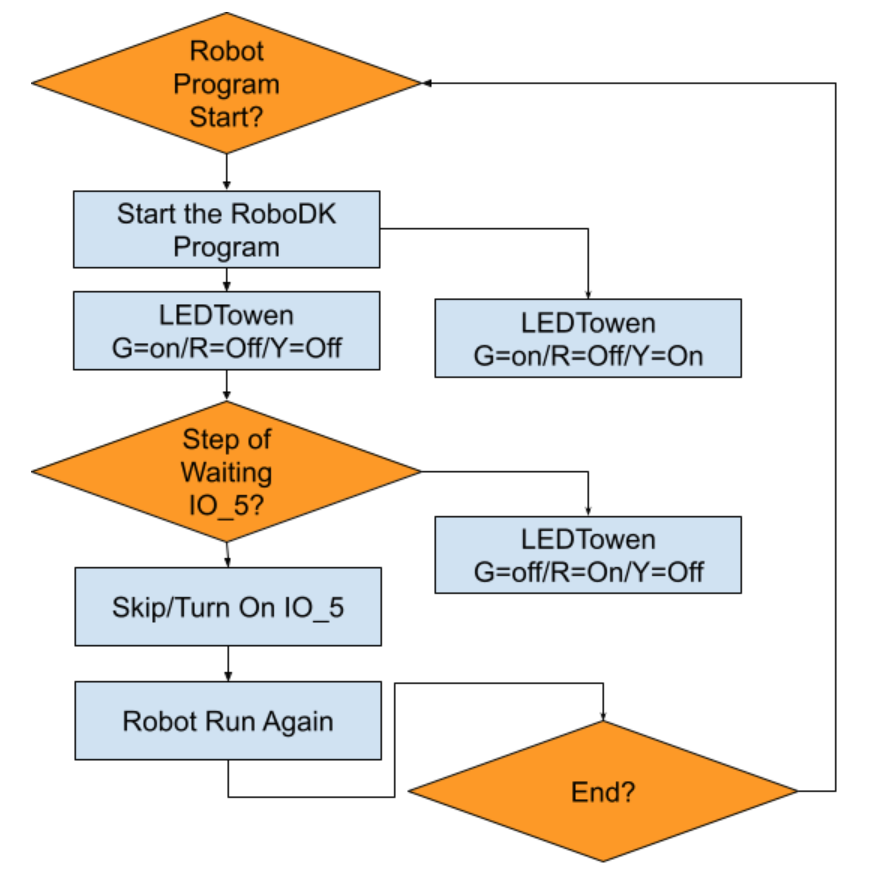
Signal Flow
The Color tower will be turned on with different colors, depending on the status of the Robot.
If the Robot Program is started>Green will be on,Yellow and Red will be off.
If the Robot Program is started and the status is waiting for IO_5>Yellow will also be on.
If the Robot Program is started and the status is passed for the IO_5 waiting Step, Yellow will be off.
If the Robot Program ends>Green will be off and red will be on.
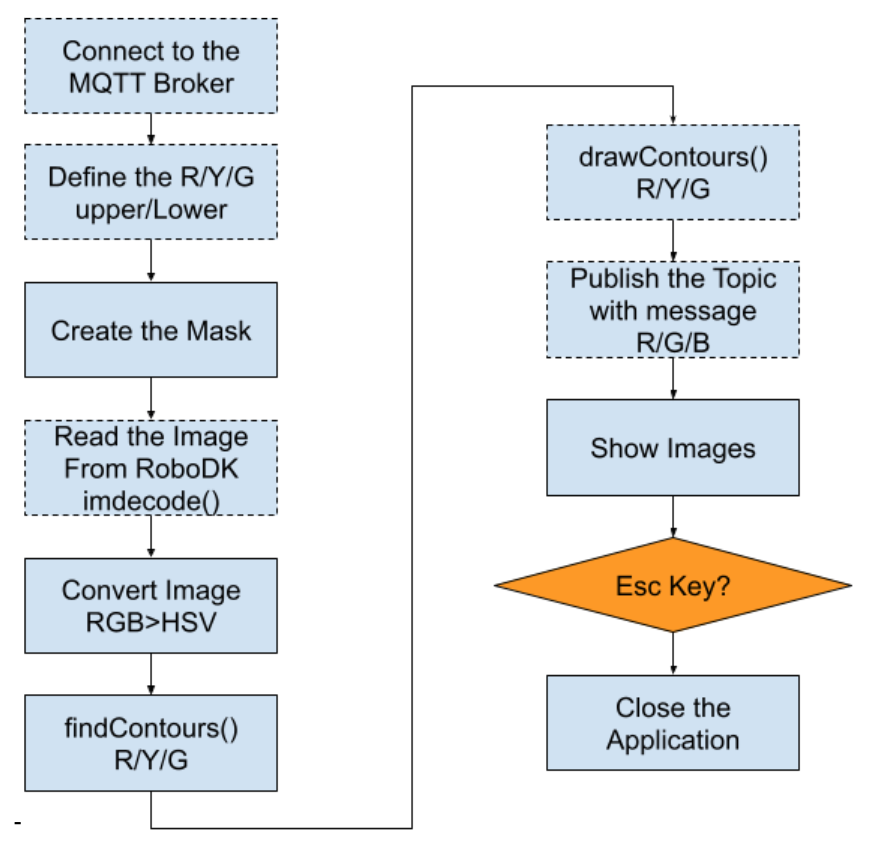
WorkFlow
The working Flow of the Color Detector is integrated into the program from the previous opencv program,and also adds the features of publishing the topic to an MQTT Broker.
The topic would be the current status of Lamp Tower.
?
Code
Here is the Code in RoboDK to implement a Color detector and MQTT Client.
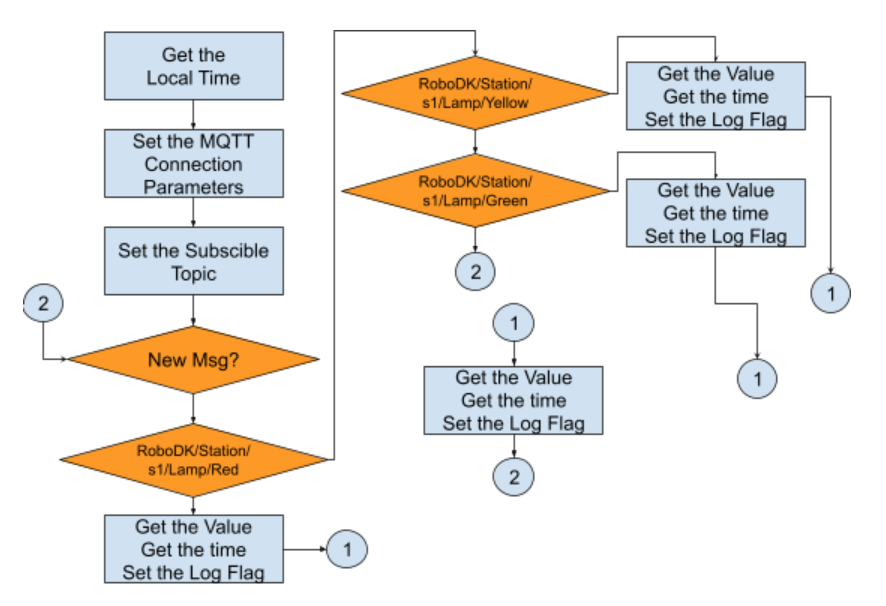
In the TwinCATSide, the work flow is very simple.
Get the Local time cyclically>set the MQTT Connection Parameters>Subscribe the Topic>
if any new messages come from these topics> define the topic title>set the logger trigger flag>logged the status>loop back.
Program
DUT_Log
This is the DUT of data logging,
A String format of timestamp and the status is defined here.
Here is a small program to auto calculate the DUT size that needs to be shifted.
MEMCPY is a function to copy the memory from source to destination.
[0] is the newest value.
datalog:=FALSE;
R_TRIG(CLK:=bStart);
IF R_TRIG.Q THEN
MEMCPY(
destAddr:=ADR(io_logData[1])
,srcAddr:=ADR(io_logData[0])
,n:=SIZEOF(io_logData[0])*ArrayHigher
);
io_logData[0].Status:=i_Value;
io_logData[0].timeStamp:=i_TimeStamp;
datalog:=TRUE;
END_IF
PROPERTY ArrayHigher : DINT
The property gets the array lower and Upper.
GET
ArrayHigher:=UPPER_BOUND(io_logData,1);
PROPERTY ArrayLower : DINT
GET
ArrayLower:=LOWER_BOUND(io_logData,1);
MAIN
VAR
PROGRAM MAIN
VAR
MQTTClient:FB_IotMqttClient;
payload:STRING(255);
payload_r,payload_y,payload_g:STRING(20);
fbMessageQueue : FB_IotMqttMessageQueue;
fbMessage? ? ? : FB_IotMqttMessage;
sTopic :STRING;
bSetNullTermination?:BOOL;bScbscribed:BOOL;sTopicReceived:STRING(255);
Value_r,Value_g,Value_y:DINT;
GetLocalTime:FB_GetLocalTime;
stTimeInString:STRING;
datalog_r,datalog_g,datalog_y:FB_Logger;
LastTimeStamp_r,LastTimeStamp_g,LastTimeStamp_y:STRING;
i1,i2:DINT;bTest:BOOL;binit:BOOL;
logTrigger_r,logTrigger_g,logTrigger_y:BOOL;hmi_LP_r,hmi_LP_g,hmi_LP_y:BOOL;END_VAR
PROGRAM
//Get Local Time
GetLocalTime(
i_bEnable:=TRUE
);
IF GetLocalTime.LocalTimeValid THEN
stTimeInString:=GetLocalTime.TimeInString();
END_IF;
//init
IF binit THEN
LastTimeStamp_r:=stTimeInString;
LastTimeStamp_g:=stTimeInString;
LastTimeStamp_y:=stTimeInString;
binit:=FALSE;
END_IF
//MQTT Client Setup
//Parameters
MQTTClient.sHostName:=’192.168.1.50′;
MQTTClient.nKeepAlive:=60;
MQTTClient.ipMessageQueue:=fbMessageQueue;
//Execute() must always Run
MQTTClient.Execute(bConnect:=TRUE);
//Subscribe Topic
sTopic:=’RoboDK/Station/s1/#’;
IF MQTTClient.bConnected THEN
IF NOT bScbscribed THEN
MQTTClient.Subscribe(
sTopic:=sTopic
,eQoS:=0
);
bScbscribed:=TRUE;
END_IF
END_IF
//Check Message From Broker
IF fbMessageQueue.nQueuedMessages > 0 THEN
IF fbMessageQueue.Dequeue(fbMessage:=fbMessage) THEN
//Get the Topic
fbMessage.GetTopic(pTopic:=ADR(sTopicReceived), nTopicSize:=SIZEOF(sTopicReceived));
//Compare
IF fbMessage.CompareTopic(sTopic:=’RoboDK/Station/s1/Lamp/Red’) THEN
payload_r:=’ ‘;
fbMessage.GetPayload(pPayload:=ADR(payload_r), nPayloadSize:=SIZEOF(payload_r), bSetNullTermination:=FALSE);
LastTimeStamp_r:=GetLocalTime.TimeInString();
logTrigger_r:=TRUE;
ELSIF fbMessage.CompareTopic(sTopic:=’RoboDK/Station/s1/Lamp/Yellow’) THEN
payload_y:=’ ‘;
fbMessage.GetPayload(pPayload:=ADR(payload_y), nPayloadSize:=SIZEOF(payload_y), bSetNullTermination:=FALSE);
LastTimeStamp_y:=GetLocalTime.TimeInString();
logTrigger_y:=TRUE;
ELSIF fbMessage.CompareTopic(sTopic:=’RoboDK/Station/s1/Lamp/Green’) THEN
payload_g:=’ ‘;
fbMessage.GetPayload(pPayload:=ADR(payload_g), nPayloadSize:=SIZEOF(payload_g), bSetNullTermination:=FALSE);
LastTimeStamp_g:=GetLocalTime.TimeInString();
logTrigger_g:=TRUE;
END_IF
END_IF
END_IF
//Convert the Value from String to Numbers
Value_r:=STRING_TO_DINT(payload_r);
Value_g:=STRING_TO_DINT(payload_g);
Value_y:=STRING_TO_DINT(payload_y);
//Hmi
hmi_LP_r:=Value_r =1;
hmi_LP_g:=Value_g =1;
hmi_LP_y:=Value_y =1;
//Data logger
//Green Lamp
datalog_g(
i_TimeStamp:=stTimeInString
,i_Value:=Value_g
,io_logData:=GVL_Logger.Green
);
IF datalog_g.datalog(bStart:=logTrigger_g) THEN
logTrigger_g:=FALSE;
END_IF
//Yellow Lamp
datalog_y(
i_TimeStamp:=stTimeInString
,i_Value:=Value_y
,io_logData:=GVL_Logger.Yellow
);
IF datalog_y.datalog(bStart:=logTrigger_y) THEN
logTrigger_y:=FALSE;
END_IF
//Red Lamp
datalog_r(
i_TimeStamp:=stTimeInString
,i_Value:=Value_r
,io_logData:=GVL_Logger.Red
);
IF datalog_r.datalog(bStart:=logTrigger_r) THEN
logTrigger_r:=FALSE;
END_IF
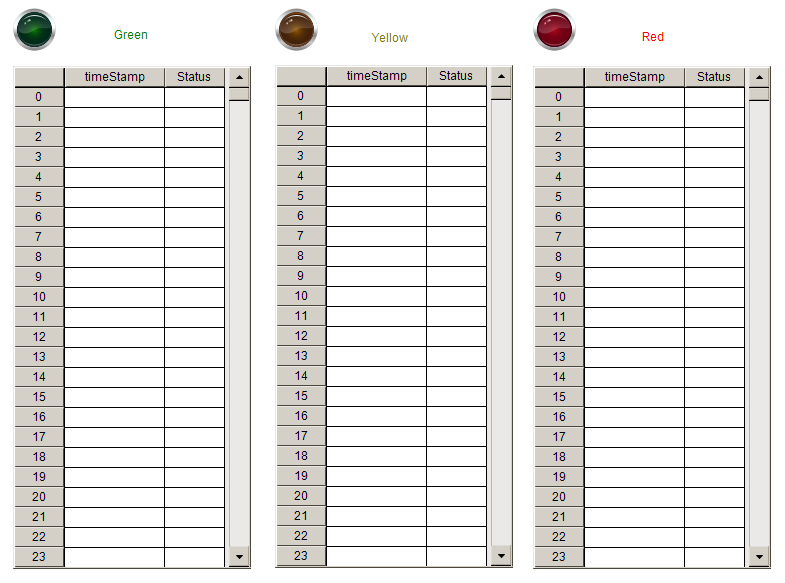
Visulization
A screen to show the LED Tower status in Beckhoff TE1800.
M5Core2 Side
Please reference this tutorial to setup a M5Stack with W5500 LAN Module.
Here is the Code in M5Stack to implement an MQTT Client in C Language, Subscribe the Topic from RoboDK and Display the Current LED Tower status in the LED Display.
We sent a verification link to your address. Open it to activate your account, then log in.
Accounts from this email provider are reviewed by an administrator after verification. Approval usually takes one business day.
Already have an account?
Reset your password
Enter your email address. If it belongs to an account, we'll send a link to set a new password. Members who joined before the site update use this to set their password.
Check your email
If an account uses that address, we sent a link to set a new password. The link works once and expires in 30 minutes.