UCL_IOT_WAKE-UP-LIGHT
To be able to via the internet remotely control my Arduino and gather data.
Remove real - time - clock and get the time from the internet.
3
Components
Hardware components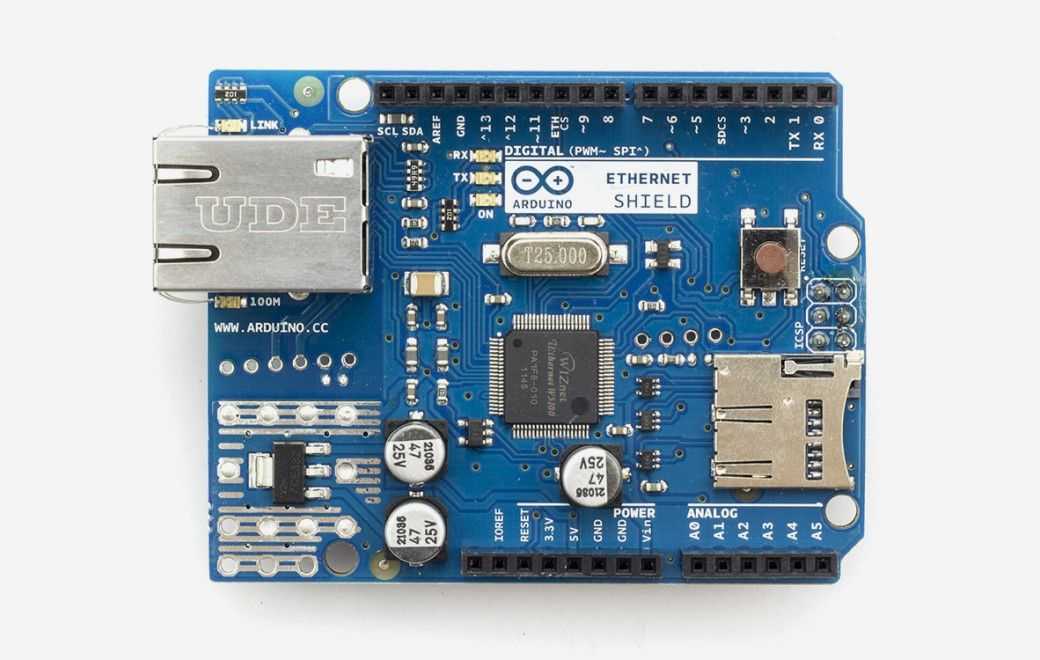
Arduino - Arduino Ethernet Shield
x 1

Project description
Reworking


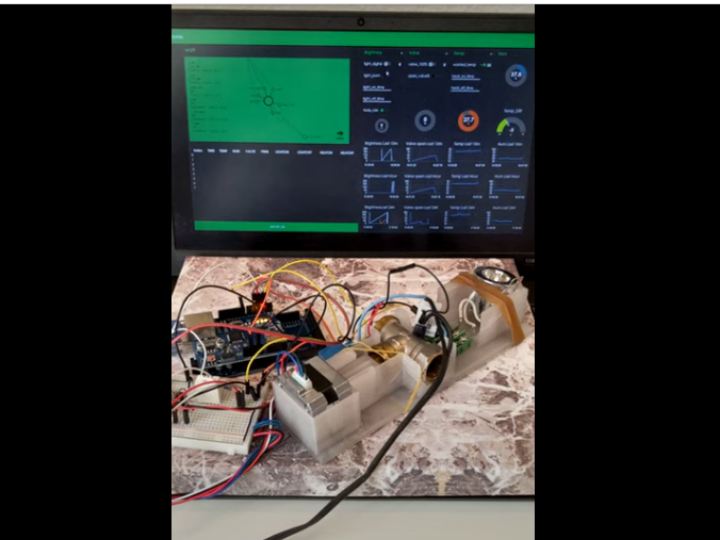
The first thing i did was to remove the real-time-clock and the oled-display since they are no longer needed.
The physical setup is otherwise mostly unchanged , the only part i have added is a W5100 ethernet shield to communicate with my computer/node-red, for wiring see my last project. I tried to communicate with a node-mcu module but i could not get a connection so i scrapped that idea.
Remember to enable internet sharing in the Wi-Fi settings !
The other thing i had to do was to rewrite the Arduino code to act on external commands instead of just sensors etc. I found a great guide to be able to connect to the MQTT-broker shiftr.io, the link is included in the ino file.
Other inspiration sources can be found in the bottom of the page.
I have also rewritten the motor-code so that it can go back and forward at 10% intervals but not exceed my set limit. I tried to make it work with 1 % steps but because of the calculations, i got a invalid result when a part-calculation didn´t have the same data format. example(960 steps/ 100 = 9.6) This would get a result that where way of and nothing worked properly.
#include
#include
#include
#include
//---------- board settings ------------------
byte mac[] = {0xDE, 0xAD, 0xBE, 0xEF, 0xFE, 0xED};
//------ MQTT broker settings and topics
const char* broker = "broker.shiftr.io";
char mqttUserName[] = "";
char mqttPass[] = "";
//------ PIN settings and topics
#define MQTT_CONNECTION_LED_PIN 9 // MQTT connection indicator
#define OUT1_PIN 8 // Led
#define OUT2_PIN 2 // relay
#define DHT_PIN 3 // DHT22
#define OUT3_PIN 4 // Step
#define OUT4_PIN 5 // Direction
#define DHTTYPE DHT22 // DHT 22 (AM2302), AM2321
DHT dht(DHT_PIN, DHTTYPE); // Initialize DHT sensor.
const int STEPS_PER_REV = 960;
byte HEAT_ON = 0;
int OpenPer = 0;
const char* topic_pub_sensor1 = ("temp", "temp"); // You can to replace the labels: sensor1, sensor2, input_1, etc. with yours
const char* topic_pub_sensor2 = ("hum", "hum");
const char* topic_pub_status3 = "heat_stat";
const char* topic_sub_out1 = "light"; const char* topic_sub_out2 = "valve_open"; const char* topic_sub_variable1 = "pwm"; const char* topic_pub_in1 = "heat"; const unsigned long mqttPostingInterval = 5L * 1000L; // Post sensor data every 5 seconds. //---------Variables and Libraries -------------------- #include EthernetClient net; MQTTClient client; unsigned long lastUploadedTime = 0; byte in1_lastState = 2; byte in2_lastState = 2; //========================================= connect //========================================= void connect() { digitalWrite(MQTT_CONNECTION_LED_PIN, LOW); // Turn off the MQTT connection LED Serial.print("\nConnecting..."); //--- create a random client id char clientID[] = "VIRTUINO_0000000000"; // For random generation of client ID. for (int i = 9; i < 19 ; i++) clientID[i] = char(48 + random(10)); while (!client.connect("Arduino", mqttUserName, mqttPass)) { Serial.print("."); digitalWrite(MQTT_CONNECTION_LED_PIN, !digitalRead(MQTT_CONNECTION_LED_PIN)); delay(1000); } Serial.println("\nconnected!"); digitalWrite(MQTT_CONNECTION_LED_PIN, HIGH); client.subscribe(topic_sub_out1); client.subscribe(topic_sub_out2); client.subscribe(topic_sub_variable1); // client.unsubscribe(topic_sub_out2); }
//========================================= messageReceived //========================================= void messageReceived(String &topic, String &payload) { Serial.println("incoming: " + topic + " - " + payload); if (topic == topic_sub_out1) { int v = payload.toInt(); if (v == 1) digitalWrite(OUT1_PIN, HIGH); else digitalWrite(OUT1_PIN, LOW); } if (topic == topic_sub_out2) { int v = payload.toInt(); if (v > 0 && v > OpenPer) { digitalWrite(OUT2_PIN, HIGH); digitalWrite(OUT4_PIN, HIGH); delay(1000); Serial.println("OPENING TO "+String(v)+"%"); Serial.println("OPENING percentage is"+String(v)+"%"); unsigned long reverse = (STEPS_PER_REV/10 * (v-OpenPer)/10); Serial.println(String(reverse)); for (int x = 0; x < reverse; x++) { digitalWrite(OUT3_PIN, HIGH); delayMicroseconds(500); digitalWrite(OUT3_PIN, LOW); delayMicroseconds(500); HEAT_ON = 1; } digitalWrite(OUT2_PIN, LOW); OpenPer = v;} else if (v >= 0 && v <= OpenPer) { digitalWrite(OUT2_PIN, HIGH); digitalWrite(OUT4_PIN, LOW); delay(1000); Serial.println("CLOSING "+String(v)+"%"); Serial.println("OPENING percentage is"+String(v)+"%"); unsigned long reverse =(STEPS_PER_REV/10 * (OpenPer-v)/10); Serial.println(String(reverse)); for (int x = 0; x < reverse; x++) { digitalWrite(OUT3_PIN, HIGH); delayMicroseconds(500); digitalWrite(OUT3_PIN, LOW); delayMicroseconds(500); HEAT_ON = 0; } { digitalWrite(OUT2_PIN, LOW); OpenPer = OpenPer - (OpenPer -v);} } } if (topic == topic_sub_variable1) { int v = payload.toInt(); Serial.println("Variable 1 = " + String(v)); analogWrite(OUT1_PIN, v); } } //========================================= setup //========================================= //========================================= void setup() { Serial.begin(9600); Serial.println("Setup"); dht.begin(); pinMode(MQTT_CONNECTION_LED_PIN, OUTPUT); pinMode(OUT1_PIN, OUTPUT); pinMode(OUT2_PIN, OUTPUT); pinMode(OUT3_PIN, OUTPUT); pinMode(OUT4_PIN, OUTPUT); pinMode(DHT_PIN, INPUT); Serial.begin(9600); Ethernet.begin(mac); client.begin(broker, net); client.onMessage(messageReceived); connect(); } //========================================= loop //========================================= //========================================= void loop() { client.loop(); if (!client.connected())connect(); //---- MQTT upload if (millis() - lastUploadedTime > mqttPostingInterval) { float h = dht.readHumidity(); float t = dht.readTemperature(); client.publish(topic_pub_sensor1, String(t), true, 1); client.publish(topic_pub_sensor2, String(h), true, 1); client.publish(topic_pub_status3, String(HEAT_ON), true, 1); // Check if any reads failed and exit early (to try again). if (isnan(h) || isnan(t)) { Serial.println(F("Failed to read from DHT sensor!")); return; } lastUploadedTime = millis(); } }

Step 3:
Step 4: Setup
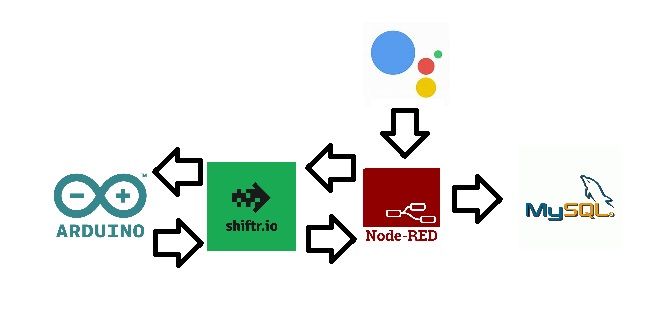
The Arduino publishes Messages and subscribes to messages trough MQTT , so does node-red. I tried the cayenne broker and the built in Mosca broker in node-red. But both where unstable for me, maybe i had some settings wrong, i don´t know. I control the Arduino from the node-red dashboard ui, and have found a neat node plugin that can send voice commands from google assistant on my phone to node-red that pushes them trough. node-red can write to MySQL. In my program it current valve opening light intensity etc every minute, and reads from the database with the push of a button. It would be more optimal to only send data to the database whenever there is a change in values.
Step 5: Node-Red Settings


I have installed the following libraries in node-red
- node-red-contrib-bigtimer //to activate light/heat at wanted times
- node-red-contrib-calc // calculate nearest interger etc.
- node-red-contrib-input-split // extract wanted data from msg.object
- node-red-contrib-nora // google assistant nodes
- node-red-dashboard // dashboard UI
- node-red-node-MySQL // send to and read from database
You can find the flow in the txt.file
Step 6: MySQL
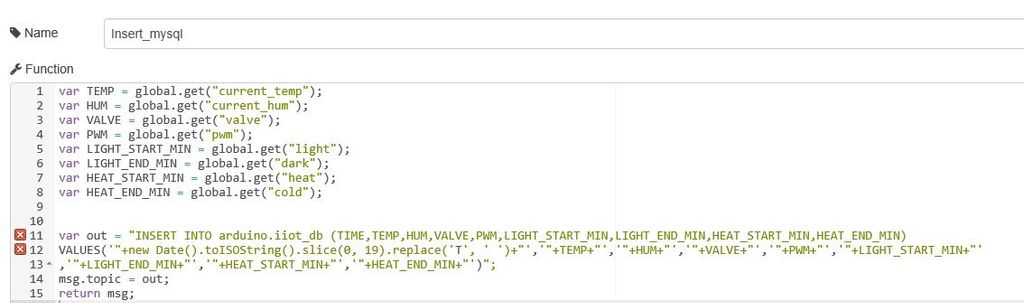
To make things easier i store the most of the values of the settings in global vaiables i then write them to MySQL.
I have divided the string on the image in 3 parts to fit in the picture. It should be on a single line.
Then insert the data into a table to be displayed on the dashboard.
IndexTIMETEMPHUMVALVEPWMLIGHTONLIGHTOFFHEATONHEATOFF

{{$index}}
{{msg.payload[$index].TIME}}{{msg.payload[$index].TEMP}}{{msg.payload[$index].HUM}}
{{msg.payload[$index].VALVE}}
{{msg.payload[$index].PWM}}
{{msg.payload[$index].LIGHT_START_MIN}}
{{msg.payload[$index].LIGHT_END_MIN}}
{{msg.payload[$index].HEAT_START_MIN}}
{{msg.payload[$index].HEAT_END_MIN}}
Step 7: Google Assistant

When i got everything working and where able to control my valve and light via nodered, i thought that i would like to control the setup with the google assistant. First i tried a setup with Tasker and Autovoice and that worked some of the time but it was a bit complex. Then i found a great node that could do that :). I have used a light-node for the valve also, that is way it thinks its brightness instead of percent.
Here is a guide on how you install it and set it up :
https://flows.nodered.org/node/node-red-contrib-no...
FYI when trying to set it up on my phone and link a device i got send back when trying to accept in Chrome on android. You can't set it up on a computer because when you accept you get redirected to the google home app, since it doesent exist on the computer it wont work. But i had success with installing firefox on android.
Step 8: Summary
All in all i am happy with the result, i accomplished what i wanted and i also where able to integrate google assistant. There where som problems along the way, but i learned a lot. I would have liked to have used Wi-Fi instead of ethernet. When i got the MQTT to work, i had a good stable connection. I would be possible to also use the routine function in Google assistant , then you could activate heat for example when you are near or have been away for a period of time.
Warning! 2 MQTT nodes that publishes the same message causes node-red to crash, and it will happen really fast. I had not much more then 1 second to start node-red in cmd to remove the node and deploy !
