Using Google Gemini Pro with PICO
Build your application with free API calls
1
Components
Hardware components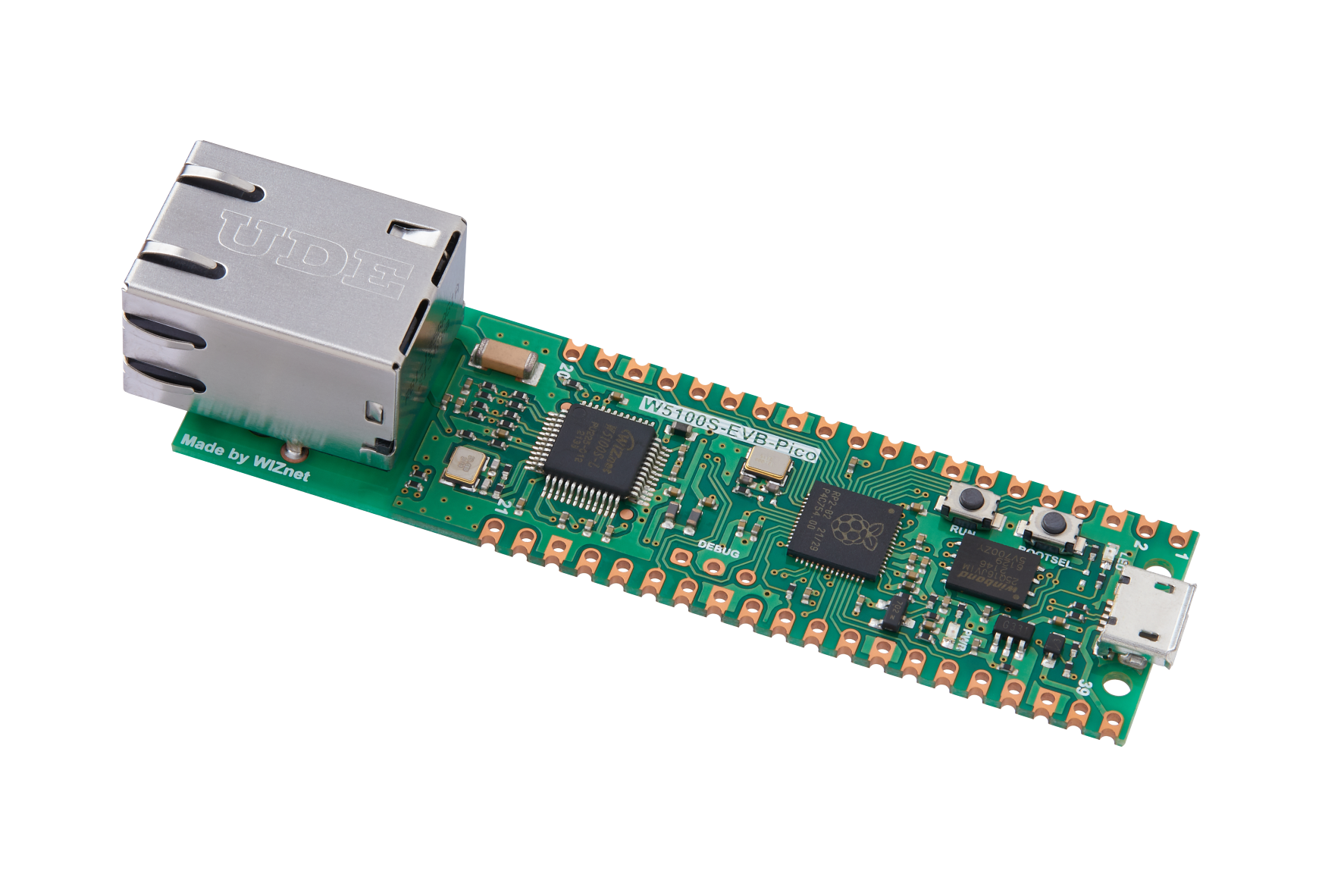
WIZnet - W5100S-EVB-Pico
x 1


micropython - MicroPython
x 1
Project description
Overview
Recently, LLM language models have been popping up in various places, and we've created an example using Google's recently announced Gemini Pro. I used Wiznet Scarlet's OpenAI as a reference for how to use it in pico. Currently, API calls to Gemini Pro are free. Take advantage of this opportunity to build your own simple application.

Currently, Gemini Pro is free for up to 60 calls per minute. API pricing is as above. Considering that the performance is similar to GPT-3.5-turbo, isn't it better to use Gemini for the price and the fact that it's currently free?
Software environment
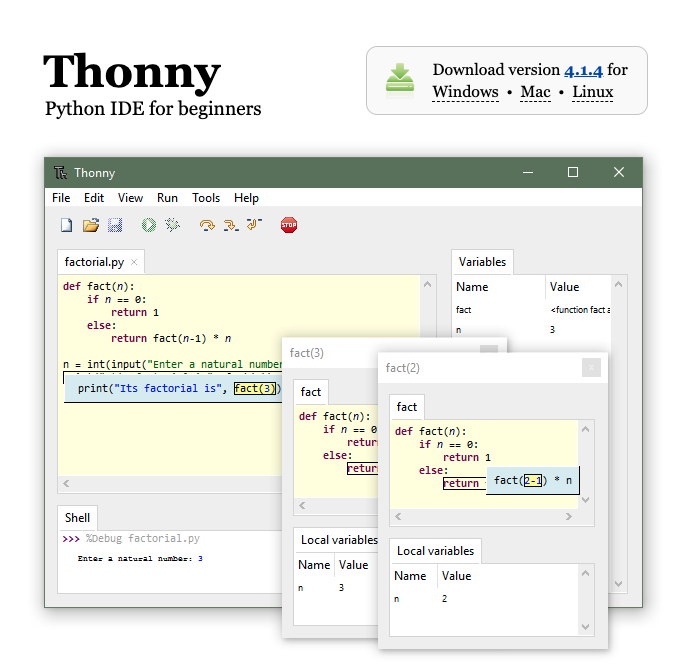
1.Download the Thonny microfiche environment.
2. Download the Firmware
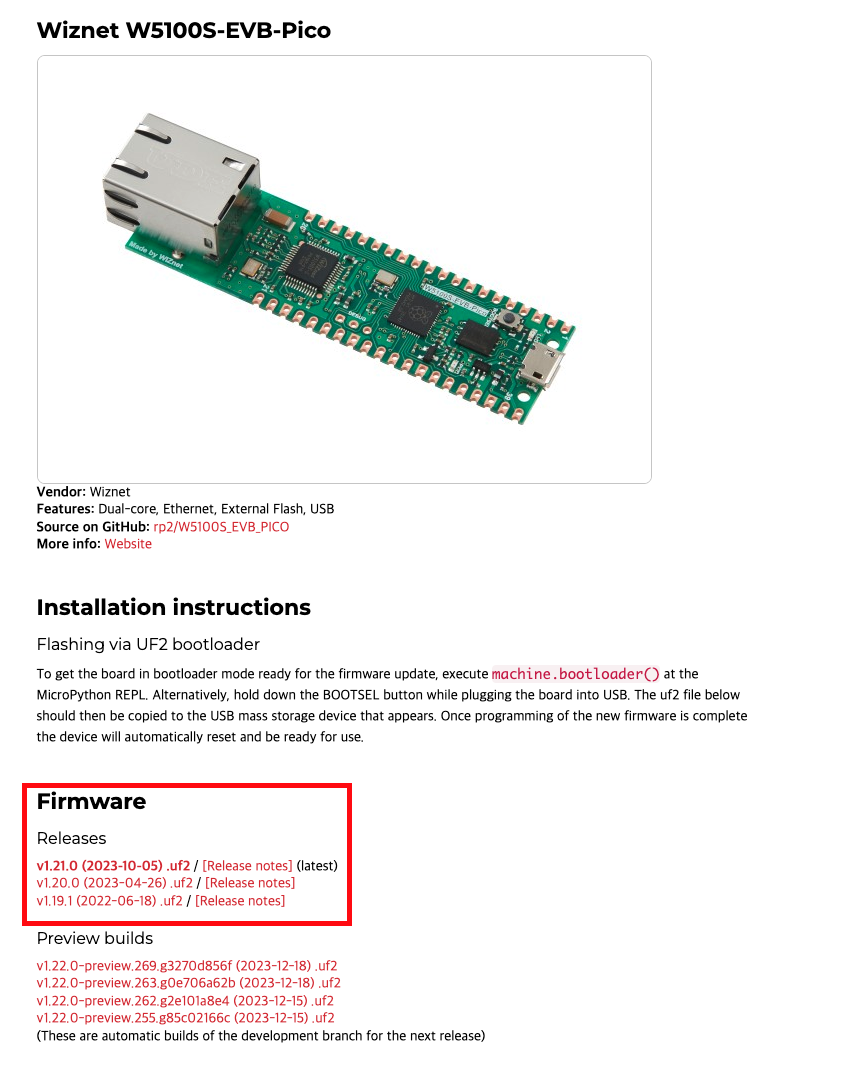
https://micropython.org/download/W5100S_EVB_PICO/
3. Google Gemini API key Settings
https://makersuite.google.com/
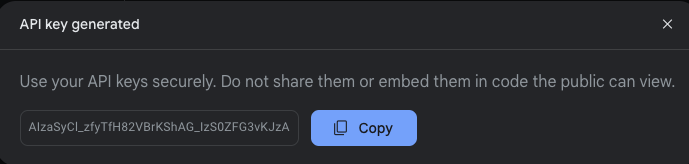
Log in to your Google account and go to the Google AI Studio site above, click new project under Developer Get API key to get a new API key.
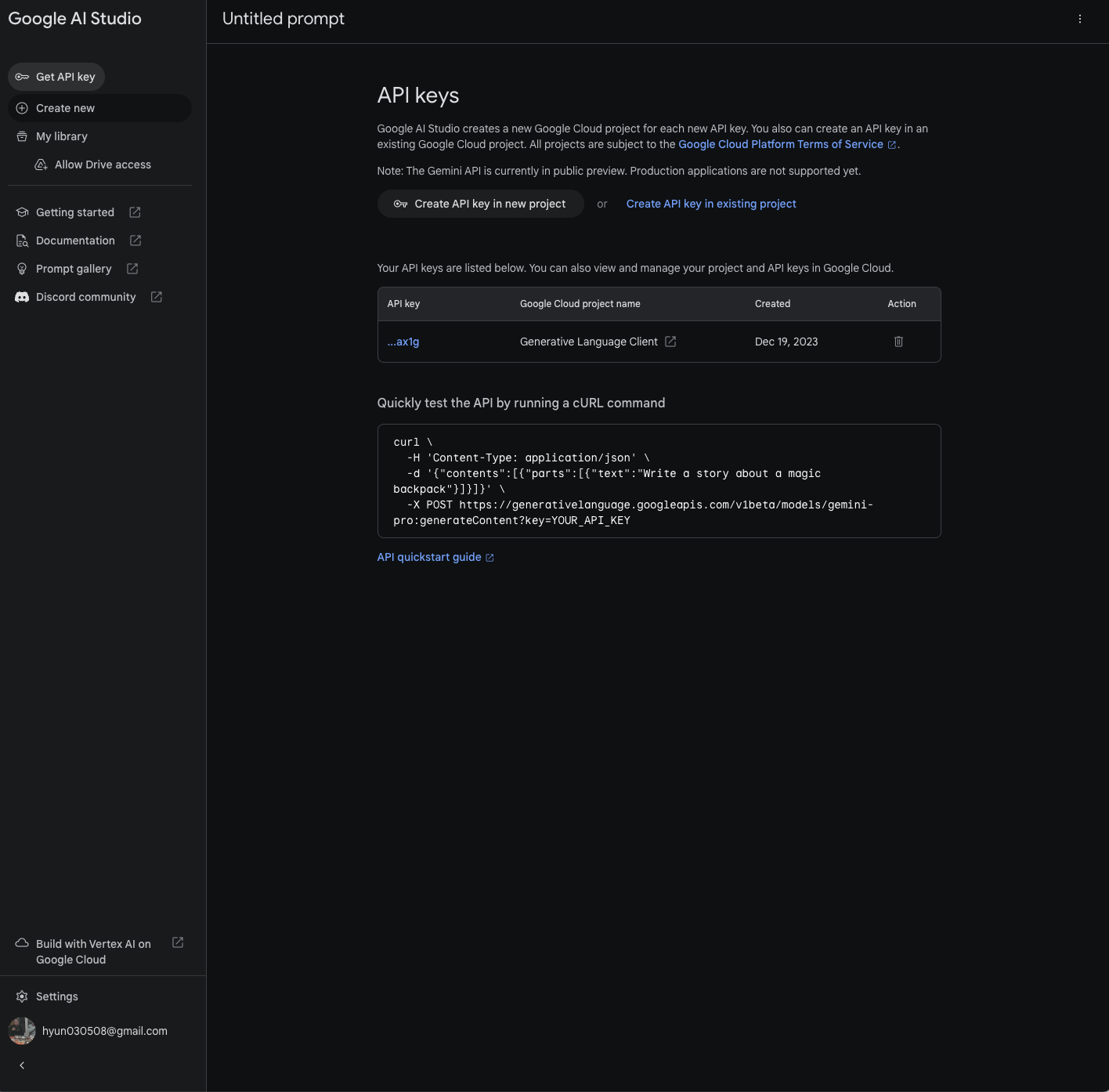
# Quickly test the API by running a cURL command
curl \
  -H 'Content-Type: application/json' \
  -d '{"contents":[{"parts":[{"text":"Write a story about a magic backpack"}]}]}' \
  -X POST https://generativelanguage.googleapis.com/v1beta/models/gemini-pro:generateContent?key=YOUR_API_KEY
Unlike GPT, the endpoint address contains an api_key, so you'll need to adapt your existing OpenAI code accordingly.
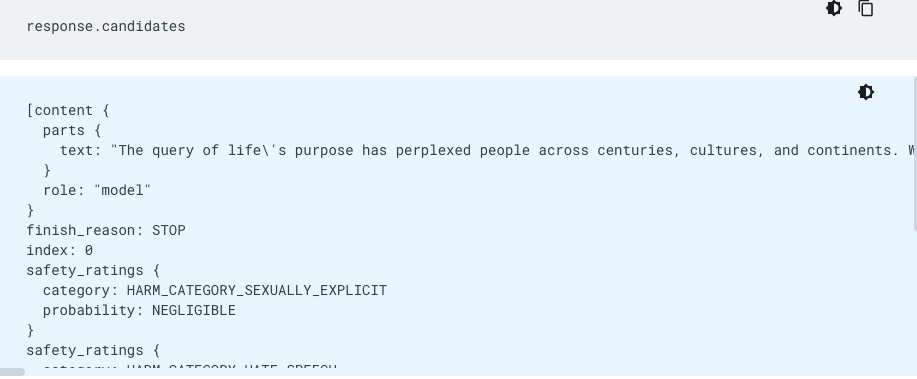
Since the form of response is different from GPT, you need to set the indexing code to get the text separately by referring to the docs.
Hardware enviroment
Connect the W5xx-EVB-Pico's Ethernet port and the micro5 pin USB(PC,Notebook).
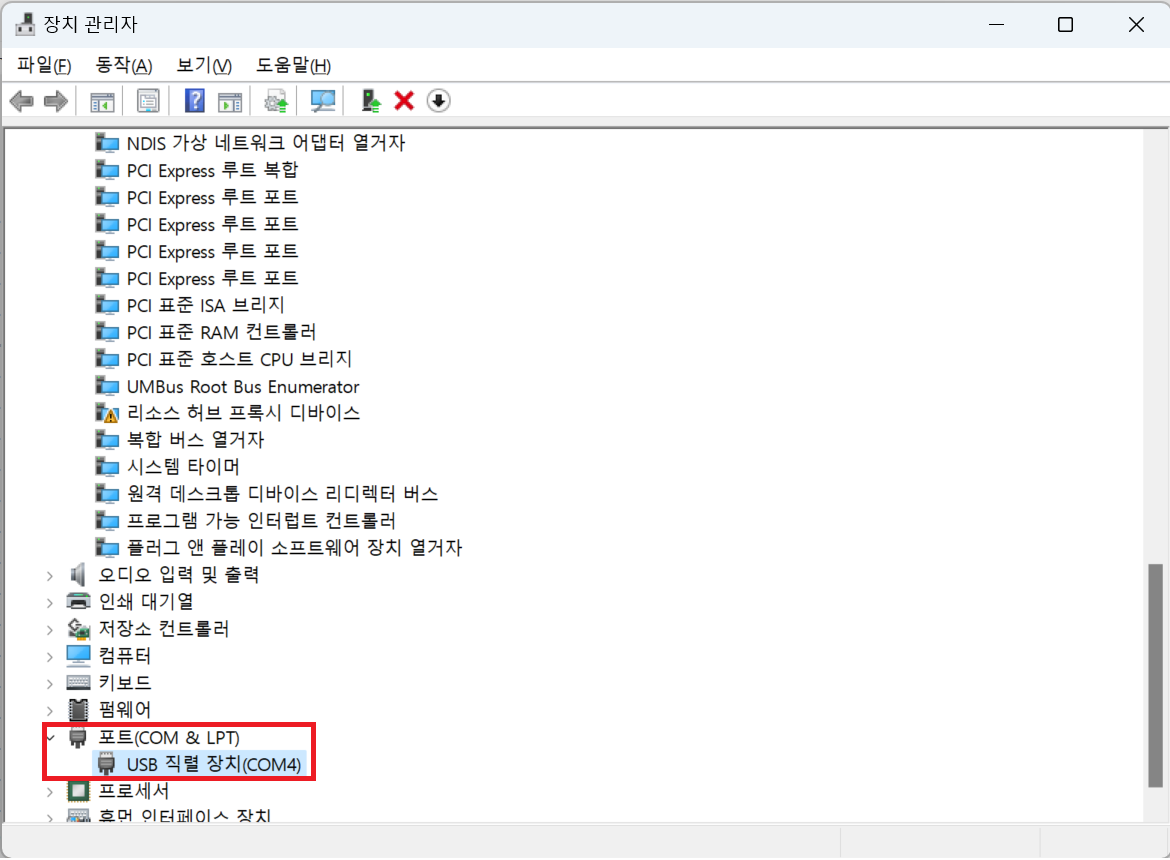
Upload the downloaded firmware into 'boot mode' and disconnect and reconnect your USB.
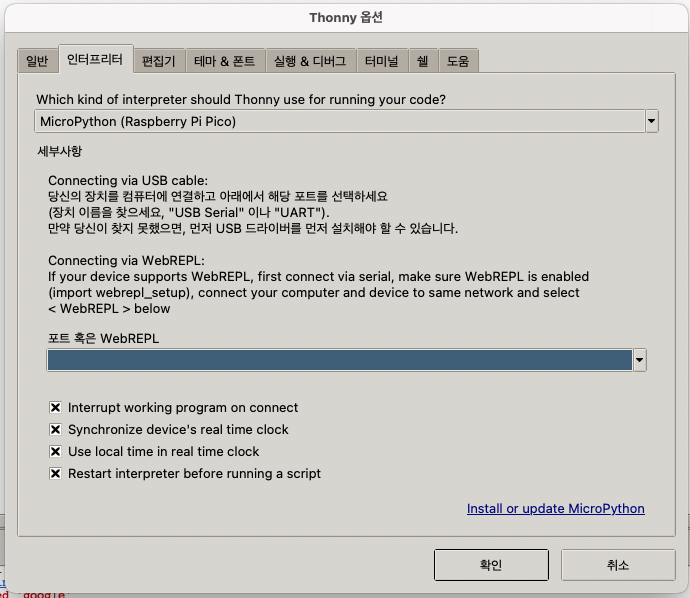
Tool -> Interpreters
After connecting, set the interpreter to "Micro Python (Raspberry PI pico)" and the port to the port connected to the device manager earlier.
Source Code Setting
https://github.com/jh941213/Gemini_rp2040
!git clone https://github.com/jh941213/Gemini_rp2040.git #download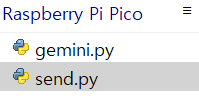
Run send.py and the code will run.
Gemini.py
import json
import urequests


gemini_api_key = "your_api_key"
gemini_url = f"https://generativelanguage.googleapis.com/v1beta/models/gemini-pro:generateContent?key={gemini_api_key}"

def send_prompt_to_gemini(prompt):
    headers = {"Content-Type": "application/json"}
    data = {
        "contents": [{
            "parts": [{"text": prompt}]
        }]
    }

    response = urequests.post(gemini_url, headers=headers, data=json.dumps(data))
    if response.status_code == 200:
        response_data = json.loads(response.text)
        return response_data["candidates"][0]["content"]["parts"][0]["text"]
    else:
        raise Exception(f"API error ({response.status_code}): {response.text}")
Send.py
from machine import Pin, SPI
import network
import utime
import gemini

#init Ethernet code
def init_ethernet(timeout=10):
    spi = SPI(0, 2_000_000, mosi=Pin(19), miso=Pin(16), sck=Pin(18))
    nic = network.WIZNET5K(spi, Pin(17), Pin(20))   # spi, cs, reset pin
    # DHCP
    nic.active(True)

    start_time = utime.ticks_ms()
    while not nic.isconnected():
        utime.sleep(1)
        if utime.ticks_ms() - start_time > timeout * 1000:
            raise Exception("Ethernet connection timed out.")
        print('Connecting ethernet...')

    print(f'Ethernet connected. IP: {nic.ifconfig()}')

def main():
    init_ethernet()

    while True:
        prompt = input("User: ")
        if prompt.lower() == "exit":
            print("Exiting...")
            break

        try:
            response = gemini.send_prompt_to_gemini(prompt)
            print("Gemini: ", response)
        except Exception as e:
            print("Error: ", e)

if __name__ == "__main__":
    main()
Result
You can do this by typing gemini at the prompt in the console window.
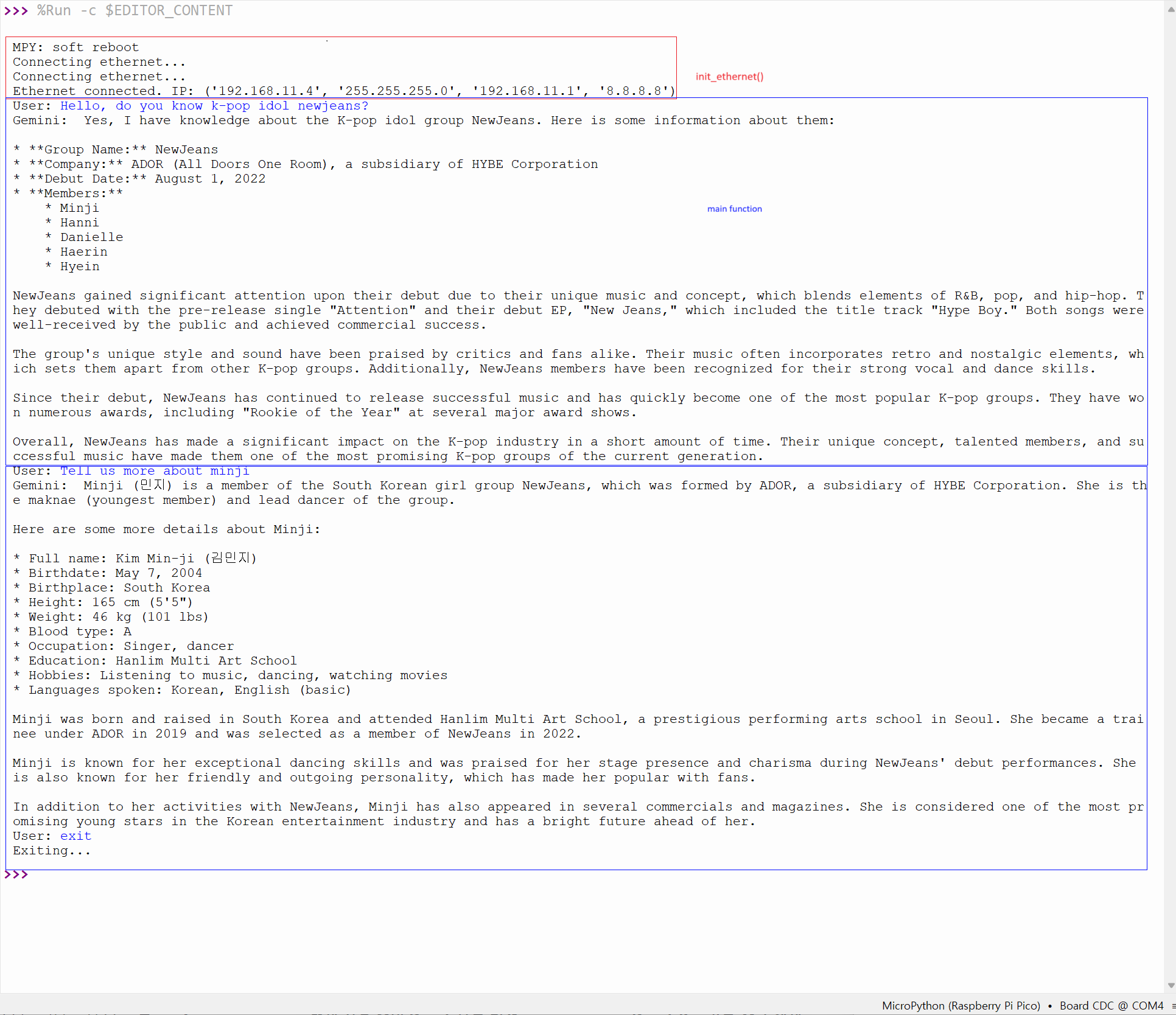

The loop exits when the exit prompt comes in.

