Practical USB‑CDC: Raspberry Pi Pico Virtual Serial Port with select & MicroPython
It shows Pico USB‑CDC read‑write with MicroPython select, compares blocking‑non‑blocking input and output methods.
COMPONENTS
PROJECT DESCRIPTION
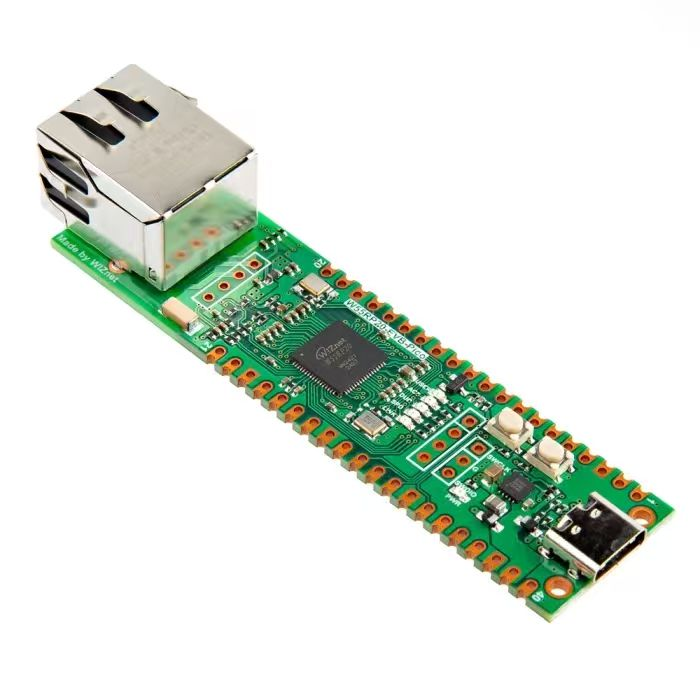
【Preliminary Note】The original hardware example in this article was written based on the RP2040. The actual hardware used in this hands-on demonstration features the W55RP20 as the main controller chip. The circuit logic and UF2 flashing operation principles are universally applicable, with only the main controller model differing. The original chip model mentioned in the circuit descriptions below is provided for reference purposes only
Reading and Writing Data with USB‑CDC VCSP Virtual Serial Port A virtual serial port emulates a traditional serial device (COM port) over USB, allowing interaction with standard serial communication protocols and software. Its main features are listed below:
Provides standard serial‑port interfaces and functions, such as baud rate, data bits, stop‑bit settings
Appears as a regular serial device in the operating system and can be accessed by common serial‑port applications
Adopts the CDC (Communication Device Class) USB protocol to convert USB communication into standard serial‑port communication
Often used for compatibility with legacy software or hardware, e.g. industrial control systems and test equipment
This virtual‑serial‑port design greatly improves the compatibility and usability of USB devices. Legacy systems can seamlessly work with new USB hardware. OS USB drivers automatically map the USB device to a standard serial port, requiring no modifications for upper‑level applications.
You can find the sample code in the resource package path elegance‑devkit v1\Demo\39 USB_CDC.
Sample code:
# Python env   : MicroPython v1.23.0
# -*- coding: utf-8 -*-
# @Time    : 2024/7/29 13:22
# @Author  : Li Qingshui
# @File    : main.py
# @Description : USB CDC experiment, read and write using the built‑in USB‑CDC on Pico MicroPython firmware
# ======================================== Import related modules ========================================
import select
import sys
import time
# ======================================== Global variables ============================================
# List for recording elapsed time
delta_list = [0] * 10
# Count read operations
read_count = 0
# ======================================== Function definitions ============================================
# ======================================== Custom classes ============================================
# ======================================== Initialization configuration ==========================================
# Delay to wait for device initialization
time.sleep(3)
# Print debug info
print('FreakStudio : Using USB CDC to read and write data')
# Create select.poll() object to monitor incoming stdin data
poll_obj = select.poll()
# Register sys.stdin to poll_obj, listen for POLLIN input events
poll_obj.register(sys.stdin, select.POLLIN)
# ======================================== Main Program ===========================================
# Infinite loop, perform non‑blocking read‑write via select module
while True:
    # After reading data 10 times
    if read_count == 10:
        # Reset read counter
        read_count = 0
        # Print average time cost over 10 transfers
        avg_delta = sum(delta_list) / len(delta_list)
        print("avg time cost : " + str(avg_delta) + " ms\r")
    # poll_obj.poll(1) waits for stdin data with 1 ms timeout
    poll_results = poll_obj.poll(1)
    if poll_results:
        # Data is available: read from stdin and write to stdout
        # readline() reads one line terminated by newline and returns the string
        # strip() removes leading/trailing whitespace: spaces, tabs, newlines
        # data = sys.stdin.readline().strip()
        # sys.stdin.readline().strip() works for non‑blocking reading
        # input() is blocking and pauses program execution
        data = input("please input data : ")
        # Record timestamp for write‑operation timing
        t = time.ticks_us()
        # Write data to standard output
        # Alternative: sys.stdout.write("received data : " + data + "\r")
        # sys.stdout.write() writes directly to stdout stream without buffering
        # print() buffers output; actual output occurs on buffer full or newline
        print("received data : " + data + "\r")
        # Calculate time consumed for one read‑write cycle
        delta = time.ticks_diff(time.ticks_us(), t)/1000
        # Print time cost of current operation
        print("time cost : " + str(delta) + " ms\r")
        # Save measured time value
        delta_list[read_count] = delta
        # Increment read counter
        read_count += 1
    else:
        # No incoming data, continue loop
        continue
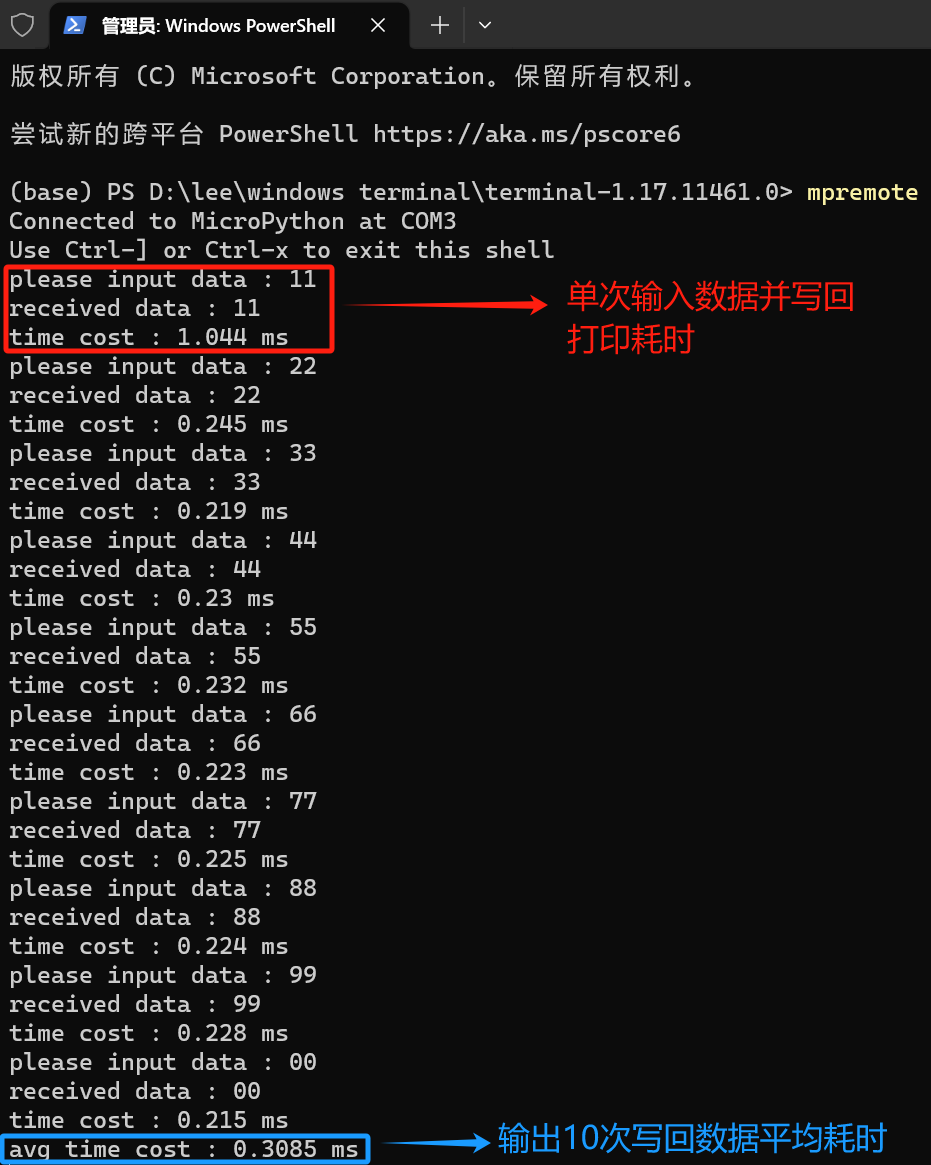
Here the select module monitors standard input. When data arrives, print() and input() complete read‑echo operations. The code measures single‑transaction latency and calculates average time cost to simulate host‑USB‑device data exchange.
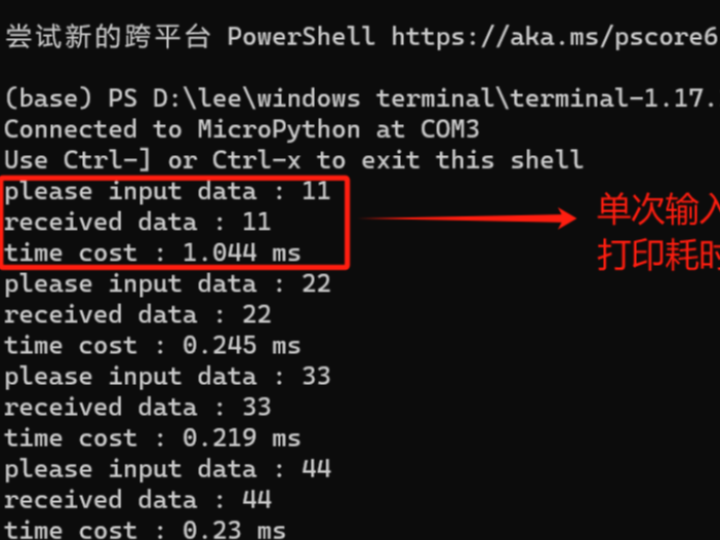
Flash the code, open remote terminal and input data. Your input will be echoed back in terminal:
For demonstration, the blocking input() is used. Real‑world applications prefer non‑blocking stdin reading for continuous monitoring, usually sys.stdin.readline().strip(). Differences are as follows: sys.stdin.readline().strip() performs non‑blocking read; program will not hang without incoming data input() is blocking read; program execution pauses when no data arrives
The example uses print() for output. For real‑time performance in practical projects, sys.stdout.write() is recommended. Their differences: Built‑in print() outputs text to console and appends newline automatically. print() buffers output; content is flushed only when buffer is full or newline appears.sys.stdout.write() from Python standard library writes raw strings to stdout without automatic newlines. Use sys.stdout.write() for immediate output without waiting for buffer flush.