Pico Reusable Idle‑Mode Code & Power‑Saving Tips
Hands‑on tutorial for writing reusable idle‑mode code on Raspberry Pi Pico, plus practical power‑consumption optimization tips.
提示:无法直接保存文件到桌面。复制全部下方文本,粘贴记事本,另存为
Pico_Idle_Mode_Demo_Code.txt,编码 UTF‑8,保存位置选桌面。图片/GIF链接完整保留;VS Code / Typora 打开并联网可渲染图片,记事本只会显示图片链接源码。已经移除全部 #、* 符号。
In the example below, we call the machine.idle() function inside a loop to place the CPU into idle mode and reduce power consumption. Combined with external interrupts, the CPU can be woken‑up quickly to handle tasks when external events occur.
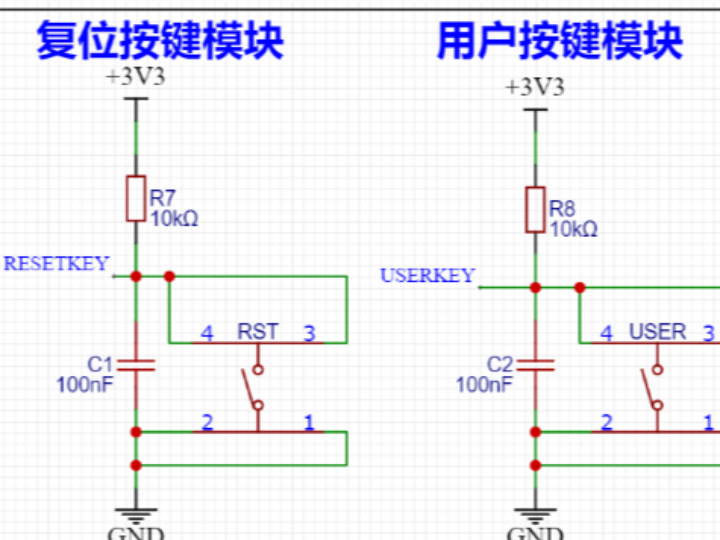
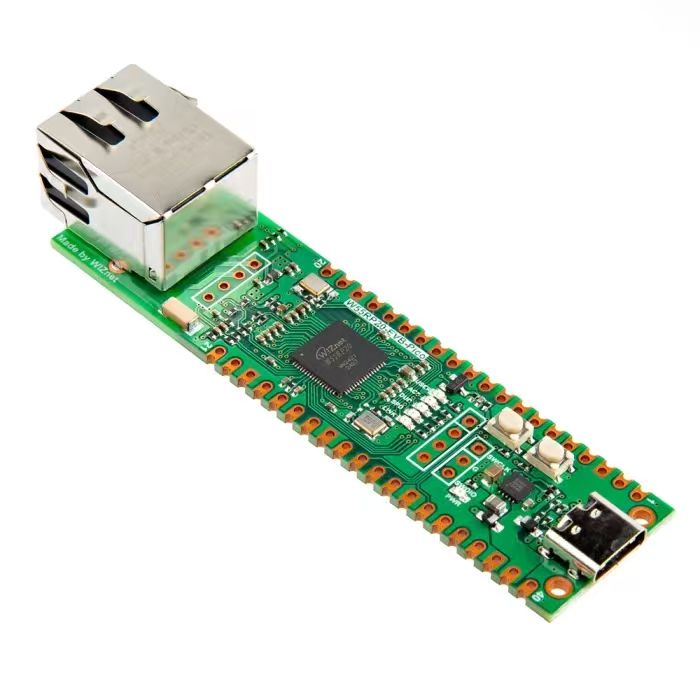
On the Elegance‑One Universal Compatible Expansion Board, pin GP22 of Raspberry Pi Pico is connected to the USERKEY push‑button. GP22 is configured for falling‑edge triggering so that pressing the button wakes the CPU. On this expansion board, the USERKEY input is pulled high by an onboard pull‑up resistor when the button is not pressed.
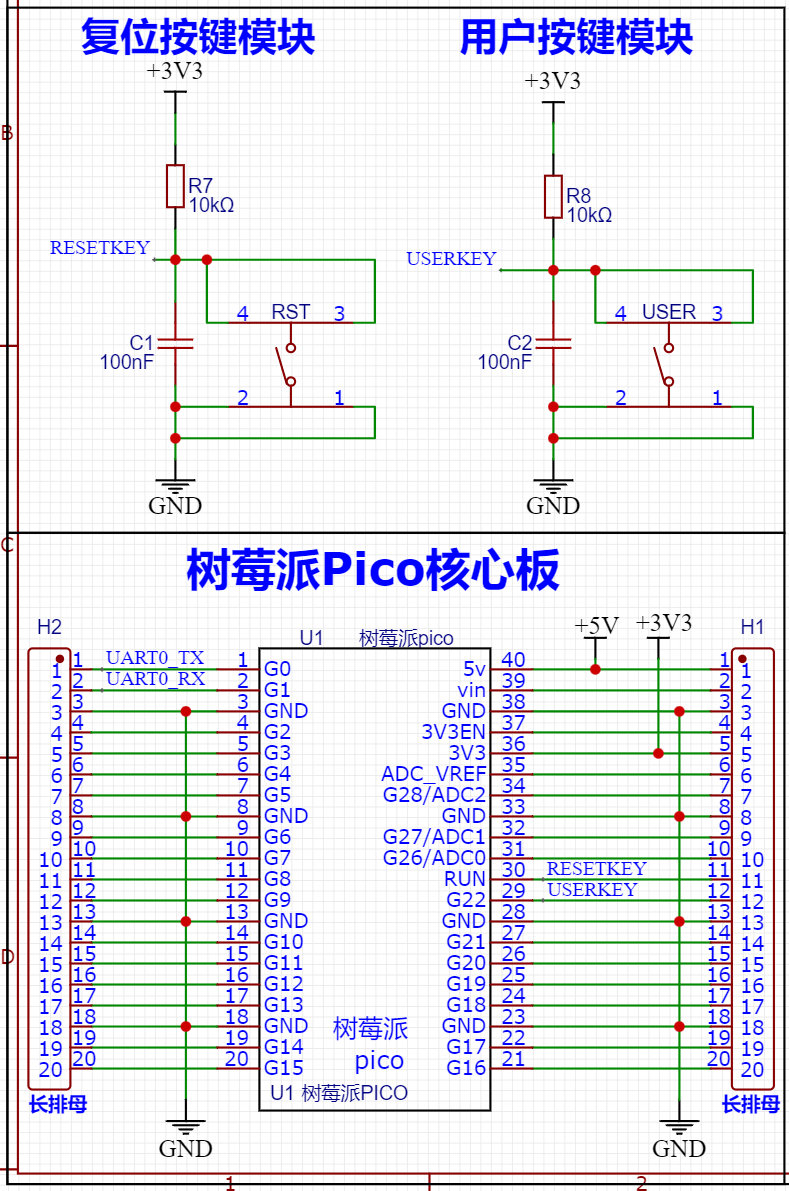
When the button is pressed, the pin level goes low, hence falling‑edge trigger mode is selected.
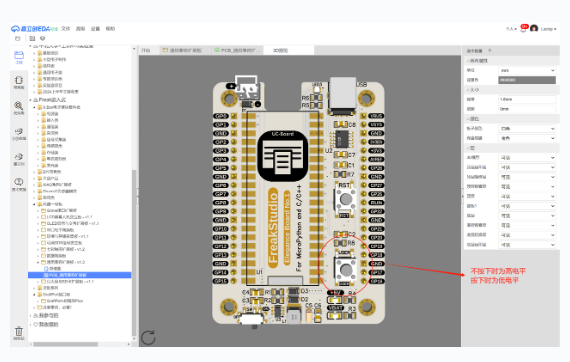
The source code can be found in the provided resource package under elegance‑devkit v1\Demo\55 Machine_Idle.
Sample code:
# Python env   : MicroPython v1.23.0
# -*- coding: utf-8 -*-
# @Time    : 2024/8/23 2:31 PM
# @Author  : Li Qingshui
# @File    : main.py
# @Description : Low‑power experiment, enter idle mode using machine.idle()
# ======================================== Import related modules ========================================
# Import hardware‑related modules
import machine
# Import time‑related modules
import time
# ======================================== Global variables ============================================
# ======================================== Function definitions ============================================
# External interrupt handler function
def button_handler(pin: machine.Pin) -> None:
    """
    External interrupt handler. Toggle LED state and print message after button press.
    Args:
        pin (machine.Pin): Button pin instance that triggers the interrupt.
    Returns:
        None
    Raises:
        None
    """
    global led
    # Toggle LED status
    led.toggle()
    # Print debug message
    print("Button pressed!")
# ======================================== Custom classes ============================================
# ======================================== Initialization ==========================================
# 3‑second power‑on stabilization delay
time.sleep(3)
# Print debug information
print("FreakStudio : Using irq to wake up Pico of idle mode")
# Create LED object
led = machine.Pin(25, machine.Pin.OUT)
# Configure GPIO22 as input with pull‑up resistor enabled
button_pin = machine.Pin(22, machine.Pin.IN, machine.Pin.PULL_UP)
# Configure external interrupt
button_pin.irq(trigger=machine.Pin.IRQ_FALLING, handler=button_handler)
# ======================================== Main program ===========================================
# Main program loop
while True:
    # Call machine.idle() in loop to lower CPU power consumption
    machine.idle()
    # Print message indicating main loop is running
    print("System is idling...")
    # Add delay to prevent excessive printing
    time.sleep(1)
Flash the firmware and connect remote terminal. Output is shown below:
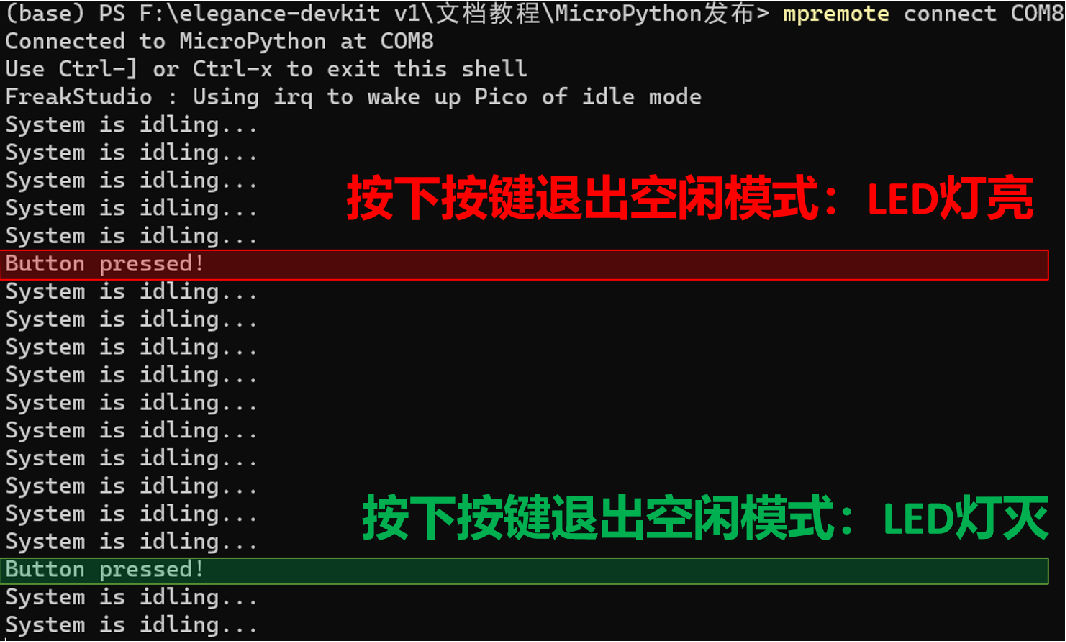
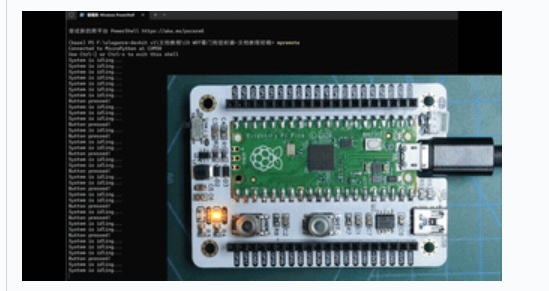
You can observe that pressing the button triggers the external interrupt to wake‑up the CPU. The LED toggles on and off, and debug messages are printed to the terminal.
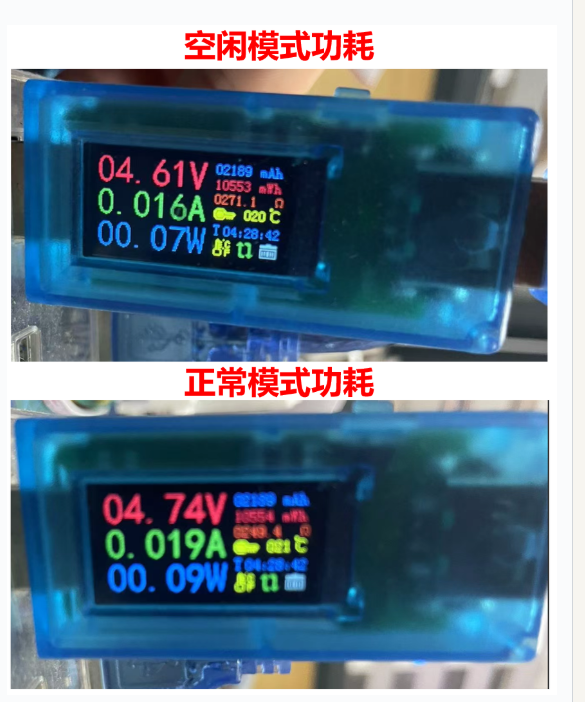
Next, connect a USB power meter to the USB port of Raspberry Pi Pico on the Elegance‑One Universal Compatible Expansion Board for power‑consumption comparison between different operating modes.