Pico Joystick ADC Advanced Lab: Hardware, Wiring & OOP Code
Pico joystick ADC hands‑on analysis
- Basic Principles of the Joystick Module
A joystick module is an electronic component containing two potentiometers (for X‑axis and Y‑axis analog voltage signals) plus a push‑button switch. It is widely used in game controllers, robot control and various embedded projects to obtain two‑dimensional directional input and button‑press status.
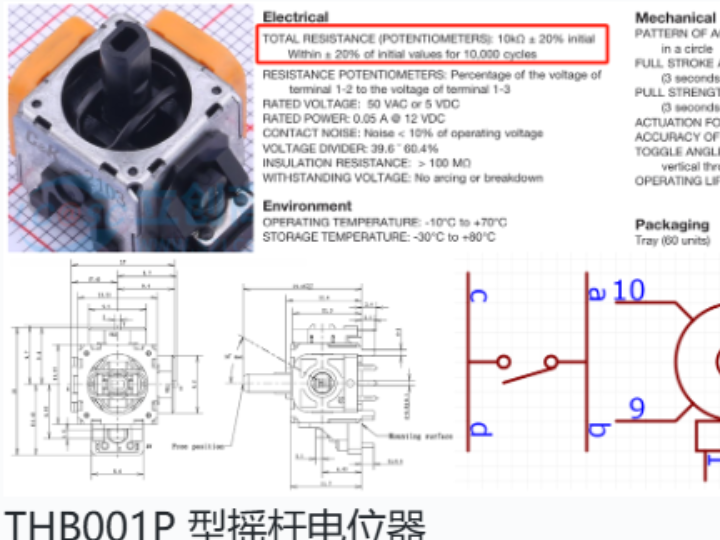
THB001P joystick potentiometer
Main internal components:
X‑axis potentiometer (VRx) Adjusts output voltage via horizontal joystick movement. Output voltage changes as the joystick moves horizontally; this voltage is read by an ADC (Analog‑to‑Digital Converter).
Y‑axis potentiometer (VRy) Adjusts output voltage via vertical joystick movement. Output voltage changes as the joystick moves vertically; this voltage is also read by an ADC.
Push‑button switch (VSw) Triggers when the joystick is pressed, normally producing a low‑level logic‑0 signal. This switch signal detects whether the joystick button is pressed.
The X‑axis and Y‑axis potentiometers generate two independent analog voltage signals, typically ranging from 0 V to the reference voltage such as 3.3 V. Reading these voltages allows you to determine the current joystick position.
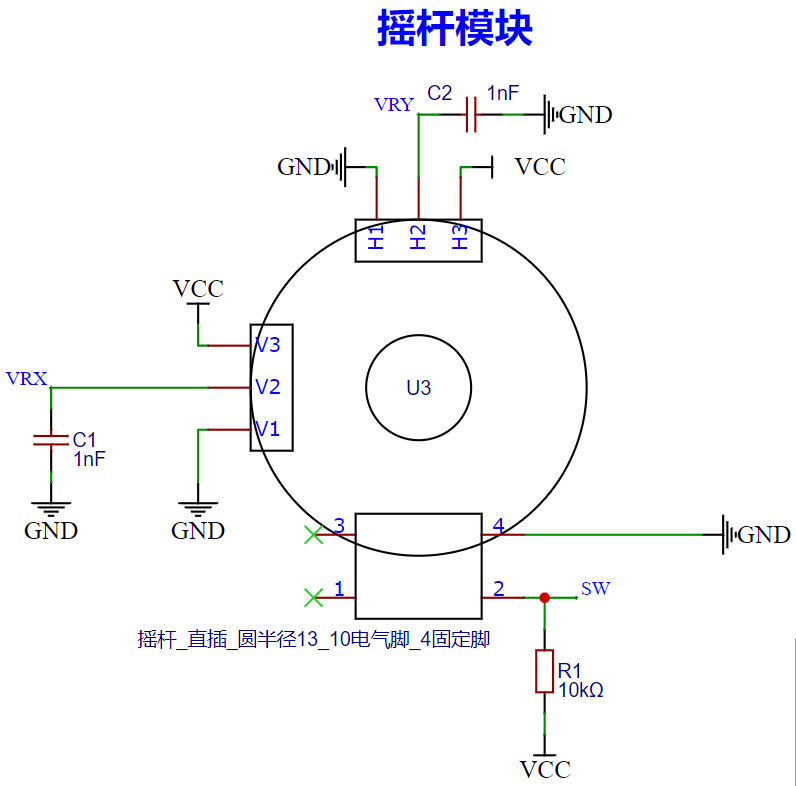
On this joystick module, a 1 nF capacitor is paralleled across VRx and VRy to filter low‑frequency noise. A pull‑up resistor is added to the VSw button pin: high level when released, low level when pressed. Schematic diagram:
- Driver Code Implementation
A custom Joystick class is implemented to read joystick data. It encapsulates data‑acquisition logic for X‑axis, Y‑axis and button status. Main features:
Modular design Joystick X‑axis, Y‑axis and button‑state acquisition logic are wrapped inside one class for easy reuse and maintenance. Periodic non‑blocking sampling is implemented using timers.
Low‑pass filtering A low‑pass filter algorithm smooths raw ADC readings and reduces noise impact. The filter_alpha parameter tunes filter strength for different application scenarios.
Callback mechanism User‑defined callback functions are supported and invoked automatically after sampling completes. micropython.schedule guarantees safe callback execution under MicroPython scheduling rules.
Flexible initialization parameters Customizable ADC pins, timer frequency and callback functions to adapt to varied hardware configurations and requirements.
Resource management start and stop methods control the activation and deactivation of data acquisition.
Sample code:
# Custom joystick class
class Joystick:
    """
    Joystick class for reading X‑axis, Y‑axis voltage and button status via ADC pins.
    This class encapsulates ADC and timer initialization. It provides methods to start / stop sampling and fetch current values.
    User‑defined callback functions can process acquired data.
    Attributes:
        conversion_factor (float): Voltage conversion factor converting raw ADC readings to real‑world voltage.
        adc_x (ADC): ADC instance for X‑axis.
        adc_y (ADC): ADC instance for Y‑axis.
        sw (Pin): Digital‑input pin instance for the push button.
        timer (Timer): Timer instance for periodic sampling.
        freq (int): Timer frequency in Hz.
        x_value (float): Currently sampled X‑axis voltage value.
        y_value (float): Currently sampled Y‑axis voltage value.
        sw_value (int): Current button status (0 or 1).
        callback (Optional[Callable[[tuple], None]]): User‑defined callback function for processing sampled data.
        filter_alpha (float): Low‑pass filter coefficient.
        filtered_x (float): Filtered X‑axis voltage value.
        filtered_y (float): Filtered Y‑axis voltage value.
    Methods:
        __init__(self, vrx_pin: int, vry_pin: int, vsw_pin: int, freq: int = 100, callback=None):
            Initialize joystick‑class instance.
        start(self):
            Start joystick data acquisition.
        _timer_callback(self, timer: Timer):
            Timer callback function for acquiring joystick X‑axis, Y‑axis and button status.
        stop(self):
            Stop joystick data acquisition.
        get_values(self) -> tuple:
            Return current X‑axis, Y‑axis and button status.
    """
    # Voltage conversion factor
    conversion_factor = 3.3 / (65535)
    def __init__(self, vrx_pin: int, vry_pin: int, vsw_pin: int, freq: int = 100, callback: callable[[tuple], None] = None) -> None:
        """
        Initialize joystick‑class instance.
        Args:
            vrx_pin (int): ADC pin index for X‑axis.
            vry_pin (int): ADC pin index for Y‑axis.
            vsw_pin (int): Digital‑input pin index for push button.
            freq (int): Timer frequency, default 100 Hz.
            callback (Optional[Callable[[tuple], None]]): User‑defined callback invoked after sampling completes.
        Returns:
            None
        """
        # Initialize ADC pins
        self.adc_x = ADC(vrx_pin)
        self.adc_y = ADC(vry_pin)
        # Initialize button pin
        self.sw = Pin(vsw_pin, Pin.IN, Pin.PULL_UP)
        # Initialize timer
        self.timer = Timer(-1)
        self.freq = freq
        # Store sampled readings
        self.x_value = 0
        self.y_value = 0
        self.sw_value = 1
        # Reference to user‑defined callback
        self.callback = callback
        # Initialize filter parameters
        # Low‑pass filter coefficient
        self.filter_alpha = 0.2
        # Initial value set to mid‑point
        self.filtered_x = 1.55
        # Initial value set to mid‑point
        self.filtered_y = 1.55
    def start(self) -> None:
        """
        Start joystick data acquisition.
        Args:
            None
        Returns:
            None
        """
        self.timer.init(period=int(1000/self.freq), mode=Timer.PERIODIC, callback=self._timer_callback)
    def _timer_callback(self, timer: Timer) -> None:
        """
        Timer callback for acquiring joystick X‑axis, Y‑axis and button status.
        Args:
            timer (Timer): Timer object instance.
        Returns:
            None
        """
        # Read raw ADC values for X‑axis and Y‑axis
        raw_x = self.adc_x.read_u16() * Joystick.conversion_factor
        raw_y = self.adc_y.read_u16() * Joystick.conversion_factor
        # Low‑pass filtering
        self.filtered_x = self.filter_alpha * raw_x + (1 - self.filter_alpha) * self.filtered_x
        self.filtered_y = self.filter_alpha * raw_y + (1 - self.filter_alpha) * self.filtered_y
        # Update stored values
        self.x_value = self.filtered_x
        self.y_value = self.filtered_y
        # Read button status: 0 = pressed, 1 = released
        self.sw_value = self.sw.value()
        # Invoke user‑defined callback and pass X‑axis, Y‑axis voltages plus button state
        micropython.schedule(self.callback, (self.x_value, self.y_value, self.sw_value))
    def stop(self) -> None:
        """
        Stop joystick data acquisition.
        Args:
            None
        Returns:
            None
        """
        self.timer.deinit()
    def get_values(self) -> tuple:
        """
        Fetch current joystick X‑axis, Y‑axis and button status.
        Args:
            None
        Returns:
            tuple: Tuple containing X‑axis voltage, Y‑axis voltage and button status formatted as (x_value, y_value, sw_value).
        """
        return self.x_value, self.y_value, self.sw_value
Class method overview:
__init__() method Initialize joystick object including ADC pins, button pin and timer. The callback parameter assigns the post‑sampling callback function. The low‑pass filter coefficient is fixed at 0.2.
start() method Start the timer for periodic joystick sampling with period 1000 / freq milliseconds.
_timer_callback() method Timer callback reads joystick X‑axis, Y‑axis and button status, applies low‑pass filtering to ADC readings to reduce noise. micropython.schedule executes the user‑supplied callback in main‑thread context.
stop() method Stop data acquisition and release hardware resources by calling Timer.deinit() to halt the timer.
get_values() method Return current joystick X‑axis, Y‑axis and button status as tuple (x_value, y_value, sw_value).
- Pre‑experiment Preparation
For this experiment, insert the Elegance‑One Universal Compatible Expansion Board onto the Elegance‑One OLED Display & Interaction Expansion Board. Toggle on the I2C_SDA and I2C_SCL options of the SWITCH1 DIP switch on the OLED‑HMI board:
Additionally select an address via the OLED_ADDR DIP switch. This example uses setting 0x3C, so the OLED I²C slave address is 0x3C:
Component wiring table:
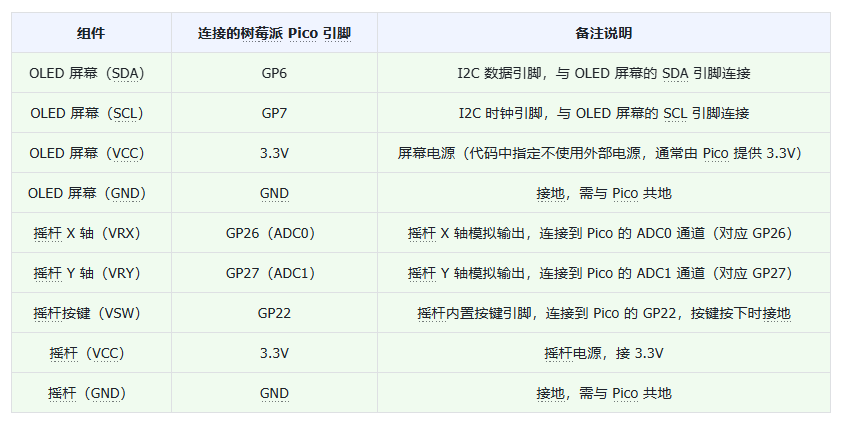
- Application Experiment
Source code can be found in the resource package under elegance‑devkit v1\Demo\59 ADC_Joystick.
The example below implements a joystick‑controlled mini‑game: joystick voltage readings control a ball moving across the OLED screen.
# Python env   : MicroPython v1.23.0
# -*- coding: utf-8 -*-
# @Time    : 2024/8/27 10:02 PM
# @Author  : Li Qingshui
# @File    : main.py
# @Description : ADC experiment, read joystick voltage values
# ======================================== Import related modules ========================================
# Import hardware‑related modules
from machine import ADC, Timer, Pin, I2C
# Import time‑related modules
import time
# Import module for accessing MicroPython internal structures
import micropython
# Import SSD1306 OLED‑driver module
from ssd1306 import SSD1306_I2C
# ======================================== Global variables ============================================
# OLED screen I2C address
OLED_ADDRESS = 0
# ======================================== Function definitions ============================================
def user_callback(data: tuple) -> None:
    """
    User‑defined callback function to process sampled joystick data.
    Args:
        data (tuple): Tuple containing joystick X‑axis voltage, Y‑axis voltage and button status formatted as (x_value, y_value, sw_value).
    Returns:
        None
    """
    global ball
    x_value, y_value, sw_value = data
    print("X: {:.2f}, Y: {:.2f}, Switch: {}".format(x_value, y_value, sw_value))
    # Move ball according to joystick input
    ball.move_ball(x_value,y_value)
# ======================================== Custom classes ============================================
# Custom joystick class
class Joystick:
    """
    Joystick class for reading X‑axis, Y‑axis voltage and button status via ADC pins.
    This class encapsulates ADC and timer initialization. It provides methods to start / stop sampling and fetch current values.
    User‑defined callback functions can process acquired data.
    Attributes:
        conversion_factor (float): Voltage conversion factor converting raw ADC readings to real‑world voltage.
        adc_x (ADC): ADC instance for X‑axis.
        adc_y (ADC): ADC instance for Y‑axis.
        sw (Pin): Digital‑input pin instance for the push button.
        timer (Timer): Timer instance for periodic sampling.
        freq (int): Timer frequency in Hz.
        x_value (float): Currently sampled X‑axis voltage value.
        y_value (float): Currently sampled Y‑axis voltage value.
        sw_value (int): Current button status (0 or 1).
        callback (Optional[Callable[[tuple], None]]): User‑defined callback function for processing sampled data.
        filter_alpha (float): Low‑pass filter coefficient.
        filtered_x (float): Filtered X‑axis voltage value.
        filtered_y (float): Filtered Y‑axis voltage value.
    Methods:
        __init__(self, vrx_pin: int, vry_pin: int, vsw_pin: int, freq: int = 100, callback=None):
            Initialize joystick‑class instance.
        start(self):
            Start joystick data acquisition.
        _timer_callback(self, timer: Timer):
            Timer callback function for acquiring joystick X‑axis, Y‑axis and button status.
        stop(self):
            Stop joystick data acquisition.
        get_values(self) -> tuple:
            Return current X‑axis, Y‑axis and button status.
    """
    # Voltage conversion factor
    conversion_factor = 3.3 / (65535)
    def __init__(self, vrx_pin: int, vry_pin: int, vsw_pin: int, freq: int = 100, callback: callable[[tuple], None] = None) -> None:
        """
        Initialize joystick‑class instance.
        Args:
            vrx_pin (int): ADC pin index for X‑axis.
            vry_pin (int): ADC pin index for Y‑axis.
            vsw_pin (int): Digital‑input pin index for push button.
            freq (int): Timer frequency, default 100 Hz.
            callback (Optional[Callable[[tuple], None]]): User‑defined callback invoked after sampling completes.
        Returns:
            None
        """
        # Initialize ADC pins
        self.adc_x = ADC(vrx_pin)
        self.adc_y = ADC(vry_pin)
        # Initialize button pin
        self.sw = Pin(vsw_pin, Pin.IN, Pin.PULL_UP)
        # Initialize timer
        self.timer = Timer(-1)
        self.freq = freq
        # Store sampled readings
        self.x_value = 0
        self.y_value = 0
        self.sw_value = 1
        # Reference to user‑defined callback
        self.callback = callback
        # Initialize filter parameters
        # Low‑pass filter coefficient
        self.filter_alpha = 0.2
        # Initial value set to mid‑point
        self.filtered_x = 1.55
        # Initial value set to mid‑point
        self.filtered_y = 1.55
    def start(self) -> None:
        """
        Start joystick data acquisition.
        Args:
            None
        Returns:
            None
        """
        self.timer.init(period=int(1000/self.freq), mode=Timer.PERIODIC, callback=self._timer_callback)
    def _timer_callback(self, timer: Timer) -> None:
        """
        Timer callback for acquiring joystick X‑axis, Y‑axis and button status.
        Args:
            timer (Timer): Timer object instance.
        Returns:
            None
        """
        # Read raw ADC values for X‑axis and Y‑axis
        raw_x = self.adc_x.read_u16() * Joystick.conversion_factor
        raw_y = self.adc_y.read_u16() * Joystick.conversion_factor
        # Low‑pass filtering
        self.filtered_x = self.filter_alpha * raw_x + (1 - self.filter_alpha) * self.filtered_x
        self.filtered_y = self.filter_alpha * raw_y + (1 - self.filter_alpha) * self.filtered_y
        # Update stored values
        self.x_value = self.filtered_x
        self.y_value = self.filtered_y
        # Read button status: 0 = pressed, 1 = released
        self.sw_value = self.sw.value()
        # Invoke user‑defined callback and pass X‑axis, Y‑axis voltages plus button state
        micropython.schedule(self.callback, (self.x_value, self.y_value, self.sw_value))
    def stop(self) -> None:
        """
        Stop joystick data acquisition.
        Args:
            None
        Returns:
            None
        """
        self.timer.deinit()
    def get_values(self) -> tuple:
        """
        Fetch current joystick X‑axis, Y‑axis and button status.
        Args:
            None
        Returns:
            tuple: Tuple containing X‑axis voltage, Y‑axis voltage and button status formatted as (x_value, y_value, sw_value).
        """
        return self.x_value, self.y_value, self.sw_value

# Ball‑game class: control ball movement via joystick input
class Ballgame:
    """
    Ball‑game class for moving a ball on OLED screen using joystick input.
    This class encapsulates ball initialization, drawing and movement logic. It supports joystick‑driven ball movement and border‑collision detection against a rectangular frame.
    Attributes:
        ball_x (int): X‑coordinate of the ball.
        ball_y (int): Y‑coordinate of the ball.
        ball_size (int): Pixel size of the ball.
        rect_w (int): Width of rectangular bounding frame.
        rect_h (int): Height of rectangular bounding frame.
        rect_x (int): X‑coordinate of rectangular bounding frame.
        rect_y (int): Y‑coordinate of rectangular bounding frame.
        oled (SSD1306_I2C): OLED‑screen object instance.
    Methods:
        __init__(self, oled_obj: SSD1306_I2C, rect_x: int, rect_y: int, rect_w: int, rect_h: int):
            Initialize ball‑game class instance.
        draw_ball(self):
            Draw the ball graphic.
        move_ball(self, x: float, y: float):
            Move ball according to joystick input values.
    """
    def __init__(self, oled_obj: SSD1306_I2C, rect_x: int, rect_y: int, rect_w: int, rect_h: int) -> None:
        """
        Initialize ball‑game class instance.
        Args:
            oled_obj (SSD1306_I2C): OLED‑screen instance used for rendering.
            rect_x (int): X‑coordinate of rectangular bounding frame.
            rect_y (int): Y‑coordinate of rectangular bounding frame.
            rect_w (int): Width of rectangular bounding frame.
            rect_h (int): Height of rectangular bounding frame.
        Returns:
            None
        """
        # Set ball initial position and size
        self.ball_x = rect_x + int(rect_w/2)
        self.ball_y = rect_y + int(rect_h/2)
        self.ball_size = 5
        # Set rectangular‑frame parameters
        self.rect_w = rect_w
        self.rect_h = rect_h
        self.rect_x = rect_x
        self.rect_y = rect_y
        # Assign OLED‑screen object
        self.oled = oled_obj
        # Draw rectangular border
        self.oled.rect(self.rect_x, self.rect_y, self.rect_w, self.rect_h, 1)
        # Draw ball
        self.draw_ball()
        # Refresh display
        self.oled.show()
    def draw_ball(self) -> None:
        """
        Draw the ball graphic.
        Args:
            None
        Returns:
            None
        """
        self.oled.fill_rect(int(self.ball_x - self.ball_size), int(self.ball_y - self.ball_size),
                            self.ball_size * 2, self.ball_size * 2, 1)
    def move_ball(self, x: float, y: float) -> None:
        """
        Move ball according to joystick input values.
        Args:
            x (float): Joystick X‑axis voltage reading.
            y (float): Joystick Y‑axis voltage reading.
        Returns:
            None
        """
        # Offset joystick reading so resting mid‑point maps near zero
        x -= 1.55
        y -= 1.55
        # Apply dead‑zone filter: ignore small joystick drift
        dead_zone = 0.2
        if abs(x) < dead_zone:
            x = 0
        if abs(y) < dead_zone:
            y = 0
        # Clamp joystick value range
        x = max(min(x, 1.55), -1.55)
        y = max(min(y, 1.55), -1.55)
        # Map voltage range to ball speed in pixels per frame (-4 ~ +4)
        speed_x = (x / 1.55) * 4
        speed_y = (y / 1.55) * 4
        # Update ball coordinates
        self.ball_x += speed_x
        self.ball_y += speed_y
        # Border‑collision detection: keep ball inside rectangle
        if self.ball_x - self.ball_size < self.rect_x or self.ball_x + self.ball_size > self.rect_x + self.rect_w:
            self.ball_x = max(self.rect_x + self.ball_size,
                              min(self.ball_x, self.rect_x + self.rect_w - self.ball_size))
        if self.ball_y - self.ball_size < self.rect_y or self.ball_y + self.ball_size > self.rect_y + self.rect_h:
            self.ball_y = max(self.rect_y + self.ball_size,
                              min(self.ball_y, self.rect_y + self.rect_h - self.ball_size))
        # Redraw frame and ball
        self.oled.fill_rect(self.rect_x, self.rect_y, self.rect_w, self.rect_h, 0)
        self.oled.rect(self.rect_x, self.rect_y, self.rect_w, self.rect_h, 1)
        self.draw_ball()
        # Refresh OLED display
        self.oled.show()
# ======================================== Initialization ==========================================
# 3‑second delay for hardware power‑on stabilization
time.sleep(3)
# Print debug information
print("FreakStudio : reading the voltage value of Joystick experiment")
# Initialize hardware I2C peripheral: I2C1, 400 kHz, SDA=Pin6, SCL=Pin7
i2c = I2C(id=1, sda=Pin(6), scl=Pin(7), freq=400000)
# Scan I2C bus for attached slave devices
devices_list = i2c.scan()
print('START I2C SCANNER')
if len(devices_list) == 0:
    print("No i2c device !")
else:
    print('i2c devices found:', len(devices_list))
    for device in devices_list:
        if device == 0x3c or device == 0x3d:
            print("I2C hexadecimal address: ", hex(device))
            OLED_ADDRESS = device
# Create SSD1306 OLED instance: 128×64 pixels, no external power supply
oled = SSD1306_I2C(i2c, OLED_ADDRESS, 128, 64,False)
print('OLED init success')
# Draw static text content
oled.text('Freak Studio', 0, 5)
oled.text('Joystick Test', 0, 15)
oled.show()
# Create joystick instance: vrx=ADC0, vry=ADC1, vsw=GP22, sampling frequency 10 Hz, attach callback
joystick = Joystick(vrx_pin=0, vry_pin=1, vsw_pin=22, freq=10, callback=user_callback)
# Create ball‑game object with rectangular play area
ball = Ballgame(oled, 5,25,120,35)
# ======================================== Main program ===========================================
# Start joystick sampling
joystick.start()
# Run experiment for 30 seconds
time.sleep(30)
# Stop joystick sampling
joystick.stop()
# Retrieve final joystick readings
x_val, y_val, sw_val = joystick.get_values()
print("Final Joystick values: X = {:.2f}, Y = {:.2f}, Switch = {}".format(x_val, y_val, sw_val))
Besides the Joystick class, the Ballgame helper class implements a ball‑moving mini‑game for the OLED screen. It calculates ball speed and direction from joystick voltage inputs and updates ball position. Class methods overview:
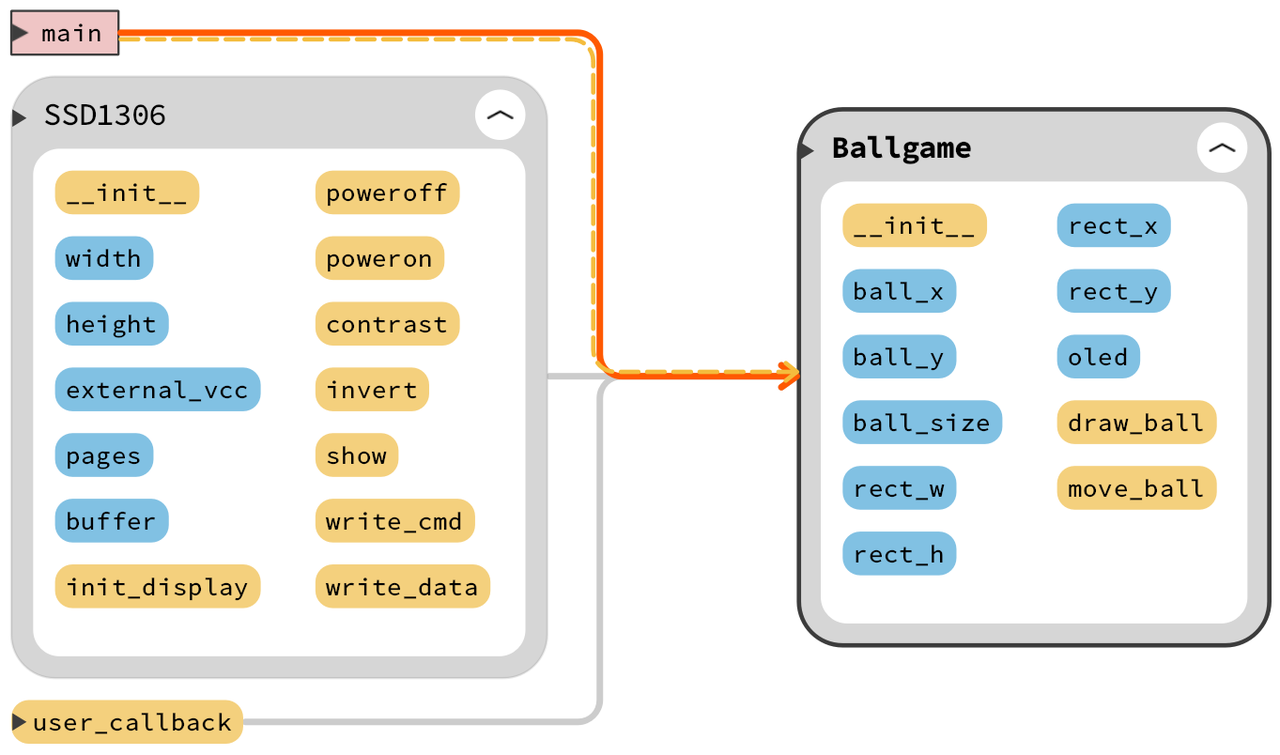
__init__() initialization method Initialize ball‑game object, set ball starting position at rectangle centre and configure rectangle‑frame and OLED‑screen object.
draw_ball() ball‑drawing method Render solid ball graphic using fill_rect(). Ball position defined by ball_x / ball_y, size controlled by ball_size.
move_ball() ball‑movement method Compute ball movement from joystick input and perform border‑collision detection. Execution steps:
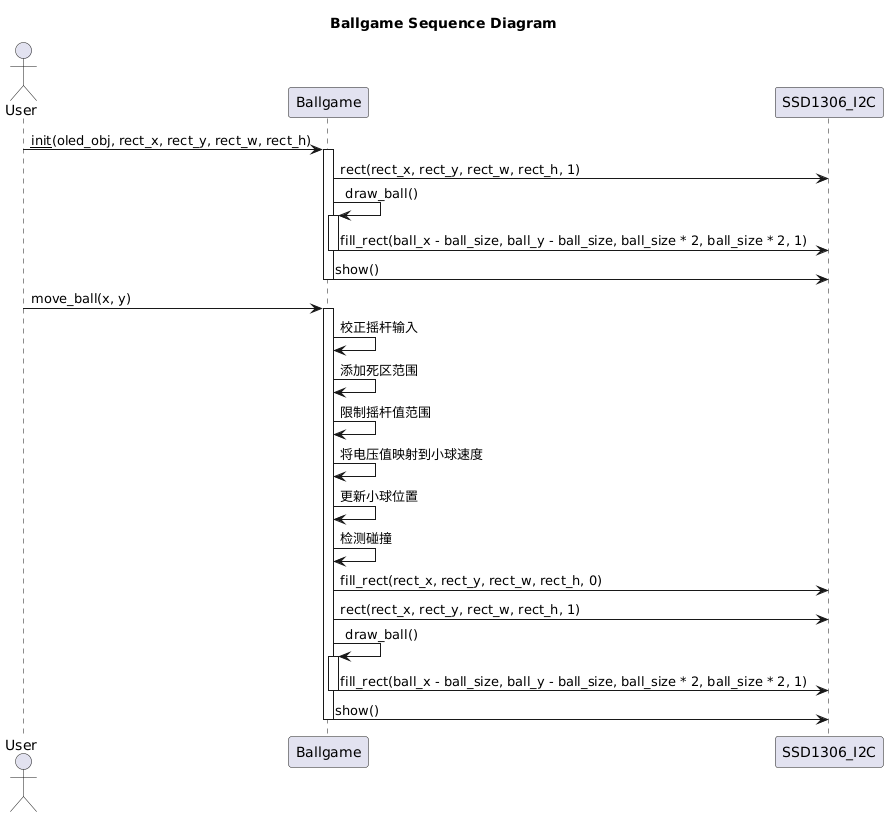
‑ Joystick input offset correction: subtract mid‑point voltage 1.55 V to centre resting value around zero. ‑ Dead‑zone processing: ignore small‑magnitude readings inside dead zone to prevent ball drift caused by ADC noise. ‑ Value clamping and coordinate mapping: restrict joystick readings to valid range (-1.55 V ~ 1.55 V) and map voltage values to ball‑speed range of ‑4 to +4 pixels per frame. ‑ Update ball coordinates, test for rectangle‑border collisions, clear screen and redraw frame plus ball for animated visual output.
Overall program workflow:
- Create I2C object and scan bus to detect OLED slave address.
- Instantiate OLED object and render startup text.
- Create joystick object, assign ADC pins for X/Y‑axis and button pin, attach callback function.
- Instantiate ball‑game object and initialize play‑field rectangle and ball graphic.
Overall sequence diagram:
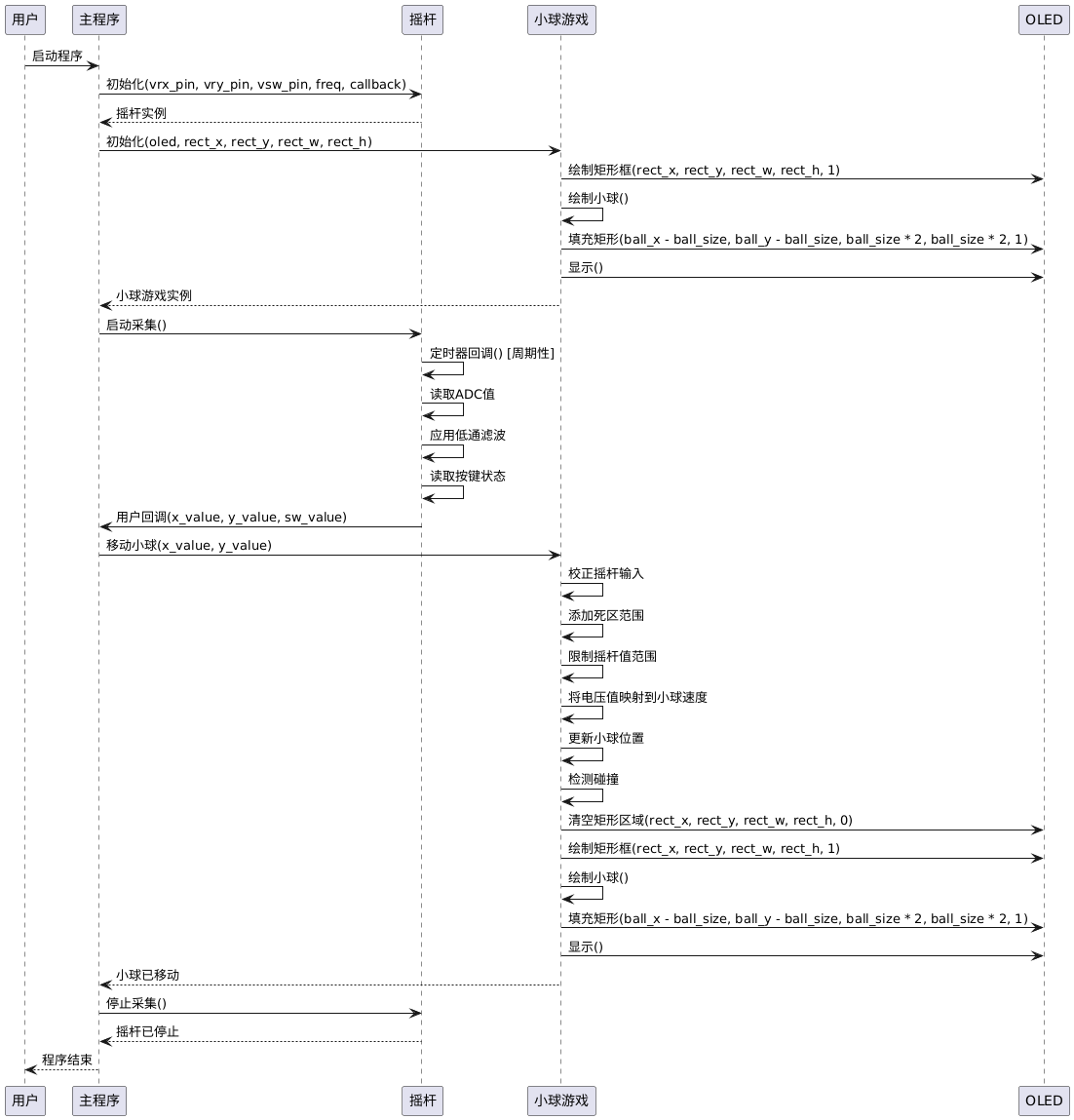
In main‑program execution, joystick sampling is started. Periodic samples arrive, the user_callback function prints joystick voltage values and updates ball position accordingly.
After flashing code and opening serial terminal:
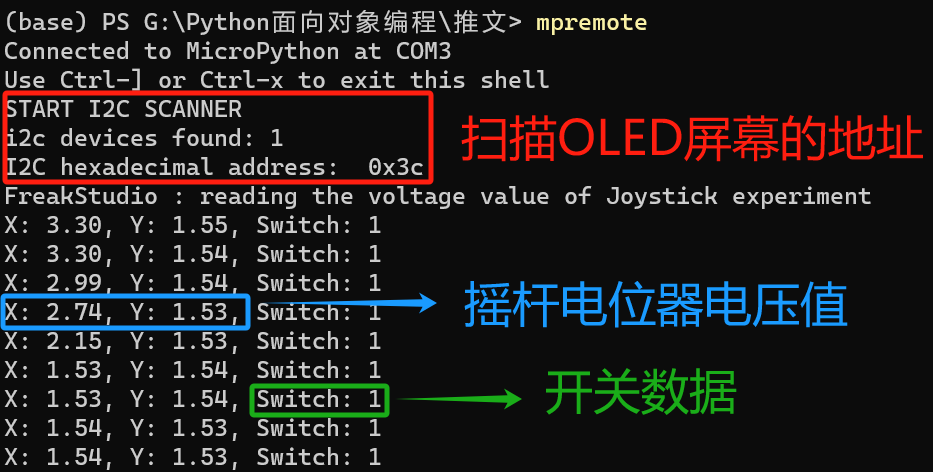
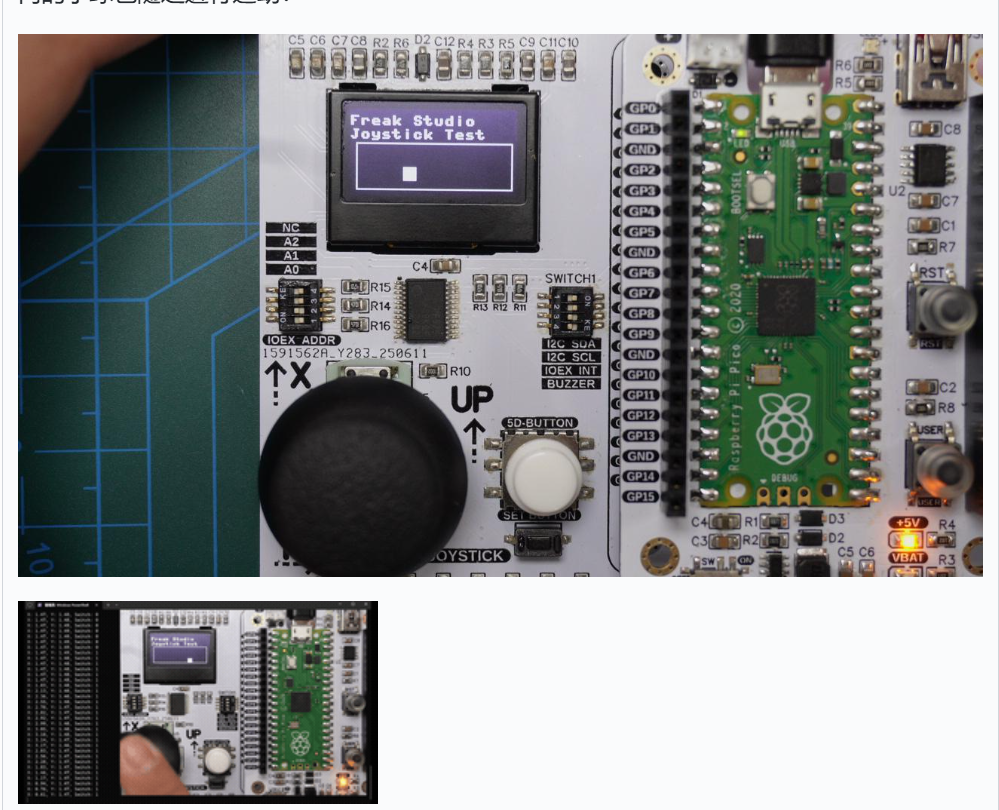
Joystick potentiometer and switch status values print normally. Moving the physical joystick makes the ball travel inside the OLED rectangular play area: