Hands‑On: Write Reusable Pico lightsleep Code With UART Debug & Power‑Saving Optimization
Hands‑on tutorial for reusable lightsleep implementation on Raspberry Pi Pico, including UART debug method and power‑consumption optimization tips.
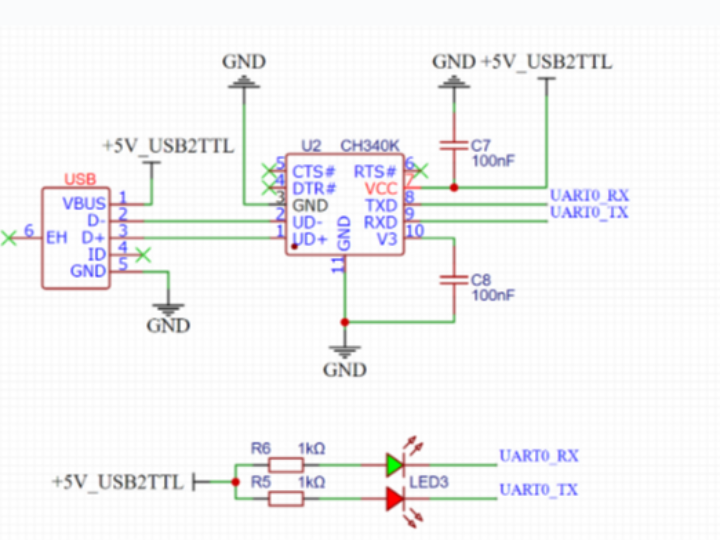
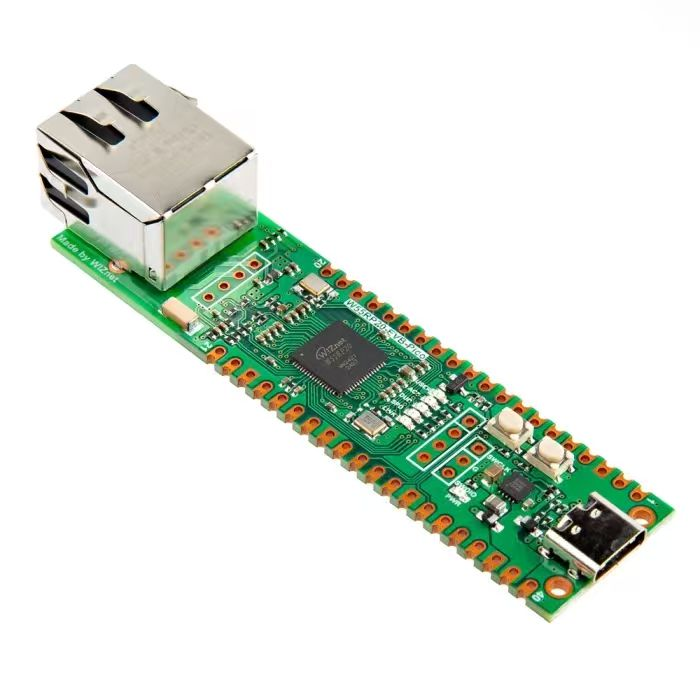
Here we use machine.lightsleep() to enter light‑sleep mode. A sleep duration can be specified for better power‑saving performance. Raspberry Pi Pico pin GP22 is connected to a push‑button configured for falling‑edge trigger; pressing the button wakes up the CPU. Debug messages are output via UART peripheral.
Before running the light‑sleep experiment, connect the MiniUSB cable to the serial port on the Elegance‑One Universal Compatible Expansion Board. GP0 and GP1 are the default hardware UART0 pins of Raspberry Pi Pico.
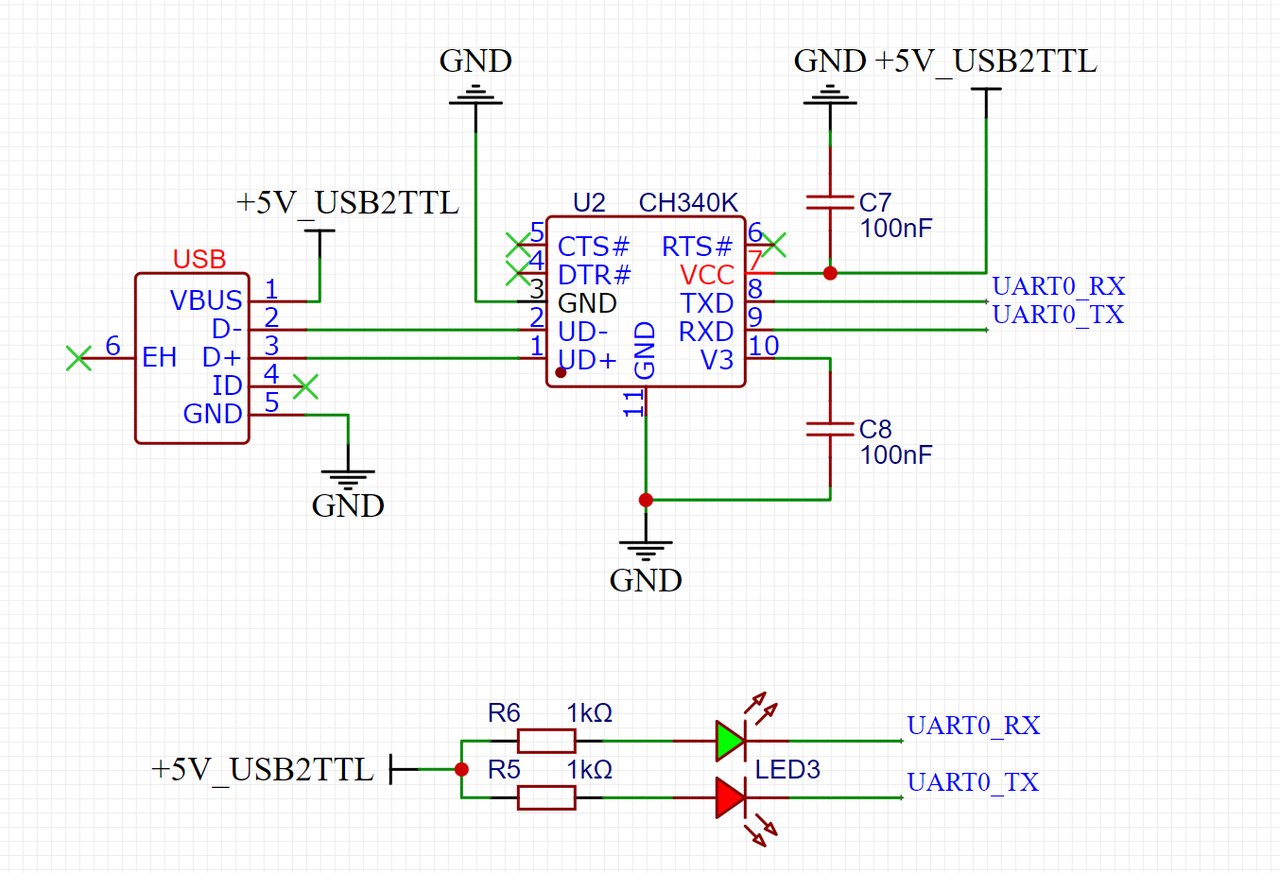
Physical appearance after connection:
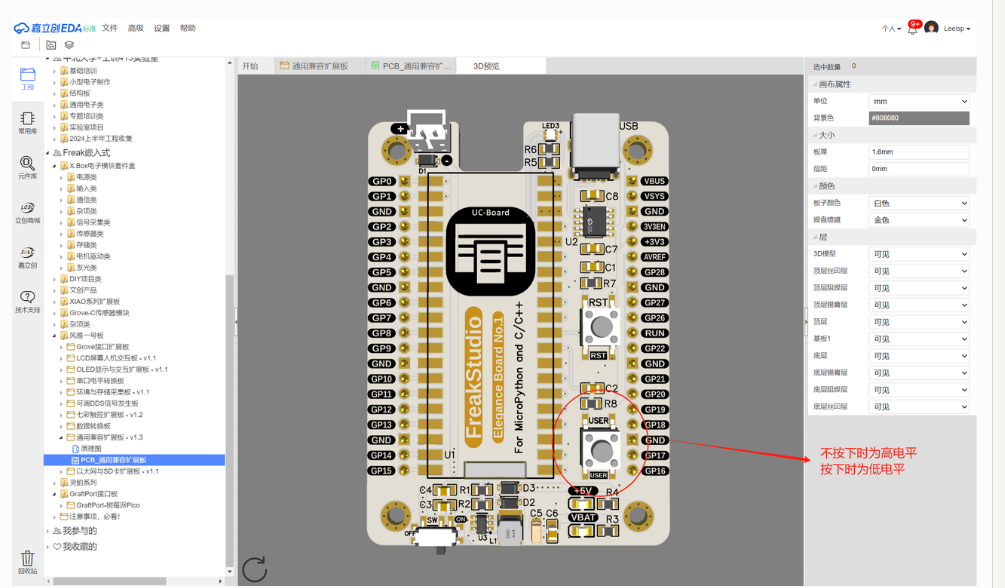
On the Elegance‑One Universal Compatible Expansion Board, pin GP22 of Raspberry Pi Pico connects to the USERKEY push‑button, configured for falling‑edge trigger to wake CPU on button press. On this expansion board, the USERKEY pin is pulled high by an onboard pull‑up resistor when the button is not pressed.
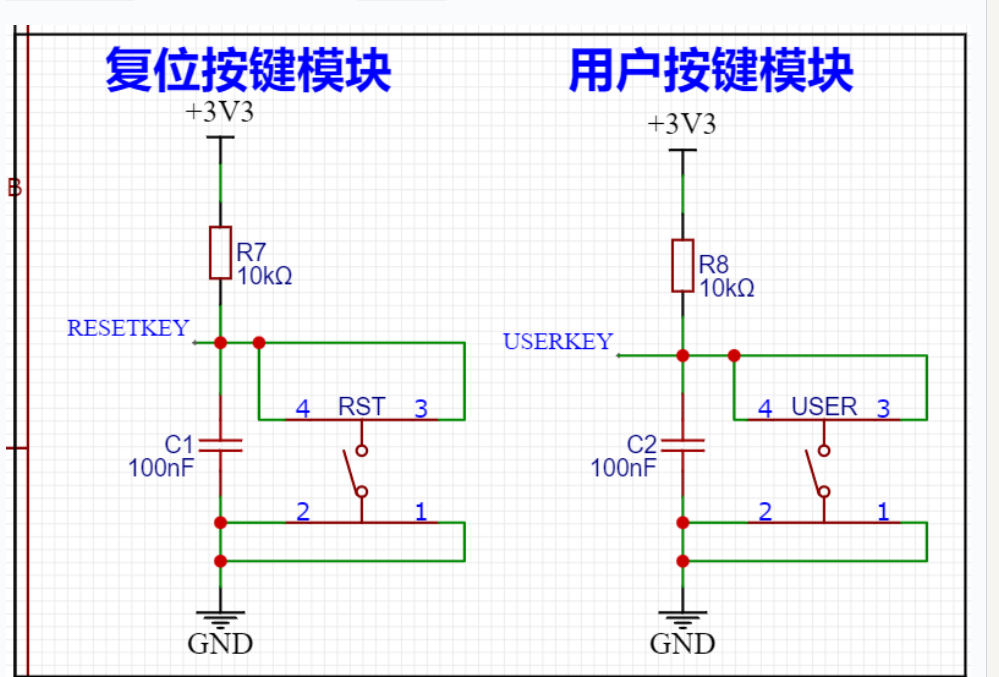
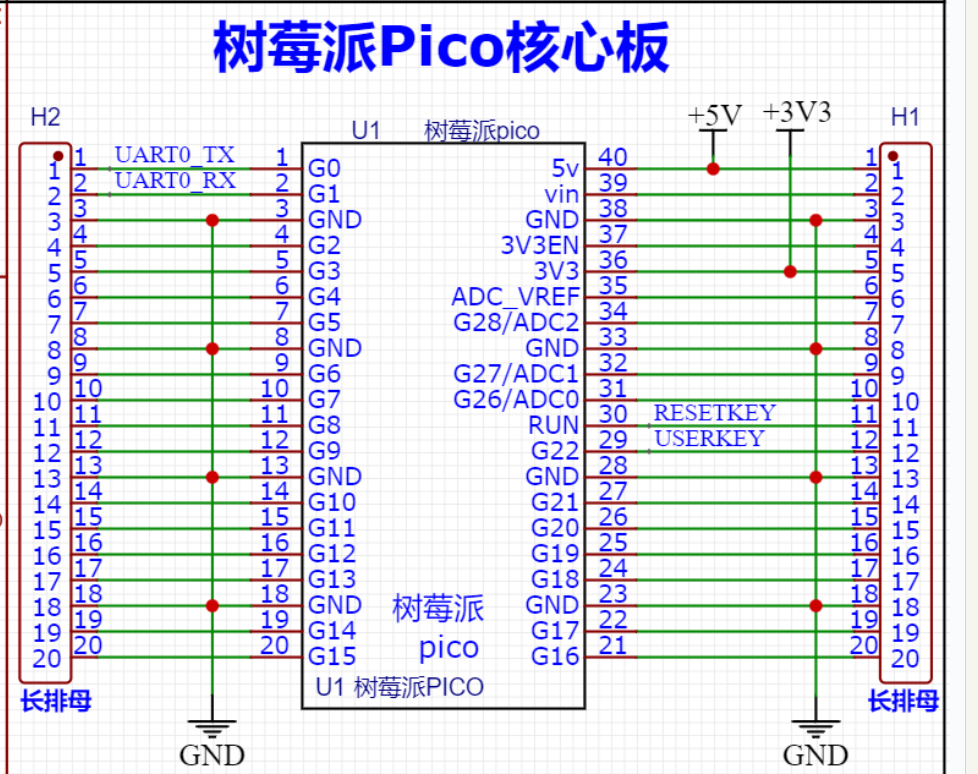
Pin level goes low when the button is pressed, so falling‑edge trigger is selected.
Source code can be found in the provided resource package under elegance‑devkit v1\Demo\55 Machine_Idle.
Light‑sleep sample code:
# Python env   : MicroPython v1.23.0
# -*- coding: utf-8 -*-
# @Time    : 2024/8/23 2:52 PM
# @Author  : Li Qingshui
# @File    : main.py
# @Description : Low‑power experiment, enter sleep mode with machine.lightsleep()
# ======================================== Import related modules ========================================
# Import hardware‑related modules
import machine
from machine import UART
# Import time‑related modules
import time
# ======================================== Global variables ============================================
# ======================================== Function definitions ============================================
# External interrupt handler
def button_handler(pin: machine.Pin) -> None:
    """
    External interrupt handler: toggle LED and print message on button press.
    Args:
        pin (machine.Pin): Button pin instance triggering this interrupt.
    Returns:
        None
    Raises:
        None
    """
    global led, uart
    # REPL print will not produce output after lightsleep
    print("Button pressed!")
    # Print debug message via UART
    uart.write("Button pressed!\r\n")
    # Toggle LED
    led.toggle()
# ======================================== Custom classes ============================================
# ======================================== Initialization ==========================================
# Create LED object
led = machine.Pin(25, machine.Pin.OUT)
# Set GPIO22 as input with pull‑up resistor enabled
button_pin = machine.Pin(22, machine.Pin.IN, machine.Pin.PULL_UP)
# Configure external interrupt
button_pin.irq(trigger=machine.Pin.IRQ_FALLING, handler=button_handler)
# Create UART object, baud rate 115200
uart = UART(0, 115200)
# Initialize UART: 115200 baud, 8 data bits, no parity, 1 stop bit, TX=GP0, RX=GP1
uart.init(baudrate  = 115200,
          bits      = 8,
          parity    = None,
          stop      = 1,
          tx        = 0,
          rx        = 1,
          timeout   = 100)
# ======================================== Main program ===========================================
# Power‑on delay
time.sleep(3)
# Print debug message
print("FreakStudio : Using irq to wake up Pico of lightsleep mode")
# Enter lightsleep mode with 100‑second timeout
machine.lightsleep(100000)
# 1‑second delay. Without this delay, main‑line code runs before the interrupt handler after wake‑up
time.sleep(1)
# REPL cannot reconnect on Pico after sleep; this print will not show in terminal
print("Woke up from lightsleep mode.")
# Output debug string over UART, this message will be visible
uart.write("Woke up from lightsleep mode.\r\n")
Flash firmware and connect remote terminal. Output:
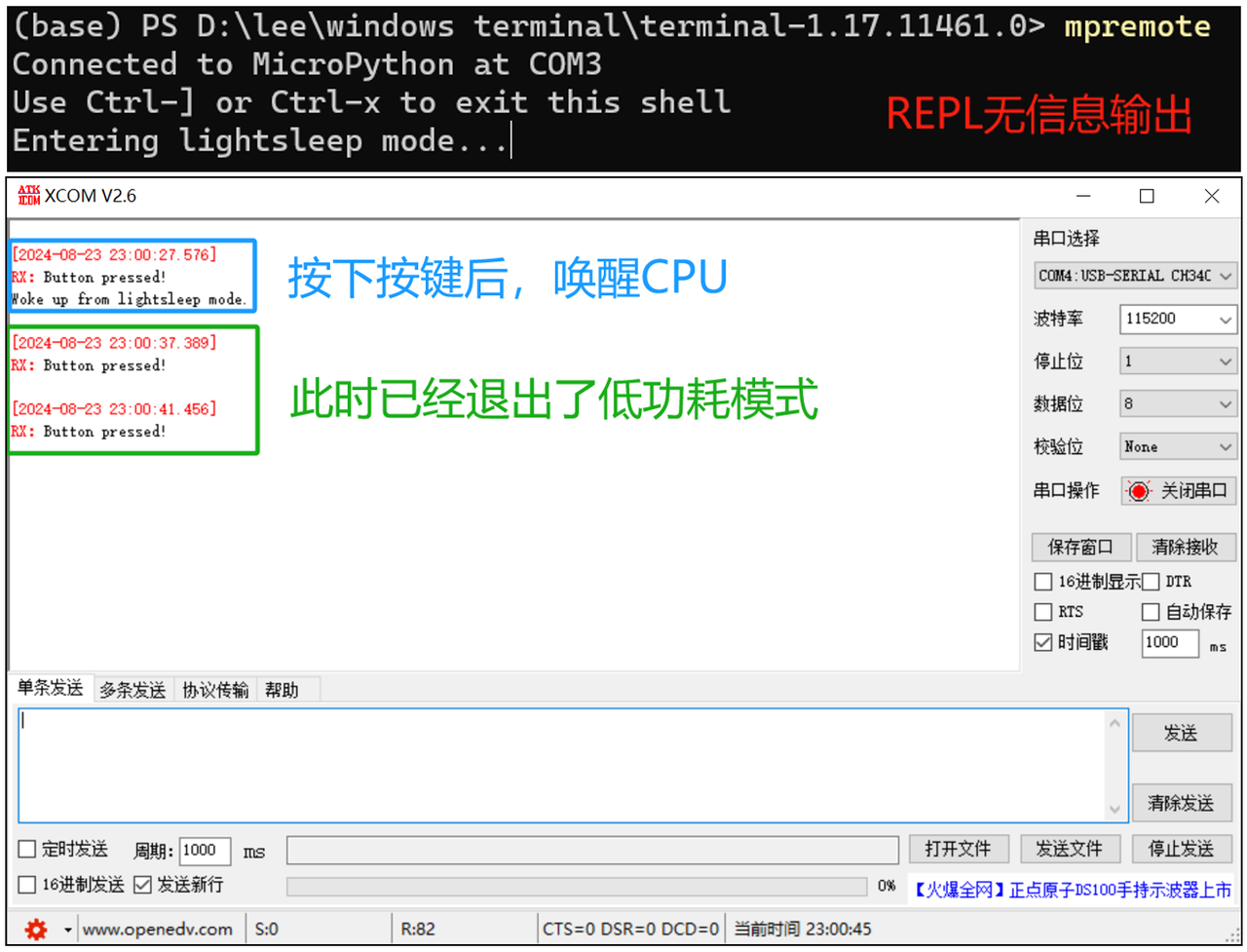
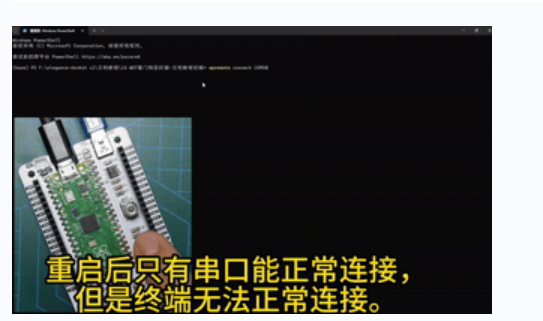
When the button is pressed, the external interrupt wakes the CPU. The LED toggles state, debug messages are printed over UART, and the microcontroller exits light‑sleep mode. As mentioned earlier, REPL cannot be re‑established after sleep, causing communication issues with host PC after re‑initialization.
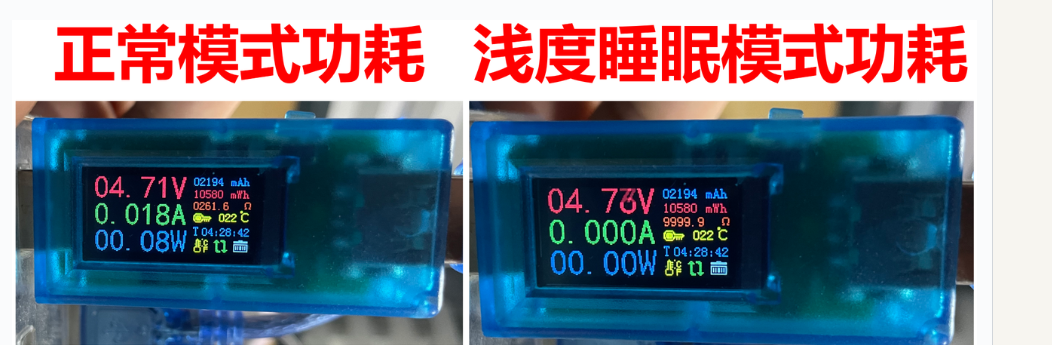
Connect a USB power meter to the USB port of Raspberry Pi Pico on Elegance‑One Universal Compatible Expansion Board to compare power consumption of different modes.