Embedded 101: VSCode + Linux Containerized MicroPython Dev Env | mpremote Practice
It introduces constructing MicroPython environments on Linux via VSCode Dev Containers and local setups, utilizing Docker and mpremote for board debugging.
COMPONENTS
PROJECT DESCRIPTION
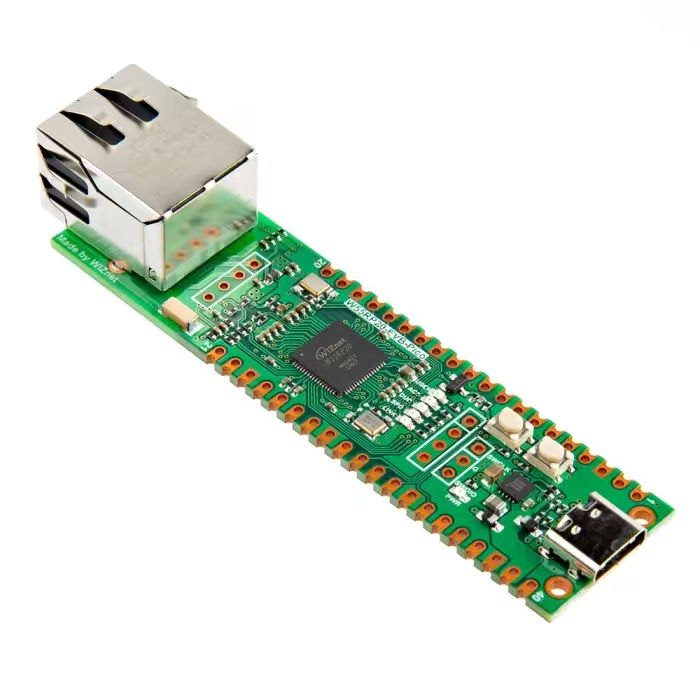
【Preliminary Note】The original hardware example in this article was written based on the RP2040. The actual hardware used in this hands-on demonstration features the W55RP20 as the main controller chip. The circuit logic and UF2 flashing operation principles are universally applicable, with only the main controller model differing. The original chip model mentioned in the circuit descriptions below is provided for reference purposes only.
Building MicroPython Development Environment Based on VSCode in Linux Environment
1. Construction of MicroPython Development Environment on Linux (Container-based)
Here, we use VSCode with Dev Container (a containerized Development Environment) for MicroPython development. The container communicates with physical boards (such as /dev/ttyACM0, /dev/ttyUSB0, etc.) via mpremote, and the code remains synchronized with the host machine's folder.
Place the Development Environment in Docker + VSCode Dev Containers, and perform joint debug with the device via mpremote, which enables a reproducible, consistent and low-maintenance workflow: team members do not need to install complex dependencies on their respective hosts, and can directly start the container to obtain the same toolchain (mpremote, Python, mpy-cross, etc.);Containerization also isolates device access, permissions, and dependencies to prevent contamination of the host system. Meanwhile, it enables real-time synchronization between code and devices by mounting the workspace, greatly accelerating iteration and debugging between the host machine and the target board, and facilitating quick onboarding for beginners and stable delivery.
Points to understand:
Docker provides a runtime environment for containers; by default, containers are isolated from the host, so you need to explicitly expose devices (such as /dev/ttyACM0) to the container or configure them in devcontainer. json.
Serial port devices typically belong to the dialout group; adding a user to this group grants direct access to the serial port.
After joining the linux group, you usually need to log out/reboot or use newgrp to activate the group permissions.
mpremote (recommended) is a modern tool for interacting with MicroPython devices, supporting common operations such as REPL, file upload, and mount.
Update the package index and install common tools before starting:
To activate a new group identity, you need to log out and log back in or restart your computer; alternatively, you can use newgrp for temporary activation (valid for the current shell):
newgrp docker
newgrp dialout
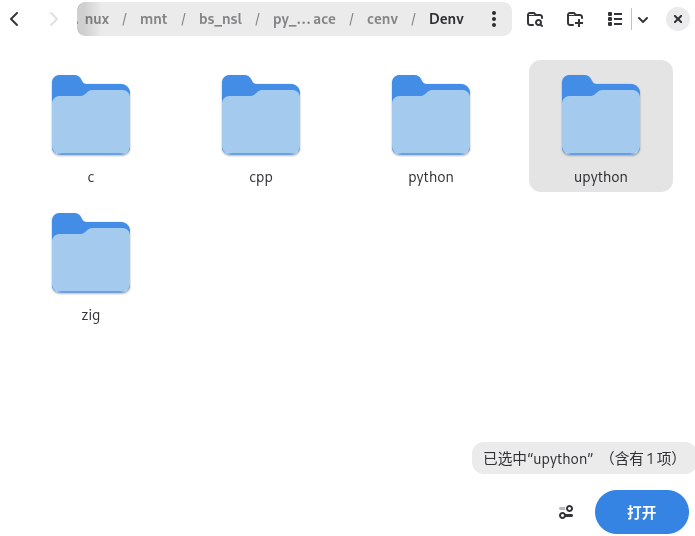
Next, install the extension in VSCode: Dev Containers (search for and install it from the Marketplace), then place the https://codeberg.org/eoelab/cenv/src/branch/main/Denv/upython directory. devcontainer into your workspace.
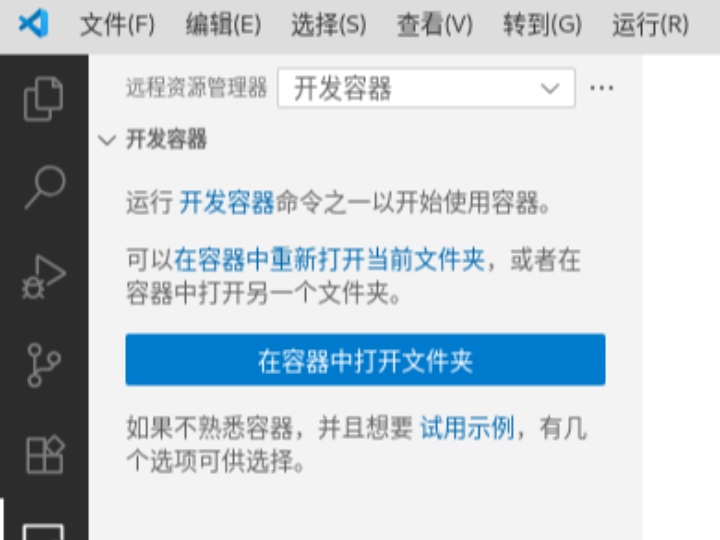
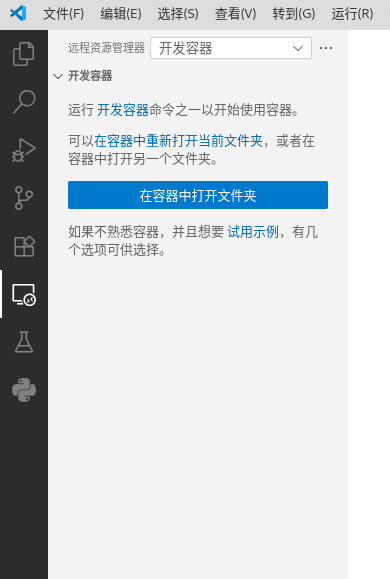
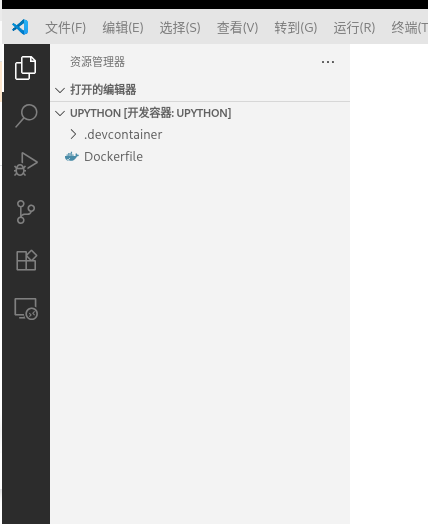
In the VSCode menu, select: Remote-Containers: Open Folder in Container. ..(or select "Open in Container" in the lower right corner):
VS Code Development Container Initialization Interface
Language environment directory within the development container
Wait for the container to be built and initialized (the first run will pull the mirroring and install dependencies), and you will see the development container name displayed in the bottom left corner, along with the log panel of Dev Containers:
Language environment directory within the development container
Develop in the container terminal or VSCode editing window just as you would on the host machine. Common mpremote commands:
VS Code Development Container Extension Installation Log
# 显示 mpremote 版本,检查是否可用
mpremote --version

# 连接到设备并打开 REPL(替换为你的设备)
mpremote connect /dev/ttyACM0 repl

# 在设备上运行单个文件(无须上传)
mpremote connect /dev/ttyACM0 run main.py

# 直接上传文件到设备
mpremote connect /dev/ttyACM0 fs put main.py :/main.py

# 挂载主机目录到设备(适合快速迭代)
mpremote connect /dev/ttyACM0 mount . run main.py

# 终止当前任务:Ctrl+C(在命令行中)
If your devcontainer. json has already mapped the device to the container, mpremote can directly access the device by using /dev/ttyACM0 inside the container. If no mapping is configured, mpremote will prompt a device not found error or a permission error.
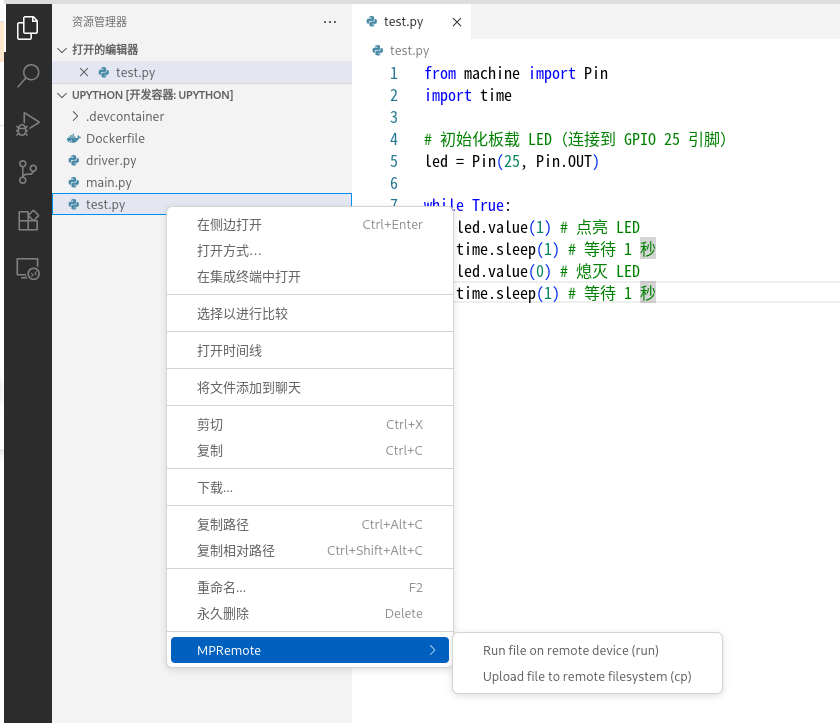
For a single file, directly right-click and select mpremote > Run file on remote device to execute it:
Project structure within the development container
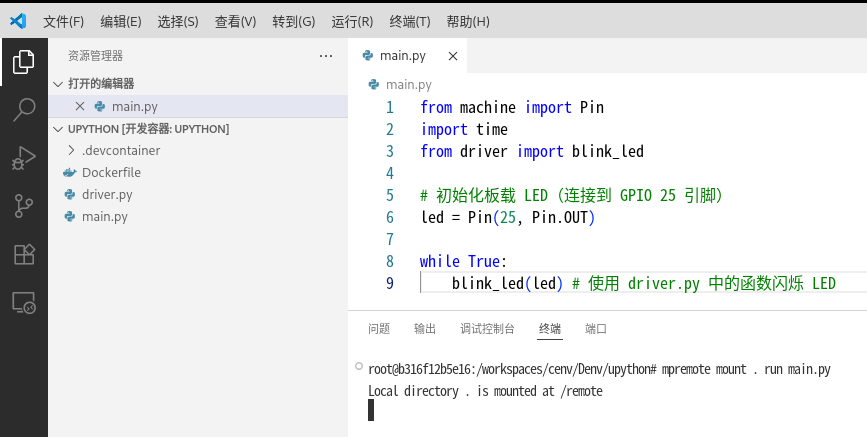
For multi-file/project development, open a terminal and run mpremote mount. run main. py to get started:
Remote Execution and Upload of MicroPython Code
Use Ctrl+ C to terminate the current task. You can switch the file to be executed at any time simply by running the command again, no extra copying is required, and it stays in sync with the host files, making it ideal for development scenarios.
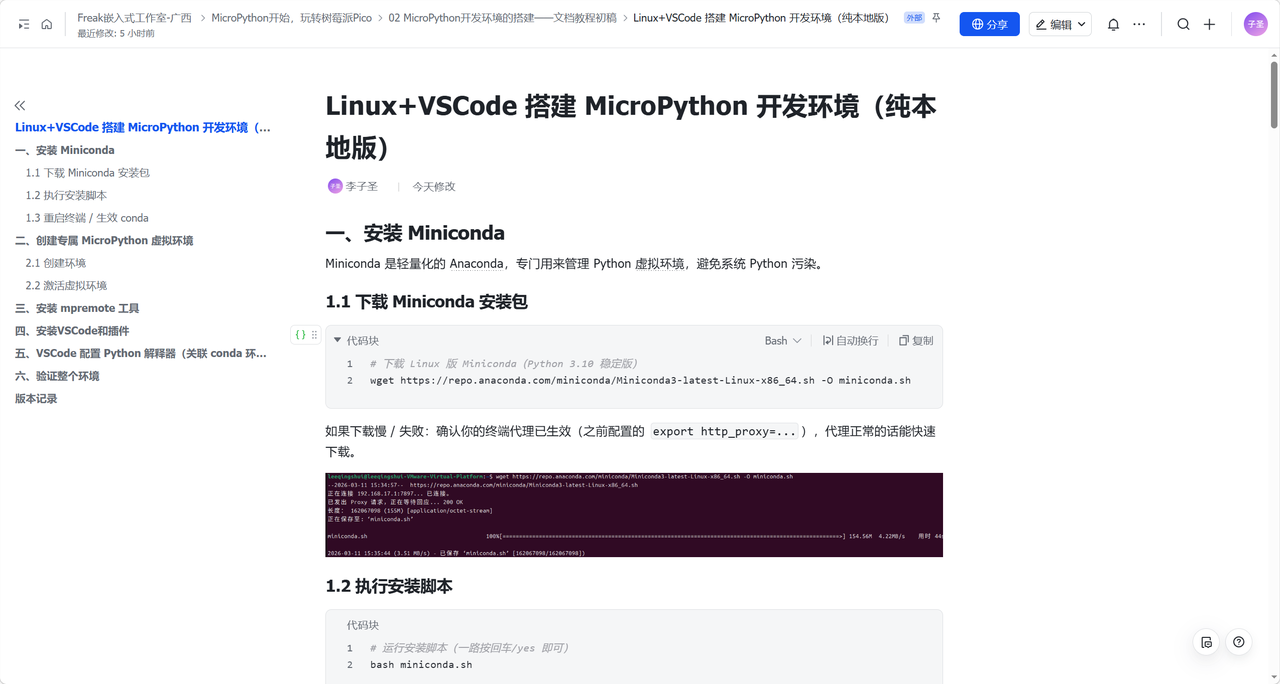
2. Build MicroPython Development Environment on Linux + VSCode (Pure Local Version)