It introduces multiple ways to connect PC to Pico over USB, covering mpremote, PuTTY, MobaXterm and hardware UART REPL configuration.
COMPONENTS
PROJECT DESCRIPTION
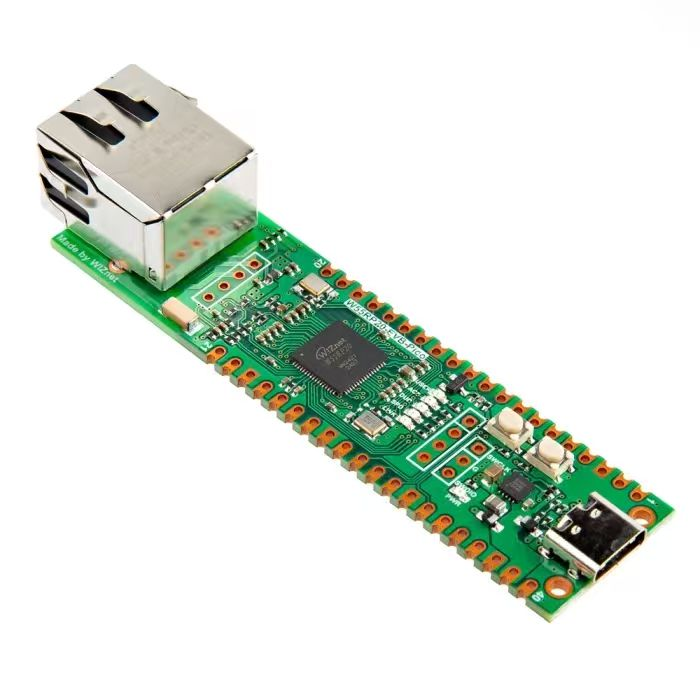
【Preliminary Note】The original hardware example in this article was written based on the RP2040. The actual hardware used in this hands-on demonstration features the W55RP20 as the main controller chip. The circuit logic and UF2 flashing operation principles are universally applicable, with only the main controller model differing. The original chip model mentioned in the circuit descriptions below is provided for reference purposes only.
Connect the computer to the Raspberry Pi Pico
Connect via USB
We can use multiple remote control terminals to connect and communicate with the Raspberry Pi Pico via USB cables, and common remote control terminals include MobaXterm, Putty, mpremote, Xshell, etc.
Connect using the mpremote tool (recommended)
The mpremote command-line tool provides a set of integrated utilities for remote interaction and automation with MicroPython devices via serial connection. After downloading and installing Python, we can install mpremote via pip in the command line to use it:
pip install mpremote
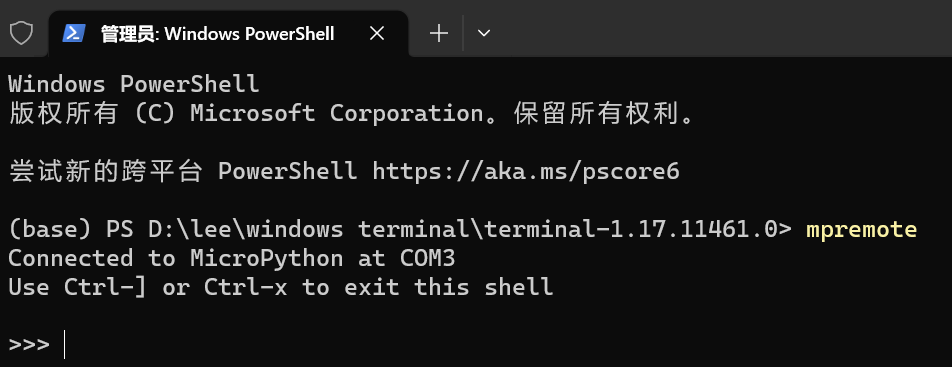
The simplest way to use this tool is to call it without any parameters, which can be done by directly entering the following command in the command line:
mpremote
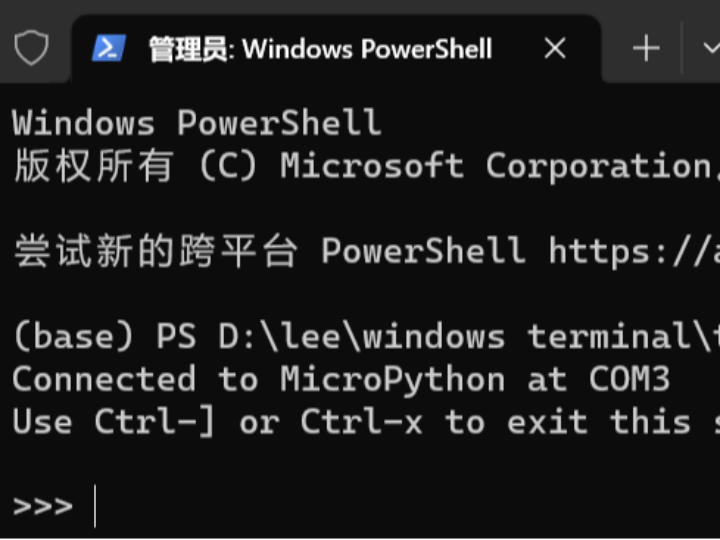
mpremote connects to the REPL of a MicroPython device
This command automatically detects and connects to the first available serial port device and provides an interactive REPL. The serial port is opened in exclusive mode, so when a second (or third, etc.) instance is run, mpremote will connect to the subsequent serial device if one is available.
For more information on how to use mpremote, please refer to the following link:
PuTTY is a remote login tool that serves as a Telnet, SSH and RLOGIN Client for Windows and Unix platforms. It supports cross-platform usage and can run on systems including Windows, Linux and macOS; as a lightweight program, it can operate as a standalone executable file without requiring installation; it supports multiple protocols including SSH, Telnet, Rlogin and serial port, and can be used for remote login as well as the administration of remote servers, network devices and routers.
For the download and installation of the Putty software, you can refer to the following link:
[Tool] Tutorial on Downloading, Installation, Usage and Common Settings of PuTTY
When connecting to a port using Putty, we need to make the following settings:
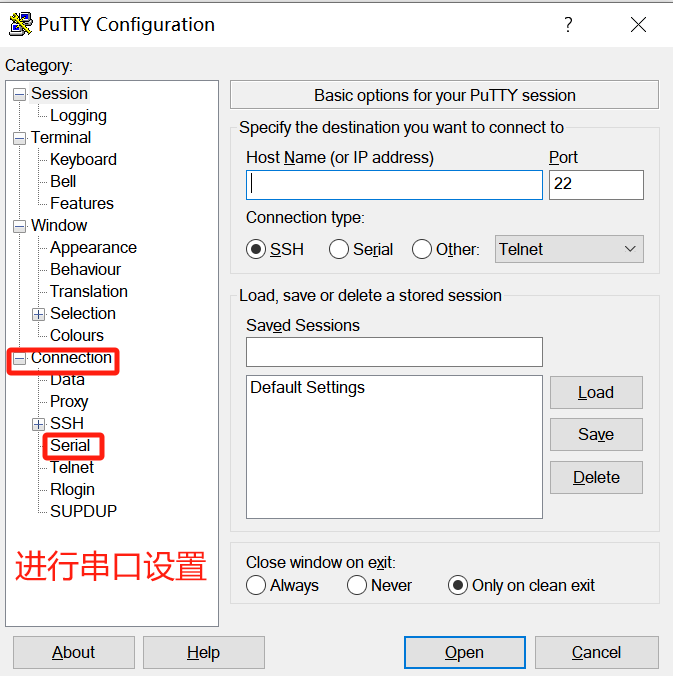
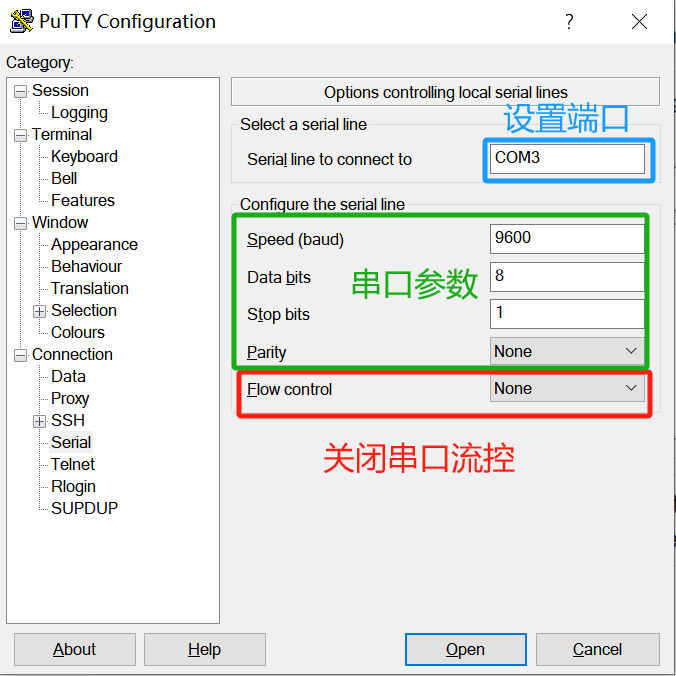
First, open Connection-Serial to configure the parameters for serial port connection:
PuTTY Serial Port Configuration
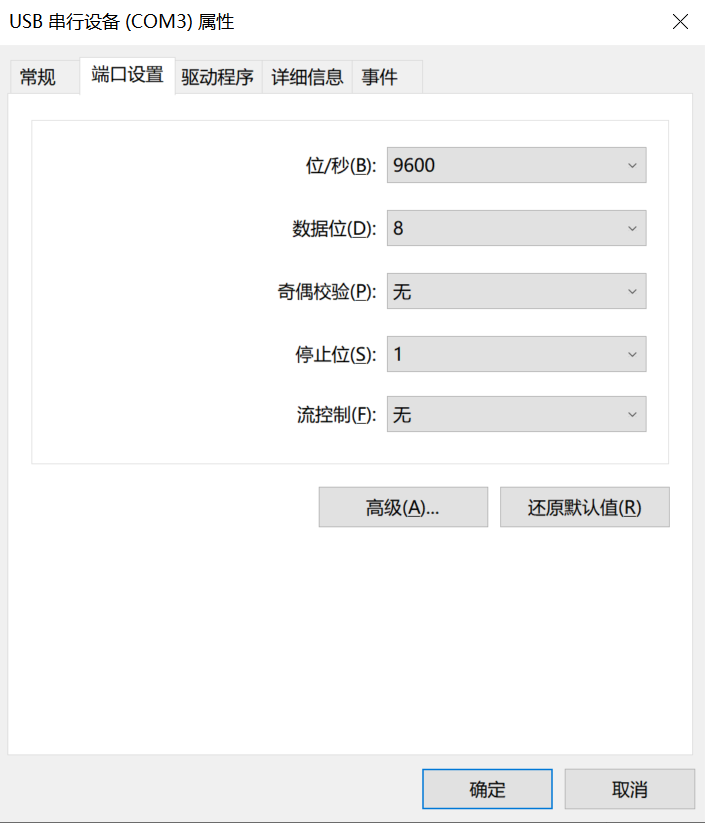
Set the Port Number according to the Port Number displayed for the port in Device Manager; for parameters of the serial port connection such as baud rate, stop bits, data bits and parity bits, you can simply select them based on the attribute values of the port, and finally disable serial port flow control:
PuTTY Serial Port Parameter Configuration
System Serial Port Attribute Verification
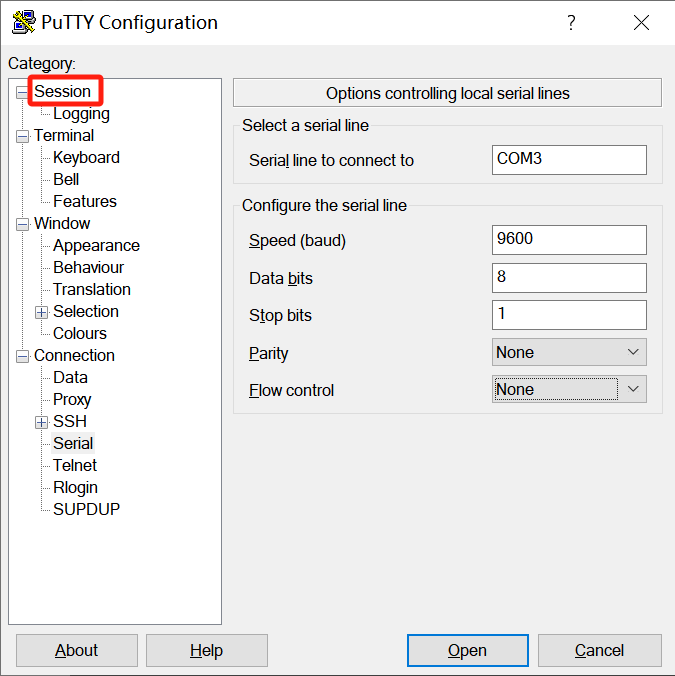
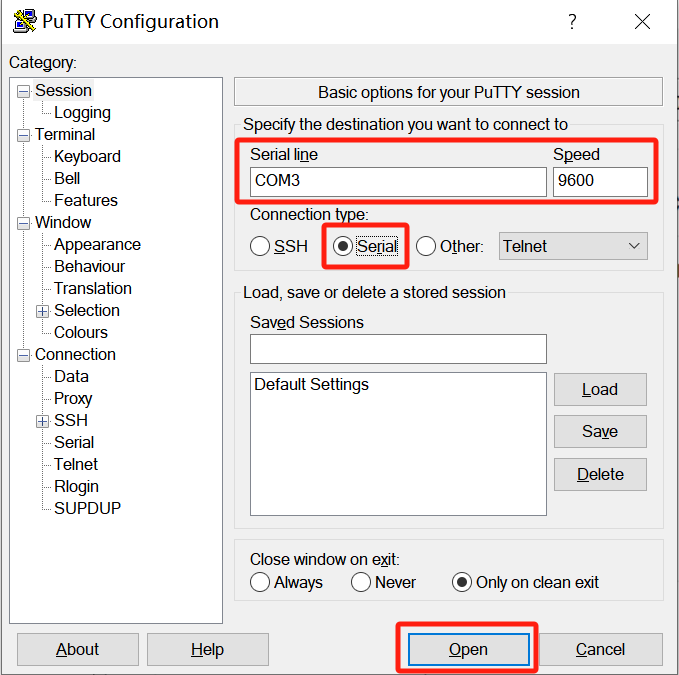
Return to the Session window, select serial port serial in Connection type, and click Open to finish
PuTTY Session Save Configuration
Open a PuTTY session
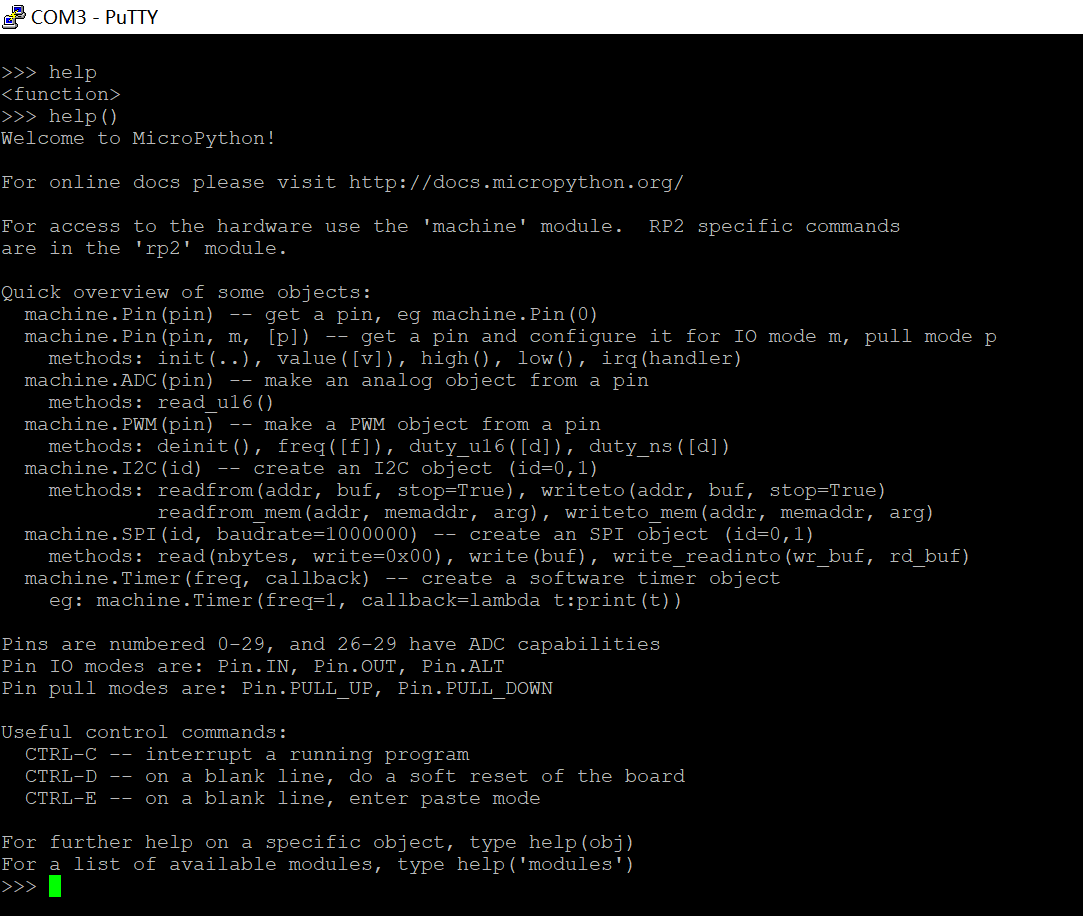
The following window will appear. Just press the Enter key, and you can enter the help () command here for testing:
PuTTY MicroPython REPL Help Interface
Connect using the MobaXterm tool
MobaXterm, also known as MobaXVT, is an enhanced terminal, X server and Unix command set (GNU/Cygwin) toolbox. It features the following characteristics:
Supports various connection protocols including SSH, X11, RDP, VNC, FTP and MOSH
支持 Unix 命令(bash,ls,cat,sed,grep,awk,rsync,…)
Supports SFTP file transfer after connecting to SSH terminal
A wide variety of feature-rich plugins (git/dig/aria2, etc.)
can run Windows or software
For the download and installation of MobaXterm, please refer to the following link:
Tutorial on Download, Installation and Usage of MobaXterm (Terminal Tool)
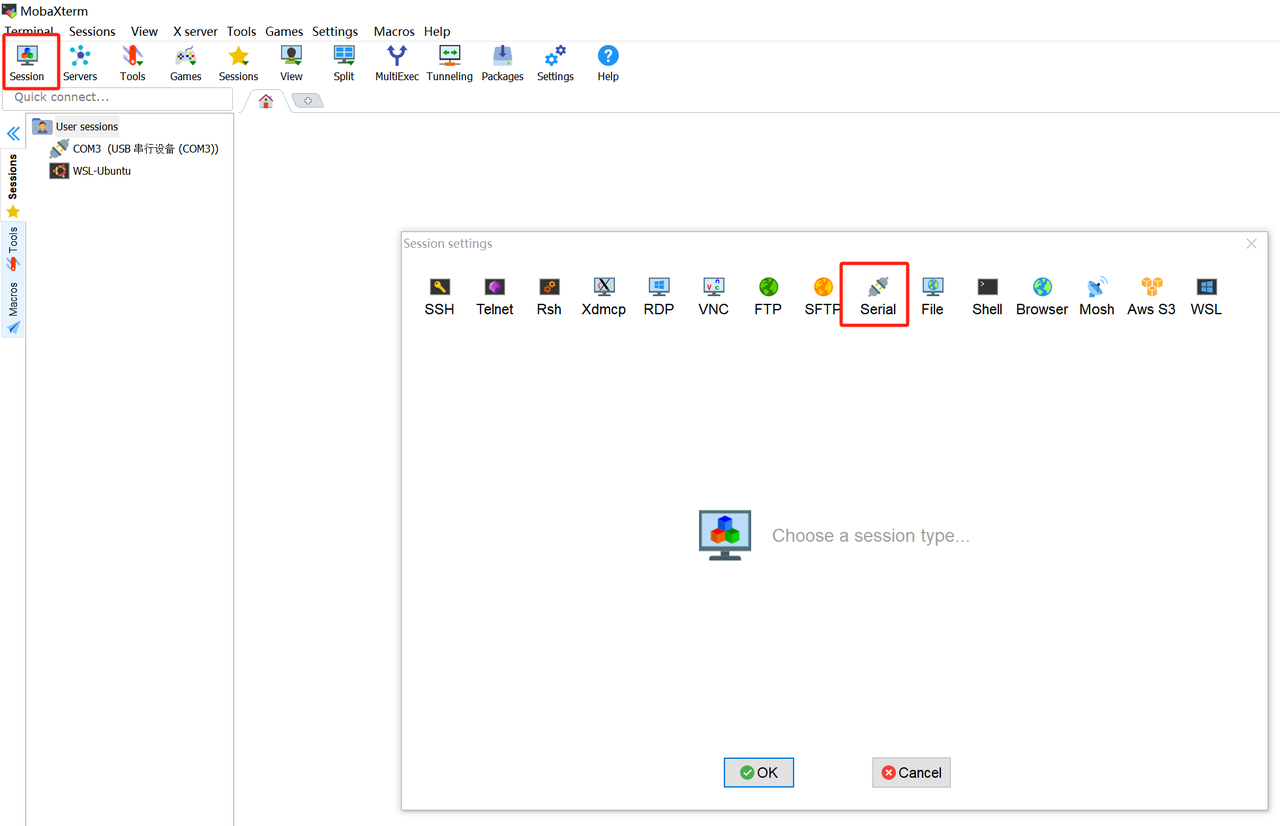
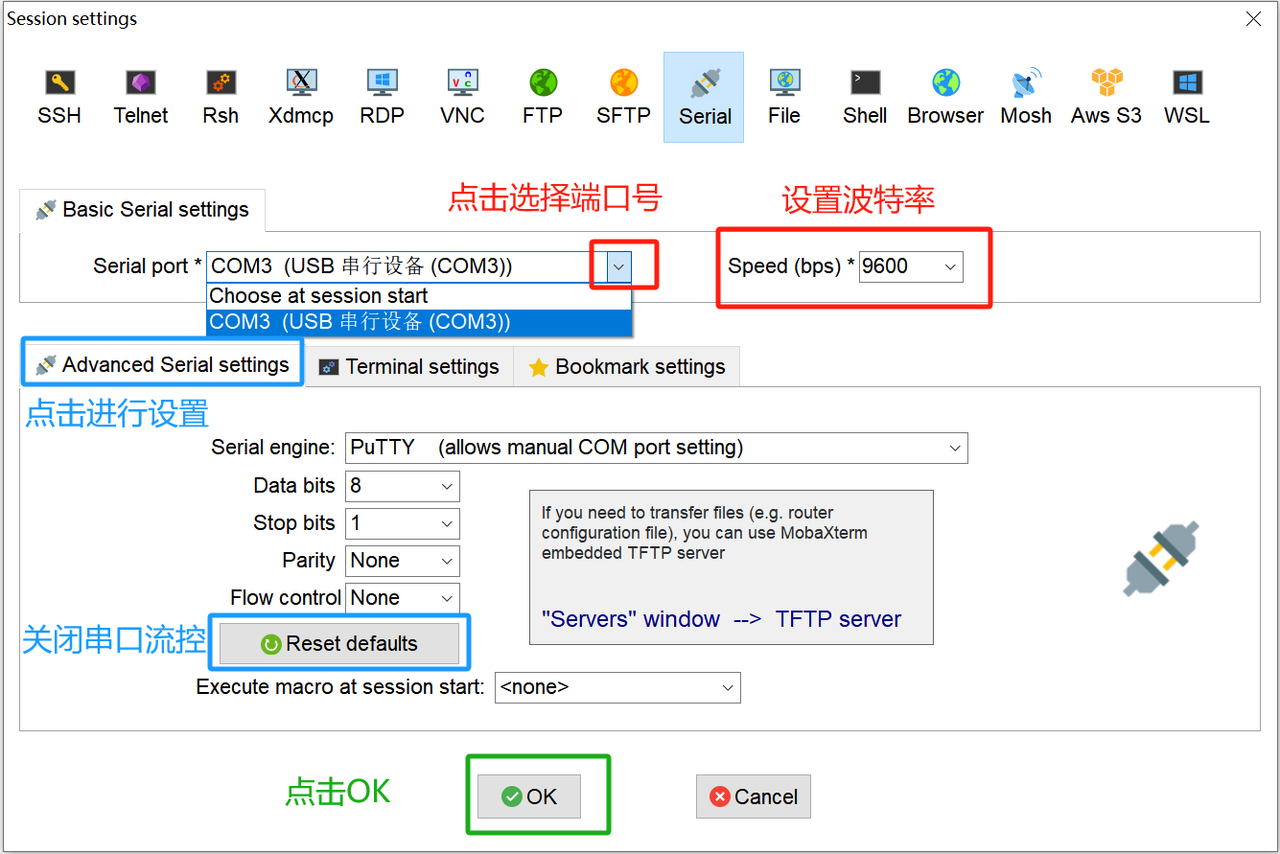
Launch MobaXterm, click "Session" in the upper left corner, select "Serial" on the pop-up interface, then choose the Port Number (the Port Number COM3 displayed in the previous Device Manager), baud rate (Speed 9600), and flow control (Flow Control: none) as shown in the figure below, and finally click "OK" to complete the setup.
MobaXterm Serial Session Configuration Entry
MobaXterm serial port parameter configuration
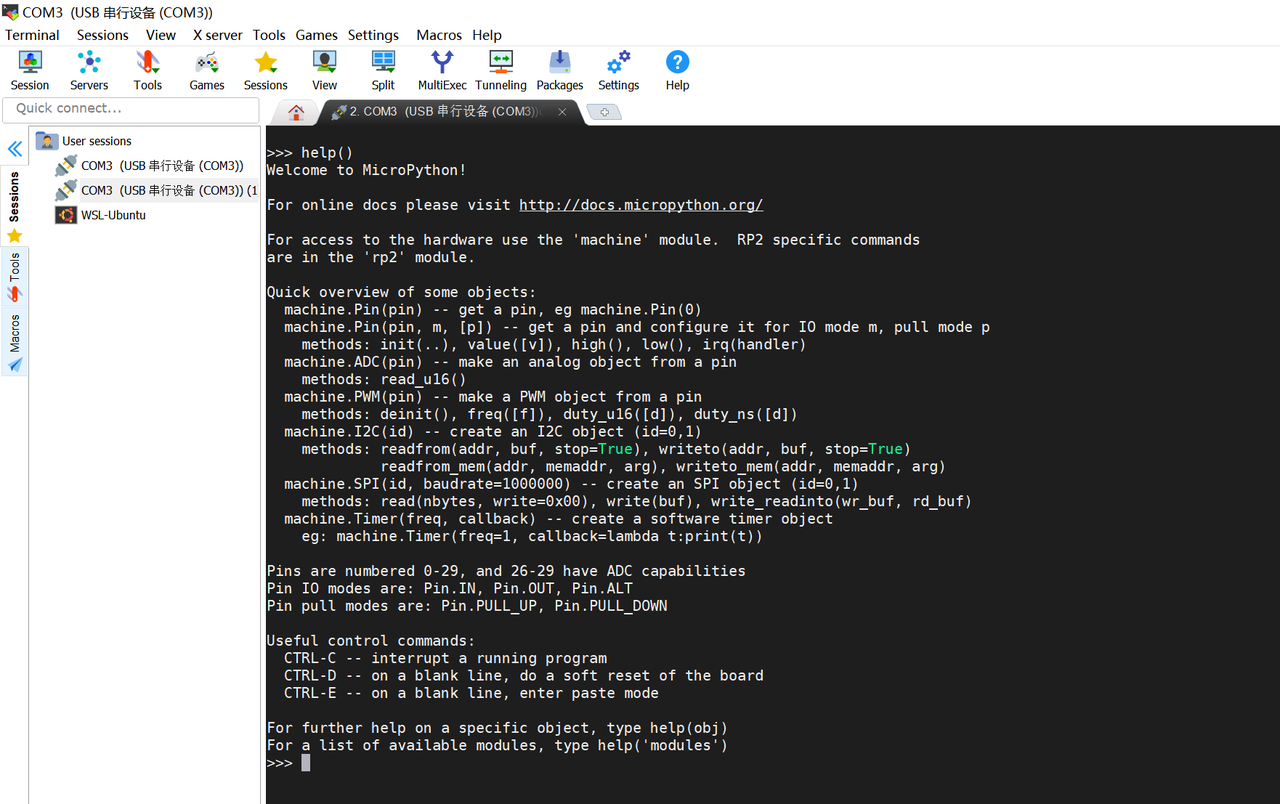
MicroPython REPL Interaction in MobaXterm
Connect via serial port
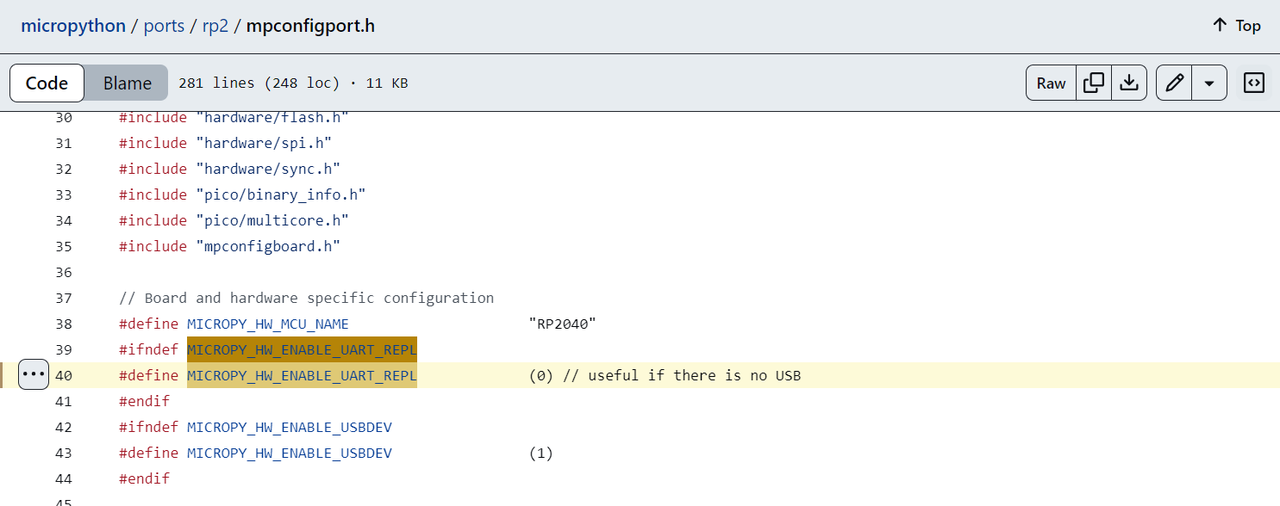
By default, RP2040 's MicroPython port does not expose the UART port' s REPL.
However, you can modify the values of the following macros in the source code file micropython/ports/rp2/mpconfigport. h to connect to the Raspberry Pi Pico via the serial port:
#define MICROPY_HW_ENABLE_UART_REPL (1) // useful if there is no USB
MicroPython Source Code Serial Port REPL Configuration
Then recompile the source code and flash the generated firmware into the Raspberry Pi Pico, after which the Raspberry Pi Pico can be connected to the computer via the serial port.
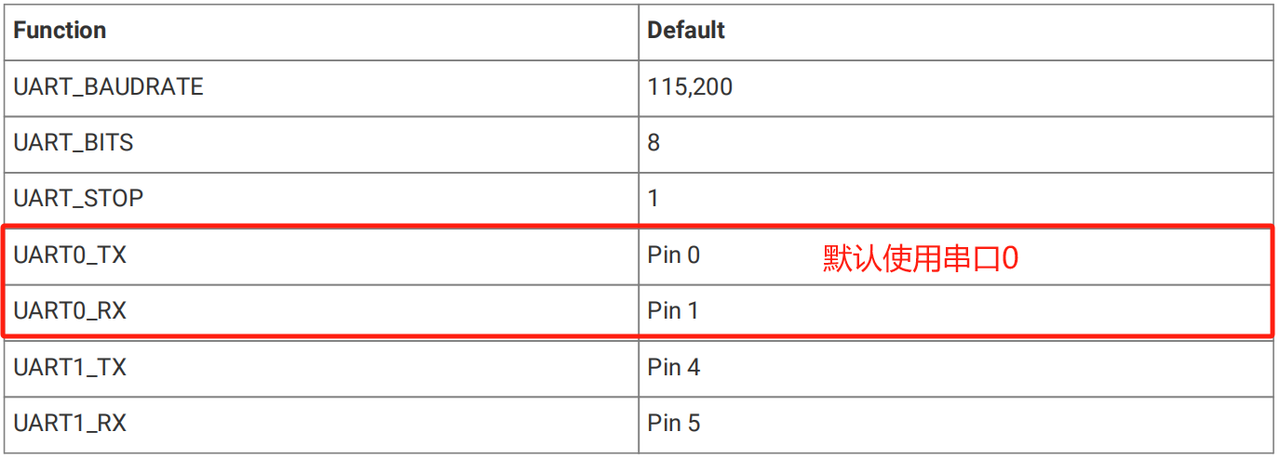
By default, serial port 0 is used to connect to the computer, and the specific parameters are as follows: