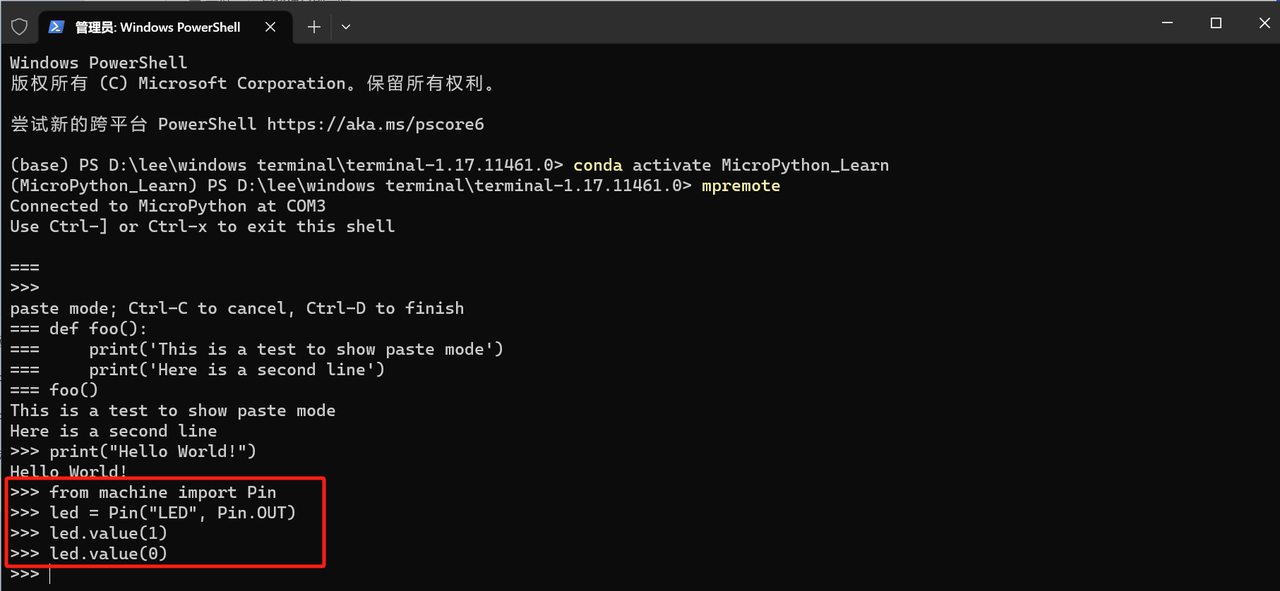
It demonstrates common MicroPython REPL operations: help(), dir(), paste mode, print statements and basic onboard LED control for Pico.
COMPONENTS
PROJECT DESCRIPTION
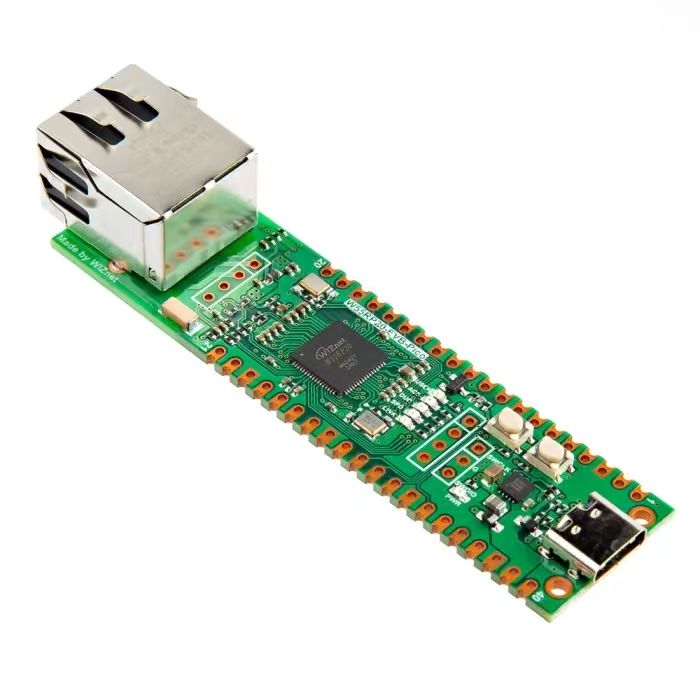
【Preliminary Note】The original hardware example in this article was written based on the RP2040. The actual hardware used in this hands-on demonstration features the W55RP20 as the main controller chip. The circuit logic and UF2 flashing operation principles are universally applicable, with only the main controller model differing. The original chip model mentioned in the circuit descriptions below is provided for reference purposes only.
1. Quickly master the relevant methods of REPL
1.1 Help Interface
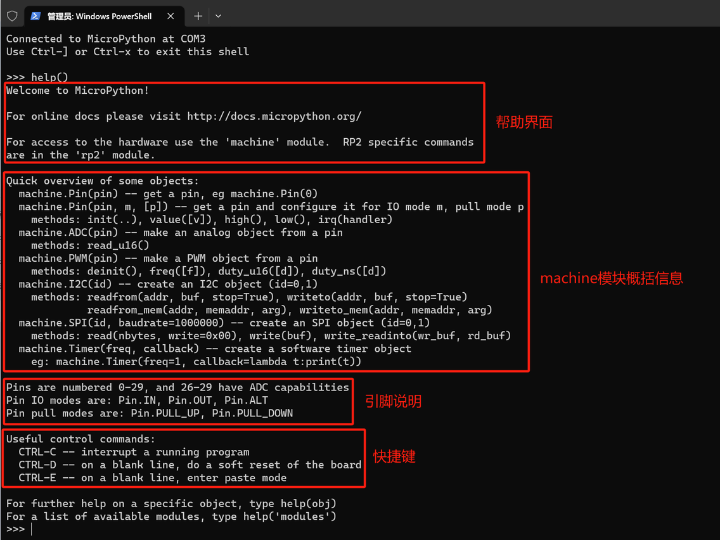
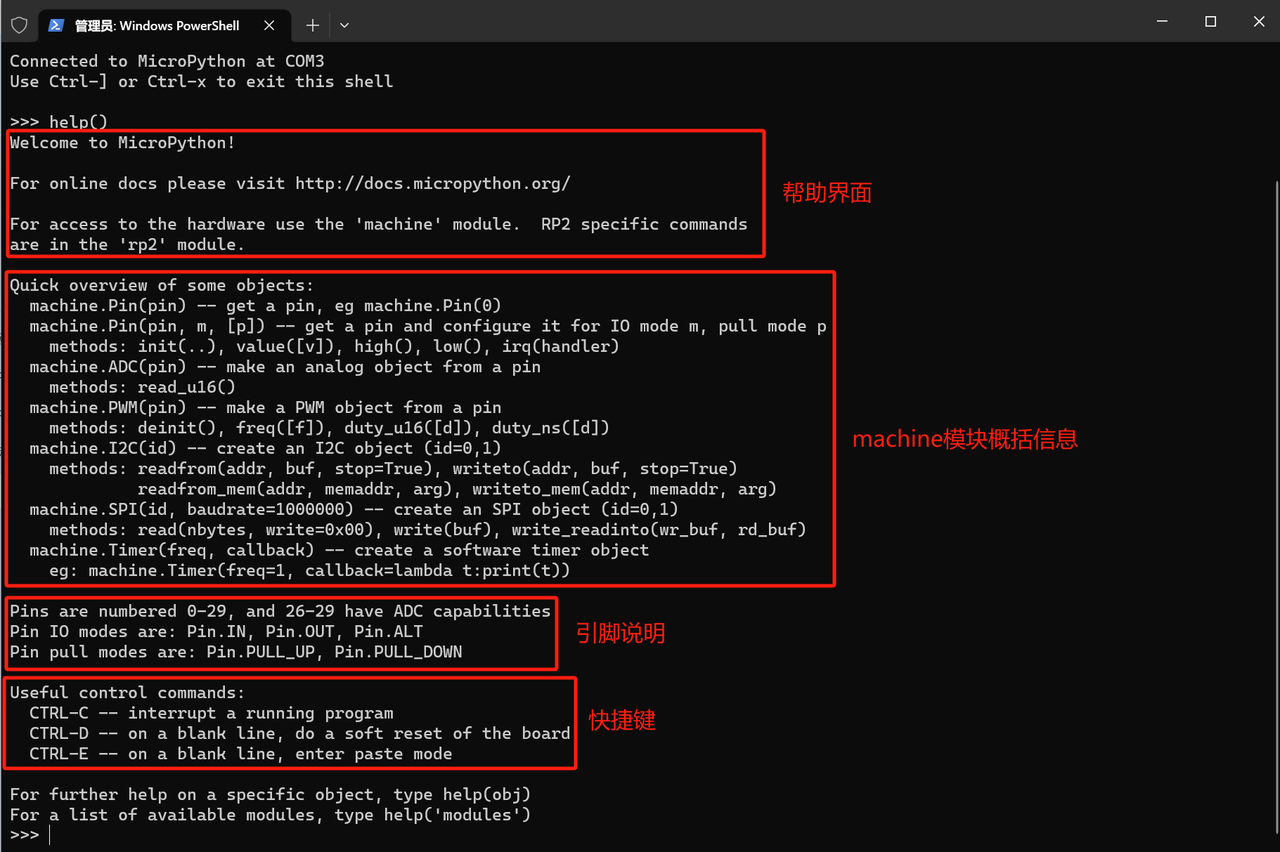
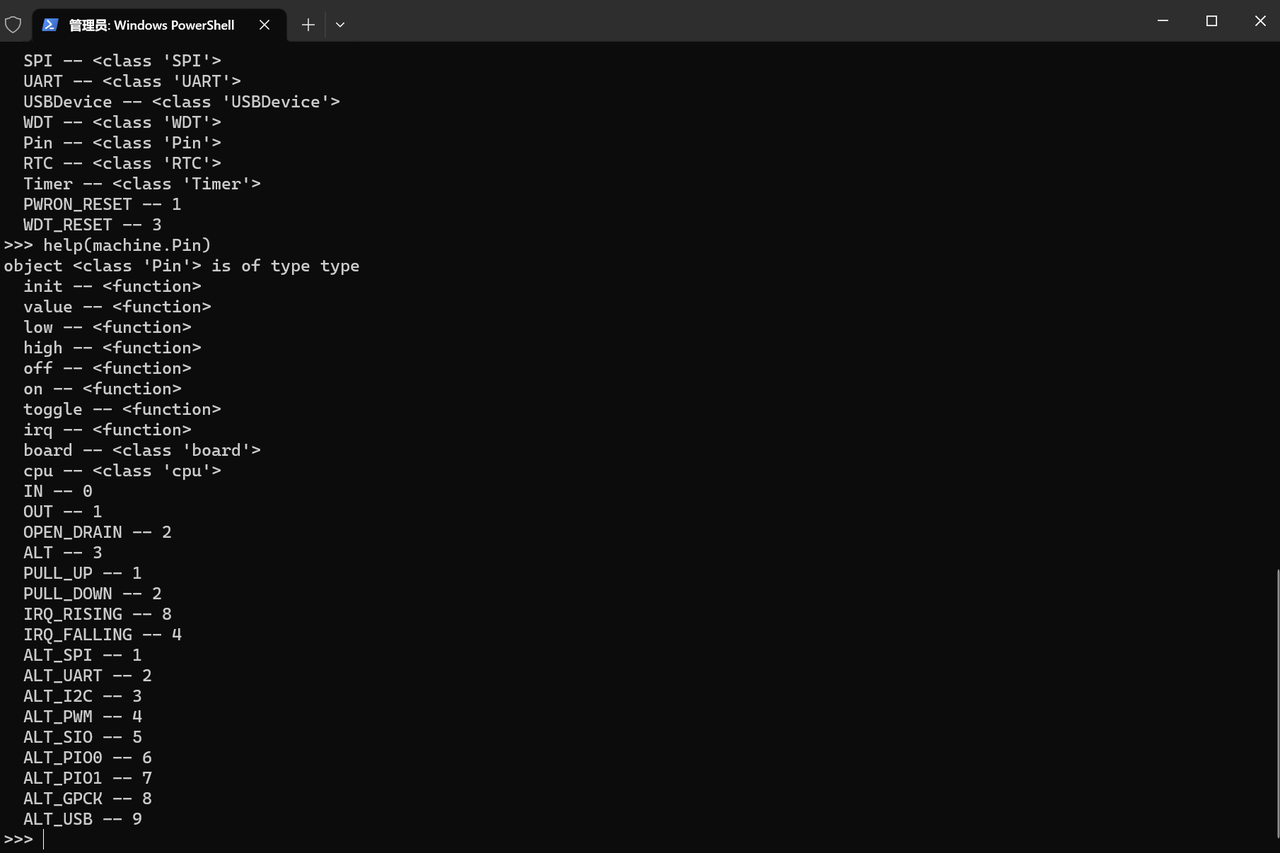
Using the help () function, you can bring up the basic help interface, which contains information including quick start, pin definitions, shortcut keys and more.
MicroPython REPL Help Interface
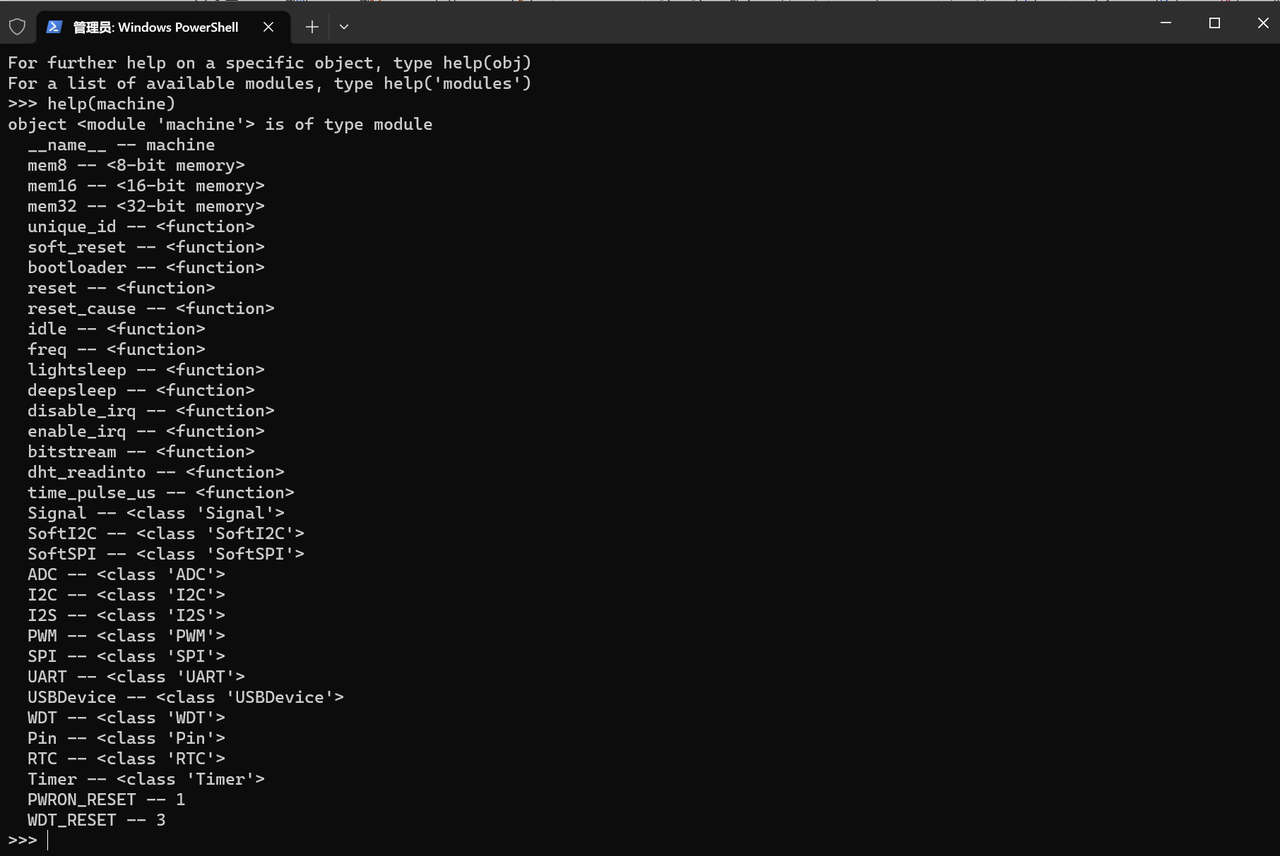
You can view more detailed help by using help (module_name/function_name), for example, to view the detailed help of the machine module:
Detailed help for the machine module
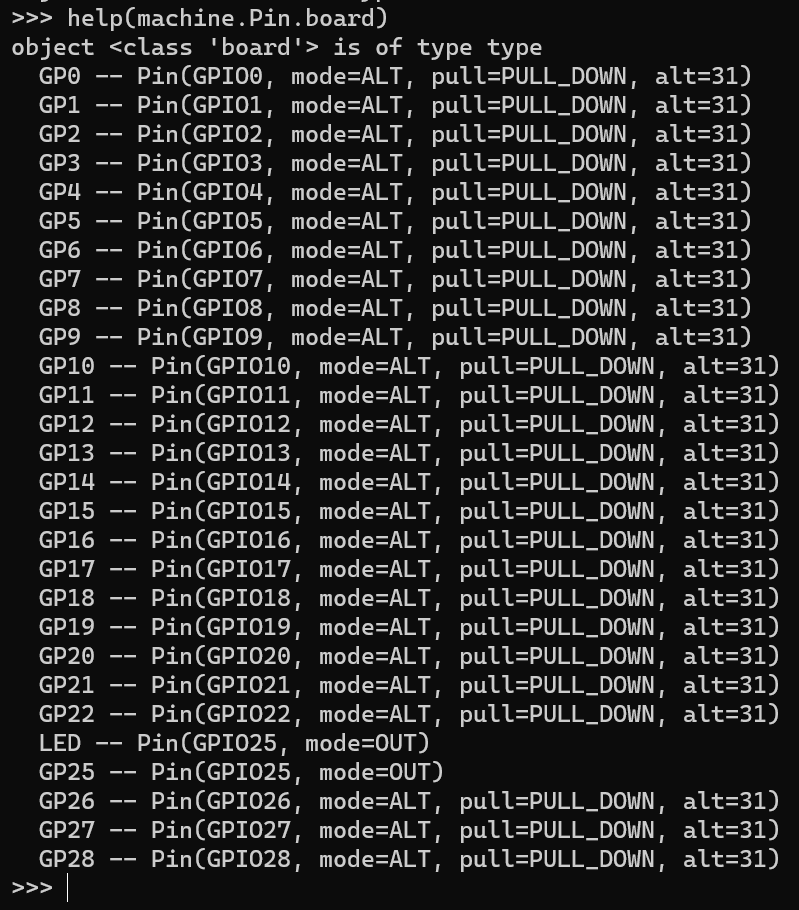
You can also use the help () function to view the help documentation for the internal modules of machine:
machine. Pin class help
Raspberry Pi Pico Pinout Guide
By using the help function, we can check the methods and attributes that most modules have.
1.2 View the properties and methods contained in the module
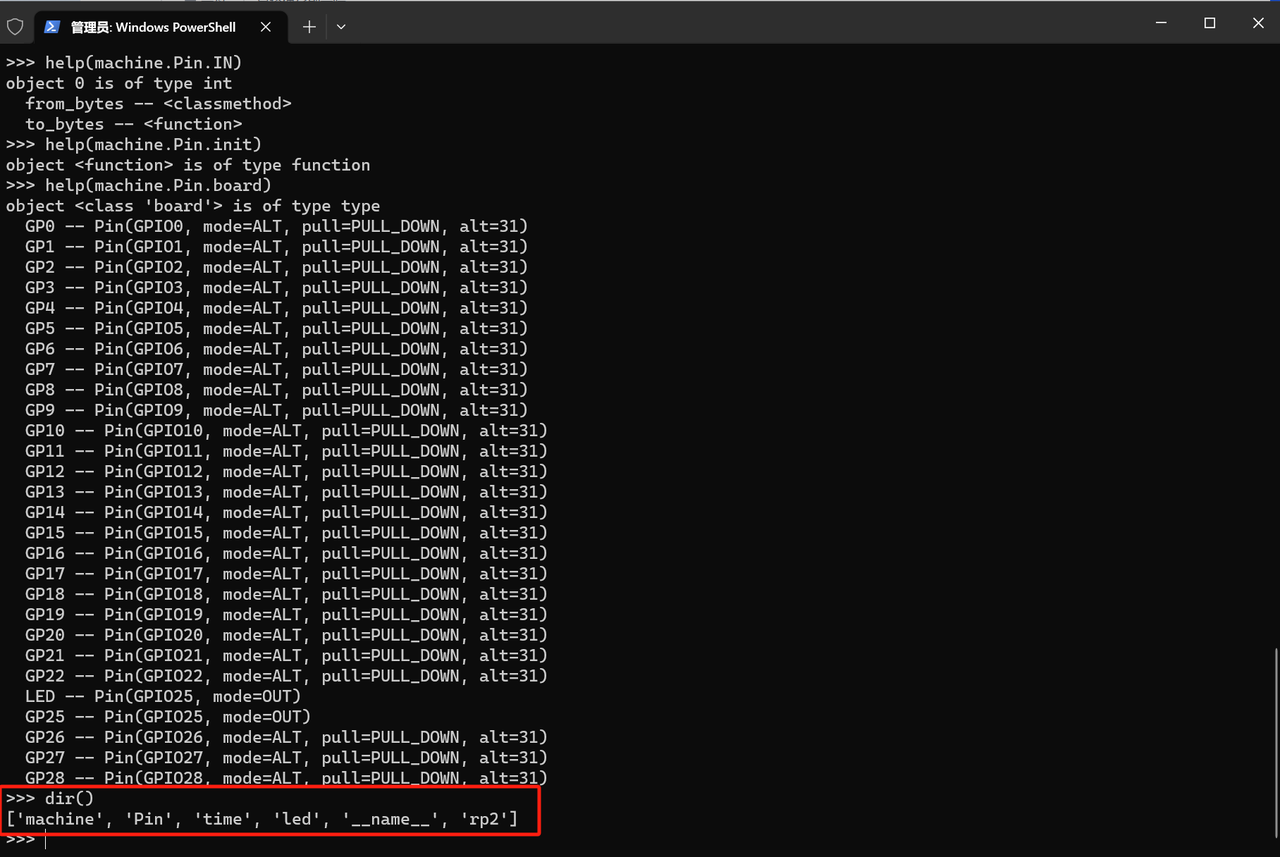
Use dir () function to check what variables and functions are inside a module:
Pin and Module Query in MicroPython REPL
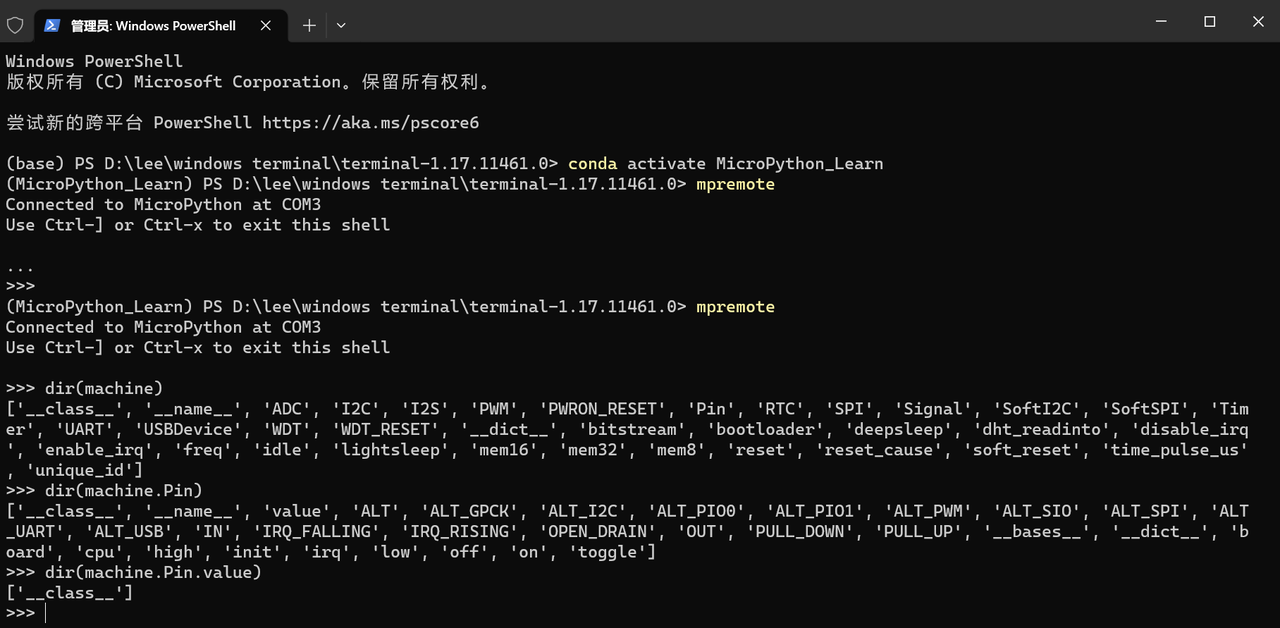
You can also check what variables and functions are inside these modules:
Module and Object Query in MicroPython REPL
1.3 Paste Long Blocks of Code
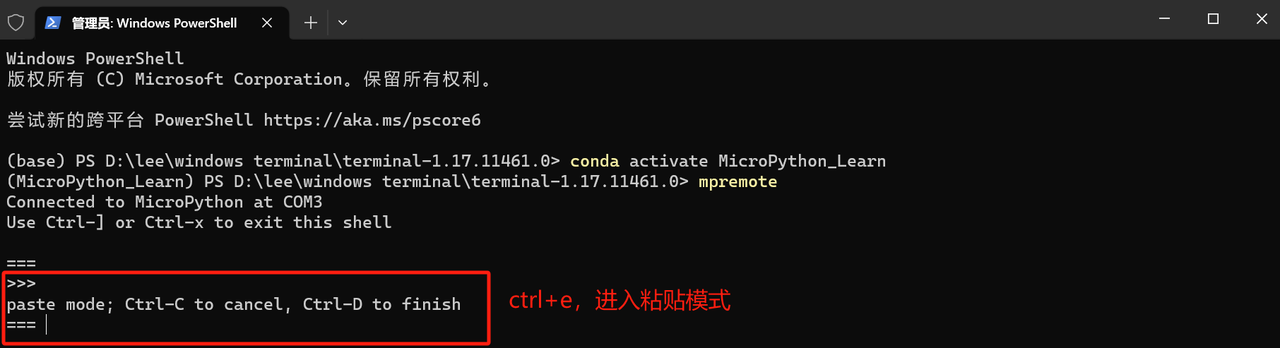
When pasting large blocks of code via MicroPython's REPL, the auto-indentation feature will cause the code to fail to be recognized correctly. In this case, you can use the shortcut Ctrl+ E to enter paste mode, which disables the auto-indentation function, and the prompt will change from >>> to ===:
Enter multi-line code in MicroPython REPL paste mode
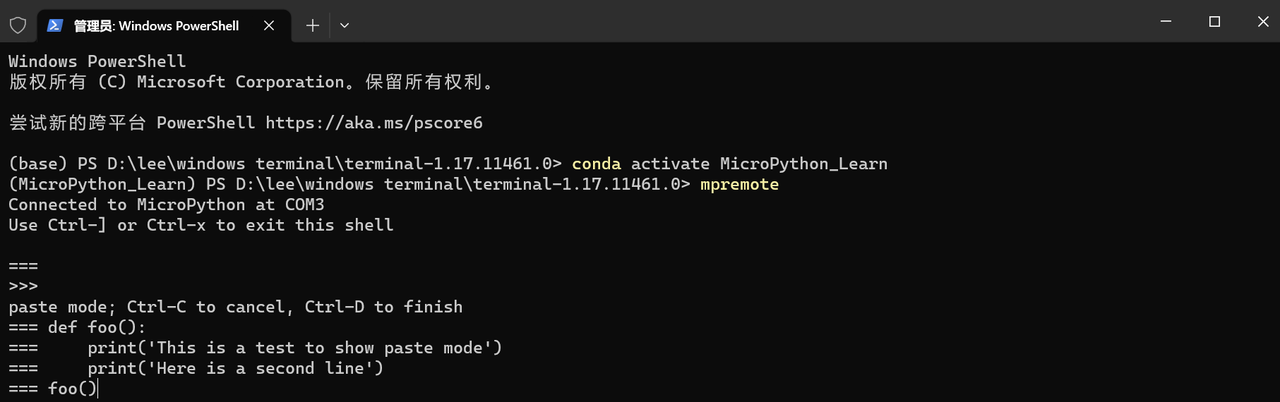
We can paste the following code to check the running status:
def foo():
    print('This is a test to show paste mode')
    print('Here is a second line')
foo()
MicroPython REPL Paste Mode
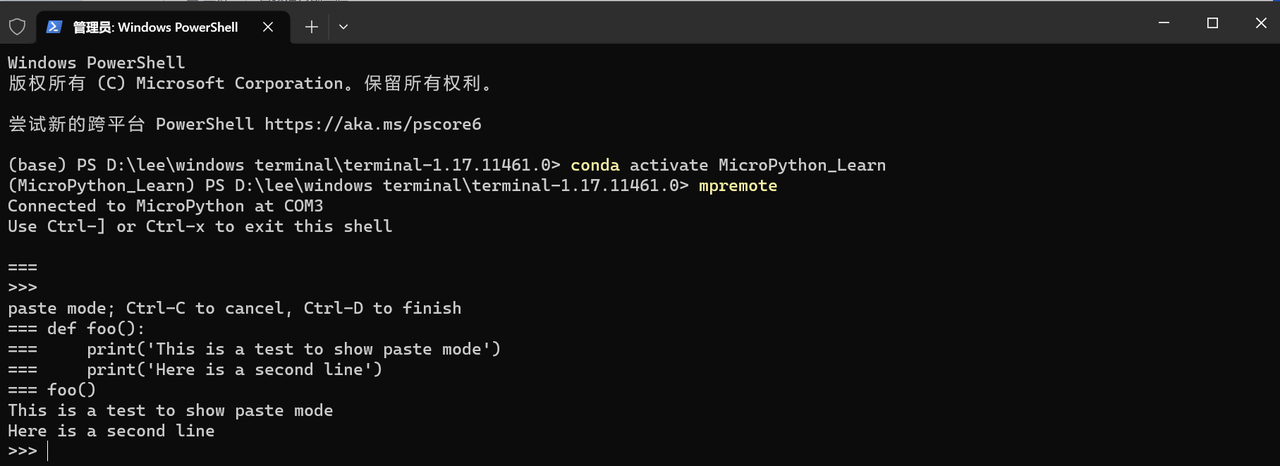
Press the Ctrl+ D shortcut key to exit paste mode, and you will see that the REPL has executed the code we entered:
Code execution result of MicroPython REPL paste mode
2. Terminal Print Output
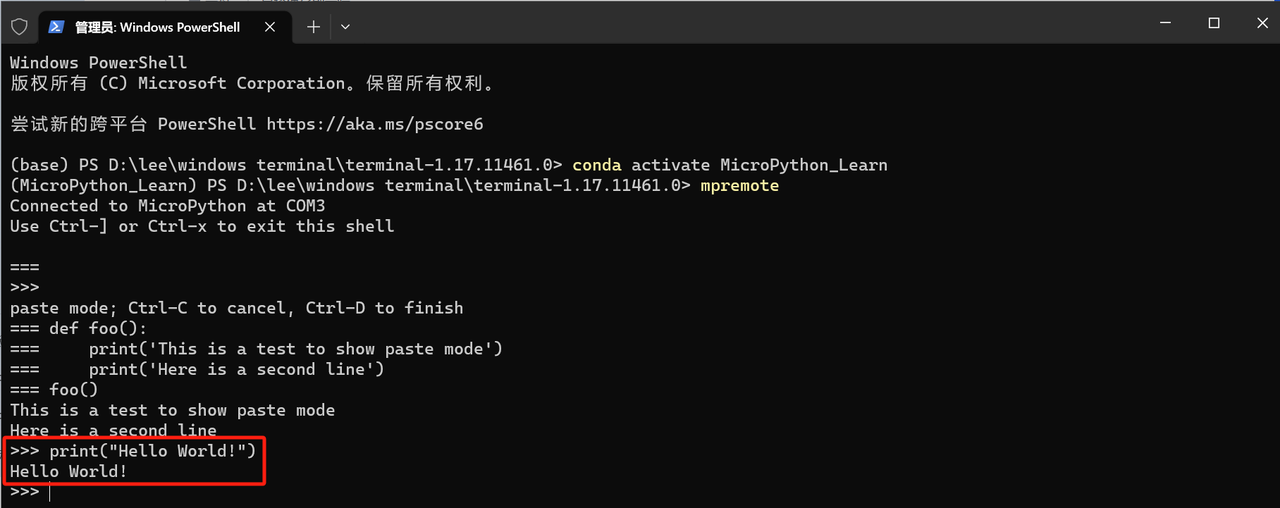
We can enter the following code in the REPL to use the Print function to output the string "Hello world":
print("Hello World!")
MicroPython REPL 执行 Hello World
3. Driving an LED
The LED on the Raspberry Pi Pico is connected to GPIO pin 25, and we can enter the following code to control the turning off and on of the LED:
from machine import Pin
led = Pin("LED", Pin.OUT)
led.value(1)
led.value(0)