W55RP20-EVB-MKR Module MicroPython Practice (2) - 10 Minutes to Ethernet DHCP Automatic Networking
This article is the 2nd part of the WIZnet W55RP20 chip MicroPython tutorial, written based on the latest official firmware.
COMPONENTS
PROJECT DESCRIPTION
W55RP20-EVB-MKR Module MicroPython Practice (2) - 10 Minutes to Ethernet DHCP Automatic Networking
This article is the 2nd part of the WIZnet W55RP20 chip MicroPython tutorial, written based on the latest official firmware. All code has been verified in practice and can be directly flashed and run.Copyright Notice: This article is an original technical article from WIZnet. Please indicate the source when reprinting.
Preface
In the previous article, we completed W55RP20 Chip Static IP Configuration and Network Basics, and understood the meanings of basic network parameters such as IP address, subnet mask, gateway, and DNS.
This article continues to focus on the Ethernet networking methods of the W55RP20 chip, with emphasis on DHCP automatic IP address acquisition.
In practical projects, manually configuring static IP addresses each time can easily lead to issues such as inconsistent network segments, IP address conflicts, and incorrect gateway entries. DHCP allows the development board to automatically obtain network parameters from the router, reducing configuration difficulty and making it more suitable for quick verification of the development board's Ethernet functionality.
The W55RP20-EVB-MKR Development Board already has an onboard Ethernet interface. Combined with the MicroPython example project, you only need to run a simple DHCP example code to enable the development board to automatically obtain an IP address.
After reading this article, you will master:
The difference between static IP and DHCP
The basic flow of DHCP automatic networking
How to view MAC address and IP address information
How to determine whether DHCP acquisition was successful
Troubleshooting methods for common networking failure issues
Series Tutorial Learning Path
This series consists of 16 articles, progressively covering the full process from basic networking to industrial-grade applications:
Part 1: Static IP Configuration and Network Basics
Part 2: DHCP Automatic Networking and Network Diagnostics (This Article)
Part 3: TCP Client Communication
Part 4: TCP Server Communication
Part 5: UDP Unicast Data Communication
Part 6: UDP Multicast/Broadcast Data Communication
Part 7: DNS Domain Name Resolution
Part 8: NTP - Getting Time from the Network
Part 9: HTTP Client Requests
Part 10: HTTP Server Setup
Part 11: HTTP Protocol and OneNET Platform Data Cloud Upload
Part 12: MQTT Protocol Basic Communication Verification
Part 13: MQTT Protocol and Alibaba Cloud Platform Integration
Part 14: MQTT Protocol and OneNET Platform Integration
Part 15: MQTT Protocol and ThingSpeak Platform Integration
Part 16: Modbus Industrial Protocol Communication
It is recommended to bookmark this series and follow the tutorials step by step. All code will be synced and updated to the official Gitee repository.
MicroPython firmware specifically written for W55RP20
1.2 Hardware Preparation
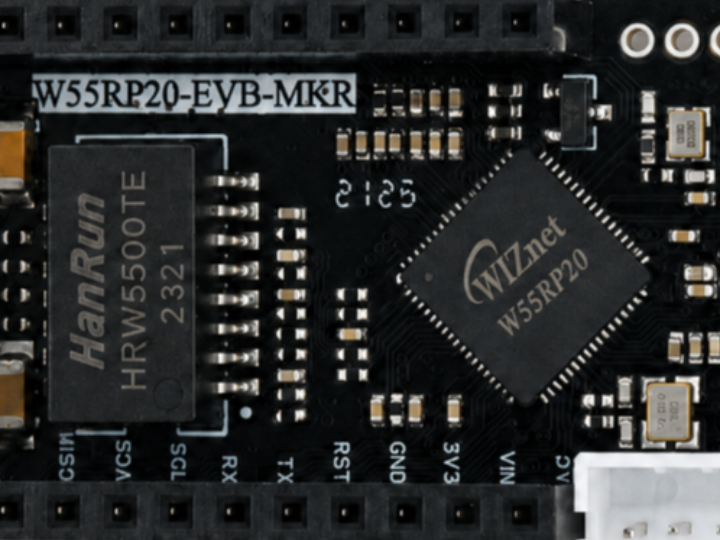
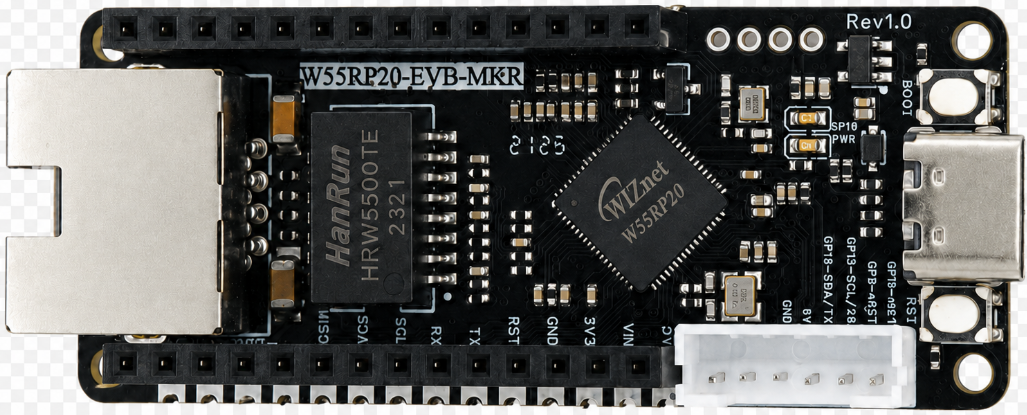
As shown in the figure, the W55RP20-EVB-MKR development board physical photo.
The following hardware needs to be prepared:
W55RP20-EVB-MKR development board × 1;
USB data cable × 1;
Standard Ethernet cable × 1;
Router or switch with DHCP function enabled × 1.
Tip: The W55RP20-EVB-MKR already has an onboard Ethernet interface, no additional soldering or flying wires to other components required, plug and play.This significantly reduces the probability of wiring errors and hardware failures.
The W55RP20-EVB-MKR development board is compatible with the Raspberry Pi Pico UF2 firmware flashing method. The operation steps are as follows:
Use a USB data cable to connect the development board and the computer;
Press and hold the BOOTSEL button on the development board;
Press the RUN button once;
Release the buttons after the computer recognizes the RPI-RP2 disk;
Drag the .uf2 firmware file into the RPI-RP2 disk;
The development board automatically restarts, and firmware flashing is complete.
Note: If the computer does not recognize the RPI-RP2 USB drive, please try replacing the USB data cable, re-plugging the development board, or changing the computer USB port
3. Hardware Connection and Development Environment Configuration
3.1 Hardware Connection
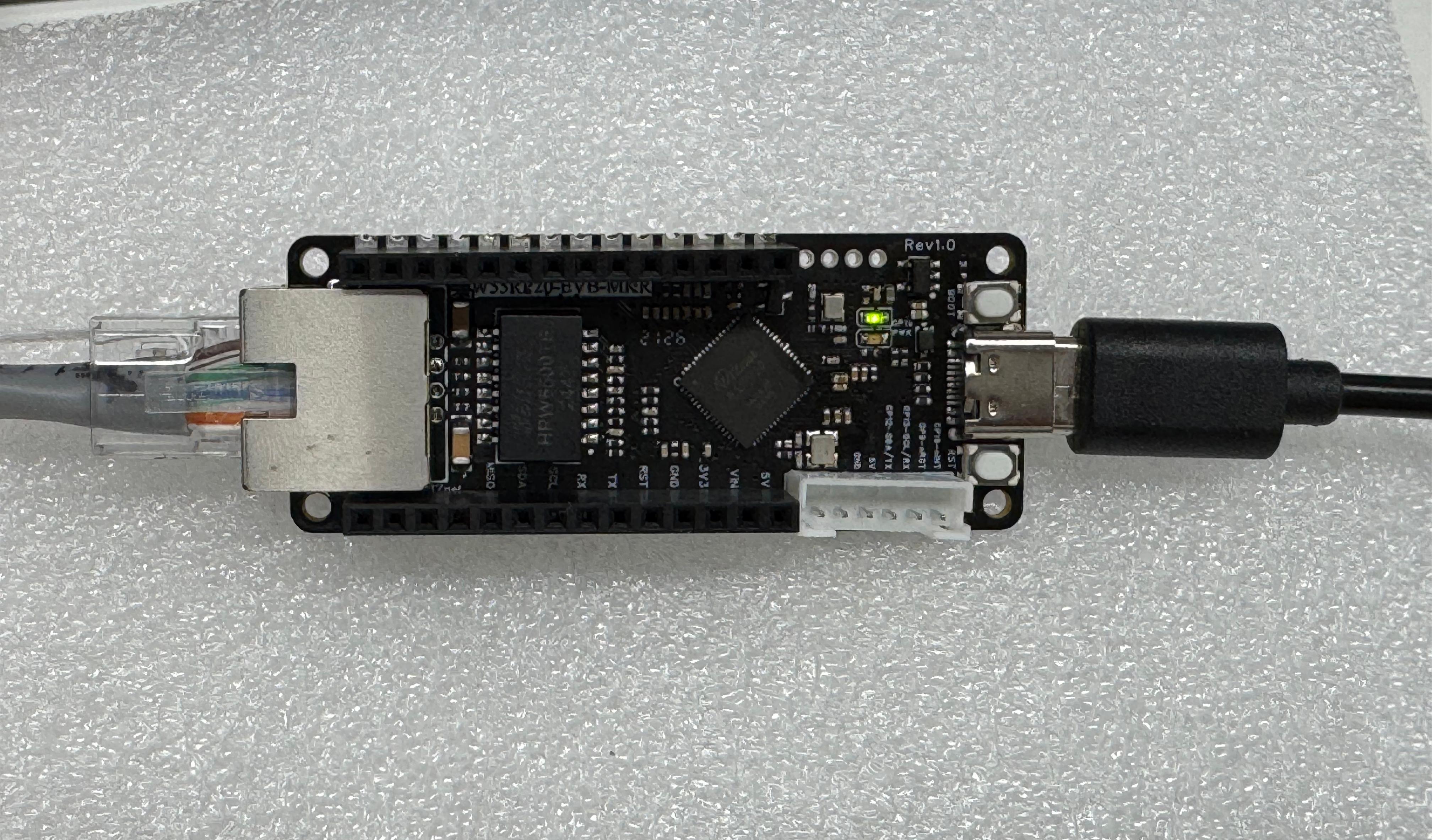
The connection of W55RP20-EVB-MKR is extremely simple, requiring only two steps:
Use a USB data cable to connect the development board to the computer (for power supply, code flashing, and serial debugging)
Use an Ethernet cable to connect the development board's Ethernet interface to the router's LAN port
As shown in the figure, this is the hardware connection diagram.
3.2 Thonny Development Environment Configuration
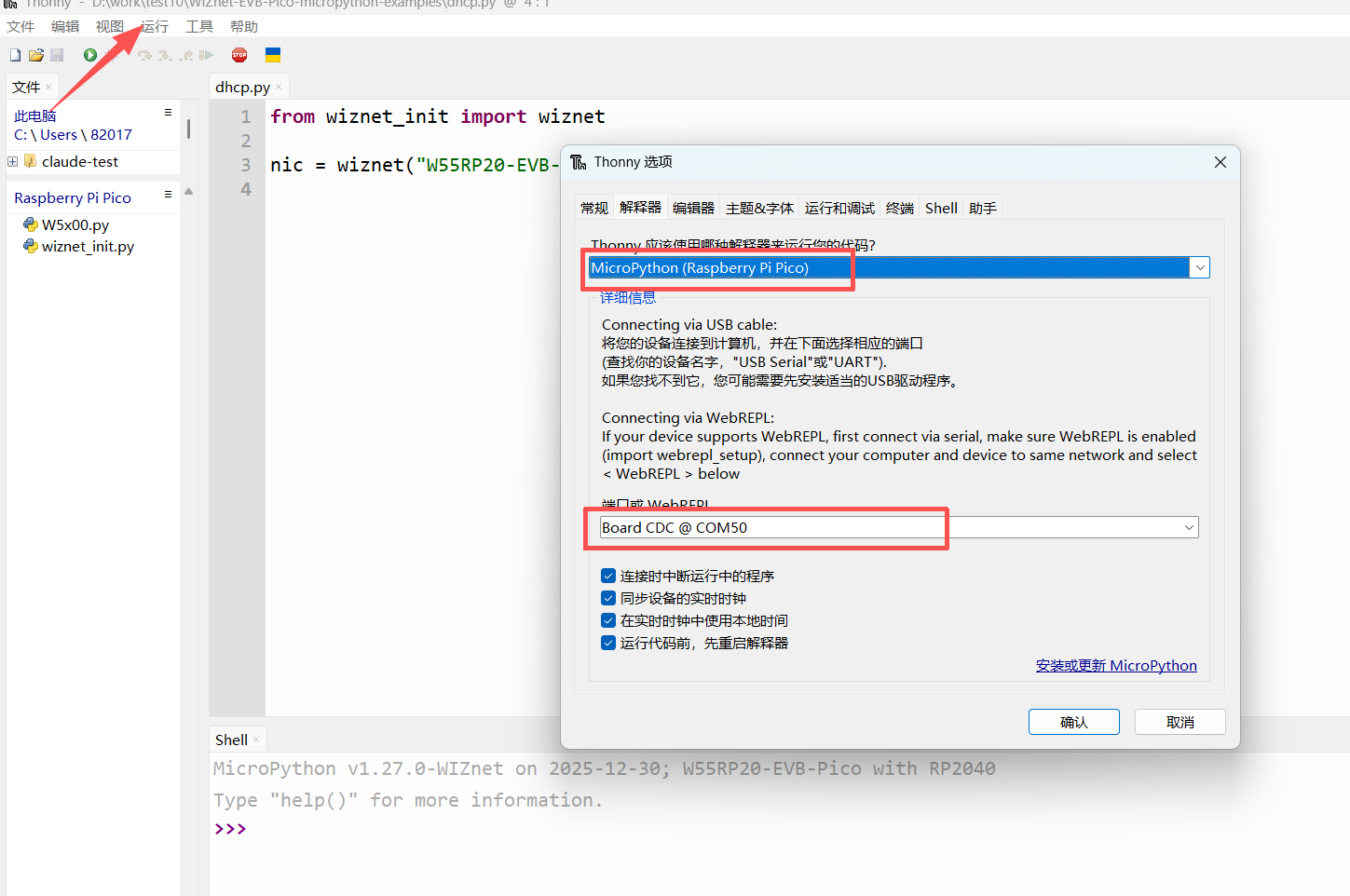
Open Thonny software, click the top menu bar "Run" → "Configure Interpreter"
Switch to the "Interpreter" tab
Select MicroPython (generic) from the "Interpreter" dropdown list
Select the serial port corresponding to W55RP20 from the "Port" dropdown list (usually displayed as Board CDC @ COMx)
Check "Restart interpreter before running code" and "Synchronize device's real-time clock"
Click "OK" to complete configuration
The interface after configuration is complete is shown in the following figure:
If the development board does not appear in the port list, please try:
Re-plug the USB data cable
Replace with a USB data cable that supports data transmission
Close other software occupying the serial port (such as serial assistants, Arduino IDE, etc.)
Re-flash the MicroPython firmware
4. DHCP Automatic Networking Principles
4.1 DHCP Protocol Introduction
DHCP, fully known as Dynamic Host Configuration Protocol, is commonly referred to as the Dynamic Host Configuration Protocol in Chinese.
Its role is to allow devices to automatically obtain network parameters from a DHCP server after connecting to the network. In home or office networks, the router typically acts as the DHCP server.
After the development board successfully connects to the network through DHCP, the following parameters can usually be obtained:
Parameter
Description
IP Address
The address of the development board in the local network
Subnet Mask
Used to determine the network segment of the current device
Gateway
Usually the router address
DNS
Used for domain name resolution
Simply put, DHCP allows the development board to automatically request an available IP address from the router.
4.2 DHCP Workflow
The DHCP operation flow of W55RP20-EVB-MKR can be understood as:
Development board powers on
↓
Initialize Ethernet hardware
↓
Send DHCP request
↓
Router assigns IP address
↓
Development board obtains IP, gateway, DNS and other parameters
↓
Application reads and prints network information
5. Core Code Analysis
The W55RP20 MicroPython library has encapsulated all underlying details. Implementing DHCP automatic networking requires only X lines of core code.
5.1 Complete Code
Open the DHCP example file, or enter the following code in Thonny:
fromwiznet_initimportwiznet# Import WIZnet network initialization function # Initialize W55RP20-EVB-MKR network # dhcp=True means enable DHCP, let the router automatically assign IP address, gateway, DNS and other network parameters nic = wiznet("W55RP20-EVB-MKR", dhcp=True)
5.2 Extension: Static IP Configuration (Optional)
If you need to use a static IP address, you can change dhcp=True to dhcp=False and manually pass in the IP, subnet mask, gateway, and DNS parameters.
fromwiznet_initimportwiznet# Import WIZnet network initialization function # Initialize network with static IP nic = wiznet( "W55RP20-EVB-MKR", dhcp=False, # Disable DHCP, enable static IP ip="192.168.1.129", # Development board fixed IP address sn="255.255.255.0", # Subnet mask gw="192.168.1.1", # Gateway address, usually the router address dns="8.8.8.8"# DNS server address )
Note that the static IP address needs to be in the same network segment as the computer and router.
For example, if the router address is 192.168.1.1, the development board IP can be set to 192.168.1.xxx, such as 192.168.1.129. The xxx part is recommended to choose an address not occupied by other devices in the local network.
6. Running Results and Network Verification
After completing the hardware connection and Thonny development environment configuration, you can run the DHCP example program and check whether the W55RP20-EVB-MKR has successfully obtained an IP address.
This section mainly demonstrates the DHCP automatic networking process through running result screenshots and video demonstration.
6.1 Serial Output Result Screenshots
In Thonny, click the run button, or press F5 to run the program.
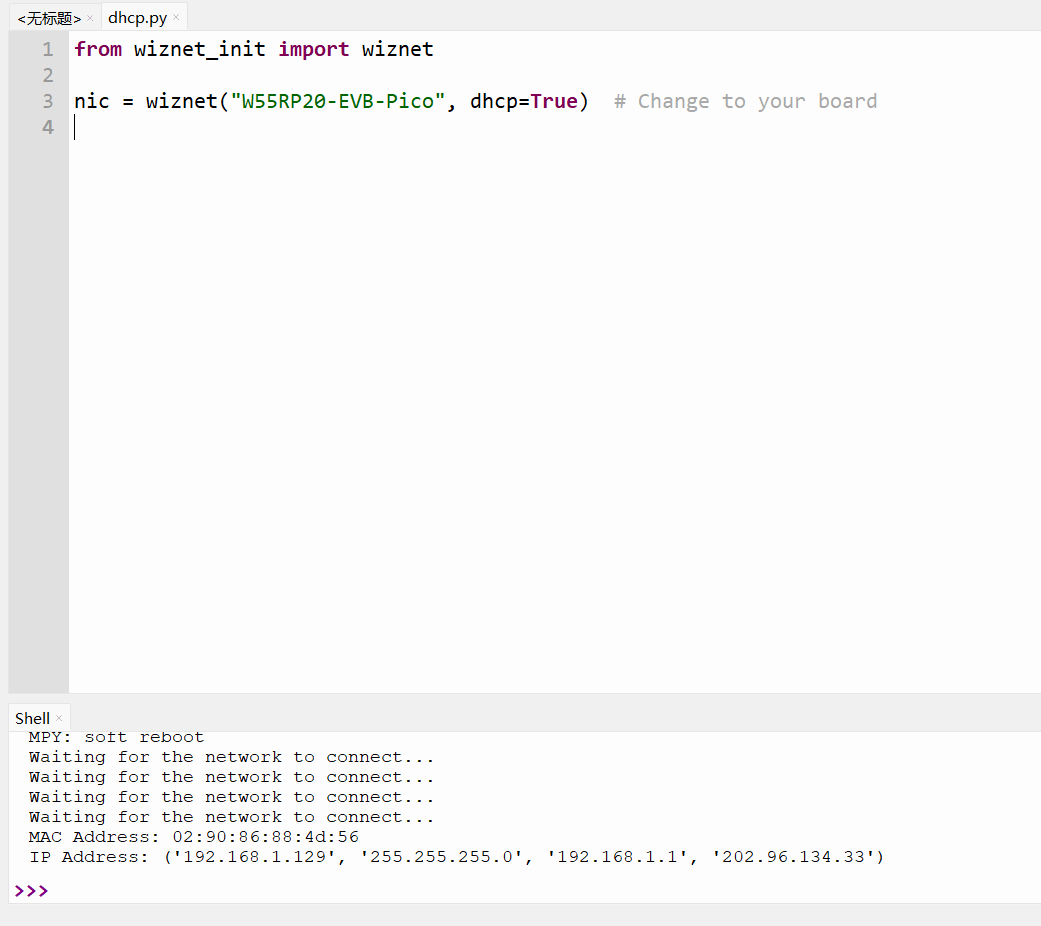
After running, the Shell window will output something similar to the following:
MPY: soft reboot
Waiting for the network to connect...
Waiting for the network to connect...
Waiting for the network to connect...
Waiting for the network to connect...
MAC Address: 02:90:86:88:4d:56
IP Address: ('192.168.1.129', '255.255.255.0', '192.168.1.1', '202.96.134.33')
Note: The Waiting for the network to connect... printed in the early stage of program execution is a normal phenomenon. This is the W55RP20 waiting for the router to assign an IP address. It is usually printed 1-3 times, depending on the network environment.
The actual running result is shown in the following figure:
From the running results, it can be seen that the program eventually printed out the MAC address and IP address information.
Among them:
MAC Address: 02:90:86:88:4d:56
Represents the MAC address of the current development board.
IP Address: ('192.168.1.129', '255.255.255.0', '192.168.1.1', '202.96.134.33')
Represents the network parameters obtained by the development board through DHCP.
The field descriptions are as follows:
Field
Actual Value
Description
IP Address
192.168.1.129
The local network IP address obtained by W55RP20-EVB-MKR
Subnet Mask
255.255.255.0
The subnet mask of the current local network
Gateway
192.168.1.1
Router address
DNS
202.96.134.33
DNS server address
If the first field is not 0.0.0.0, but a valid local network IP like 192.168.x.x, it means DHCP acquisition was successful.
6.2 DHCP Automatic Networking Video Demonstration
The video below shows the process of the development board automatically obtaining an IP address through DHCP after running dhcp.py.
The program eventually prints out MAC Address and IP Address, where IP Address is a valid local network address, indicating that the W55RP20-EVB-MKR has successfully connected to the network.
The video demonstration is as follows:From the screenshots and video, it can be seen that the W55RP20-EVB-MKR has successfully obtained an IP address through DHCP, indicating that the development board has properly connected to the local network. Subsequent TCP, UDP, MQTT, HTTP and other network communication tests can be performed.
7. Common Issues One-Stop Troubleshooting Guide
7.1 Flashing-Related Issues
Problem Symptom
Troubleshooting Steps
Computer cannot recognize RPI-RP2 disk
1. Confirm pressing and holding BOOTSEL button before connecting USB2. Replace with a USB data cable that supports data transmission3. Change computer USB port4. Try using another computer
No response from development board after firmware drag-and-drop
1. Confirm firmware matches W55RP20-EVB-MKR2. Re-flash firmware3. Check if USB power supply is stable
7.2 Port Identification Issues
Problem Symptom
Troubleshooting Steps
Cannot find development board port in Thonny
1. Re-plug USB data cable2. Close other software occupying the serial port3. Check if there is a new serial port device in Device Manager4. Re-flash MicroPython firmware5. Install Raspberry Pi Pico USB driver
7.3 Network Connection Issues
Problem Symptom
Troubleshooting Steps
Continuously displays Waiting for the network to connect...
1. Check if the Ethernet cable is firmly plugged in2. Confirm the Ethernet cable is connected to the router LAN port3. Confirm router DHCP function is enabled4. Replace router LAN port or Ethernet cable5. Restart router and development board
IP address displays as 0.0.0.0
1. Perform the above network connection troubleshooting steps2. Confirm the development board model is correctly filled in the code3. Confirm using matching MicroPython firmware4. Try running the program again
Computer cannot ping the development board
1. Confirm computer and development board are connected to the same router2. Check if the development board IP address is correct3. Temporarily disable computer firewall for testing4. Restart development board and computer
8. W55RP20 Core Advantages Comparison
To help you more intuitively understand the value of W55RP20, we compared the three mainstream embedded Ethernet solutions currently available:
Comparison Dimension
W55RP20 Integrated Solution
External PHY Chip Solution
External Serial-to-Ethernet Module Solution
BOM Cost
Low(Single chip)
Medium-High(MCU + Module + Peripheral components)
High
PCB Area
Small(Only Ethernet port circuitry required)
Large(Need to reserve chip and routing space)
High
Development Difficulty
Low(One line of code for networking)
Medium-High(Debug protocol stack, write drivers)
Low
Network Stability
Extremely High(WIZnet has focused on hardware TCP/IP protocol stack for 25 years)
Variable(Requires high R&D personnel capability, familiarity with protocol stack and network development to debug stably)
Variable(Depends on R&D company's capability level)
CPU Resource Usage
0%(Protocol stack network processing entirely handled by hardware)
50% or above(Protocol stack runs entirely on MCU, occupying related resources)
0%
Hardware Socket Count
8 independent hardware sockets
Depends on MCU capability, theoretically supports multi-channel expansion
Generally single-channel transparent transmission
Network Throughput
Up to 15Mbps
Depends on MCU capability
Approximately 3-5Mbps
Interface Ease of Use
Single chip integration
MCU needs MII/RMII or similar interfaces
TTL interface
Deployment Difficulty
Low(Mature MicroPython firmware, most application layer protocols have library files, flexible to add and deploy)
High(Application layer protocols require manual porting of open-source libraries for adaptation)
Depends on module integration, non-integrated features require self-encapsulation and parsing
The W55RP20-EVB-MKR already has an onboard Ethernet interface, making it very suitable for beginners to quickly complete Ethernet function verification.
9. Typical Application Scenarios
The W55RP20 chip integrates Ethernet functionality, suitable for the following application scenarios:
Industrial data acquisition gateway;
Remote monitoring terminal;
Serial-to-Ethernet device;
Smart building control node;
Industrial PLC expansion module;
Sensor data acquisition and upload;
Article Summary
This article started from the static IP configuration of the previous article and systematically introduced how to implement DHCP automatic networking based on the W55RP20-EVB-MKR development board. With the support of the WIZnet hardware TCP/IP protocol stack, only two lines of MicroPython code are needed to complete network initialization and automatic IP address acquisition, laying a solid foundation for subsequent TCP/UDP communication, MQTT cloud connectivity, and other advanced applications.
Reviewing the core points of this article:
DHCP Protocol Principles: Understood the core role of DHCP as a "Dynamic Host Configuration Protocol" — allowing the development board to automatically request IP address, subnet mask, gateway, and DNS parameters from the router without manual configuration, reducing risks such as inconsistent network segments, IP conflicts, and incorrect gateway entries
Development Environment Setup: Completed W55RP20 exclusive MicroPython firmware flashing and Thonny IDE configuration, became familiar with the UF2 drag-and-drop flashing method and serial connection process
DHCP Code Implementation: Used the wiznet_init module, enabled automatic acquisition with dhcp=True, only two lines of code needed for the development board to automatically connect to the network; also mastered the method of switching to static IP with dhcp=False, improving code deployment flexibility
Running Result Verification: Confirmed MAC address and IP address information through serial output, mastered the method of determining whether DHCP acquisition was successful — as long as the IP address is not 0.0.0.0, it is a valid local network address
Troubleshooting: Summarized troubleshooting methods for three major categories of common issues: flashing, port identification, and network connection, covering key steps such as Ethernet cable checking, router DHCP function confirmation, and firewall disabling
Solution Comparison: Compared the W55RP20 integrated solution, external PHY chip solution, and external serial-to-Ethernet module solution; W55RP20's single-chip integration, 0% CPU usage, and one-line code networking stand out in rapid verification scenarios
After mastering the DHCP automatic networking technology in this article, your embedded device has the core capability of automatically connecting to local networks. The next article will move on to learning TCP Client communication, enabling data transmission between the development board and remote servers.
10. Series Preview and Resource Access
10.1 Series Preview
The next tutorial will continue to explain the TCP Client implementation under W55RP20 MicroPython development, including connection establishment, data sending, data receiving, exception reconnection, and other content.
If this article was helpful, please like, bookmark, and follow. Your support is the driving force for our continuous updates!If you have any questions, please leave a comment in the comment section, and we will reply as soon as possible.


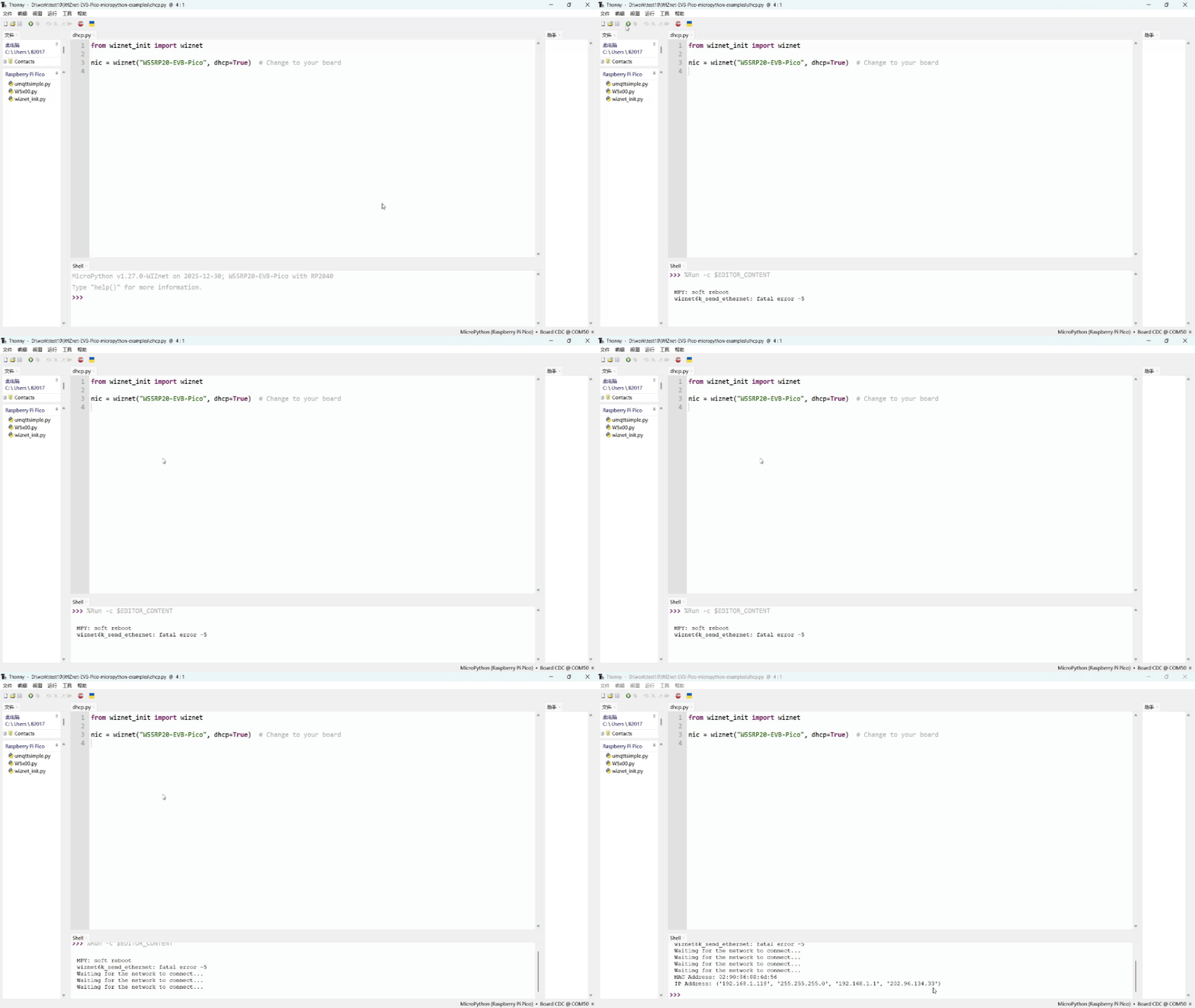 From the screenshots and video, it can be seen that the W55RP20-EVB-MKR has successfully obtained an IP address through DHCP, indicating that the development board has properly connected to the local network. Subsequent TCP, UDP, MQTT, HTTP and other network communication tests can be performed.