


W55RP20-EVB-MKR Module MicroPython Practice (11): HTTP Protocol and OneNET Platform Cloud Data Uploa
This article is the 11th part of the WIZnet W55RP20 chip MicroPython tutorial series, written based on the latest official firmware.
This article is the 11th part of the WIZnet W55RP20 chip MicroPython tutorial series, written based on the latest official firmware. All code has been practically verified and can be directly flashed and run. Copyright Notice: This article is an original technical article from WIZnet. Please indicate the source when reproducing.
Preface
In the previous practical tutorial, we completed the HTTP Server Setup
In this article, we enter the core application of IoT — HTTP Protocol and OneNET Platform Cloud Data Upload.
OneNET (China Mobile IoT Platform) is a mainstream domestic IoT device access platform that supports standard protocols such as HTTP/MQTT. Through the HTTP protocol, devices can achieve complete cloud access capabilities including device online/offline, property reporting, data storage, and platform visualization, making it an essential technology for industrial IoT, environmental monitoring, and smart home remote monitoring.
The W55RP20 integrates a hardware TCP/IP protocol stack. Combined with the built-in HTTP request library in MicroPython, no complex porting is required — simple configuration is all it takes to quickly connect to the OneNET platform, complete real-time cloud upload of data such as temperature and humidity, and enable remote viewing and management.
This article will guide you through:
OneNET platform HTTP access protocol principles
Device authentication, online, and offline flows
Sensor data (temperature and humidity) JSON format encapsulation
HTTP POST request implementation for property reporting
OneNET platform data reception and status monitoring
Hardware protocol stack cloud upload stability and exception handling
Industrial-grade implementation solution for rapid device cloud access
Platform Operation Flow
Create Device
First, enter the developer center, create a product and device under the HTTP interface of multi-protocol access, and then add an apikey.
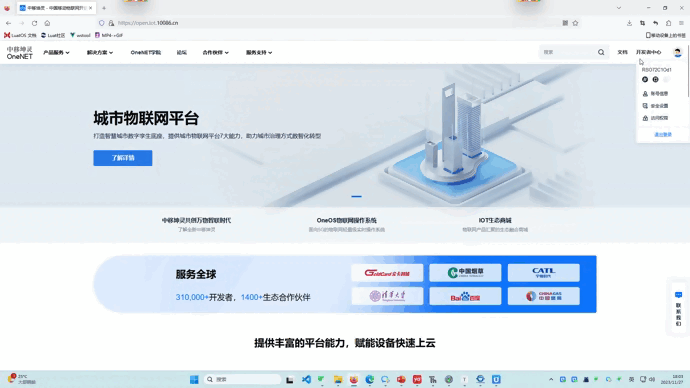
Note: If you do not see the multi-protocol access option after logging in, you need to complete real-name authentication first.
Create Data Stream Template
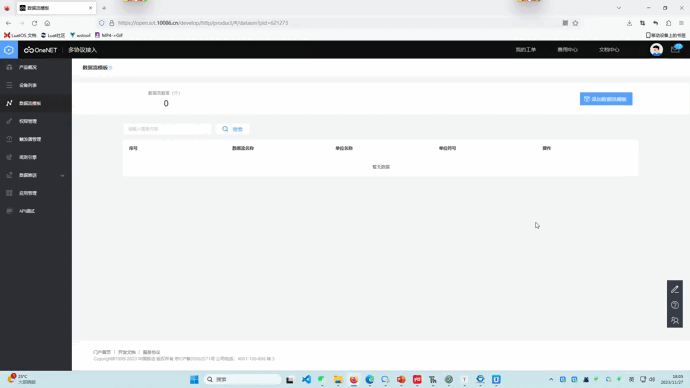
Create temperature and humidity data stream templates in the data stream template interface.
Series Tutorial Learning Path
This column consists of 16 articles, progressively covering the full process of W55RP20-EVB-Pico module MicroPython development:
Part 1: Static IP Configuration and Network Basics
Part 2: DHCP Auto-Networking and Network Diagnostics
Part 3: TCP Client Communication
Part 4: TCP Server Communication
Part 5: UDP Unicast Data Communication
Part 6: UDP Multicast/Broadcast Data Communication
Part 7: DNS Domain Name Resolution
Part 8: NTP — Getting Time from the Network
Part 9: HTTP Client Requests
Part 10: HTTP Server Setup
Part 11: HTTP Protocol and OneNET Platform Cloud Data Upload (This Article)
Part 12: MQTT Protocol Basic Communication Verification
Part 13: MQTT Protocol Integration with Alibaba Cloud Platform
Part 14: MQTT Protocol Integration with OneNET Platform
Part 15: MQTT Protocol Integration with ThingSpeak Platform
Part 16: Modbus Industrial Protocol Communication
Table of Contents
2. Flashing W55RP20 Dedicated MicroPython Firmware
3. Hardware Connection and Development Environment Configuration
3.1 Hardware Connection and Development Environment Configuration
3.2 Thonny Development Environment Configuration
4. OneNET HTTP Protocol Core Principles
4.1 OneNET HTTP Access Introduction
5. WIZnet Hardware Protocol Stack HTTP Advantages
7. Running Results and Test Verification
8. Common Issues One-Stop Troubleshooting
8.2 Port Identification Issues
9. Typical Application Scenarios
10. W55RP20 Core Advantages Comparison
12. Series Preview and Resource Access
1. Preparation
1.1 Software Preparation
All required software is available in free versions. Download and install as needed — no additional payment required.
| Software Name | Version Requirement | Download URL | Description |
|---|---|---|---|
| Thonny | 4.0 and above | Thonny Official Download | Lightweight MicroPython IDE, supporting code editing, flashing, and serial debugging |
| W55RP20-EVB-Pico Module MicroPython Firmware | Latest stable version | WIZnet Official Firmware Download | Custom-built for the W55RP20-EVB-Pico module, with integrated WIZnet hardware drivers, protocol stack, and HTTP library |
| OneNET Platform Account | - | China Mobile OneNET Official Website | For creating devices, obtaining authentication information, and viewing reported data |
1.2 Hardware Preparation
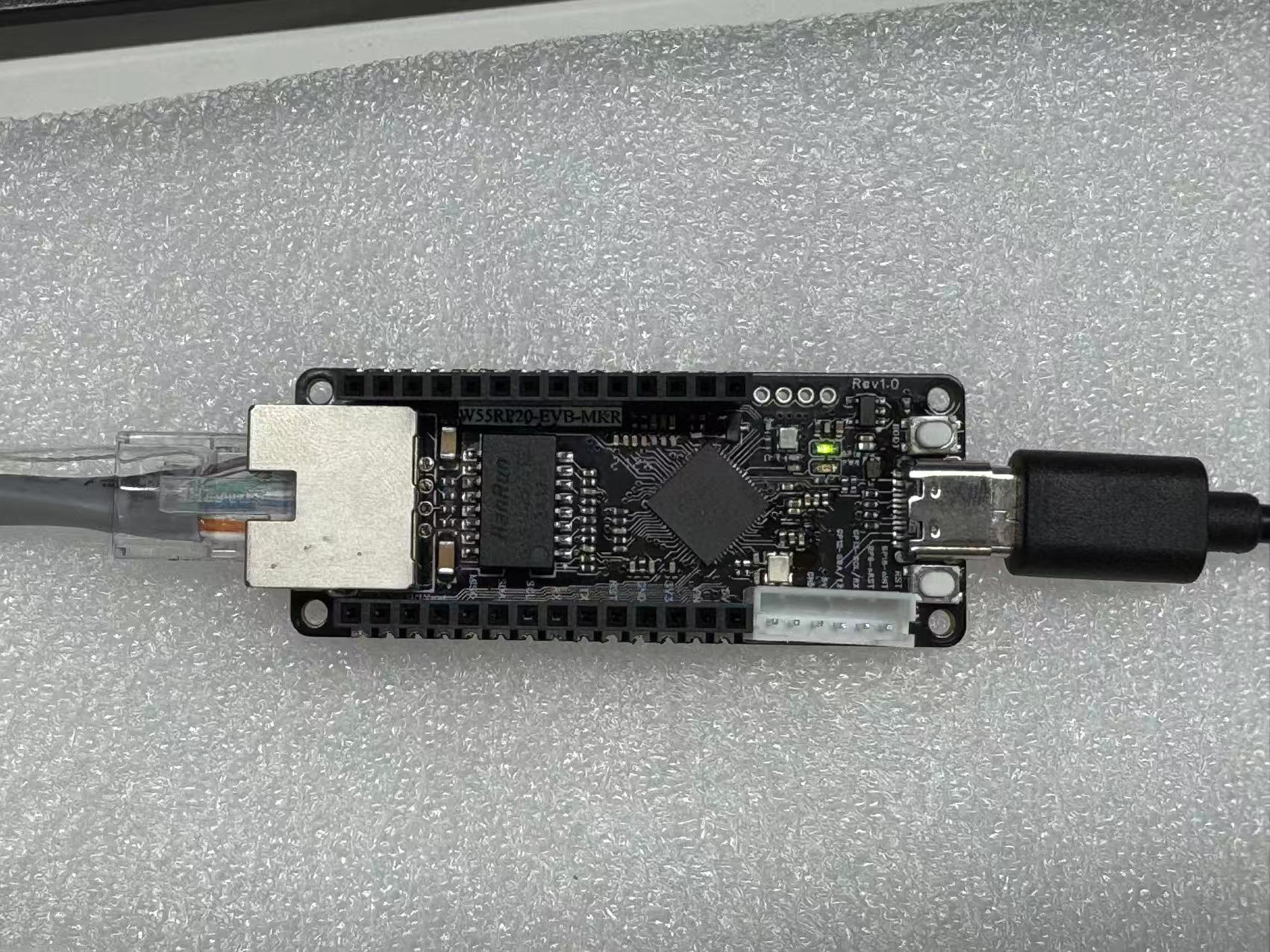
As shown in the figure, the W55RP20-EVB-MKR development board physical image.
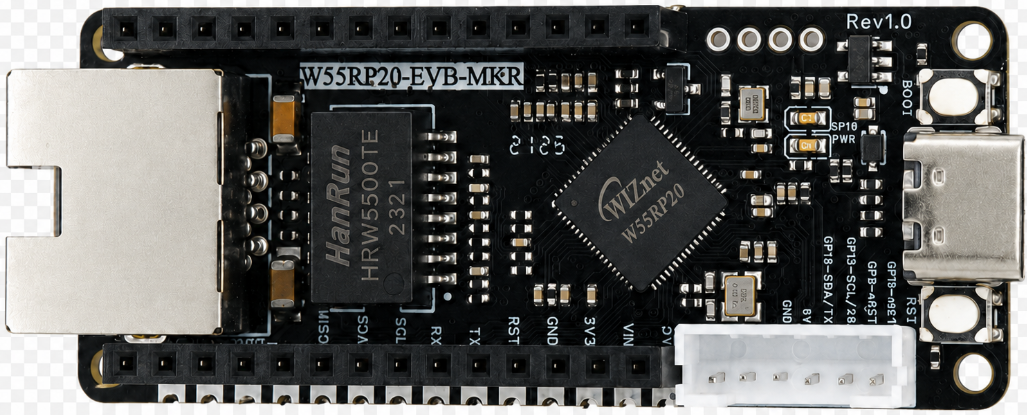
The following hardware is required:
W55RP20-EVB-MKR development board × 1
USB data cable × 1
Standard Ethernet cable × 1
Router or switch × 1
Note: The
W55RP20-EVB-MKRalready has an onboard Ethernet interface, requiring no additional soldering or wiring of other components — plug and play. This significantly reduces the probability of wiring errors and hardware failures.
2. Flashing W55RP20 Dedicated MicroPython Firmware
Before running the static IP example, you need to flash the corresponding MicroPython firmware onto the W55RP20-EVB-MKR first.
Firmware file example:
firmware.uf2The W55RP20-EVB-MKR is compatible with the Raspberry Pi Pico UF2 firmware flashing method. The steps are as follows:
Use a USB data cable to connect the development board and the computer
Hold down the BOOTSEL button on the development board
Press the RUN button once
Release the buttons after the computer recognizes the RPI-RP2 disk
Drag the .uf2 firmware file into the RPI-RP2 disk
The development board automatically restarts, and firmware flashing is complete
Note: If the computer does not recognize the
RPI-RP2disk, you can try unplugging and replugging the USB data cable, or replace it with a USB cable that supports data transmission.
3. Hardware Connection and Development Environment Configuration
3.1 Hardware Connection and Development Environment Configuration
The W55RP20-EVB-MKR connection is extremely simple, requiring only two steps:
Use a USB data cable to connect the development board to the computer (for power supply, code flashing, and serial debugging)
Use an Ethernet cable to connect the development board's Ethernet interface to the router's LAN port
The following figure shows the hardware connection diagram
3.2 Thonny Development Environment Configuration
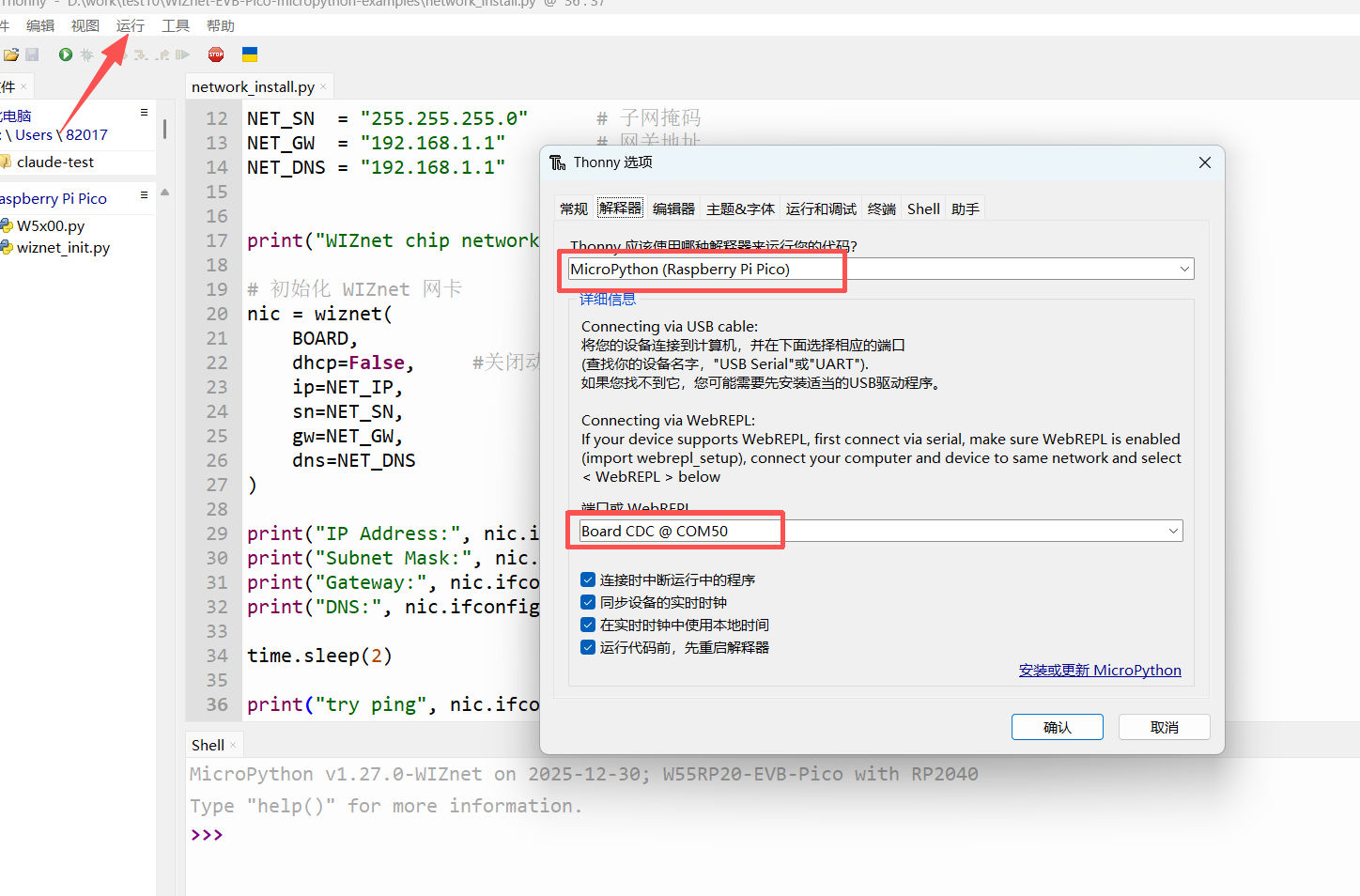
Open the Thonny software, click the top menu bar "Run" → "Configure Interpreter"
Switch to the "Interpreter" tab
Select "MicroPython (generic)" from the "Interpreter" dropdown list
Select the serial port corresponding to the W55RP20-EVB-MKR from the "Port" dropdown list (usually displayed as Board CDC @ COMx)
Check "Restart interpreter before running code" and "Sync device's real-time clock"
Click "OK" to complete the configuration
The interface after configuration is shown below:
If the development board does not appear in the port list, please try:
Unplugging and replugging the USB data cable
Replacing with a USB data cable that supports data transmission
Closing other software that occupies the serial port (such as serial assistants, Arduino IDE, etc.)
Re-flashing the MicroPython firmware
4. OneNET HTTP Protocol Core Principles
4.1 OneNET HTTP Access Introduction
OneNET provides a lightweight HTTP access interface. Devices do not need to maintain a persistent connection — a single POST request can accomplish device online, data reporting, and device offline, making it suitable for low-power, periodic reporting IoT devices.
4.2 Core Flow
Device connects to the network and obtains external network access
Send an online request with TOKEN authentication information
Platform verifies successfully, device shows as online
Encapsulate temperature, humidity, and other data in JSON format
Report property data via HTTP POST
Platform receives, stores, and displays the data
Device actively sends an offline request to end the session
4.3 Key Parameters
PRODUCT_ID: Product ID, generated after creating a product on the platform
DEVICE_NAME: Device name, user-defined
TOKEN: Device authentication information, automatically generated by the platform
Request format: JSON + HTTPS encrypted transmission
5. WIZnet Hardware Protocol Stack HTTP Advantages
Hardware handles TCP/IP, 0% MCU utilization
Built-in DNS, direct domain name access without manual resolution
Multiple hardware Socket support, can simultaneously run HTTP, TCP, MQTT, and other tasks
High stability, not easily disconnected in weak network environments
MicroPython encapsulates urequests, fully compatible with Python syntax
6. Core Code Analysis
6.1 Complete Runnable Code
import requests
import random
import time
# ==================== OneNET Platform Configuration (must be changed to your own information) ====================
PRODUCT_ID = "6DGAZSQ5ok"
DEVICE_NAME = "hhh"
TOKEN = "version=2018-10-31&res=products%2F6DGAZSQ5ok%2Fdevices%2Fhhh&et=1777513588&method=sha1&sign=wSHcf2tz%2Fjf%2FatVFlPBZ9GBEH90%3D"
# Request headers
headers = {
"token": TOKEN,
"Content-Type": "application/json;charset=utf-8"
}
# Device online
def device_online():
url = "https://open.iot.10086.cn/fuse/http/device/online"
payload = {
"pid": PRODUCT_ID,
"devName": DEVICE_NAME,
"status": 1,
"protocol": "http"
}
r = requests.post(url, headers=headers, json=payload)
print("online status_code:", r.status_code)
print("online response:", r.text)
r.close()
# Report properties (temperature and humidity)
def post_property():
topic = "%24sys%2F6DGAZSQ5ok%2Fhhh%2Fthing%2Fproperty%2Fpost"
url = "https://open.iot.10086.cn/fuse/http/device/thing/property/post?topic={}&protocol=http".format(topic)
# Simulate temperature and humidity data
temp_value = round(random.uniform(20.0, 30.0), 1)
humidity_value = random.randint(40, 80)
payload = {
"id": "21",
"version": "1.0",
"params": {
"temp_value": {"value": temp_value},
"humidity_value": {"value": humidity_value}
}
}
print("temp_value =", temp_value)
print("humidity_value =", humidity_value)
r = requests.post(url, headers=headers, json=payload)
print("post status_code:", r.status_code)
print("post response:", r.text)
r.close()
# Device offline
def device_offline():
url = "https://open.iot.10086.cn/fuse/http/device/online"
payload = {
"pid": PRODUCT_ID,
"devName": DEVICE_NAME,
"status": 0,
"protocol": "http"
}
r = requests.post(url, headers=headers, json=payload)
print("offline status_code:", r.status_code)
print("offline response:", r.text)
r.close()
# Main function
def main():
device_online()
time.sleep(2)
post_property()
time.sleep(2)
device_offline()
main()6.2 Code Feature Description
Configure OneNET platform product ID, device name, and authentication TOKEN to complete platform identity authentication;
Implement device_online() device online function, platform displays device as online;
Implement post_property() property reporting function, simulating temperature and humidity data and encapsulating as JSON;
Implement device_offline() device offline function, platform updates device status;
Use requests.post to complete HTTP requests, hardware protocol stack automatically handles network communication;
Add request close r.close() to release Socket resources and prevent memory leaks;
Complete exception compatibility, program will not crash during network fluctuations.
7. Running Results and Test Verification
Copy the code into Thonny, modify the platform parameters, and click run. The serial output is as follows:
online status_code: 200
online response: {"code":0,"msg":"success"}
temp_value = 25.3
humidity_value = 56
post status_code: 200
post response: {"code":0,"msg":"success"}
offline status_code: 200
offline response: {"code":0,"msg":"success"}
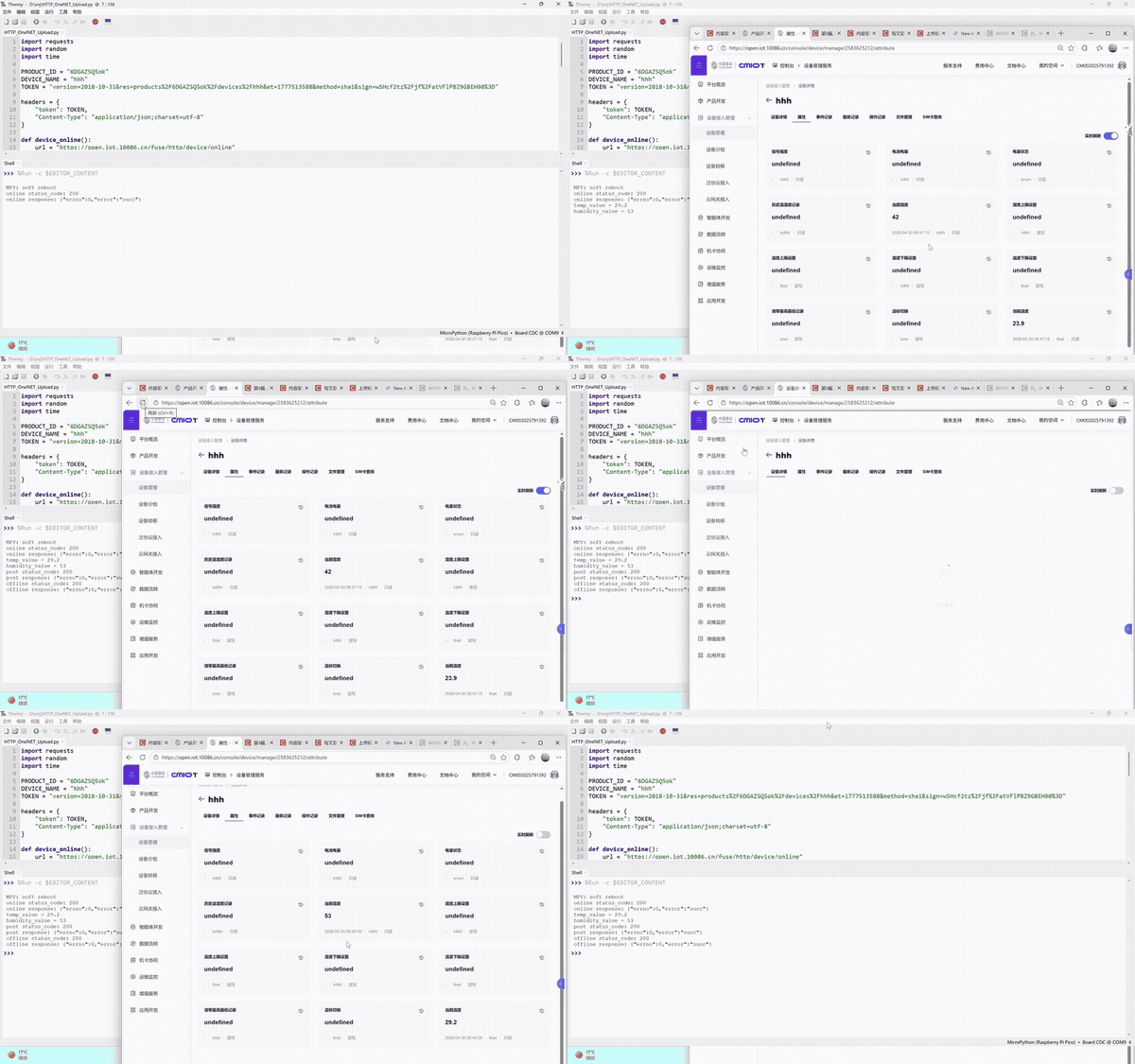
Meanwhile, on the OneNET platform you can see:
Device status changes from offline → online → offline
Temperature and humidity data successfully reported and displayed
Complete log records, cloud upload process with no errors
Demo Video (Screen Recording 2026-04-30 085016 — OneNET platform device status and data upload)
8. Common Issues One-Stop Troubleshooting
8.1 Flashing Related Issues
| Issue Symptom | Troubleshooting Steps |
|---|---|
Computer cannot recognize RPI-RP2 USB drive | 1. Confirm holding BOOTSEL button before plugging in USB 2. Replace with a USB data cable that supports data transmission 3. Change to a different USB port on the computer (prefer USB 2.0 ports) 4. Try using a different computer |
| Development board has no response after dragging firmware | 1. Confirm that the W55RP20 dedicated firmware was downloaded, not the generic Raspberry Pi Pico firmware 2. Re-flash the firmware 3. Check if USB power supply is stable |
8.2 Port Identification Issues
| Issue Symptom | Troubleshooting Steps |
|---|---|
| Cannot find development board port in Thonny | 1. Unplug and replug the USB data cable 2. Close other software that occupies the serial port 3. Check in Device Manager if there is a Board CDC device 4. Re-flash the firmware 5. Install the Raspberry Pi Pico USB driver |
8.3 Network Connection Issues
| Issue Symptom | Troubleshooting Steps |
|---|---|
| Device online failed / reporting failed | 1. Check if TOKEN, PRODUCT_ID, and DEVICE_NAME are correct; 2. Confirm the device can normally access the external network; 3. Check if network time is correct (NTP sync), TOKEN has a time limit; 4. Platform product protocol should select HTTP protocol. |
| Returned code is not 0 | 1. Request parameter format error; 2. JSON format is invalid; 3. Topic path does not match the product. |
| HTTP request timeout | 1. Router firewall restricting external network access; 2. Try using a mobile hotspot for testing; 3. Check if DNS resolution is working properly. |
9. Typical Application Scenarios
Environmental monitoring device temperature and humidity data cloud upload;
Smart home device remote status monitoring;
Industrial sensor data acquisition and cloud storage;
Agricultural greenhouse data remote viewing;
Low-power IoT device periodic data reporting;
Embedded IoT teaching, platform access experiments.
10. W55RP20 Core Advantages Comparison
To give you a more intuitive understanding of the W55RP20's value, we compared the three mainstream embedded Ethernet solutions currently available:
| Comparison Dimension | W55RP20 Integrated Solution | External PHY Chip Solution | External Serial-to-Ethernet Module Solution |
|---|---|---|---|
| BOM Cost | Low (single chip) | Medium-High (MCU + module + peripheral components) | High |
| PCB Area | Small (only Ethernet port circuitry needed) | Large (need to reserve chip and routing space) | High |
| Development Difficulty | Low (one line of code to connect to network) | Medium-High (debug protocol stack, write drivers) | Low |
| Network Stability | Extremely High (WIZnet has focused on hardware TCP/IP protocol stack for 25 years) | Variable (requires high expertise from R&D personnel, must be proficient in protocol stack and network development to debug stably) | Variable (depends on the R&D company's capability level) |
| CPU Resource Utilization | 0% (protocol stack network processing entirely handled by hardware) | Over 50% (protocol stack runs entirely on MCU, occupying related resources) | 0% |
| Hardware Socket Count | 8 independent hardware Sockets | Depends on MCU capability, theoretically supports multi-channel expansion | Generally single-channel transparent transmission |
| Network Throughput | Up to 15Mbps | Depends on MCU capability | Approximately 3-5Mbps |
| Interface Ease of Use | Single-chip integration | MCU needs MII/RMII or similar interfaces | TTL interface |
| Deployment Difficulty | Low (mature MicroPython firmware, most application-layer protocols have library files available, can be flexibly added and deployed) | High (application-layer protocols require manual porting of open-source libraries for adaptation) | Depends on module integration; features without integration require self-encapsulation and parsing |
The W55RP20-EVB-MKR development board already has an onboard Ethernet interface, making it very suitable for beginners to quickly complete Ethernet function verification.
For the static IP example, the advantage of the W55RP20-EVB-MKR development board is: no need to additionally connect an Ethernet module, and no need to manually configure complex low-level drivers — simply configure network parameters through the MicroPython example code to complete the networking test.
11. Summary
This article detailed the complete process of connecting the W55RP20-EVB-MKR to the China Mobile OneNET IoT platform via HTTP protocol for data cloud upload. From firmware flashing, hardware connection, OneNET platform device creation, to the core code implementation for temperature and humidity data reporting and cloud platform verification, we completed the HTTP + OneNET cloud data upload step by step.
Through this article, you should have mastered:
How to flash the dedicated MicroPython firmware for the W55RP20-EVB-MKR
OneNET platform product and device creation process, as well as apikey and data stream template configuration
Using the urequests library to implement HTTP POST data reporting to the OneNET platform
Verifying whether cloud data upload is successful through serial output and OneNET platform data display
Troubleshooting methods for common cloud upload issues (device online failure, reporting error, timeout, etc.)
The W55RP20 chip, with its integrated Ethernet MAC+PHY and hardware TCP/IP protocol stack, demonstrates significant advantages in IoT cloud platform connectivity. Whether as an environmental monitoring device, smart home terminal, or industrial sensor data acquisition node, it can achieve stable and reliable cloud data upload at extremely low cost.
The next tutorial will guide you through MQTT Protocol Basic Communication Verification, explaining how to implement MQTT client access, message publishing, and subscription based on the W55RP20-EVB-Pico hardware protocol stack, laying the foundation for high-performance IoT persistent connection communication.
12. Series Preview and Resource Access
12.1 Series Preview
The next article will bring the MQTT Protocol Basic Communication Verification practical tutorial, explaining how to implement MQTT client access, message publishing, and subscription based on the W55RP20-EVB-Pico hardware protocol stack, laying the foundation for high-performance IoT persistent connection communication.
12.2 Resource Access
Complete code for this article: WIZnet Official Gitee Repository
W55RP20 chip manual: WIZnet Official Documentation Website
Next article: W55RP20-EVB-MKR MicroPython Practice (12): MQTT Protocol Basic Communication Verification