W55RP20-EVB-MKR Module MicroPython Practice (1) - Static IP Configuration and Network Basics
This article is the 1st in the WIZnet W55RP20 chip MicroPython tutorial series, written based on the latest official firmware.
COMPONENTS
PROJECT DESCRIPTION
W55RP20-EVB-MKR Module MicroPython Practice (1) - Static IP Configuration and Network Basics
This article is the 1st in the WIZnet W55RP20 chip MicroPython tutorial series, written based on the latest official firmware. All code has been verified and can be flashed and run directly.Copyright Notice: This article is an original technical article from WIZnet. Please indicate the source when reprinting.
Introduction
In embedded IoT development, network connectivity is always the first step — and the one most prone to pitfalls.
Traditional Ethernet development faces three common pain points:
High Resource Consumption: Software TCP/IP stacks consume significant MCU CPU and memory resources, squeezing the runtime space of the main application and degrading real-time performance
High Development Difficulty: External Ethernet modules require manual wiring, interface timing debugging, and low-level driver development, resulting in a long onboarding cycle for beginners and significant time overhead
High Threshold for Stable Debugging: Software protocol stacks have limited reference materials and difficult problem diagnosis. Achieving long-term stable operation requires deep knowledge of network principles and extensive network debugging experience
W55RP20, as the latest SiP (System-in-Package) chip from WIZnet, integrates a microcontroller and a hardware TCP/IP Ethernet controller into a single chip. TCP/IP protocol stack processing is entirely handled by hardware, consuming zero CPU resources.
At the same time, the W55RP20-EVB-MKR development board is compatible with the Raspberry Pi Pico's pinout and software ecosystem, delivering a "plug-and-play" industrial-grade Ethernet development experience.
This article will guide you through the MicroPython environment setup and static IP configuration testing for the W55RP20 chip. After completing this article, you will master:
W55RP20-EVB-MKR development board firmware flashing and environment configuration
Basic concepts of MicroPython
The meaning of static IP, subnet mask, gateway, and DNS
Configuring a fixed IP address using code
Network connectivity verification and common troubleshooting
Series Tutorial Learning Path
This series consists of 16 articles, progressively covering the full process from basic networking to industrial-grade applications:
Article 1: Static IP Configuration and Network Basics (this article)
Article 2: DHCP Auto-Networking and Network Diagnostics
Article 3: TCP Client Communication
Article 4: TCP Server Communication
Article 5: UDP Unicast Data Communication
Article 6: UDP Multicast/Broadcast Data Communication
Article 7: DNS Domain Name Resolution
Article 8: NTP — Getting Time from the Network
Article 9: HTTP Client Requests
Article 10: HTTP Server Setup
Article 11: HTTP Protocol and OneNET Platform Data Cloud Upload
Article 12: MQTT Protocol Basic Communication Verification
Article 13: MQTT Protocol and Alibaba Cloud Platform Integration
Article 14: MQTT Protocol and OneNET Platform Integration
Article 15: MQTT Protocol and ThingSpeak Platform Integration
Article 16: Modbus Industrial Protocol Communication
We recommend bookmarking this series and following the tutorials step by step. All code will be synced to the official Gitee repository.
MicroPython is a Python language implementation designed for microcontrollers and embedded devices.
Simply put, it allows developers to run Python-like code on development boards, using more concise syntax to accomplish embedded development tasks such as GPIO control, serial communication, SPI communication, I2C communication, and network communication.
Compared to traditional C/C++ embedded development, MicroPython code is easier to read and better suited for quickly verifying hardware functionality and writing network communication examples.
For example, in MicroPython, initializing the network, configuring the IP address, and printing the results can all be done with just a few lines of code.
1.2 Why Use MicroPython to Develop W55RP20-EVB-MKR
After the W55RP20-EVB-MKR development board supports MicroPython development, Ethernet functionality testing becomes much simpler.In this example, you only need a few lines of Python code to accomplish the following:
Initialize the Ethernet functionality of W55RP20-EVB-MKR
Set a static IP address
Configure the subnet mask, gateway, and DNS
Print the current network parameters
View the running results through the Thonny Shell
For beginners, the main advantages of MicroPython are:
Advantage
Description
Concise Code
Syntax close to Python, easy to read and modify
Easy Debugging
Can run and view serial output directly through Thonny
Quick Onboarding
No complex compilation environment required
Suitable for Verification
Ideal for quickly testing GPIO, SPI, I2C, network, and other functions
Teaching-Friendly
Shorter example code, easier to understand the execution flow
This article will use MicroPython to configure a static IP address on W55RP20, helping readers understand how a development board manually connects to a local area network.
2. What is a Static IP
2.1 Difference Between Static IP and DHCP
In a local area network, before a development board can perform network communication such as TCP, UDP, MQTT, or HTTP, it must first have an IP address.
There are two common ways to obtain an IP:
Method
Description
Characteristics
DHCP Auto-Obtain
IP address is automatically assigned by the router
Simple configuration, suitable for quick testing
Static IP Configuration
Manually specify IP, subnet mask, gateway, and DNS
Fixed address, suitable for long-term operation and debugging
The advantage of DHCP is simplicity — no need to manually fill in network parameters.
The advantage of a static IP is that the address is fixed, making it convenient for the computer side to directly access the development board using ping, TCP Client, browser, MQTT tools, etc.
For example, in this article, the development board is set to a fixed address:
192.168.1.188
This way, every time the program runs, the development board will use the same IP address, making subsequent network communication testing more convenient.
<a id="section2-2"></a>2.2 IP, Subnet Mask, Gateway, and DNS Explained
Static IP configuration typically requires setting the following four parameters:
Parameter
Example Value
Description
IP Address
192.168.1.210
The fixed address of the development board in the LAN
Subnet Mask
255.255.255.0
Used to determine the network segment of the current device
Gateway
192.168.1.1
Usually the router address
DNS
192.168.1.1
Used for domain name resolution; a public DNS can also be used
It should be noted that when determining whether devices are on the same network segment, you need to consider both the IP address and the subnet mask.
In the example of this article, the subnet mask is 255.255.255.0, which means the first three octets 192.168.1 are the network number. Therefore, the development board IP should typically be set to 192.168.1.xxx, for example 192.168.1.210.
The xxx part should be an address not occupied by other devices in the LAN to avoid IP address conflicts.
MicroPython firmware specifically written for W55RP20
3.2 Hardware Preparation
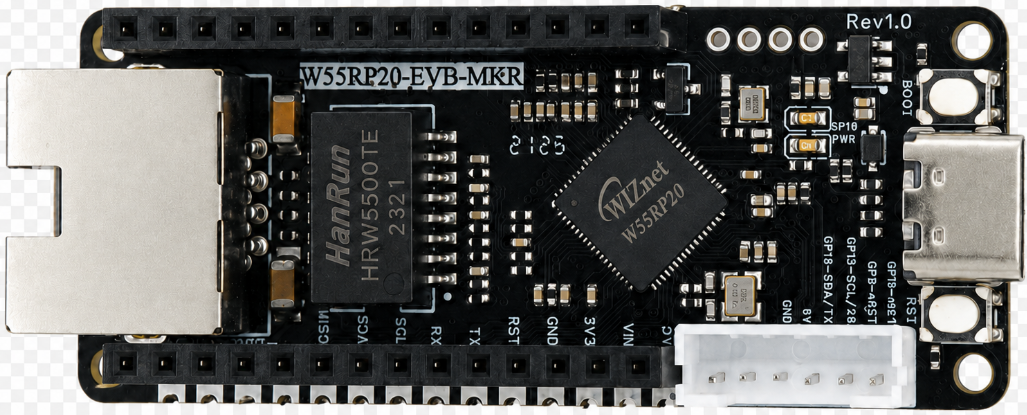
As shown in the figure, the W55RP20-EVB-MKR development board physical image.
The following hardware is required:
W55RP20-EVB-MKR development board × 1
USB data cable × 1
Standard Ethernet cable × 1
Router or switch × 1
Tip: W55RP20-EVB-MKR already has an on-board Ethernet interface, no additional soldering or wiring of other components is needed — plug and play.This greatly reduces the probability of wiring errors and hardware failures.
4. Flashing the W55RP20-Specific MicroPython Firmware
Before running the static IP example, you need to flash the corresponding MicroPython firmware to the W55RP20-EVB-MKR.
Firmware file example:
firmware.uf2
W55RP20-EVB-MKR is compatible with the Raspberry Pi Pico's UF2 firmware flashing method. The steps are as follows:
Connect the development board to the computer using a USB data cable
Press and hold the BOOTSEL button on the development board
Briefly press the RUN button
Release the buttons after the computer recognizes the RPI-RP2 disk
Drag the .uf2 firmware file into the RPI-RP2 disk
The development board will automatically restart, and the firmware flashing is complete
Note: If the computer does not recognize the RPI-RP2 disk, you can try re-plugging the USB data cable, or replace it with a USB cable that supports data transmission.
5. Hardware Connection and Development Environment Configuration
5.1 Hardware Connection
The W55RP20-EVB-MKR connection is extremely simple, requiring only two steps:
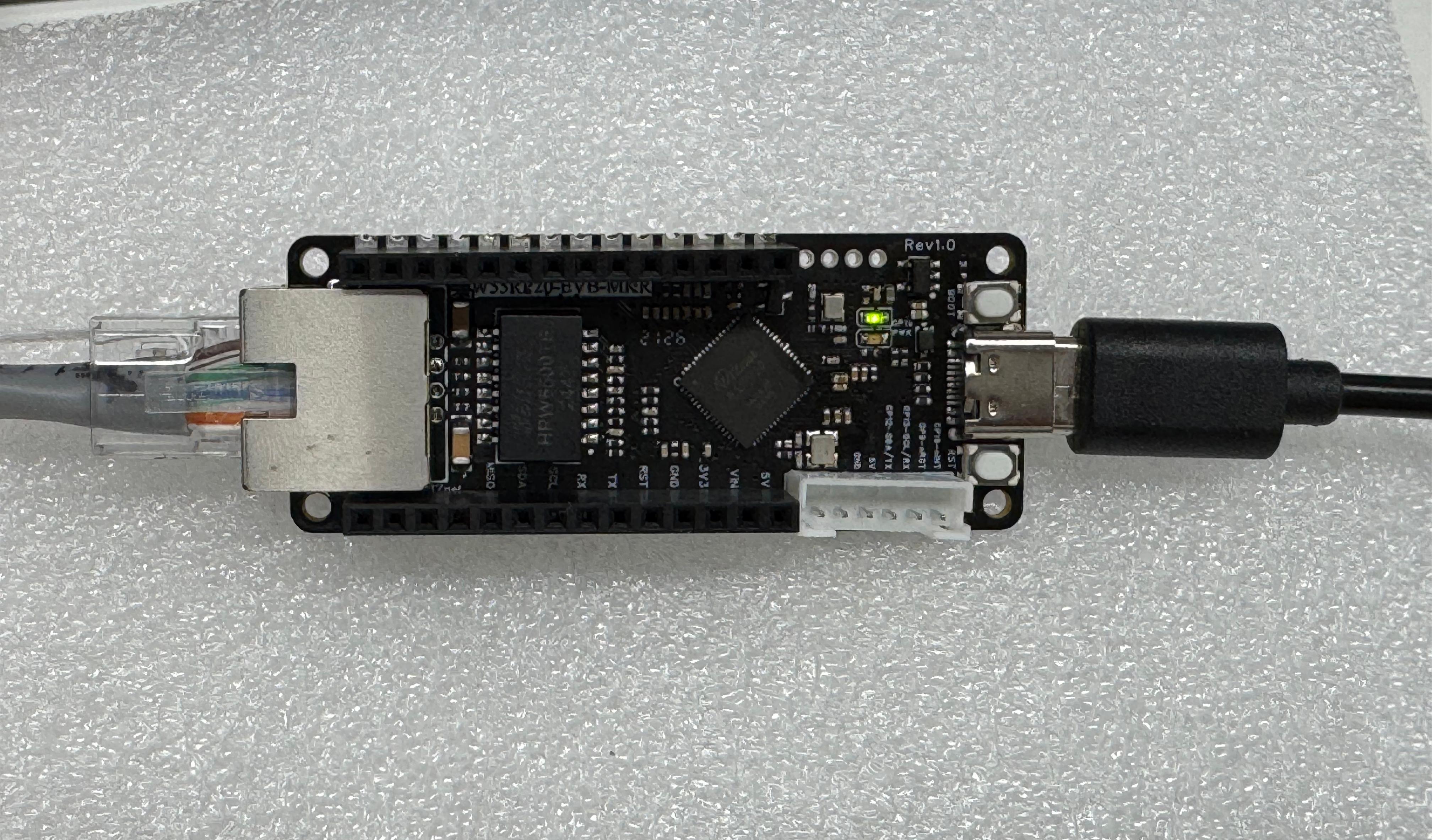
Connect the development board to the computer using a USB data cable (for power supply, code flashing, and serial debugging)
Connect the development board's Ethernet interface to the router's LAN port using an Ethernet cable
As shown in the figure, the hardware connection diagram
5.2 Thonny Development Environment Configuration
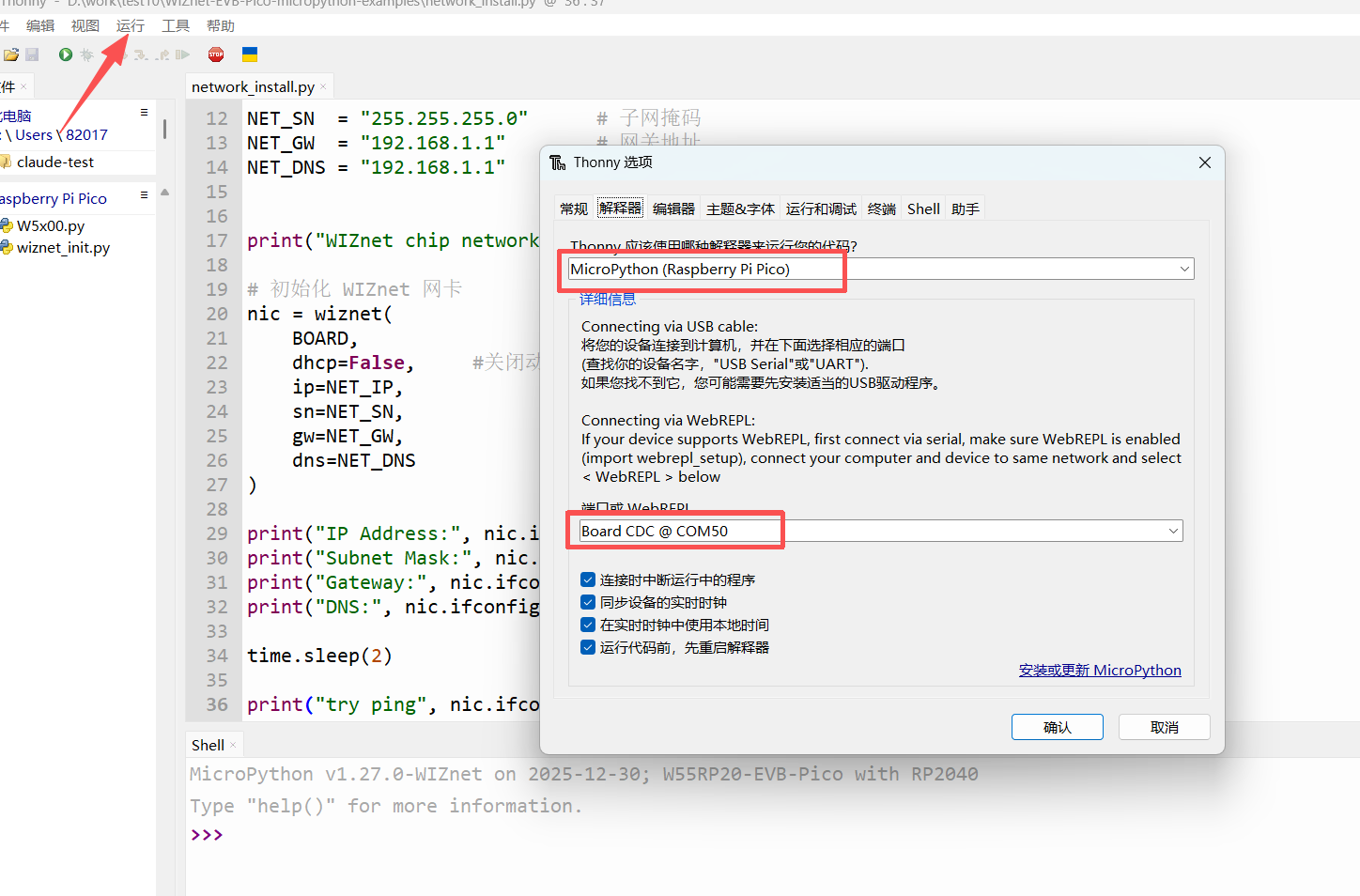
Open Thonny software, click the top menu bar "Run" → "Configure Interpreter"
Switch to the "Interpreter" tab
Select MicroPython (generic) from the "Interpreter" drop-down list
Select the serial port corresponding to W55RP20-EVB-MKR from the "Port" drop-down list (usually displayed as Board CDC @ COMx)
Check "Restart interpreter before running code" and "Synchronize device's real-time clock"
Click "OK" to complete the configuration
The interface after configuration is shown in the following figure:
If the development board does not appear in the port list, please try:
Re-plug the USB data cable
Replace with a USB data cable that supports data transmission
Close other software that occupies the serial port (such as Serial Assistant, Arduino IDE, etc.)
Re-flash the MicroPython firmware
6. Static IP Example Code
6.1 Complete Code
Open the static IP example file, or enter the following code in Thonny:
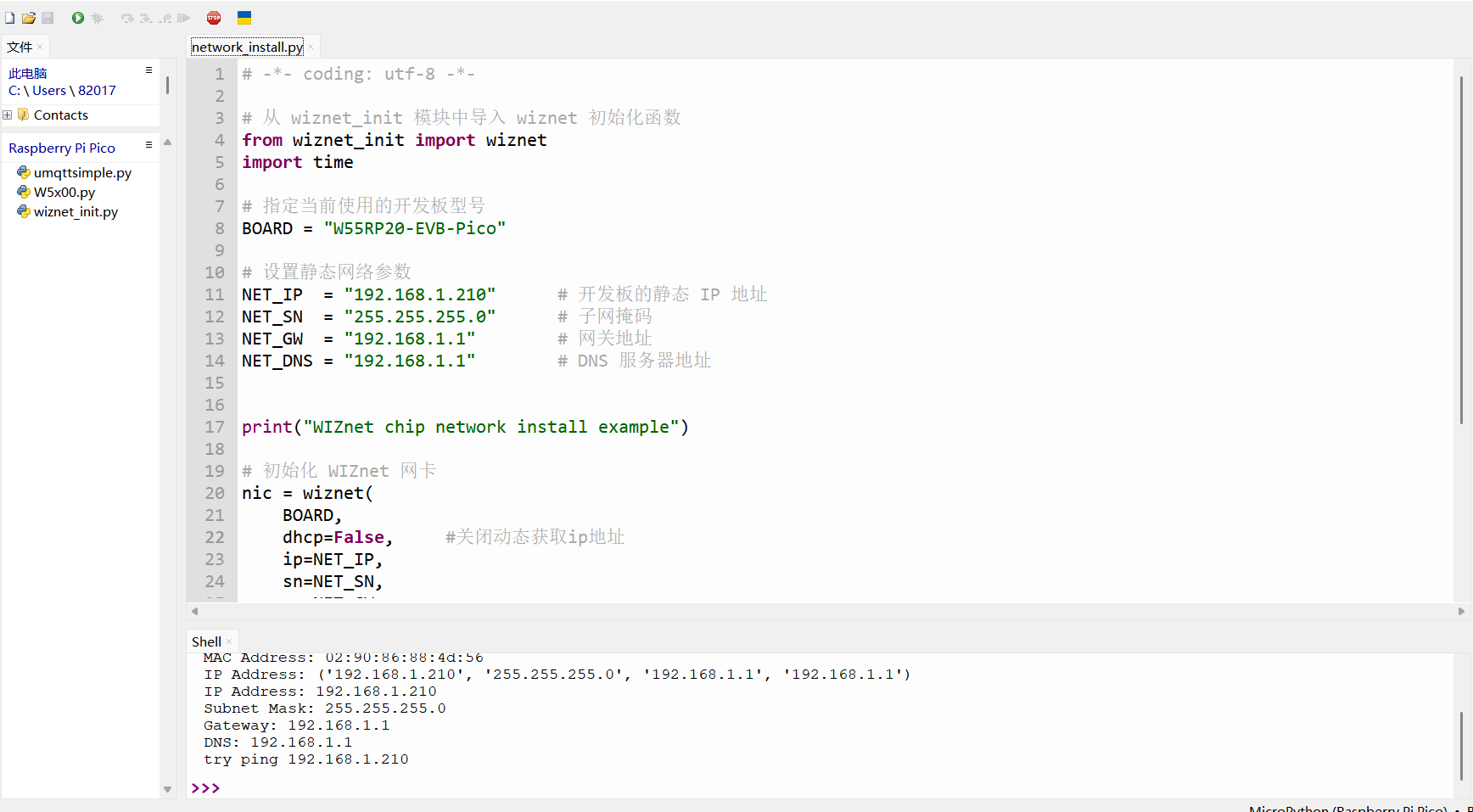
# Import the wiznet initialization function from the wiznet_init module fromwiznet_initimportwiznet importtime # Specify the development board model currently in use BOARD = "W55RP20-EVB-MKR" # Set static network parameters NET_IP = "192.168.1.210"# Static IP address of the development board NET_SN = "255.255.255.0"# Subnet mask NET_GW = "192.168.1.1"# Gateway address NET_DNS = "192.168.1.1"# DNS server address print("WIZnet chip network install example") # Initialize WIZnet network interface nic = wiznet( BOARD, dhcp=False, # Disable DHCP, use static IP ip=NET_IP, sn=NET_SN, gw=NET_GW, dns=NET_DNS ) print("IP Address:", nic.ifconfig()[0]) print("Subnet Mask:", nic.ifconfig()[1]) print("Gateway:", nic.ifconfig()[2]) print("DNS:", nic.ifconfig()[3]) time.sleep(2) print("try ping", nic.ifconfig()[0])
The most critical part is:
dhcp=False
This disables DHCP automatic IP acquisition and instead uses the manually specified static IP parameters.
<a id="section7"></a>7. Running Results and Network Verification
After completing the hardware connection and Thonny development environment configuration, you can run the static IP example program and check whether W55RP20-EVB-MKR has successfully connected to the network using a fixed IP address.
7.1 Serial Output Result Screenshot
Click the run button in Thonny, or press F5 to run the program.
After running, the Shell window will output something like the following:
>>> %Run -c $EDITOR_CONTENT MPY: soft reboot WIZnet chip network install example Waiting for the network to connect... Waiting for the network to connect... MAC Address: 02:90:86:88:4d:56 IP Address: ('192.168.1.210', '255.255.255.0', '192.168.1.1', '192.168.1.1') IP Address: 192.168.1.210 Subnet Mask: 255.255.255.0 Gateway: 192.168.1.1 DNS: 192.168.1.1 try ping 192.168.1.210 >>>
Note: The Waiting for the network to connect... printed during the initial phase of program execution is normal — this is W55RP20 waiting for the network interface connection to complete. The exact number of prints depends on the network environment.
The actual running result is shown in the following figure:
From the running results, we can see that the development board ultimately used the fixed IP address:
192.168.1.210
The network parameters are as follows:
Field
Actual Value
Description
IP Address
192.168.1.210
Fixed IP address of W55RP20-EVB-MKR
Subnet Mask
255.255.255.0
Subnet mask of the current LAN
Gateway
192.168.1.1
Router address
DNS
192.168.1.1
DNS server address
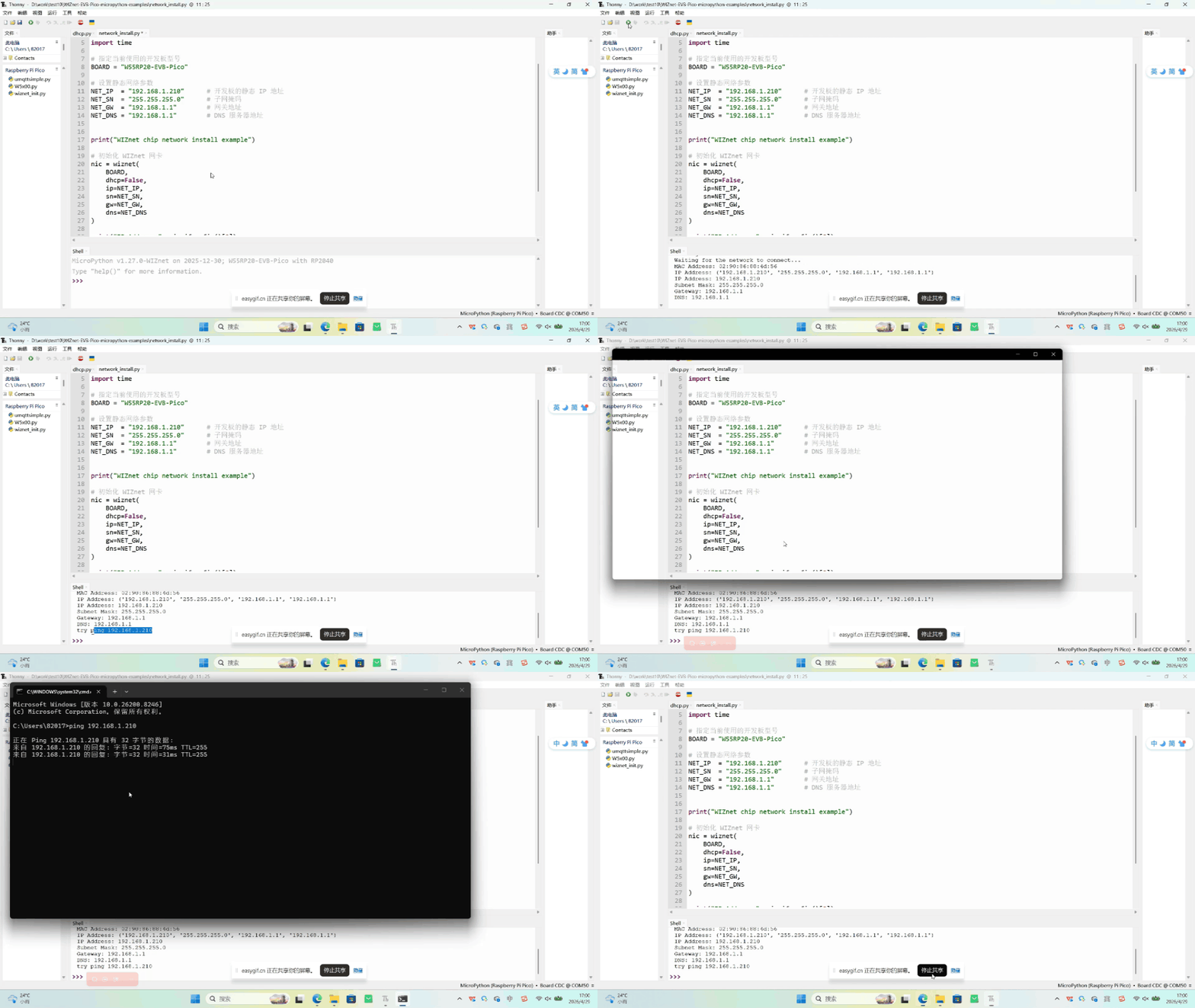
7.2 Static IP Running GIF Demo
The GIF below shows the process of W55RP20-EVB-MKR completing network initialization and printing the fixed IP address after running the static IP example program.
As you can see, after the program runs, it first waits for the network connection, then prints the MAC address and static IP address information. When IP Address displays 192.168.1.210, the static IP configuration is successful.
7.3 Network Connectivity Verification
After the development board obtains a static IP, you can use the ping command on the computer to verify network connectivity.
For example, the development board's IP address in this article is:
192.168.1.210
You can enter the following in the Windows Command Prompt:
ping192.168.1.210
If you receive a reply, it means the computer and the development board are on the same LAN and the network connection is working properly.
Example result:
Reply from 192.168.1.210: bytes=32 time<1ms TTL=64
Reply from 192.168.1.210: bytes=32 time<1ms TTL=64
Reply from 192.168.1.210: bytes=32 time<1ms TTL=64
Reply from 192.168.1.210: bytes=32 time<1ms TTL=64
If you cannot ping successfully, you can first check whether the computer and the development board are on the same network segment, and whether the static IP conflicts with other devices.
8. Common Issues One-Stop Troubleshooting Guide
8.1 Flashing-Related Issues
Issue
Troubleshooting Steps
Computer cannot recognize RPI-RP2 disk
1. Confirm that you pressed and held the BOOTSEL button before connecting USB2. Replace with a USB data cable that supports data transmission3. Try a different USB port on the computer4. Try using another computer
No response from development board after dragging firmware
1. Confirm the firmware matches W55RP20-EVB-MKR2. Re-flash the MicroPython firmware3. Check if USB power supply is stable
8.2 Port Recognition Issues
Issue
Troubleshooting Steps
Cannot find development board port in Thonny
1. Re-plug the USB data cable2. Replace with a USB data cable that supports data transmission3. Close other software that occupies the serial port4. Check Device Manager for new serial port devices5. Re-flash the MicroPython firmware
8.3 Static IP Configuration Issues
Issue
Troubleshooting Steps
Keeps showing Waiting for the network to connect...
1. Check if the Ethernet cable is securely plugged in2. Confirm the Ethernet cable is connected to the router's LAN port3. Try a different router LAN port or Ethernet cable4. Restart the router and development board5. Confirm the firmware and example code match
Cannot communicate after IP address configuration
1. Confirm the development board IP and router are on the same network segment2. Confirm the IP address is not occupied by another device3. Confirm the subnet mask is filled in correctly4. Confirm the gateway address is the router's LAN port address
Computer cannot ping the development board
1. Confirm the computer and development board are connected to the same router2. Check if the computer IP and development board IP are on the same network segment3. Temporarily disable the computer firewall for testing4. Replace the Ethernet cable or router LAN port
Cannot access domain names after filling in DNS
1. Confirm the DNS address is filled in correctly2. Try using the router address as DNS3. You can also try using a public DNS, such as 8.8.8.8
8.4 Static IP Address Conflict
If another device in the LAN is already using 192.168.1.210, it may cause network issues such as ping failure, unstable communication, or IP address conflict warnings.
You can change the static IP in the code to another unoccupied address, for example:
NET_IP = "192.168.1.189"
It is recommended to check the current connected device list in the router's backend and select an unoccupied IP address.
Note: The static IP address must be on the same network segment as the router. For example, if the router address is 192.168.1.1, the development board IP can be set to 192.168.1.xxx.
9. W55RP20 Core Advantages Comparison
To give you a more intuitive understanding of the value of W55RP20, we compared the three mainstream embedded Ethernet solutions currently available:
Extremely High(WIZnet has focused on hardware TCP/IP protocol stacks for 25 years)
Variable(requires high competency from R&D personnel, who need to be familiar with protocol stacks and network development to debug stably)
Variable(depends on the R&D company's capability level)
CPU Resource Usage
0%(protocol stack network processing entirely handled by hardware)
50% or above(protocol stack runs entirely on MCU, occupying related resources)
0%
Hardware Socket Count
8 independent hardware Sockets
Depends on MCU capability, theoretically supports multi-channel expansion
Generally single-channel transparent transmission
Network Throughput
Up to 15Mbps
Depends on MCU capability
Approximately 3-5Mbps
Interface Ease of Use
Single-chip integration
MCU needs MII/RMII or similar interfaces
TTL interface
Deployment Difficulty
Low(mature MicroPython firmware, most application-layer protocols have library files, flexible to add and deploy)
High(application-layer protocols require manual porting of open-source libraries for adaptation)
Depends on module integration; unintegrated features require self-packaging/unpackaging
W55RP20-EVB-MKR development board already has an on-board Ethernet interface, making it very suitable for beginners to quickly complete Ethernet functionality verification.
For the static IP example, the advantage of the W55RP20-EVB-MKR development board is that it does not require connecting an additional Ethernet module, nor does it require manually configuring complex low-level drivers. You only need to configure the network parameters through the MicroPython example code to complete the networking test.
10. Typical Application Scenarios
Static IP is suitable for embedded Ethernet application scenarios that require a fixed access address, for example:
Industrial Data Acquisition Gateway
Remote Monitoring Terminal
Serial-to-Ethernet Device
Smart Building Control Node
Industrial PLC Expansion Module
Sensor Data Acquisition and Upload
In these scenarios, a fixed IP address makes it more convenient for host computers, servers, or other devices to access the development board, reducing connection issues caused by IP address changes.
Summary
This article starts from the basic pain points of embedded Ethernet development and systematically introduces how to complete MicroPython environment setup and static IP configuration based on the W55RP20-EVB-MKR development board. With the support of the WIZnet hardware TCP/IP protocol stack, only a small amount of MicroPython code is needed to complete network initialization and fixed IP address configuration, laying a solid foundation for advanced applications such as DHCP auto-networking, TCP/UDP communication, and MQTT cloud connectivity.
Key takeaways from this article:
MicroPython Development Advantages: Understood the core value of MicroPython as a Python implementation for microcontrollers — concise syntax, convenient debugging, and quick onboarding. Combined with the W55RP20-EVB-MKR development board, Ethernet functionality verification can be completed with just a few lines of code
Static IP and Network Basics: Mastered the difference between static IP and DHCP, the meaning and configuration methods of the four core parameters — IP address, subnet mask, gateway, and DNS, and understood the principles of same-segment determination and address conflict avoidance
Development Environment Setup: Completed W55RP20-specific MicroPython firmware flashing and Thonny IDE configuration, becoming familiar with the UF2 drag-and-drop flashing method and serial connection process
Static IP Code Implementation: Used the wiznet_init module, disabled automatic acquisition with dhcp=False, manually specified IP, subnet mask, gateway, and DNS parameters, and completed the fixed IP address configuration
Network Verification and Troubleshooting: Confirmed network parameters through serial output, verified connectivity using the ping command, and summarized troubleshooting methods for four categories of common issues: flashing, port recognition, IP configuration, and address conflicts
Solution Comparison: Compared the W55RP20 integrated solution, external PHY chip solution, and external serial-to-Ethernet module solution. W55RP20's single-chip integration, 0% CPU usage, and 8 hardware Sockets offer outstanding advantages in industrial scenarios requiring fixed IP
After mastering the static IP configuration technology in this article, your embedded device has the core capability of manually connecting to a LAN. The next article will cover DHCP auto-networking and network diagnostics, enabling the development board to automatically obtain network parameters from the router, further simplifying the deployment process.
11. Series Preview and Resources
11.1 Series Preview
The next tutorial will cover DHCP Auto-Networking and Network Diagnostics for the W55RP20 chip in MicroPython development.
Compared to static IP, DHCP allows the development board to automatically obtain the IP address, subnet mask, gateway, and DNS from the router, making it more suitable for quick testing and beginner onboarding.