


esp32-w5500-network-scanner
esp32-w5500-network-scanner
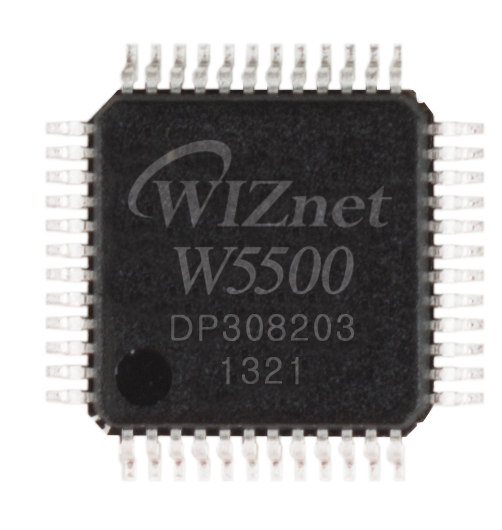
WIZnet - W5500
x 1

Espressif - ESP32
x 1
What the Project Does
이 프로젝트는 현장에서 네트워크 상태를 빠르게 확인하기 위한 장치입니다. 전원을 켜면 ESP32가 Wi-Fi AP를 열고, 사용자는 스마트폰이나 노트북으로 접속한 뒤 브라우저에서 스캔을 시작하실 수 있습니다.
실제 스캔은 W5500이 연결된 유선 네트워크에서 수행됩니다. 이 과정에서 장치의 IP, MAC 주소, 제조사 정보, 열려 있는 포트 등을 수집하고, 결과는 웹 화면에 실시간으로 표시됩니다.
구성 요소를 나누어 보면 다음과 같습니다.
- ESP32: Wi-Fi AP, 웹 서버, WebSocket 처리, 스캔 제어
- W5500: 유선 Ethernet 연결, ARP 응답 확인, 포트 스캔용 소켓 처리
- 웹 UI: 스캔 시작, 결과 표시, 네트워크 정보 확인
- SPIFFS: 정적 웹 파일 저장
상용 관점에서 보면 이 구조는 상당히 실용적입니다. 사용자는 무선으로 편하게 접속하실 수 있고, 실제 대상망과의 통신은 유선으로 분리되어 있어 현장 점검 장비로 활용하시기에 적합합니다.
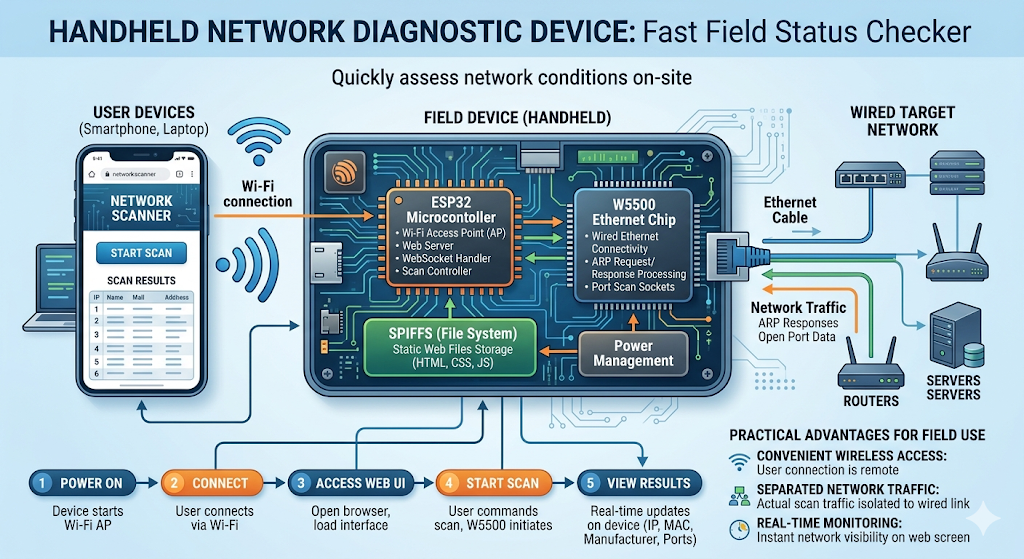
이미지 출처 : AI 생성
W5500이 스캔을 수행하는 방식은 무엇인가요?
이 프로젝트의 핵심은 사용자는 Wi-Fi로 접속하고, 실제 스캔은 W5500이 유선망에서 수행한다는 점입니다.
즉, 사용자 접근 경로와 네트워크 탐지 경로가 분리되어 있습니다.
스캔 과정은 크게 네 단계로 이해하시면 됩니다.
1. Ethernet 인터페이스 초기화
먼저 ESP32가 SPI를 통해 W5500을 초기화하고, W5500을 유선 네트워크 인터페이스로 올립니다.
이 단계가 끝나면 W5500은 대상망에 직접 연결된 장치처럼 동작할 수 있습니다.
2. 활성 장치 탐지
그다음에는 같은 네트워크 대역 안의 IP를 검사하면서, 먼저 응답하는 장치를 빠르게 추려냅니다.
모든 장치를 깊게 분석하기 전에, 현재 살아 있는 호스트를 먼저 선별하는 방식입니다.
3. ARP 기반 MAC 주소 확인
이 프로젝트의 가장 중요한 특징은 여기 있습니다.
W5500은 MACRAW 소켓 모드를 사용해 ARP 프레임을 직접 처리합니다. 덕분에 단순히 “응답이 있는 IP”를 찾는 데서 끝나지 않고, 그 장치의 MAC 주소까지 직접 확인할 수 있습니다.
즉, 이 단계에서는 단순 탐지가 아니라 장치 식별 정확도를 높이는 작업이 이루어집니다.
4. 포트 검사와 결과 표시
활성 장치와 MAC 주소가 확인되면, 이어서 추가 포트 검사를 수행합니다.
이 과정을 통해 해당 장치에서 어떤 서비스가 열려 있는지 확인할 수 있습니다.
포트는 전수 조사하지 않고, 미리 정해 둔 대표 포트 목록만 검사합니다. NetworkScanner.ino에는 TCP 포트 목록이 80, 443, 22, 445, 3389, 21, 23, 53, 110, 143, 25로, UDP 포트 목록이 53, 123, 161, 1900으로 정의되어 있습니다. README는 TCP 포트 스캔을 강조하지만, 코드 기준으로는 UDP probe도 함께 포함되어 있습니다.
수집된 결과는 ESP32를 통해 웹 UI로 전달되고, 사용자는 브라우저에서 실시간으로 확인할 수 있습니다.
정리하면 W5500의 역할은 다음 흐름으로 이해하시면 됩니다.
Ethernet 연결 → 활성 장치 탐지 → ARP 응답 확인 → MAC 주소 수집 → 포트 검사 → 결과 전달
따라서 W5500은 이 프로젝트에서 단순한 통신 칩이 아니라, 유선 네트워크를 직접 탐색하고 식별하는 실행부라고 보시는 것이 맞습니다.
이 프로젝트는 어디에 활용할 수 있나요?
이 프로젝트는 현장 네트워크 점검 장비로 활용하기 좋습니다.
사용자는 Wi-Fi로 장비에 접속하고, 실제 유선 네트워크 스캔은 W5500이 수행하기 때문에 설치·점검·유지보수 작업에 잘 맞습니다.
특히 다음과 같은 용도에 적합합니다.
- 설비 설치 직후 점검: 네트워크에 어떤 장치가 연결되어 있는지 빠르게 확인할 수 있습니다.
- 유지보수 현장 대응: IP, MAC 주소, 열린 포트를 확인해 문제 장비를 찾는 데 도움이 됩니다.
- 제어반·폐쇄망 점검: 외부 PC 없이 브라우저만으로 로컬 유선망 상태를 확인할 수 있습니다.
- 교육 및 데모 장비: ESP32와 W5500을 이용한 임베디드 네트워크 구조를 설명하기 좋습니다.
정리하면, 이 프로젝트는 휴대형 네트워크 진단 도구, 설치/시운전 보조 장비, 유지보수용 점검 장비로 확장하기 좋은 구조입니다.
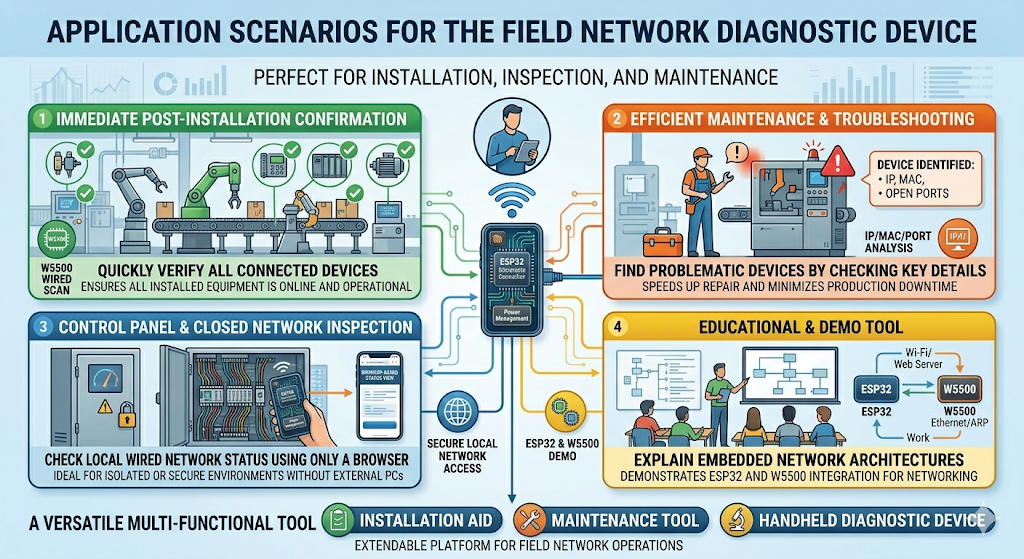
이미지 출처 : AI 생성
Where WIZnet Fits
이 프로젝트에서 사용된 WIZnet 제품은 W5500입니다.
W5500의 역할은 단순히 Ethernet 기능을 추가하는 수준이 아닙니다. 이 프로젝트에서는 W5500이 실제 스캔 대상망에 직접 연결되어 다음과 같은 역할을 수행합니다.
- 유선 Ethernet 인터페이스 제공
- TCP/UDP 소켓 처리
- ARP 요청 및 응답 기반 장치 식별
- MAC 주소 수집
특히 중요한 점은, 이 프로젝트가 W5500을 MACRAW 소켓 모드까지 활용한다는 것입니다. 즉, 단순히 IP 통신만 수행하는 것이 아니라 ARP 프레임을 직접 다루어 장치의 MAC 주소를 확인합니다. 따라서 이 프로젝트에서 W5500은 보조 부품이 아니라, 스캐너의 핵심 네트워크 엔진이라고 보시는 것이 더 정확합니다.
상용 제품 관점에서도 이러한 구성이 유리합니다. ESP32는 UI와 제어 로직에 집중하고, W5500은 유선 링크와 소켓 처리를 담당하므로 전체 구조가 단순해지고 동작 예측도 쉬워집니다. 현장 장비는 “연결이 된다”는 것보다 “항상 같은 방식으로 안정적으로 동작한다”는 점이 더 중요할 때가 많은데, 그런 면에서 W5500은 잘 맞는 선택입니다.
Implementation Notes
이 프로젝트는 실제 코드에서 W5500을 직접 초기화하고 사용합니다. 먼저 SPI 핀을 설정하고, W5500을 Ethernet 인터페이스로 초기화한 뒤 네트워크를 시작합니다.
SPI.begin(18,19,23,CS_PIN);
Ethernet.init(CS_PIN);
if(Ethernet.begin(localMac)==0){
이 부분이 의미하는 바는 분명합니다.
ESP32의 SPI 버스를 통해 W5500을 연결하고, 이후 W5500을 유선 네트워크 인터페이스로 사용하겠다는 뜻입니다. 즉, 이 프로젝트의 Ethernet 기능은 개념적인 설계가 아니라 실제 코드로 구현되어 있습니다.
더 중요한 부분은 MAC 주소 탐지 방식입니다. 이 프로젝트는 W5500의 MACRAW 소켓을 열어 ARP 프레임을 직접 처리합니다.
그리고 ARP 응답을 해석해 대상 장치의 MAC 주소를 추출합니다.
if (et==0x0806 && op==2) {이 구현이 중요한 이유는, 단순히 “응답이 있다”는 수준이 아니라 어떤 장치가 응답했는지 더 정확하게 식별할 수 있기 때문입니다. 상용 환경에서는 장치 목록을 더 신뢰성 있게 보여주는 것이 중요하므로, 이러한 방식은 실제 활용 가치가 높습니다.
정리하면 이 프로젝트의 스캔 흐름은 다음과 같습니다.
- W5500으로 Ethernet 인터페이스를 초기화합니다.
- 활성 호스트를 빠르게 찾습니다.
- ARP 응답을 통해 MAC 주소를 확인합니다.
- 추가 포트를 검사합니다.
- 결과를 WebSocket으로 웹 UI에 실시간 전송합니다.
Practical Tips / Pitfalls
- SPI 배선은 짧고 안정적으로 유지하시는 것이 좋습니다. ESP32와 W5500 사이 배선이 길거나 접지가 불안정하면 간헐적인 통신 오류가 발생할 수 있습니다.
- DHCP 실패 시 대체 IP 설정을 반드시 점검하셔야 합니다. 현장망 대역과 맞지 않으면 스캔 범위가 어긋날 수 있습니다.
- 병렬 스캔 수는 현장망 특성에 맞게 조정하시는 편이 좋습니다. 저사양 장비가 많은 네트워크에서는 너무 공격적인 스캔이 오탐이나 응답 지연을 만들 수 있습니다.
- 링크 업 여부를 먼저 확인하셔야 합니다. 스캔 실패 원인이 코드보다 케이블, 스위치 포트, 협상 상태에 있는 경우가 많습니다.
- 상용 배포 전에는 예외 처리와 복구 경로를 보강하셔야 합니다. 전원 재인가, UI 파일 손상, DHCP 실패, 링크 다운 복구 같은 부분이 중요합니다.
- 소켓 자원 관리가 필요합니다. W5500은 사용 가능한 소켓 수가 정해져 있으므로, 다른 기능을 추가하실 계획이라면 초기 설계 단계에서 분배를 고려하셔야 합니다.
FAQ
1) 왜 이 프로젝트에 W5500이 적합한가요?
이 프로젝트는 사용자는 Wi-Fi로 접속하지만, 실제 탐지는 유선 네트워크에서 수행해야 합니다. W5500은 SPI 기반으로 ESP32에 쉽게 연결할 수 있고, 유선 Ethernet 연결과 소켓 처리를 분리해 맡길 수 있습니다. 또한 이 프로젝트처럼 MACRAW 소켓을 이용한 ARP 처리까지 가능하므로, 단순한 Ethernet 연결용 부품 이상으로 활용하실 수 있습니다.
2) W5500은 ESP32에 어떻게 연결되나요?
이 프로젝트는 SPI 인터페이스로 연결됩니다. 일반적으로 SCK, MISO, MOSI, CS를 사용하며, 코드에서도 SPI 초기화 후 Ethernet.init()으로 W5500을 활성화합니다. 즉, 하드웨어 연결은 단순하지만 실제 동작은 W5500이 별도의 유선 네트워크 인터페이스처럼 동작하는 구조입니다.
3) 이 프로젝트에서 W5500은 정확히 어떤 일을 하나요?
W5500은 대상망에 직접 연결되어 장치 탐지와 포트 확인을 수행합니다. TCP/UDP 연결 시도로 활성 장치를 찾고, ARP 응답을 읽어 MAC 주소를 수집합니다. 쉽게 말씀드리면, 이 프로젝트에서 W5500은 단순한 인터넷 연결 부품이 아니라 실제 스캐닝 엔진입니다.
4) 초보자도 따라 할 수 있나요?
기본적인 Arduino IDE 사용 경험과 ESP32 업로드 경험이 있으시다면 따라 하실 수 있습니다. 다만 상용 수준으로 가져가시려면 단순 동작 재현에서 끝나지 않고, 네트워크 예외 처리, UI 안정성, 전원 복구, 현장 배선 품질 같은 요소까지 고려하셔야 합니다. 따라서 완전 입문용 예제라기보다는 중급 이상 프로젝트의 출발점에 가깝습니다.
5) 이 프로젝트에서 가장 중요한 포인트는 무엇인가요?
가장 중요한 점은 Wi-Fi와 유선 Ethernet의 역할을 분리했다는 것입니다. 사용자는 Wi-Fi로 접근하고, 실제 대상 네트워크와의 통신은 W5500이 맡습니다. 이 구조 덕분에 사용성은 유지하면서도 스캔 신뢰성을 확보할 수 있습니다. 상용 장비 관점에서도 이 분리는 매우 현실적인 선택입니다.
What the Project Does
This project is a device designed to quickly check network status in the field. When powered on, the ESP32 opens a Wi-Fi access point, and the user can connect with a smartphone or laptop and start scanning from a web browser.
The actual scan is performed on the wired network connected through the W5500. During this process, the device collects the target system’s IP address, MAC address, vendor information, and open ports, then displays the results in real time on the web interface.
The system can be broken down into the following components:
- ESP32: Wi-Fi AP, web server, WebSocket handling, and scan control
- W5500: Wired Ethernet connection, ARP response checking, and socket handling for port scanning
- Web UI: Scan start, result display, and network information view
- SPIFFS: Storage for static web files
From a commercial perspective, this structure is highly practical. Users can connect wirelessly for convenience, while communication with the target network remains separated over wired Ethernet, making it well suited for field diagnostic equipment.
Image source: AI-generated
How Does the W5500 Perform Scanning?
The key idea in this project is simple: the user connects over Wi-Fi, but the actual scan is performed by the W5500 on the wired network. In other words, the user access path and the network detection path are separated.
The scanning process can be understood in four main steps.
1. Ethernet Interface Initialization
First, the ESP32 initializes the W5500 over SPI and brings it up as a wired network interface. Once this step is complete, the W5500 can operate like a device directly connected to the target network.
2. Active Host Detection
Next, the scanner checks IP addresses within the same subnet and quickly filters out hosts that respond. Rather than deeply analyzing every device from the start, it first identifies which hosts are currently active.
3. ARP-Based MAC Address Identification
This is the most important part of the project. The W5500 uses MACRAW socket mode to process ARP frames directly. As a result, it does not stop at simply finding an IP address that responds. It can also directly confirm the MAC address of that device.
In other words, this stage is not just about detection. It improves the accuracy of device identification.
4. Port Checking and Result Display
Once an active device and its MAC address have been confirmed, the scanner performs additional port checks. This makes it possible to see which services may be open on that device.
Instead of scanning every possible port, the project only checks a predefined list of representative ports. In NetworkScanner.ino, the TCP port list is defined as:
80, 443, 22, 445, 3389, 21, 23, 53, 110, 143, 25
and the UDP port list is defined as:
53, 123, 161, 1900
The README emphasizes TCP port scanning, but the code also includes UDP probes.
The collected results are then passed to the web UI through the ESP32, allowing the user to monitor them in real time from a browser.
In summary, the W5500 works in the following sequence:
Ethernet connection → Active host detection → ARP response check → MAC address collection → Port inspection → Result delivery
For that reason, the W5500 in this project is not just a communication chip. It is the execution engine that directly explores and identifies the wired network.
Where Can This Project Be Used?
This project is well suited for use as a field network inspection device. Since the user accesses the device over Wi-Fi while the W5500 performs the actual scan on the wired network, it is a good fit for installation, inspection, and maintenance work.
It is especially useful for the following applications:
- Post-installation checks: Quickly verify which devices are connected to the network
- Maintenance support: Help locate problematic devices by checking IP addresses, MAC addresses, and open ports
- Control cabinet or isolated network inspection: Check the status of a local wired network from a browser without an external PC
- Education and demo equipment: Demonstrate an embedded networking structure using ESP32 and W5500
In short, this project has a strong foundation for expansion into a portable network diagnostic tool, a commissioning support device, or a maintenance inspection tool.
Image source: AI-generated
Where WIZnet Fits
The WIZnet product used in this project is the W5500.
Its role goes far beyond simply adding Ethernet capability. In this design, the W5500 is directly connected to the target network and performs the following functions:
- Provides the wired Ethernet interface
- Handles TCP/UDP socket processing
- Identifies devices through ARP request and response handling
- Collects MAC addresses
One especially important point is that this project uses the W5500 in MACRAW socket mode. This means it does not only perform IP-based communication. It directly handles ARP frames to confirm the MAC address of each device. Because of that, the W5500 is not just a supporting component in this project. It is more accurately described as the scanner’s core network engine.
This structure is also advantageous from a commercial product perspective. The ESP32 can focus on the UI and control logic, while the W5500 handles the wired link and socket processing. That separation makes the overall system simpler and more predictable. For field equipment, “works the same way every time” is often more important than simply “connects successfully,” and in that respect the W5500 is a good fit.
Implementation Notes
This project directly initializes and uses the W5500 in real code. It first configures the SPI pins, then initializes the W5500 as an Ethernet interface and starts the network.
Ethernet.init(CS_PIN);
if(Ethernet.begin(localMac)==0){
The meaning of this part is clear. It shows that the ESP32 connects to the W5500 over the SPI bus and uses it as a wired network interface. In other words, the Ethernet functionality in this project is not just conceptual. It is implemented in working code.
An even more important part is the MAC address detection method. The project opens a MACRAW socket on the W5500 and handles ARP frames directly.
It then parses the ARP reply and extracts the target device’s MAC address.
This implementation matters because it allows the system to do more than simply detect that “something responded.” It can more accurately identify which device responded. In commercial environments, that kind of identification accuracy has real practical value because it makes the device list more reliable.
To summarize, the scan flow in this project is as follows:
- Initialize the Ethernet interface through the W5500
- Quickly find active hosts
- Confirm MAC addresses through ARP replies
- Check additional ports
- Send results to the web UI in real time through WebSocket
Practical Tips / Pitfalls
- Keep the SPI wiring short and stable. If the wiring between the ESP32 and W5500 is too long or the grounding is poor, intermittent communication errors may occur.
- Always verify the fallback IP setting if DHCP fails. If it does not match the field network range, the scan scope may become inaccurate.
- Adjust the number of parallel scan tasks to suit the target network. On networks with low-performance devices, overly aggressive scanning can cause false results or response delays.
- Check link status first. In many cases, scan failures are caused by the cable, switch port, or link negotiation rather than the code itself.
- Before deploying commercially, strengthen exception handling and recovery paths. Power cycling, UI file corruption, DHCP failure, and link recovery are all important considerations.
- Socket resource management is also necessary. The W5500 has a limited number of available sockets, so if additional features are planned, allocation should be considered early in the design stage.
FAQ
1) Why is the W5500 a good fit for this project?
In this project, the user connects over Wi-Fi, but actual detection must happen on a wired network. The W5500 can be easily connected to the ESP32 over SPI and can take over both wired Ethernet handling and socket processing. It can also support ARP handling through MACRAW sockets, which makes it more useful than a simple Ethernet add-on.
2) How is the W5500 connected to the ESP32?
The project uses an SPI interface. In general, it uses SCK, MISO, MOSI, and CS, and the code enables the W5500 through Ethernet.init() after SPI initialization. The hardware connection is simple, but in actual operation the W5500 behaves like a separate wired network interface.
3) What exactly does the W5500 do in this project?
The W5500 is directly connected to the target network and handles device detection and port checking. It finds active devices by attempting TCP/UDP communication and collects MAC addresses by reading ARP replies. Put simply, in this project the W5500 is not just an Internet connectivity part. It is the actual scanning engine.
4) Can beginners follow this project?
If you already have basic experience with Arduino IDE and ESP32 uploads, you should be able to follow it. However, bringing it up to a commercial level requires more than simply reproducing the basic behavior. You also need to consider network exception handling, UI stability, power recovery, and field wiring quality. For that reason, it is closer to a starting point for an intermediate-level project than a complete beginner example.
5) What is the most important point in this project?
The most important point is the separation of roles between Wi-Fi and wired Ethernet. The user connects over Wi-Fi, while communication with the target network is handled by the W5500. This structure preserves usability while improving scan reliability. From a commercial equipment standpoint, that separation is a very practical design choice.
-
Github Code
