Alert System Using W5100S-EVB-Pico & AWS SNS
Alert system that operates when the value sent from the sensor exceeds the threshold.
28
Components
Hardware components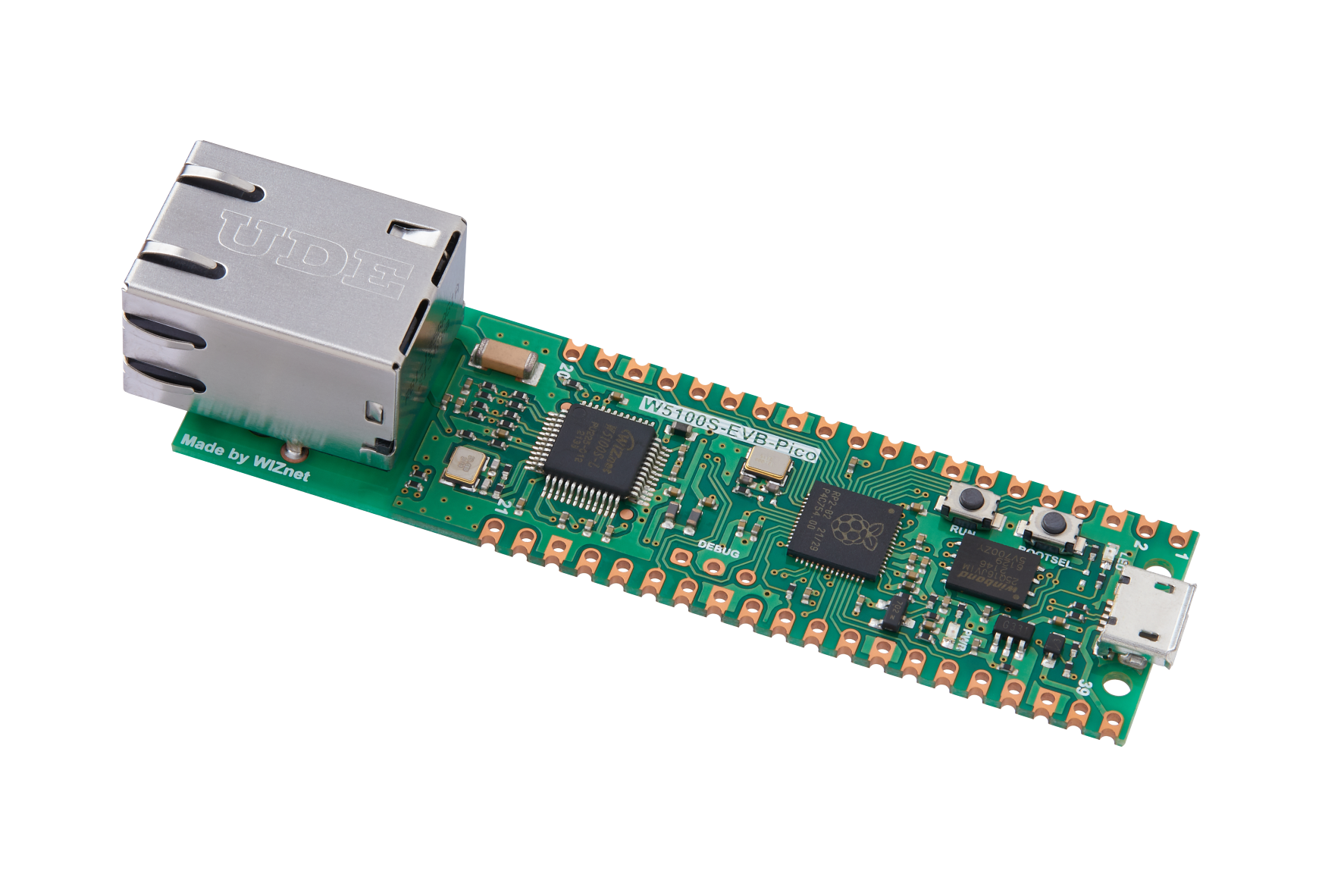
WIZnet - W5100S-EVB-Pico
x 1


AmazonWebServices - AWS IoT
x 1

AmazonWebServices - AWS SNS
x 1
Project description
1. Concept

Alert system that operates when the value sent from the sensor exceeds the threshold.
Connect sensor to W5100S-EVB-Pico and receive sensor data from IoT core. If the sensor value exceeds the threshold, SNS is triggered through the Rule. You will be notified of the route you have set through SNS.
2. How to make
1) Connect W5100S-EVB-Pico to AWS IoT Core
Create Thing
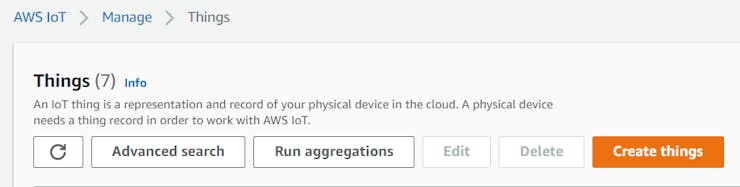
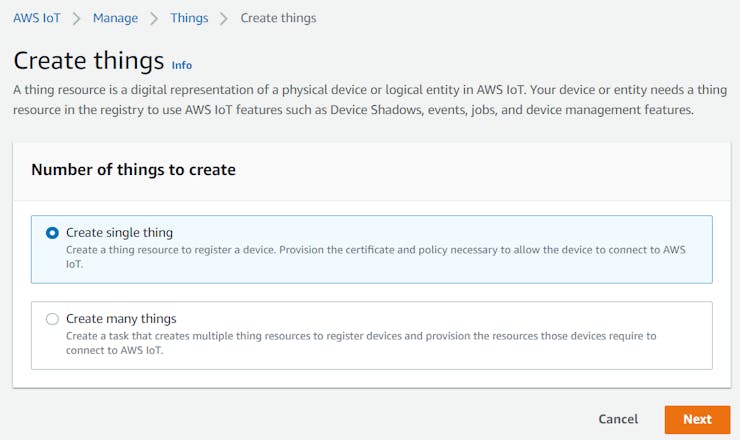


- Create and connect policies for using IoT Core. The policy details are as follows. If you done [Attach policies to certificate] step, you can create thing. And you must save certificate files.
{
    "Version": "2012-10-17",
    "Statement": [
         {
            "Effect": "Allow",
            "Action": "iot:Connect",
            "Resource": "*"
        },
        {
            "Effect": "Allow",
            "Action": "iot:Publish",
            "Resource": "*"
        },
        {
            "Effect": "Allow",
            "Action": "iot:Receive",
            "Resource": "*"
        },
        {
            "Effect": "Allow",
            "Action": "iot:Subscribe",
            "Resource": "*"
        }
    ]
}
Publish MQTT Message
I used the SDK that connects the RP2040 to AWS, and you can use it by following the github link. I changed the thing Name to the thing Name created above.
/* AWS IoT */
#define MQTT_DOMAIN "account-specific-prefix-ats.iot.ap-northeast-2.amazonaws.com"
#define MQTT_PUB_TOPIC "$aws/things/YOUR_THING_NAME/shadow/update"
#define MQTT_SUB_TOPIC "$aws/things/YOUR_THING_NAME/shadow/update/accepted"
#define MQTT_USERNAME NULL
#define MQTT_PASSWORD NULL
#define MQTT_CLIENT_ID "YOUR_THING_NAME"
Set up device certificate and keys.
Put the authentication key saved when creating device in [mqtt_certificate.h] file.
uint8_t mqtt_root_ca[] =
"-----BEGIN CERTIFICATE-----\r\n"
"...\r\n"
"-----END CERTIFICATE-----\r\n";

uint8_t mqtt_client_cert[] =
"-----BEGIN CERTIFICATE-----\r\n"
"...\r\n"
"-----END CERTIFICATE-----\r\n";

uint8_t mqtt_private_key[] =
"-----BEGIN RSA PRIVATE KEY-----\r\n"
"...\r\n"
"-----END RSA PRIVATE KEY-----\r\n
Build SDK file, and put the permware in your device.
The message payload currently sent by the W5100S-EVB-Pico is:
{"temperature":23, "humidity":25}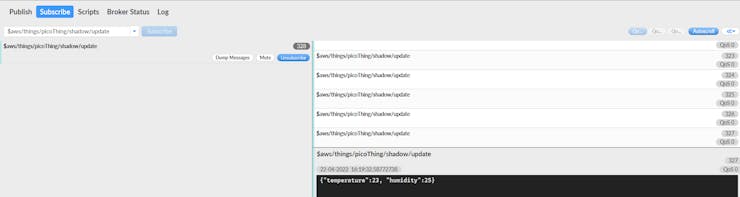
2) Setting AWS SNS
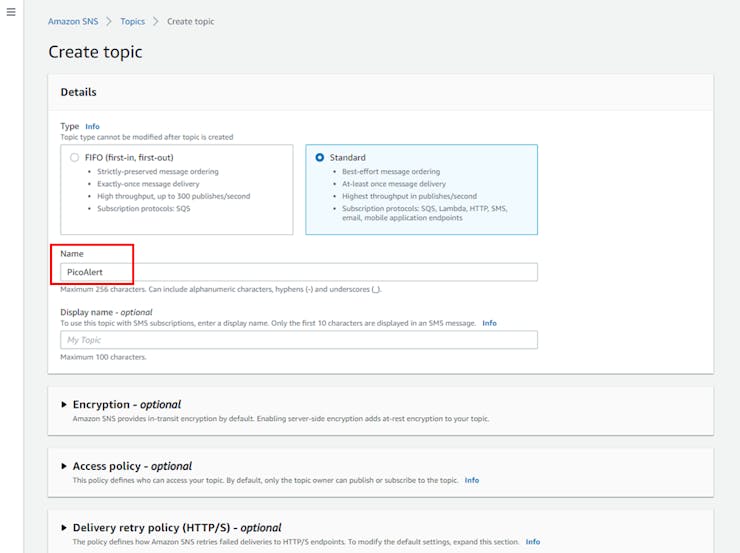
Create Topic

Select type as Standard, and set the topic' name. FIFO type support only SQS.
Create Subscriptions
In topic detail page, click 'create subscription'.
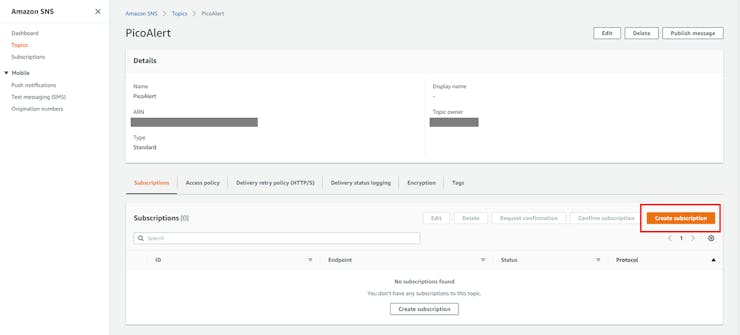
Subscription is alert's endpoint.

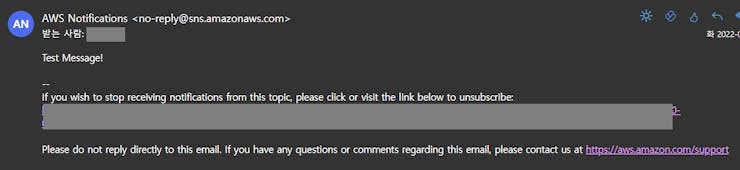
After subscription creation, a verify email is sent to the corresponding email address. You can only use it after confirming it in the email. Go to the mail and click Confirm subscription.

Test SNS
In topic, Click 'Publish message'.
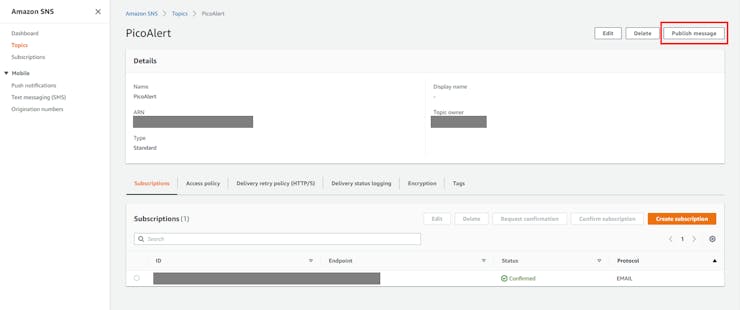
Enter test message in message body and click 'publish message'
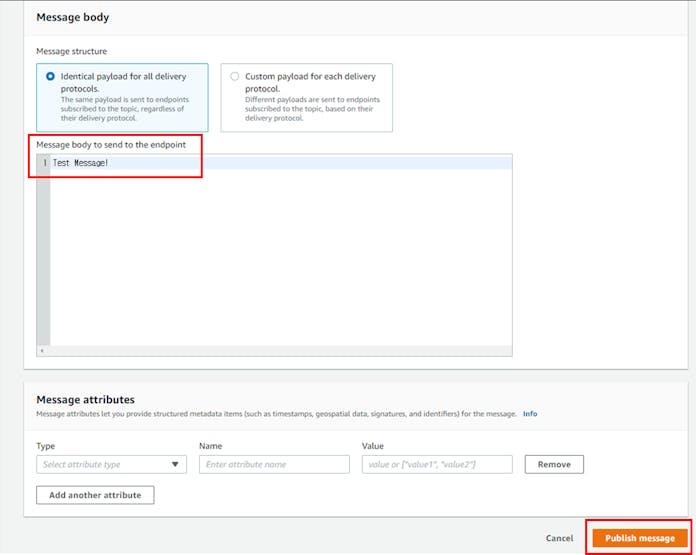
You can check that the test message has been sent to the mail.
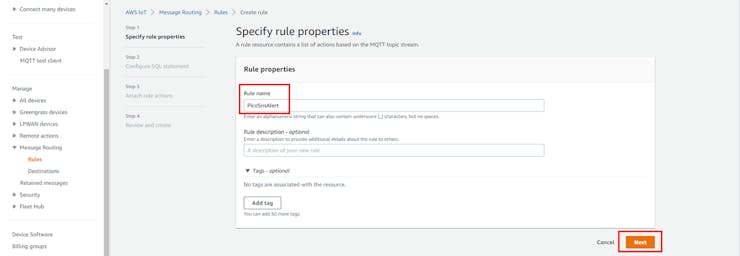
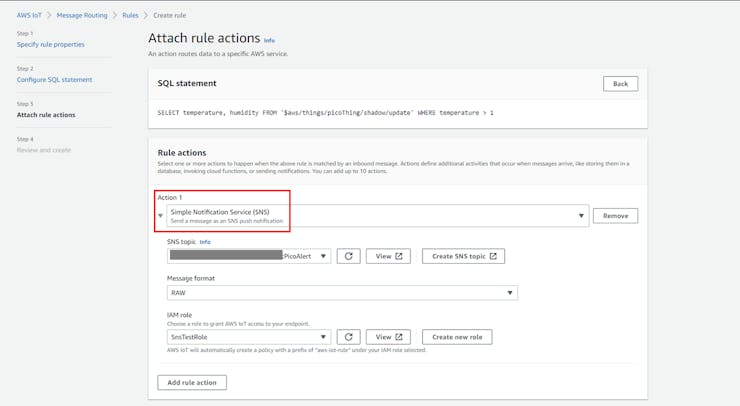
3) Create IoT Core Rule
Click 'Create Rule' and, set the rule name.
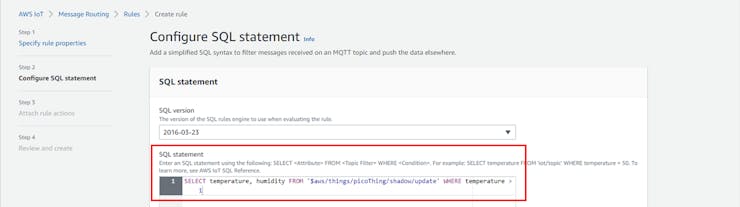
SQL statement's structure is:
SELECT <Attribute> FROM <Topic Filter> WHERE <Condition>It is set to trigger when the temperature value is greater than 1 (a specific value).
In rule action, select SNS and then select the created topic.
4) Test
If you activate the rule created by IoT Core while the device is connected, you will receive a notification with a subscription set according to the sql statement.


