


ioNIC Web Server C Example
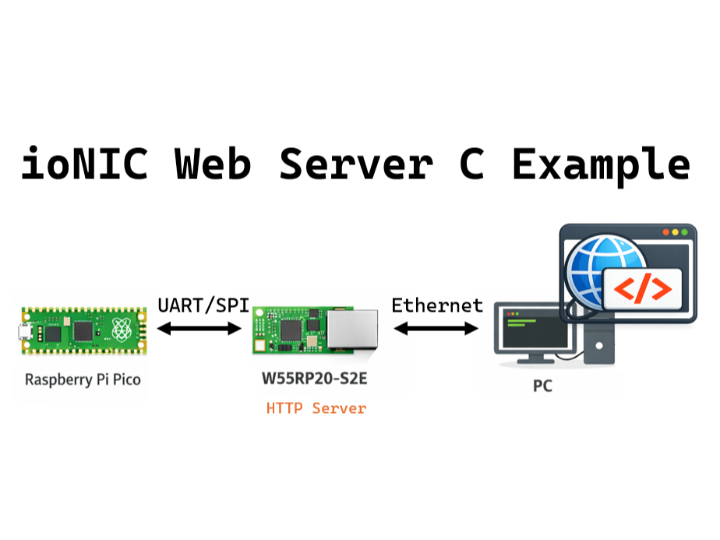
The W55RP20-S2E is configured in HTTP Server mode via UART or SPI and operates to provide web pages when accessed from a PC.
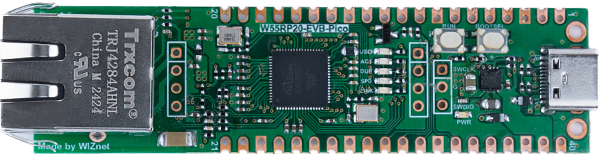
WIZnet - W55RP20-EVB-Pico
x 1

How to Web Server Example
This example demonstrates how the Raspberry Pi Pico transmits AT commands to the W55RP20 S2E board via UART or SPI to configure it as a HTTP Server(TCP Server) device.
When a PC accesses the W55RP20-S2E through a web browser, the module processes the HTTP request and responds with the configured web page.
During this process, the Raspberry Pi Pico controls the configuration and operation of the W55RP20-S2E via UART or SPI.
Step 1: Prepare software
The following serial terminal programs are required for test, download and install from below links.
Step 2: Prepare hardware
1. Connect GPIO13 according to the selected UART/SPI mode of the W55RP20 EVB Pico, as illustrated below.
| GPIO13 Pin | Desc |
| LOW(GND) | UART mode (default) |
| HIGH(3.3V) | SPI mode |
2. Connect the Raspberry Pi Pico and the W55RP20 EVB Pico using jumper wires as shown below, depending on the selected UART/SPI mode.
If UART mode :
| Raspberry Pi Pico | W55RP20 EVB Pico |
| GPIO4 (UART_TX) | GPIO5 (UART_RX) |
| GPIO5 (UART_RX) | GPIO4 (UART_TX) |
| GND | GND |
If SPI mode :
| Raspberry Pi Pico | W55RP20 EVB Pico |
| GPIO2 (SPI_CLK) | GPIO2 (SPI_CLK) |
| GPIO3 (SPI_TX) | GPIO4 (SPI_RX) |
| GPIO4 (SPI_RX) | GPIO3 (SPI_TX) |
| GPIO5 (SPI_CS) | GPIO5 (SPI_CS) |
| GPIO26 (SPI_INT) | GPIO26 (SPI_INT) |
| GND | GND |
3. Connect the Raspberry Pi Pico to your PC (desktop or laptop) using a 5-pin Micro USB cable.
4. Connect the W55RP20 EVB Pico to your PC (desktop or laptop) using a USB Type-C cable.
Step 3: Setup Web Server Example
Raspberry Pi Pico
Please refer to the link below for setting up the Raspberry Pi Pico development environment.
Getting started with Raspberry Pi Pico
We recommend the following versions for successful build and development:
- pico-sdk:
2.2.0 - ARM GCC Toolchain:
14.2.Rel1
To test the HTTP Client example, minor settings shall be done in code.
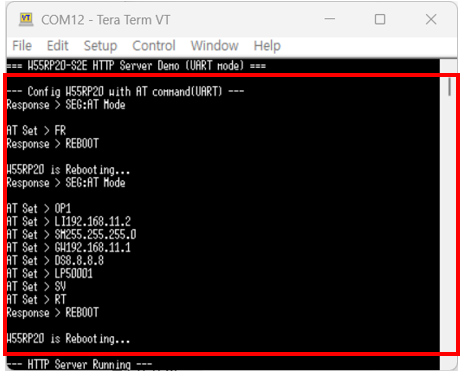
Setup network configuration such as IP and Port etc... in 'http_server_uart/spi.c' in 'http/server/' directory.
    // http_server_uart.c

    printf("\n--- Config W55RP20 with AT command(UART) ---\n");
    {
        enter_command_mode();                   // Send +++ command
        factory_reset();                        // Send Factory Reset command
        // If you send Reset or Factory Reset command, W55RP20 will reboot and enter to default gateway mode
        enter_command_mode();                   // Send +++ command
        at_set("OP", "1");                      // Set W55RP20 TCP server mode
        at_set("LI", "192.168.11.2");           // Set W55RP20's Local IP : 192.168.11.2
        at_set("SM", "255.255.255.0");          // Set W55RP20's Subnet mask : 255.255.255.0
        at_set("GW", "192.168.11.1");           // Set W55RP20's Gateway : 192.168.11.1
        at_set("DS", "8.8.8.8");                // Set W55RP20's DNS Address : 8.8.8.8
        at_set("LP", "50001");                  // Set W55RP20's Local Port(HTTP) : 50001
        at_set("SV", NULL);                     // Send Save command
        sleep_ms(100);
        device_reset();                         // Send Reset command
        uart_rx_flush();
    }
// http_server_spi.c
printf("\n--- Config W55RP20 with AT command(SPI) ---\n");
{
at_set("FR", NULL); // Send Factory Reset command
printf("W55RP20 is Rebooting...\n");
sleep_ms(3000);
at_set("OP", "1"); // Set W55RP20 TCP server mode
at_set("LI", "192.168.11.2"); // Set W55RP20's Local IP : 192.168.11.2
at_set("SM", "255.255.255.0"); // Set W55RP20's Subnet mask : 255.255.255.0
at_set("GW", "192.168.11.1"); // Set W55RP20's Gateway : 192.168.11.1
at_set("DS", "8.8.8.8"); // Set W55RP20's DNS Address : 8.8.8.8
at_set("LP", "50001"); // Set W55RP20's Local Port(HTTP) : 50001
at_set("SV", NULL); // Send Save command
sleep_ms(100);
at_set("RT", NULL); // Send Reset command
printf("W55RP20 is Rebooting...\n");
sleep_ms(3000);
spi_rx_pending = false;
}In the http/ directory, the webserver.h file is used to define the HTML page that will be displayed in a web browser.
// webpage.h

#define index_page  "<!DOCTYPE html>"\
                    "<html>"\
                    "<head>"\
                        "<meta charset=\"UTF-8\">"\
                        "<title>ioNIC Web Server</title>"\
                    "</head>"\
                    "<body>"\
                        "<h1>ioNIC Web Server</h1>"\
                    "</body>"\
                    "</html>"
W55RP20 EVB Pico
Please refer to the link below for instructions on how to use the W55RP20 S2E.
Getting started with W55RP20 EVB Pico
Step 4: Build and Download
Raspberry Pi Pico
To build the project in Visual Studio Code, select one of the three methods below:
1. Click Build in the bottom status bar
2. Press F7 on your keyboard
3. Run the following command in the Visual Studio Code terminal
$ mkdir build
$ cd ./build
$ cmake -G "NMake Makefiles" ..
$ nmake
When the build is completed, the '{example_name}_uart.uf2' file is generated for UART mode, and the '{example_name}_spi.uf2' file is generated for SPI mode in the {Repository}/build/loopback/ directory. Download the UF2 file to the Raspberry Pi Pico.
W55RP20 EVB Pico
Following Step 3 in the Getting Started Guide, program the W55RP20 EVB Pico with the UF2 file and write the MAC address to complete the setup.
Step 5: Run
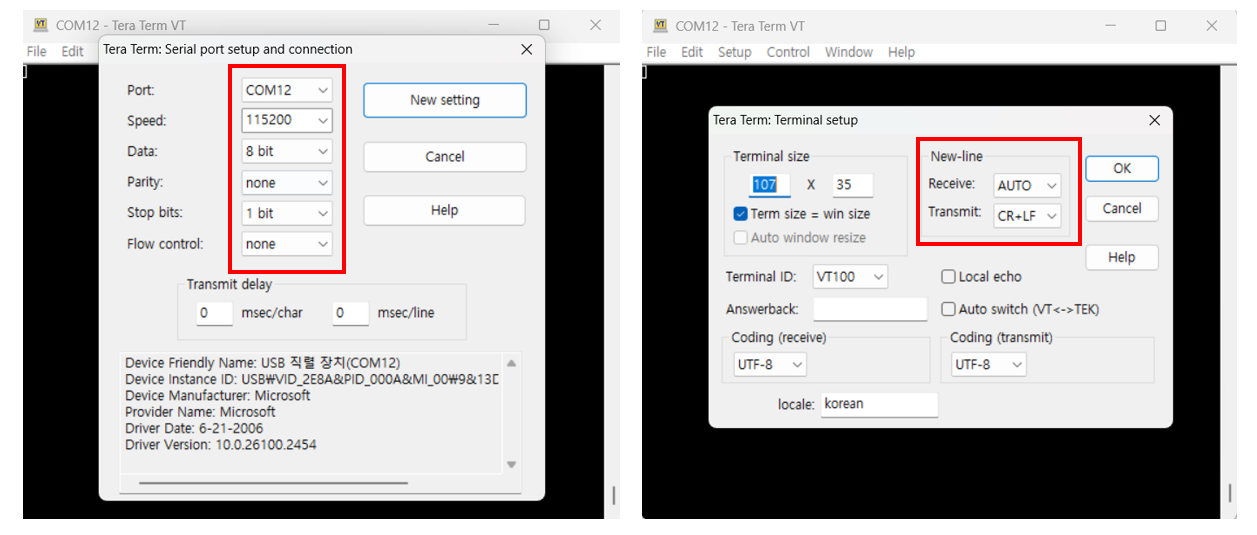
Connect to the serial COM port of the Raspberry Pi Pico using Tera Term.
Step 5.1: UART mode
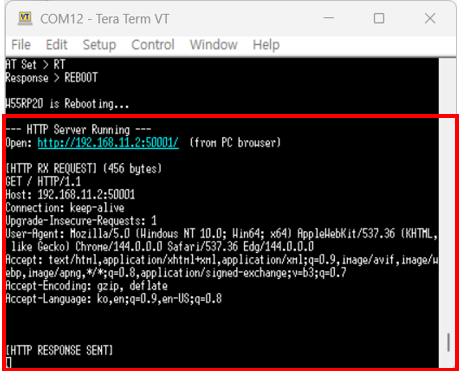
1. Configuring the W55RP20 S2E as a HTTP Server(TCP Server) and Setting Up the Network with AT command.
2. When a PC accesses the IP address and port of the W55RP20 S2E through a web browser,
an HTTP request is sent to the W55RP20 S2E over Ethernet.
The W55RP20 S2E forwards the HTTP request received over Ethernet directly to the Raspberry Pi Pico via the UART interface.
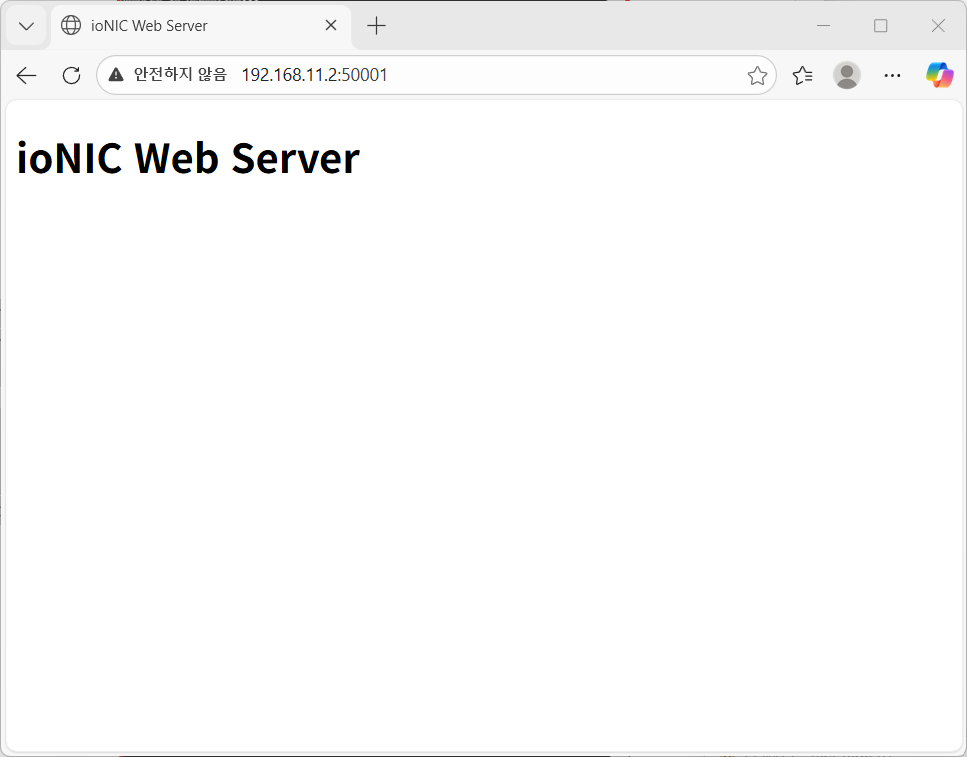
Based on the received request, the Raspberry Pi Pico constructs an HTTP-formatted response using a preconfigured HTML file and sends it to the W55RP20 S2E via UART.
The W55RP20 S2E then forwards the HTTP response message received over UART to the PC over Ethernet.

3. The corresponding HTML page is displayed in the PC’s web browser.
Step 5.2: SPI mode
1. Configuring the W55RP20 S2E as a HTTP Server(TCP Server) and Setting Up the Network with AT command.
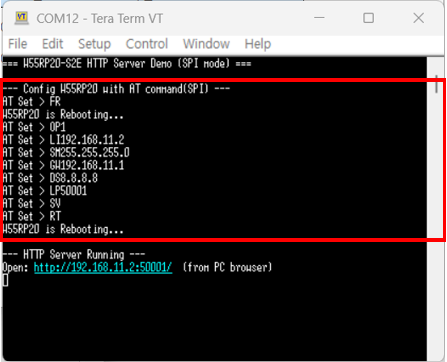
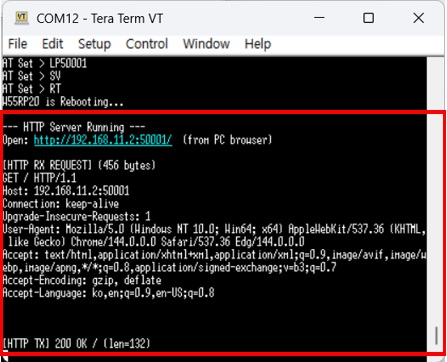
2. When a PC accesses the IP address and port of the W55RP20 S2E through a web browser,
an HTTP request is sent to the W55RP20 S2E over Ethernet.
The W55RP20 S2E forwards the HTTP request received over Ethernet directly to the Raspberry Pi Pico via the SPI interface.
Based on the received request, the Raspberry Pi Pico constructs an HTTP-formatted response using a preconfigured HTML file and sends it to the W55RP20 S2E via SPI.
The W55RP20 S2E then forwards the HTTP response message received over SPI to the PC over Ethernet.
3. The corresponding HTML page is displayed in the PC’s web browser.
-
ioNIC WebServer C example


