


Getting Started with WSM-ESPHome
ESPHome Integration Guide for WIZnet Ethernet (LwIP & TOE)
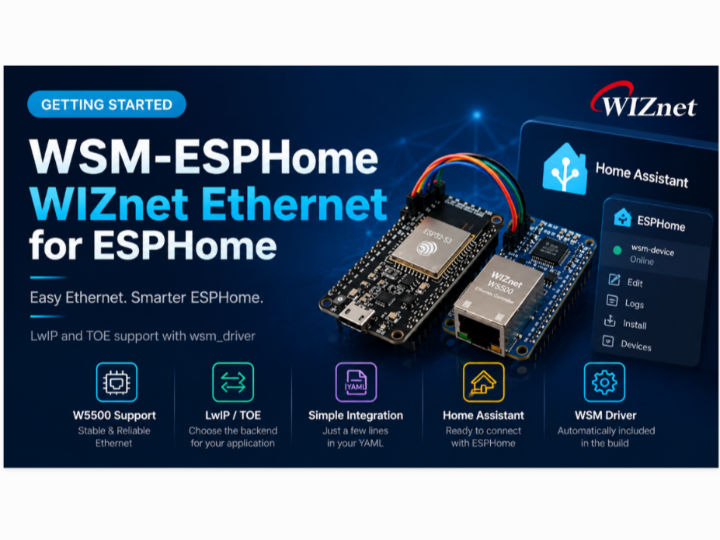
Table of Contents
0.Overview
1.What Is WSM-ESPHome?
2.WSM-ESPHome Architecture
3.Supported Hardware and Requirements
4.LwIP vs TOE Backend
5.Adding WSM-ESPHome to ESPHome
6.Running WSM-ESPHome with LwIP
7.Running WSM-ESPHome with TOE
8.Using WSM-ESPHome with Home Assistant
9.Where to Go Next
0.Overview
WSM-ESPHome brings WIZnet Ethernet support based on wsm_driver to ESPHome.
GitHub Repository
https://github.com/Wiznet/wsm-esphome
WSM Driver
https://github.com/Wiznet/wsm_driver
ESPHome allows ESP32-based devices to be configured using YAML and integrated with Home Assistant without developing the entire firmware application manually.
WSM-ESPHome extends this environment with a new Ethernet implementation:
ethernet:
  type: WSM_W5500
  backend: lwip
or:
ethernet:
  type: WSM_W5500
  backend: toe
This allows to operate using either:
- LwIP — ESP32-S3 software TCP/IP stack
- TOE — W5500 hardware TCP/IP stack
The user selects the backend with a single YAML option.
WSM-ESPHome also handles the integration with wsm_driver. Users do not need to clone wsm_driver, manage ioLibrary manually, or maintain a separate ESPHome fork.
This guide shows how to add WSM-ESPHome to ESPHome, configure the Ethernet interface, select the LwIP or TOE backend, and connect the device to Home Assistant.
Release used in this guide:
v0.1.0
1.What is WSM-ESPHome?
WSM-ESPHome is an ESPHome External Component for WIZnet Ethernet devices based on wsm_driver.
It adds the following Ethernet type to ESPHome:
type: WSM_W5500WSM_W5500 is an implementation type, not a board name.
It identifies the W5500 implementation that uses WIZnet's wsm_driver and supports two selectable network backends.
ESPHome Application
        │
        │  Ethernet / Socket API
        ▼
   WSM-ESPHome
        │
        ▼
    wsm_driver
        │
        ├── LwIP Backend
        │      │
        │      └── esp_eth + esp_netif + LwIP
        │
        └── TOE Backend
               │
               └── W5500 Hardware TCP/IP
The existing ESPHome Ethernet implementation is still available:
ethernet:
  type: W5500
WSM-ESPHome adds another implementation:
ethernet:
  type: WSM_W5500
The main difference is that WSM_W5500 uses wsm_driver and lets the user choose between LwIP and W5500 TOE.
Why an External Component?
WSM-ESPHome is currently distributed as an ESPHome External Component.
Therefore, users do not need to:
- fork or clone the ESPHome repository,
- clone
wsm_driver, - manually add ioLibrary,
- manage Git submodules,
- modify ESPHome source code.
The required component is downloaded automatically during the ESPHome build process.
The user only needs to add the WSM-ESPHome repository to the YAML configuration.
2.WSM-ESPHome Architecture
WSM-ESPHome supports two different ways to run Ethernet.
LWIP Backend
ESPHome
   │
   ▼
LwIP Socket
   │
   ▼
esp_netif
   │
   ▼
esp_eth
   │
   ▼
wsm_driver
   │
   ▼
W5500 MACRAW
   │
   ▼
Ethernet
In this mode, the W5500 is used for Ethernet communication while the TCP/IP stack runs on the ESP32-S3.
This provides the normal ESPHome networking environment, including mDNS and Home Assistant discovery.
TOE Backend
ESPHome
   │
   ▼
BSD / POSIX Socket
   │
   ▼
wsm_driver
   │
   ▼
W5500 Hardware Socket
   │
   ▼
W5500 TCP/IP Offload Engine
   │
   ▼
Ethernet
In TOE mode, TCP/IP processing is handled by the W5500 hardware instead of the ESP32-S3 software TCP/IP stack.
The W5500 provides 8 hardware sockets shared by the system.
Because the TOE data path does not use esp_netif, mDNS is not available in this mode.
3.Supported Hardware and Requirements
Current Supported Hardware
WSM-ESPHome v0.1.0 has been hardware-verified with:
| Board | MCU | Ethernet | LwIP | TOE |
|---|---|---|---|---|
| ESP32 W5500 DevKit | ESP32-S3 | W5500 | Supported | Supported |
The validated W5500 connection is:
| Signal | GPIO |
|---|---|
| SCLK | GPIO12 |
| MOSI | GPIO11 |
| MISO | GPIO13 |
| CS | GPIO10 |
| INT | GPIO14 |
| RESET | GPIO9 |
SPI configuration:
clock_speed: 33MHz
interface: spi2
Planned WSM Hardware
The project is designed to expand to WIZnet ESP32-S3-based SoM products.
| Product | MCU | Ethernet | Status |
|---|---|---|---|
| WSM-W55E | ESP32-S3 | W5500 | Planned |
| ESP W6300 DevKit | ESP32-S3 | W6300 | Planned |
| WSM-W63E | ESP32-S3 | W6300 | Planned |
WSM-W55E uses the same ESP32-S3 + W5500 combination. Its board-specific GPIO mapping will be handled separately when hardware support is validated.
Software Requirements
| Item | Requirement |
|---|---|
| ESPHome | 2026.9.0 or later |
| ESP-IDF | 6.0.1 |
| Framework | ESP-IDF |
| MCU | ESP32-S3 |
| wsm_driver | v1.1.1 |
| WSM-ESPHome | v0.1.0 |
wsm_driver is downloaded automatically during the build.
4.LwIP vs TOE Backend
WSM-ESPHome lets the user select the network architecture with one YAML option:
backend: lwipor:
backend: toeThe main differences are:
| Feature | LwIP | TOE |
|---|---|---|
| TCP/IP stack | ESP32-S3 LwIP | W5500 hardware |
| Socket implementation | Software sockets | W5500 hardware sockets |
| DHCP | Supported | Supported |
| Static IP | Supported | Supported |
| DNS | Supported | Supported |
| mDNS | Supported | Not supported |
.local hostname | Supported | Not supported |
| Home Assistant discovery | Supported | Manual IP registration |
| Native API | Supported | Supported |
| OTA | Supported | Supported |
| Hardware socket limit | No W5500 TOE limit | 8 sockets |
| IP version | LwIP configuration dependent | IPv4 only |
For standard ESPHome and Home Assistant usage, LwIP provides the conventional ESPHome networking path.
TOE is useful when the application specifically requires the W5500 hardware TCP/IP stack.
5.Adding WSM-ESPHome to ESPHome
Add the following block to the ESPHome YAML configuration:
external_components:
  - source:
      type: git
      url: https://github.com/Wiznet/wsm-esphome
      ref: v0.1.0
    components:
      - ethernet
      - mdns
That's all that is required to install WSM-ESPHome.
During the build:
ESPHome
   │
   ├── downloads WSM-ESPHome v0.1.0
   │
   └── WSM_W5500 selected
             │
             ▼
       wsm_driver v1.1.1
             │
             ▼
       Build with ESP-IDF
For release builds, pin a release tag such as:
ref: v0.1.0rather than:
ref: mainThis keeps the build reproducible even when the repository's development branch changes.
6.Running WSM-ESPHome with LwIP
The following is a minimal LwIP configuration for the ESP32 W5500 DevKit.
esphome:
  name: wsm-w5500-lwip

external_components:
  - source:
      type: git
      url: https://github.com/Wiznet/wsm-esphome
      ref: v0.1.0
    components:
      - ethernet
      - mdns

esp32:
  board: esp32-s3-devkitc-1
  framework:
    type: esp-idf
    version: 6.0.1

logger:

ethernet:
  type: WSM_W5500
  backend: lwip

  clk_pin: GPIO12
  mosi_pin: GPIO11
  miso_pin: GPIO13
  cs_pin: GPIO10
  interrupt_pin: GPIO14
  reset_pin: GPIO9

  clock_speed: 33MHz
  interface: spi2

api:

ota:
  - platform: esphome
The important configuration is:
ethernet:
  type: WSM_W5500
  backend: lwip
Build and install the firmware.
With ESPHome CLI:
esphome config wsm-w5500-lwip.yaml
esphome compile wsm-w5500-lwip.yaml
esphome upload wsm-w5500-lwip.yaml --device COM5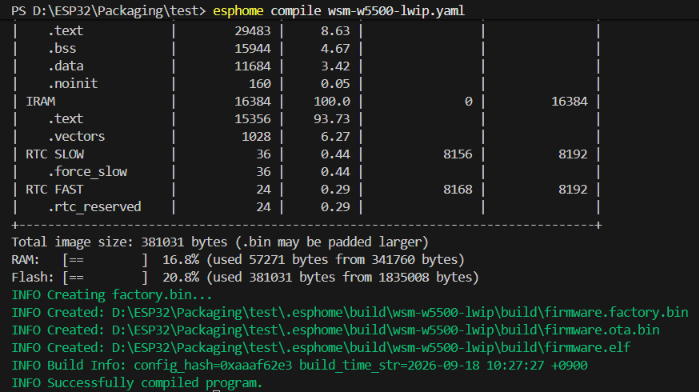
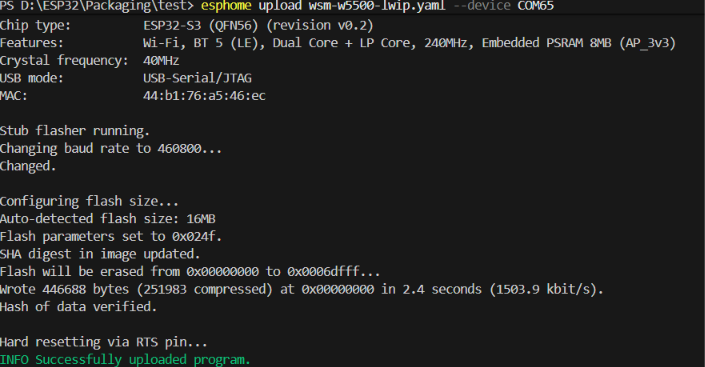
After booting, check that the log contains the expected Ethernet information.
For example:
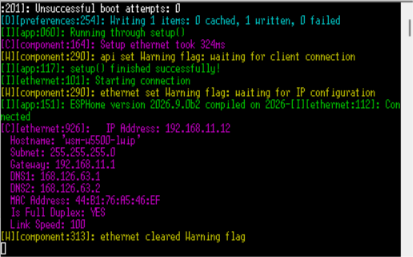
Success Criteria
LwIP setup is successful when:
WSM_W5500 (wsm_driver, LwIP)is shown,- Ethernet link is connected,
- an IP address is assigned,
- the link operates at 100 Mbps Full Duplex,
- the device can be reached over the network.
7. Running WSM-ESPHome with TOE
To use the W5500 hardware TCP/IP stack, change the backend to:
backend: toeTOE does not support mDNS, so it must also be disabled.
mdns:
  disabled: true
A complete configuration is:
esphome:
  name: wsm-w5500-toe

external_components:
  - source:
      type: git
      url: https://github.com/Wiznet/wsm-esphome
      ref: v0.1.0
    components:
      - ethernet
      - mdns

esp32:
  board: esp32-s3-devkitc-1
  framework:
    type: esp-idf
    version: 6.0.1

logger:

ethernet:
  type: WSM_W5500
  backend: toe

  clk_pin: GPIO12
  mosi_pin: GPIO11
  miso_pin: GPIO13
  cs_pin: GPIO10
  interrupt_pin: GPIO14
  reset_pin: GPIO9

  clock_speed: 33MHz
  interface: spi2

mdns:
  disabled: true

api:

ota:
  - platform: esphome
After booting, check for:
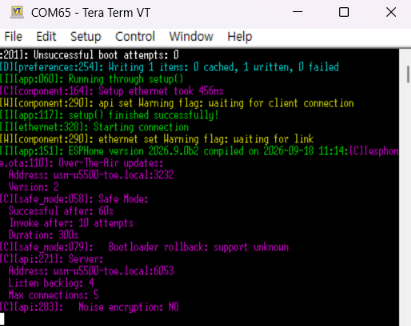
Stable IP Address
Because TOE does not provide mDNS, a stable IP address is strongly recommended when using Home Assistant or OTA.
For example:
ethernet:
  type: WSM_W5500
  backend: toe

  # Ethernet pins...

  manual_ip:
    static_ip: 192.168.1.50
    gateway: 192.168.1.1
    subnet: 255.255.255.0
    dns1: 8.8.8.8
Success Criteria
TOE setup is successful when:
WSM_W5500 (wsm_driver, TOE)is shown,- the W5500 hardware TCP/IP stack is reported,
- an IP address is assigned,
- Ethernet reaches 100 Mbps Full Duplex,
- the device is reachable using its IP address.
8.Using WSM-ESPHome with Home Assistant
WSM-ESPHome can be used directly with ESPHome Device Builder in Home Assistant.
First, install ESPHome Device Builder in Home Assistant.
Installing ESPHome Device Builder
In Home Assistant, navigate to:
Settings → Apps → App Store
Search for ESPHome in the App Store.
Search for ESPHome in the Home Assistant App Store
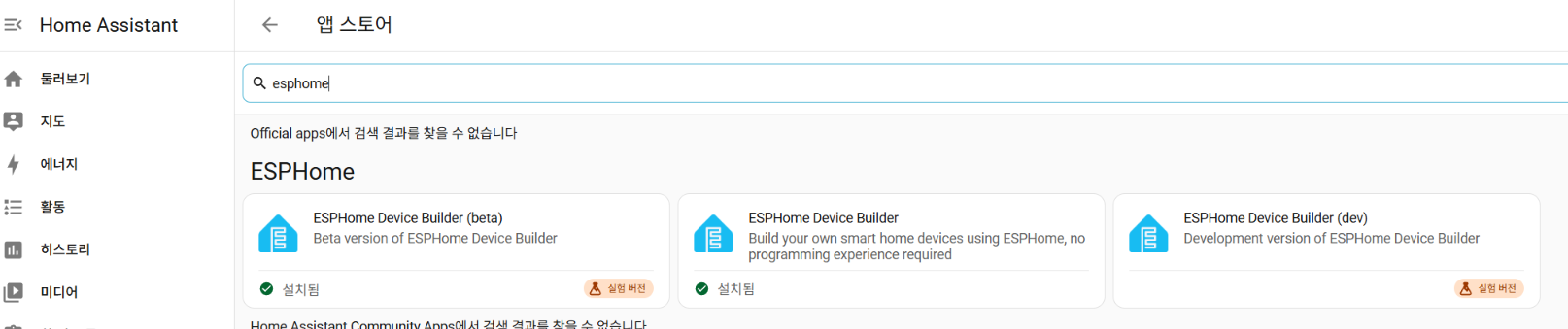
From the search results, select and install either ESPHome Device Builder (beta) or ESPHome Device Builder.
WSM-ESPHome requires ESPHome 2026.9.0 or later, so make sure that the ESPHome Device Builder version you install provides ESPHome 2026.9.0 or later.
Once the installation is complete, open the ESPHome Device Builder page and select Start.
ESPHome Device Builder after installation
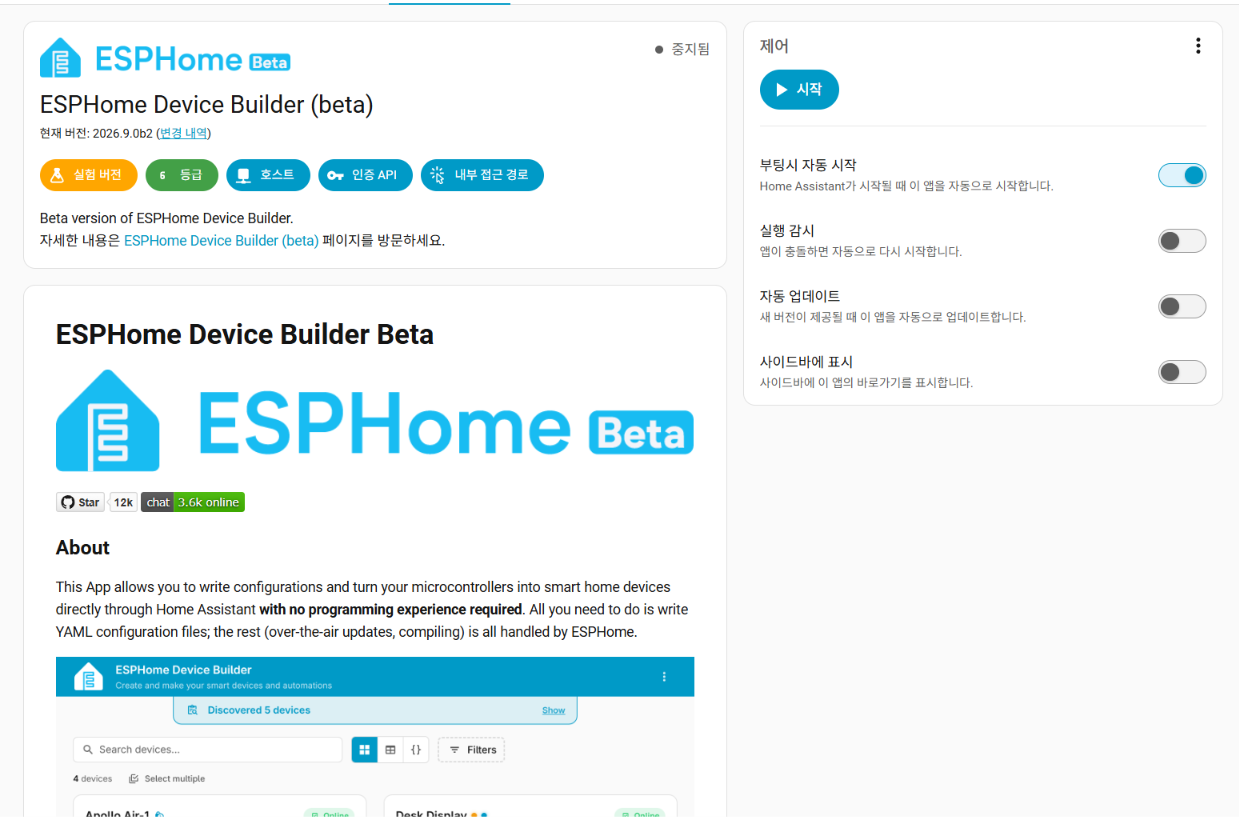
If needed, enable Start on boot so that ESPHome Device Builder starts automatically when Home Assistant starts.
After ESPHome Device Builder is running, WSM-ESPHome can be used with the following structure:
Home Assistant
      │
      ▼
ESPHome Device Builder
      │
      ▼
WSM-ESPHome External Component
      │
      ▼
wsm_driver
      │
      ▼
ESP32-S3 + W5500
Add the WSM-ESPHome External Component to the device's YAML configuration in ESPHome Device Builder. There is no need to manually clone the ESPHome repository or wsm_driver.
external_components:
  - source:
      type: git
      url: https://github.com/Wiznet/wsm-esphome
      ref: v0.1.0
    components:
      - ethernet
      - mdns
LwIP
To use the LwIP backend, configure Ethernet as follows:
ethernet:
  type: WSM_W5500
  backend: lwip
The LwIP backend supports mDNS, so standard ESPHome discovery can be used.
After installing the firmware and connecting the device to the Ethernet network:
- Open Settings → Devices & Services.
- Find the automatically discovered ESPHome device.
- Select Configure.
- Complete the ESPHome integration setup.
The ESPHome Native API uses port 6053.
Once the device is connected to Home Assistant, firmware can be updated using OTA from ESPHome Device Builder.
TOE
To use the TOE backend, configure Ethernet as follows:
ethernet:
  type: WSM_W5500
  backend: toe

mdns:
  disabled: true
The TOE backend does not support mDNS, so the device will not be discovered automatically by Home Assistant.
Instead, add the device manually using its IP address:
- Open Settings → Devices & Services.
- Select Add Integration.
- Select ESPHome.
- Enter the device's IP address.
- Use port
6053.
For example:
Host: 192.168.1.50
Port: 6053
Do not use a .local hostname such as:
wsm-w5500-toe.local.local hostname resolution depends on mDNS, which is not available with the TOE backend.
Therefore, when using the TOE backend with Home Assistant, it is recommended to ensure that the device's IP address does not change.
You can use either of the following methods:
- Configure a DHCP reservation on the router.
- Configure
manual_ipin the ESPHome YAML.
For example:
ethernet:
  type: WSM_W5500
  backend: toe

  # Ethernet pins...

  manual_ip:
    static_ip: 192.168.1.50
    gateway: 192.168.1.1
    subnet: 255.255.255.0
    dns1: 8.8.8.8
9.Where to Go Next
After completing this guide, you can use WSM-ESPHome as the Ethernet foundation for normal ESPHome applications.
The main configuration is only:
ethernet:
  type: WSM_W5500
  backend: lwip
or:
ethernet:
  type: WSM_W5500
  backend: toe
From there, standard ESPHome components can be added according to the application's requirements.
Resources
WSM-ESPHome
https://github.com/Wiznet/wsm-esphome
WSM Driver
https://github.com/Wiznet/wsm_driver
Detailed WSM-ESPHome Getting Started Guide
https://github.com/Wiznet/wsm-esphome/blob/main/docs/getting-started.md
Compatibility
https://github.com/Wiznet/wsm-esphome/blob/main/docs/compatibility.md
TOE Limitations
https://github.com/Wiznet/wsm-esphome/blob/main/docs/limitations.md
ESPHome
Summary
WSM-ESPHome provides an ESPHome integration layer for WIZnet Ethernet based on wsm_driver.
With a small YAML configuration, users can:
- use W5500 Ethernet from ESPHome,
- select between LwIP and W5500 hardware TOE,
- use DHCP or static IP configuration,
- use ESPHome Native API and OTA,
- connect the device to Home Assistant,
- build without manually cloning or integrating
wsm_driver.
The same architecture is intended to expand toward WIZnet's ESP32-S3-based WSM product family, including WSM-W55E and future W6300-based devices.
-
wsm-esphome
