---
title: "MQTT Communication with Micro:bit and Pico using MakeCode"
url: "https://maker.wiznet.io/scarlet/projects/mqtt-communication-with-microbit-and-pico-using-makecode/"
markdown_url: "https://maker.wiznet.io/scarlet/projects/mqtt-communication-with-microbit-and-pico-using-makecode/md"
type: "WCC: WIZnet Created Content"
author: "이경진"
editor: "WIZnet"
editor_url: "https://maker.wiznet.io/"
original_author: "이경진"
published: "2024-02-23"
language: "en"
tags: ["MQTT"]
likes: 2
views: 3083
comments: 0
source: "WIZnet Makers (https://maker.wiznet.io/)"
---
# MQTT Communication with Micro:bit and Pico using MakeCode
> MQTT Communication with Micro:bit and Pico using MakeCode
Original author: 이경진
## Article
ssI previously created firmware that allows the use of MicroPython on a micro:bit board.
> https://github.com/Wiznet/micropython-microbit-v2/tree/master
However, this method can only be used with Python Editor or MicroPython Editor programs. Additionally, it requires connecting the SPI pin, which makes it somewhat challenging.
So, this time, I have prepared firmware that allows for block coding using MakeCode.
The network block in MakeCode is for the ESP8266. It's firmware that makes the block for the ESP8266 usable with WIZnet products.
---
### HW
Prepare the micro:bit module (including adapter) and the W5500-EVB-Pico.
Connect the UART of the two devices. The pin settings are as follows:
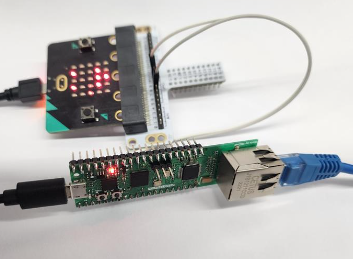
**Micro:bit: RX= p8/ Tx=p12W5500-EVB-Pico: RX= p5/ Tx=p4**
Please download the firmware to the Pico.
The MicroPython official firmware can be downloaded from the link below. Then, please
>
---
## SW
## MQTT config
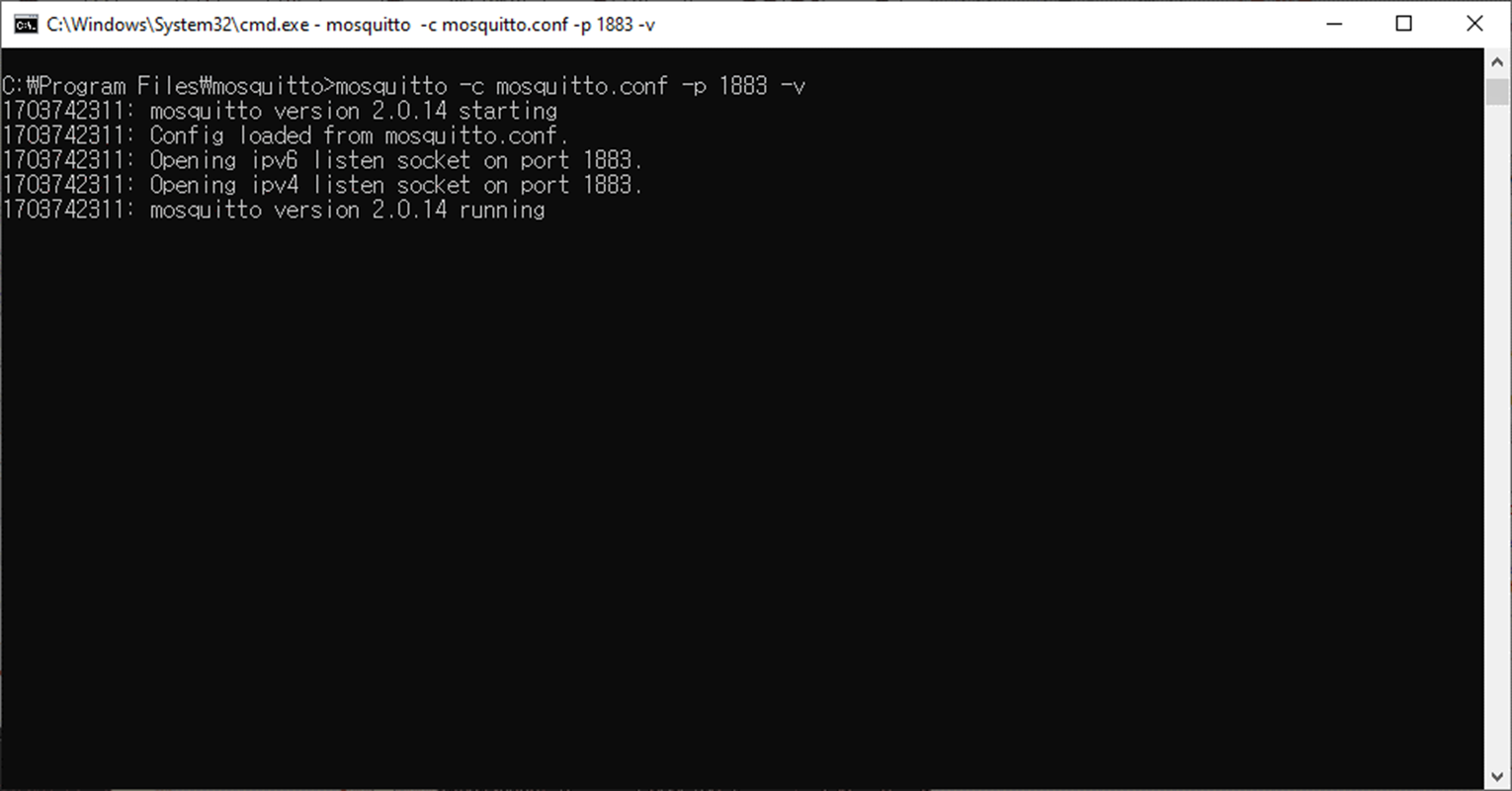
Set up a broker for MQTT communication. I use Mosquitto. Please refer to this side for how to use it.
>
### W5500-EVB-Pico
By default, it is set to use DHCP, so there's no need to configure IP.
The logic that transmits messages received from the microbit to Ethernet is in operation.
The ESP8266 block is designed to send `ATcommands'` to the network module from the microbit. This part has been modified to be handled by the W5500-evb-pico instead, to control the network. Currently, MQTT-related functions have been implemented.
download and run the code below.
>
### Micro:bit make code
You can access it at the following site:
>
Please run a new project.
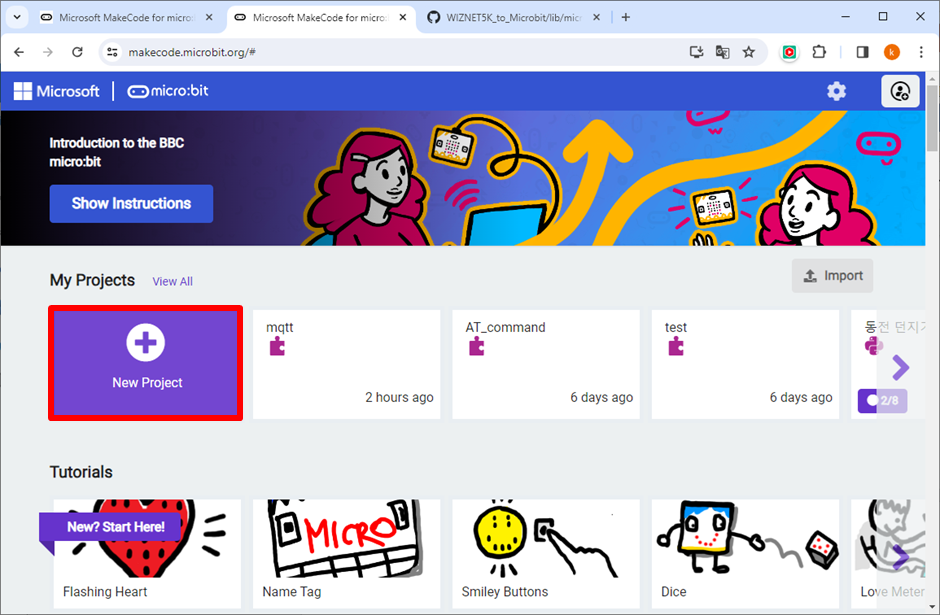
Since ESP8266 is not a default feature, please install the `extension` additionally.
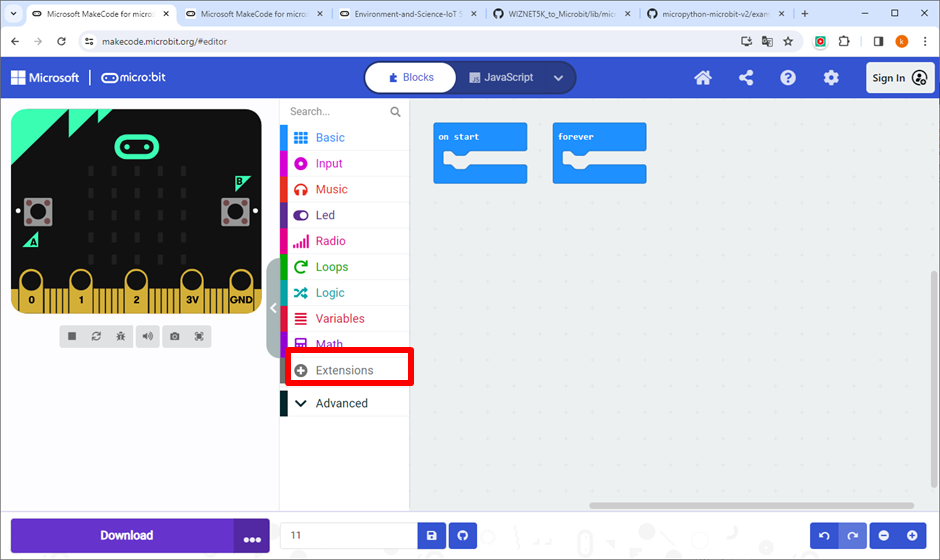
search ESP8266
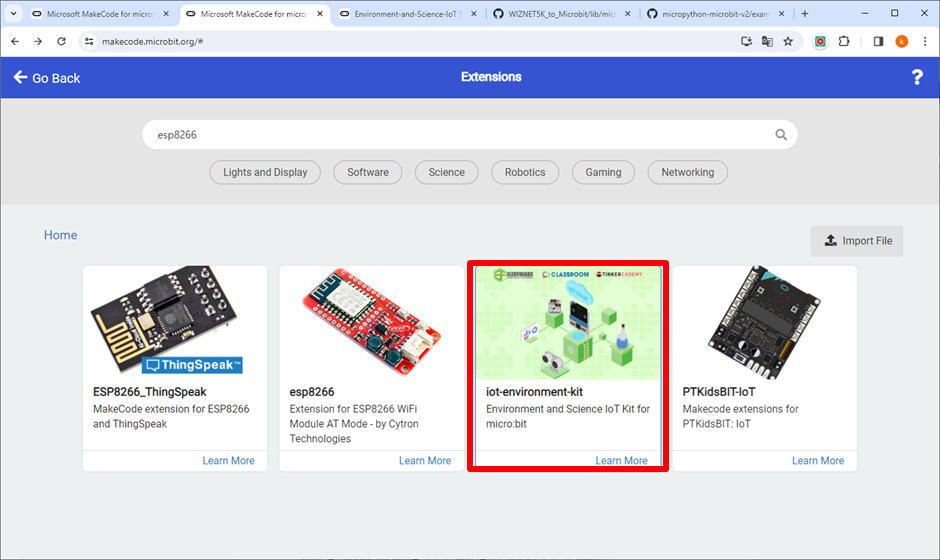
The `ESP8266_IoT` block has been added.
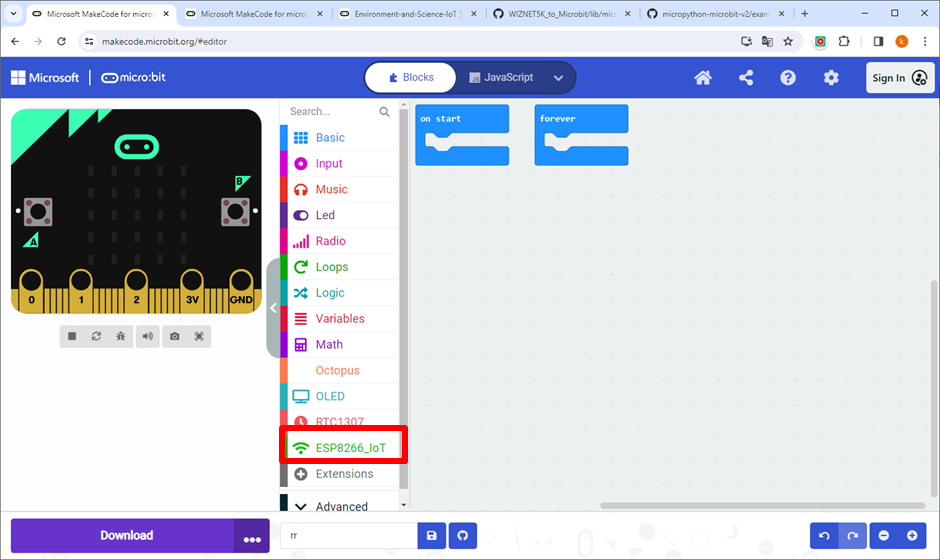
Let's code with MakeCode.
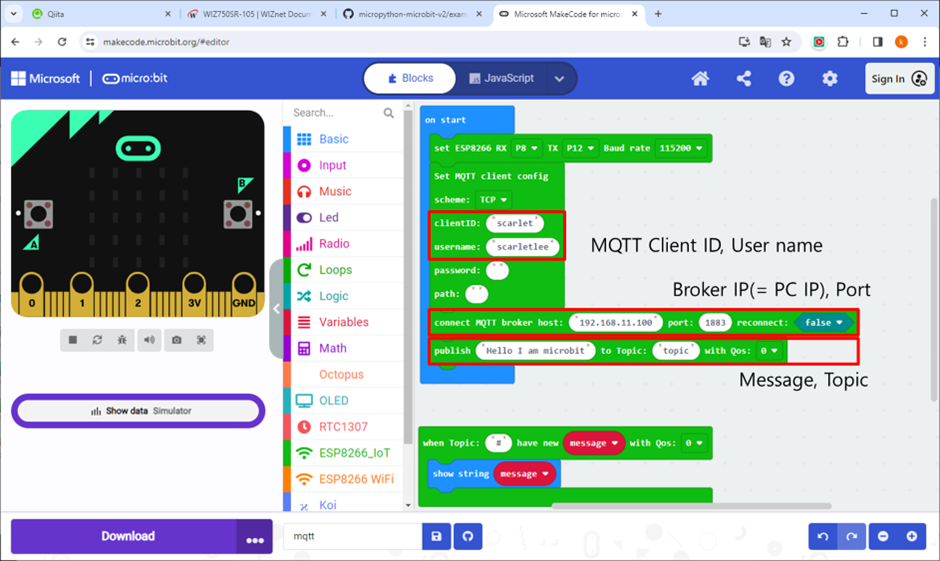
In the `ESP8266_IoT` block configuration, set up the UART (w5500-evb-pico) and connect it.
In the `MQTT` block configuration, create the code in the order of setting up MQTT -> connecting to the Broker -> publishing.
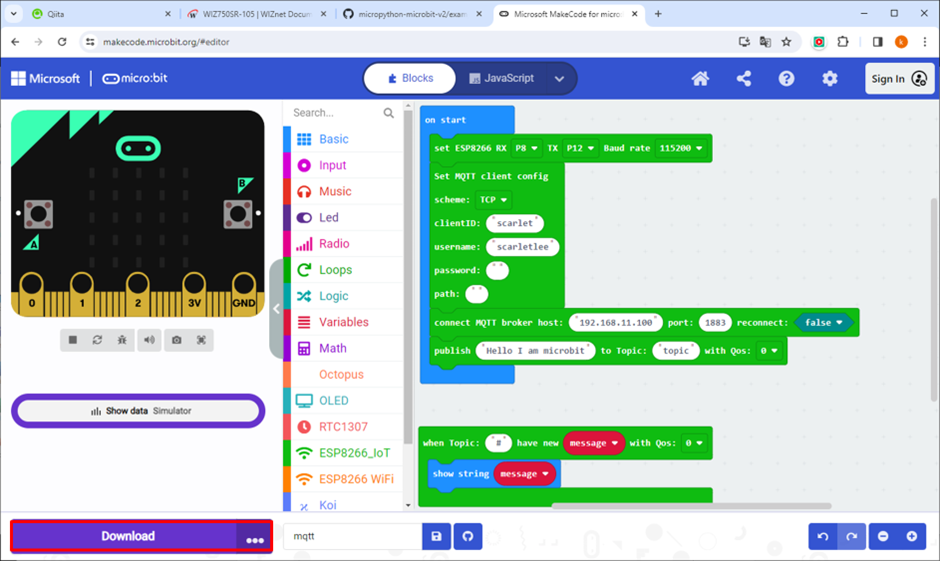
Download the code to the Microbit.
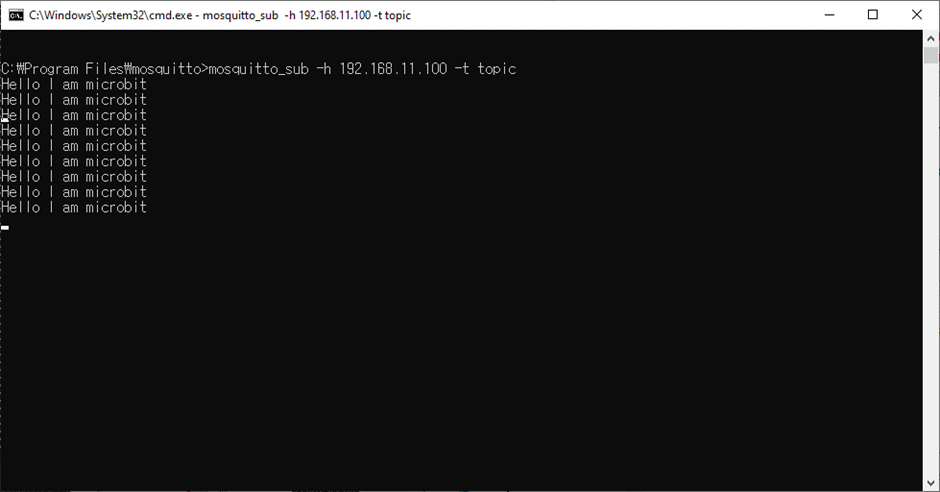
Then, execute subscribe in Mosquitto.
```plaintext
mosquitto_sub -h 192.168.11.100 -t 'topic’
```
Verify that the message you entered is displayed in the subscribe output.
---
Source: https://maker.wiznet.io/scarlet/projects/mqtt-communication-with-microbit-and-pico-using-makecode/